To use an iPad as a second monitor in Windows 11, install the free spacedesk driver on the PC and the spacedesk viewer app on the iPad, then connect them over the same Wi-Fi network or a USB cable.
This guide covers the free spacedesk route, the USB cable route, Duet Display and Splashtop Wired XDisplay, the Windows 11 display settings that make the iPad usable, and fixes for the common connection problems.
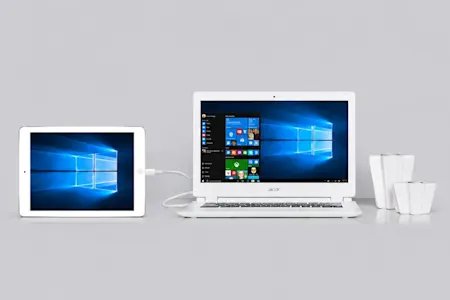
The easiest free method: spacedesk over Wi-Fi
spacedesk is made by datronicsoft and is free in the App Store, with paid business licences sold as in-app purchases. The Windows side supports Windows 11, Windows 10 and Windows 8.1, and the connection does not need internet access.
- On the Windows 11 PC, download the spacedesk driver for Windows from spacedesk.net and install it.
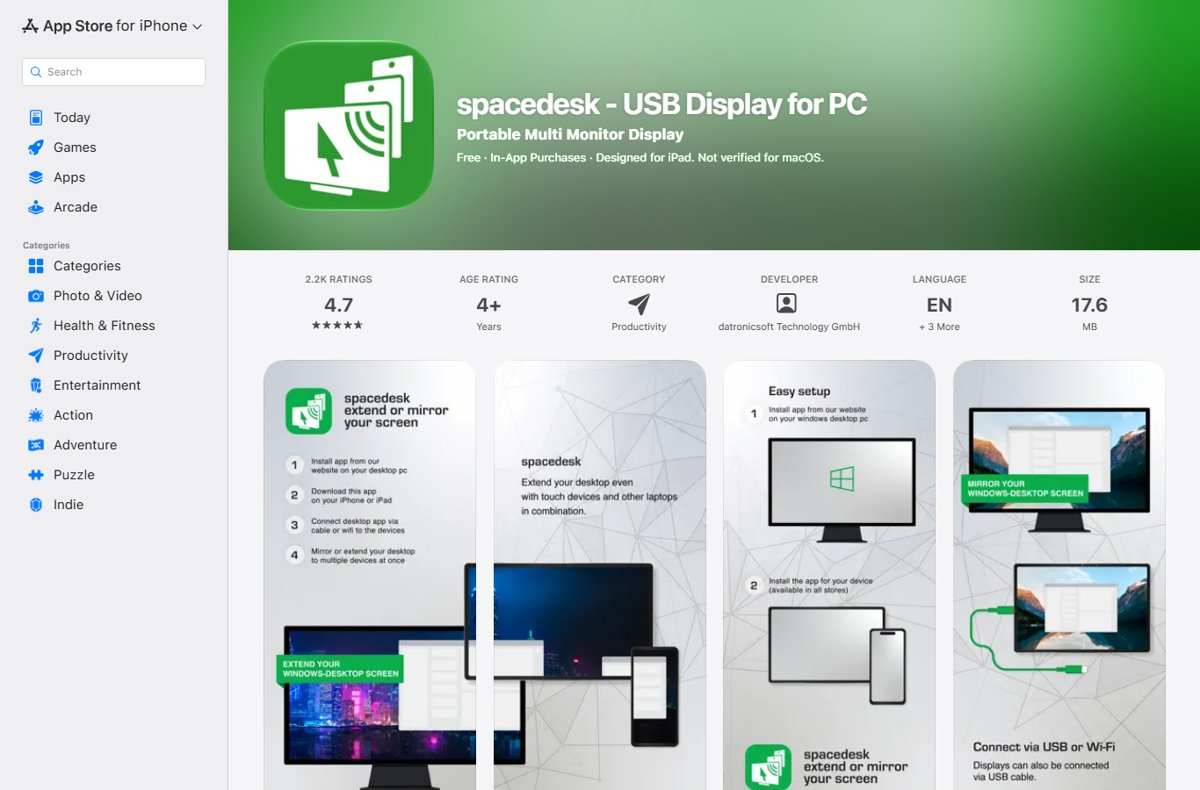
- On the iPad, open the App Store, search for spacedesk – USB Display for PC by datronicsoft and install it.
- Connect the PC and the iPad to the same Wi-Fi network, or connect both to a mobile hotspot.
- Open the spacedesk app on the iPad and select your Windows PC from the list of available computers.
- On the PC, press Windows logo key + P and select Extend so the iPad becomes a separate desktop instead of a copy.
- Go to Settings > System > Display and drag the iPad's screen to the side where the tablet sits on your desk, then select Apply.
Move the mouse pointer off the edge of the main screen. It should appear on the iPad, and any window you drag across lands there.
Why Windows does not connect to an iPad by itself
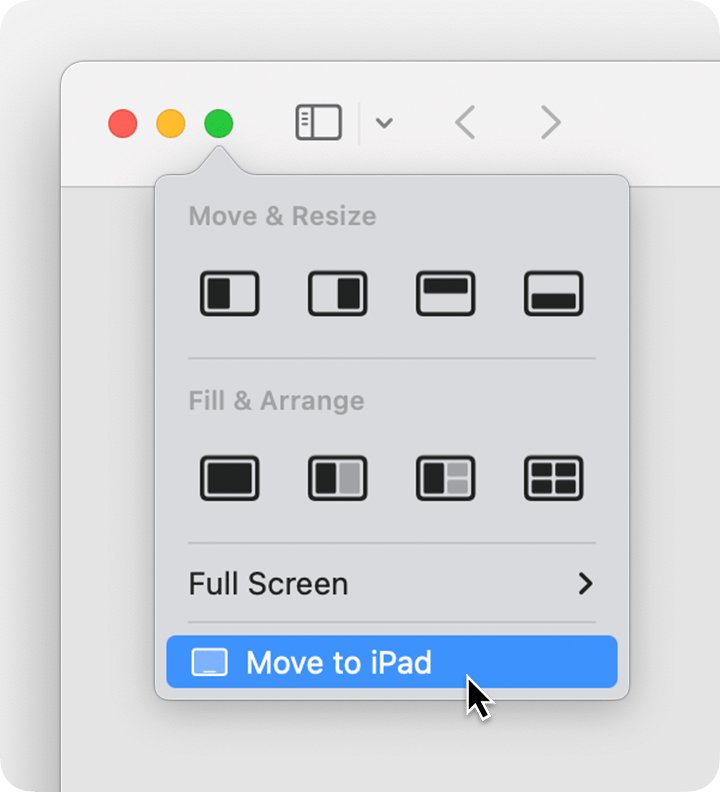
Understanding the concept is simple: an app on the iPad receives the picture of a virtual monitor that a driver creates on the PC. Windows 11 has no built-in way to send its desktop to an iPad, and Apple's own feature only talks to Macs.
| Built-in feature | Why it does not help on Windows 11 |
|---|---|
| Apple Sidecar | Every Sidecar requirement on Apple's support page is for a Mac running macOS Catalina 10.15 or later; there is no Windows version |
| Windows Multiple displays > Connect | Connects wireless displays and receivers, not an iPad without an app |
| USB-C or Lightning cable alone | Windows does not treat a connected iPad as a monitor, so a plain cable shows nothing without an app |
| Third-party apps (spacedesk, Duet Display, Splashtop Wired XDisplay) | Install a driver or agent on the PC that creates a virtual display, then stream it to the iPad app |
Which iPad-as-monitor method should you choose?
Your options come down to wired versus wireless and free versus subscription. These are the popular third-party applications that still have current App Store listings for Windows use.
| Your situation | Use this | Why |
|---|---|---|
| You want a free setup on home Wi-Fi | spacedesk over Wi-Fi | Free viewer and driver; works on Windows 11, 10 and 8.1 |
| Wi-Fi is slow or crowded | spacedesk over USB cable | spacedesk recommends a cable connection for the best performance |
| You want plug-in-and-go wired setup | Duet Display | The free Duet desktop app detects the iPad when you plug in the charging cable |
| You draw with an Apple Pencil on an iPad Pro | Duet Pro | Adds pressure and tilt sensitivity, hover and palm rejection |
| You want wireless Duet | Duet Air | Lets you pick a desktop to connect to wirelessly; needs Windows 10 64-bit or later |
| You have an older PC and a spare cable | Splashtop Wired XDisplay | Wired-only agent for Windows 7 and later |
What you need to connect an iPad to Windows 11
Check compatibility, iPad models, Windows versions, network and cables before you start. These requirements come from each app's own App Store listing.
| Requirement | spacedesk | Duet Display | Splashtop Wired XDisplay |
|---|---|---|---|
| Windows version | Windows 11, 10 or 8.1 | Windows 7 or later (Duet Pro: Windows 8.1 or later, 64-bit) | Windows 7 or later |
| iPad software | iOS or iPadOS 9.3 or later | iPadOS 13.0 or later | iOS 7.0 or later |
| Software on the PC | spacedesk driver | Duet desktop app | Wired XDisplay Agent |
| Connection | Wi-Fi, LAN or USB cable | USB charging cable (wireless with Duet Air) | USB cable only |
| Internet needed | No | Not stated | Not stated |
| Cost | Free; business licences are in-app purchases | Free app; Starter, Air and Pro subscriptions | Listed as free on the App Store |
For any USB route, Windows also needs the latest Apple Devices app or iTunes so the PC can recognise the iPad, according to Apple.
How to use the iPad with a USB cable
spacedesk supports a direct USB connection as well as Wi-Fi. A cable avoids router delays, which is the main cause of lag on a busy network.
- Install the spacedesk driver on the PC and the spacedesk viewer on the iPad, as in the Wi-Fi method.
- Install or update the Apple Devices app (or iTunes) on the Windows 11 PC.
- Unlock the iPad and connect it to the PC with its USB-C or Lightning cable.
- When the iPad asks whether to trust the computer, tap Trust and enter the iPad passcode.
- Open the spacedesk app on the iPad and choose the USB connection to your PC.
- Press Windows logo key + P on the PC and select Extend.
If USB is unavailable, spacedesk suggests a direct link instead: turn on the PC's or the iPad's hotspot and join the other device to it before you connect.
Using Duet Display to turn your iPad into a Windows second monitor
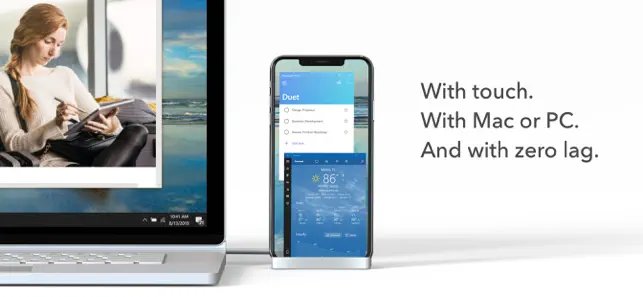
Duet Display, from Duet, Inc., is built around a wired connection. The App Store listing says the free Duet desktop app detects the iPad automatically once it is plugged in.
- On the PC, install the free Duet desktop app from duetdisplay.com.
- On the iPad, install Duet Display from the App Store.
- Open Duet Display on the iPad.
- Connect the iPad to the PC with its charging cable and tap Trust if the iPad asks.
- Wait for the Duet desktop app to detect the iPad and turn it into a touchscreen display.
- Open Settings > System > Display on the PC to position the iPad and set its scale.
The US App Store lists Duet Starter at $3.99 a month or $39.99 a year, Duet Air at $5.99 a month or $49.99 a year, and Duet Pro at $79.99 a year. Duet notes that prices vary by location.
Using the Splashtop Wired XDisplay app
Splashtop Wired XDisplay is a wired-only extra-display app from the makers of Splashtop Remote Desktop. Its App Store listing claims 1080p or Retina output at 60 fps, but its last App Store update dates from 2017, so treat it as a fallback.
- On the PC, download the free Wired XDisplay Agent for Windows from splashtop.com/wiredxdisplay and install it.
- On the iPad, install Splashtop Wired XDisplay from the App Store.
- Connect the iPad to the PC with its USB cable.
- Open the agent on the PC and the app on the iPad so the agent can find the tablet.
- Press Windows logo key + P and choose Extend or Duplicate.
Splashtop's listing states that some functions may be unavailable when Windows Aero is disabled, and that the PC needs at least one unused video output.
Other alternatives
Several older iPad display apps still turn up in guides. Confirm the current App Store listing and Windows 11 support before paying for any of them.
| App | Status | Who it suits |
|---|---|---|
| Duet Air – Remote Desktop | Current; remote desktop or wireless extra display for Windows 10 64-bit and later | Duet users who want to drop the cable |
| Air Display (Avatron) | Older wireless display app; no current listing found in the US App Store search | Only readers who already own it and have a working PC agent |
| iDisplay (SHAPE) | Older display app; no current listing found in the US App Store search | Only readers with an existing licence |
| Splashtop Remote Desktop | Remote access app, not an extra monitor | Controlling a PC from the iPad, not extending it |
| Apple Sidecar | Mac only | Readers who also own a supported Mac |
Is Duet Display better than spacedesk?
Duet Display is easier to set up over a cable and stronger for Apple Pencil work. spacedesk is the better value, because the core features cost nothing for personal use.
| Feature | spacedesk | Duet Display |
|---|---|---|
| Price | Free; paid business licences | Free app; Starter, Air and Pro subscriptions |
| Wired | Yes, USB or Ethernet LAN | Yes, the default route |
| Wireless | Yes, Wi-Fi on the same network | Yes, with Duet Air |
| Touch | Multitouch, touchpad, mouse pointer | Touch and gestures, two-finger scroll, pan and zoom |
| Pen | Pressure-sensitive stylus pen | Duet Pro: pressure, tilt, hover, palm rejection |
| Windows versions | 11, 10, 8.1 | 7 and later (Pro: 8.1 and later, 64-bit) |
| Mac as host | Not supported | Supported |
How to use the iPad display effectively in Windows (extended vs mirrored, dragging apps, orientation)
Extend gives you more desktop space; Duplicate shows the same picture on both screens, which suits presenting. Switch between them at any time with one shortcut.
- Press Windows logo key + P.
- Select Extend to use the iPad as extra space, or Duplicate to mirror the main screen.
- Drag a window by its title bar off the edge of the main screen to move the app onto the iPad.
- Go to Settings > System > Display, select the iPad's screen, and pick Portrait in Display orientation if the tablet stands upright.
- Expand Multiple displays and turn on Remember window locations based on monitor connection so apps return to the iPad when you reconnect.
Arrange, rotate, scale, and resize the iPad display
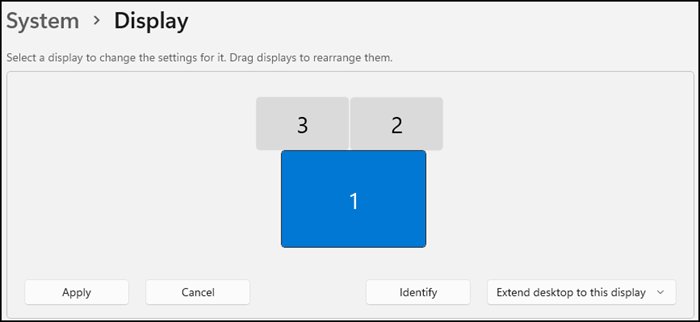
Optimizing performance and readability happens mostly in Windows display settings. Resolution and scaling control how sharp and how large text looks on the smaller iPad screen.
- Select Start > Settings > System > Display.
- Select Identify to see which number belongs to the iPad.
- Drag the iPad's box so it sits where the tablet is on your desk, then select Apply.
- With the iPad selected, open Scale under Scale & layout and raise it if text is too small.
- Open the Display resolution list and choose a lower value if the stream stutters, or the (Recommended) value for the sharpest picture.
- Open Display orientation and choose Portrait or Landscape to match how the iPad stands.
The same primary display and taskbar options you use to set up multiple monitors on Windows 11 apply to the iPad screen too.
Touch, keyboard, and Apple Pencil support
Touch support depends on the app, not the iPad. Each listing states which inputs pass back to the PC.
| Input | spacedesk | Duet Display | Splashtop Wired XDisplay |
|---|---|---|---|
| Finger touch | Multitouch and single touch | Touch and gestures | Not stated as a feature |
| Touchpad or mouse pointer | Yes | Two-finger scrolling, pan and zoom | Not stated |
| Keyboard | Yes | Not stated | Not stated |
| Apple Pencil or stylus | Pressure-sensitive stylus pen | Duet Pro on iPad Pro: pressure, tilt, hover, palm rejection | Not stated |
| Audio | Audio speaker supported | Not stated | Not stated |
Your PC's own mouse and keyboard always work on the iPad screen once it is extended, because Windows treats it as another monitor.
Optimizing performance: resolution, scaling, touch support, Apple Pencil, and latency tweaks
| Problem | Tweak | Where |
|---|---|---|
| Latency over Wi-Fi | Use a USB or Ethernet LAN cable connection instead | spacedesk viewer and PC |
| Router adds delay | Turn on a hotspot on the PC or iPad and connect directly | Windows or iPad hotspot settings |
| Stutter at high resolution | Lower Display resolution for the iPad screen | Settings > System > Display |
| Text too small | Raise Scale for the iPad screen | Settings > System > Display > Scale & layout |
| Pen pressure missing | Use Duet Pro on an iPad Pro, or the spacedesk stylus support | App settings |
How to check the iPad is working as a second monitor
- Go to Settings > System > Display and select Identify; a number should appear on the iPad.
- Confirm two screen boxes appear in the arrangement area.
- Move the pointer off the edge you placed the iPad on; it should cross onto the tablet.
- Drag an open window onto the iPad and let go; it should stay there and redraw normally.
- Press Windows logo key + P and confirm Extend is highlighted.
spacedesk troubleshooting
The Windows PC does not appear in the iPad app
The PC and iPad are on different networks, or the driver is not installed.
- Confirm the spacedesk driver is installed on the PC.
- Join both devices to the same Wi-Fi network.
- If that fails, turn on a hotspot on one device and connect the other to it directly.
- Reopen the spacedesk app on the iPad and select the PC.
The iPad shows the same screen as the PC
Windows is in Duplicate mode.
- Press Windows logo key + P.
- Select Extend.
The image is blurry, distorted, or too large
Scale or resolution for the iPad screen does not suit its size.
- Open Settings > System > Display and select the iPad's screen.
- Choose the (Recommended) value in Display resolution.
- Adjust Scale until text is readable without being oversized.
The USB connection does not appear
Windows does not recognise the iPad, or the iPad has not trusted the PC.
- Install or update the Apple Devices app or iTunes on the PC.
- Unlock the iPad and reconnect the cable.
- Tap Trust on the iPad and enter the passcode.
- If you tapped Don't Trust earlier, go to Settings > General > Transfer or Reset iPad > Reset > Reset Location & Privacy, then reconnect.
Common problems and fixes (lag, connection drops, iPad not detected, black screen, input issues)
These troubleshooting steps for common issues apply to every app in this guide. If a physical monitor is also misbehaving, the fixes for a second monitor not detected cover the wider display side.
Lag or connection drops over Wi-Fi
Network congestion between the router, PC and iPad.
- Switch to a USB cable connection.
- Or connect the iPad directly to a hotspot on the PC instead of through the router.
- Lower Display resolution for the iPad screen.
Black screen on the iPad after connecting
The graphics driver has stalled or the virtual display failed to start.
- Press Windows logo key + Ctrl + Shift + B to reset the graphics driver.
- If that fails, select Start > Power > Restart.
- Reconnect from the iPad app after the restart.
iPad not detected after a Windows update
Windows Update replaced or changed the display driver.
- Select Settings > Windows Update > Check for updates and install pending updates.
- Reinstall the latest spacedesk driver, Duet desktop app or XDisplay Agent.
- Restart the PC and reconnect.
Touch or pen input does nothing
The app or plan does not pass that input to the PC.
- Check the input table above for what your app supports.
- For Apple Pencil pressure in Duet, confirm you have Duet Pro and an iPad Pro.
- Use the PC's own mouse and keyboard on the extended screen in the meantime.
What an iPad second monitor can—and cannot—do
| Task | Works well | Why |
|---|---|---|
| Chat, email, reference documents | Yes | Static content tolerates small streaming delays |
| Drawing in Photoshop or Illustrator | Yes, with Duet Pro or spacedesk pen support | Pen input passes back to the PC |
| Presenting or mirroring | Yes | Duplicate mode copies the main screen |
| Fast games or video editing timelines | Limited | The picture is streamed, so latency is higher than a cabled monitor |
| Running without the PC | No | The iPad only shows what the PC's driver sends |
| Using Sidecar with Windows | No | Sidecar requires a Mac |
Best practices for using iPad as a second monitor
| Practice | Reason |
|---|---|
| Keep the iPad charged during long sessions | A display session keeps the iPad screen on for hours |
| Use a cable when the network is busy | spacedesk recommends cable over Wi-Fi for performance |
| Place the iPad box to match its desk position | The pointer then crosses screens where you expect |
| Turn on Remember window locations | Apps return to the iPad when you reconnect |
| Keep the PC software and iPad app updated together | Recent spacedesk releases are bug-fix updates |
Recommended setup by reader type
Final recommendations by use case for students, work, design and travel.
| Reader | Best solution | Connection |
|---|---|---|
| Student | spacedesk | Wi-Fi at home, USB in class |
| Office or remote work | spacedesk or Duet Starter | USB cable for a stable session |
| Designer or illustrator | Duet Pro on an iPad Pro with Apple Pencil | USB cable |
| Traveller | spacedesk over a PC hotspot or USB | No internet needed |
| Mac and Windows household | Sidecar for the Mac, spacedesk for the PC | Each on its own host |
iPad second monitor for Windows 11: frequently asked questions
Can I use my iPad as a second monitor on Windows?
Yes. Windows has no built-in support, but apps such as spacedesk, Duet Display and Splashtop Wired XDisplay add it. spacedesk is free and works with Windows 11, Windows 10 and Windows 8.1 over Wi-Fi, LAN or USB.
How do I use an iPad as a second monitor on a PC for free?
Install the free spacedesk driver on the PC and the free spacedesk app on the iPad. Put both on the same network or connect them by USB, open the app, select the PC, then press Windows logo key + P and choose Extend.
Can I use an iPad as a second monitor for a laptop?
Yes. A Windows laptop works the same way as a desktop. spacedesk suits laptops well because it needs no internet connection, so you can connect through the laptop's hotspot or a USB cable while travelling.
How do I use an iPad as a second monitor on a Mac?
Use Apple's Sidecar. It needs a supported Mac on macOS Catalina 10.15 or later and an iPad on iPadOS 13 or later, signed in to the same Apple Account with two-factor authentication. Sidecar does not work with Windows PCs.
How do I use an iPad as a drawing tablet on a PC?
Use Duet Pro on an iPad Pro with Apple Pencil for pressure and tilt sensitivity, hover and palm rejection. spacedesk also supports a pressure-sensitive stylus pen. Extend the desktop to the iPad and draw in your Windows art app.
Can I use my iPad as a second screen without Wi-Fi?
Yes. spacedesk, Duet Display and Splashtop Wired XDisplay all work over a USB cable. spacedesk can also connect through a hotspot on the PC or iPad, and it does not need an internet connection.
Can you use a mouse with an iPad used as a monitor?
Yes. Once the iPad is an extended display, your PC's mouse moves onto it like any other monitor. spacedesk also lets the iPad act as a touchpad and mouse pointer control for the PC.
Does Sidecar work with Windows 11?
No. Sidecar is a macOS feature, and every requirement Apple lists is for a Mac. On Windows 11 you need a third-party app such as spacedesk or Duet Display instead.
How do I use an iPad as a monitor for Windows 10?
Follow the same steps as Windows 11. spacedesk supports Windows 10 and Windows 8.1, and Duet Display supports Windows 7 and later, so the setup and Windows logo key + P shortcut are identical.
The bottom line: best way to use an iPad as a Windows 11 monitor
Start with spacedesk: it is free, supports Windows 11 over Wi-Fi or USB, and needs no internet connection. Pay for Duet Display only if you want Apple Pencil pressure on an iPad Pro or a plug-in-and-go cable setup, because its Pro features sit behind a subscription.