To control Spotify on your PC from your phone, open the Spotify desktop app on the computer, then on your phone tap the device icon at the bottom of the Spotify app and pick your PC from the list.
This guide covers Spotify Connect on Windows and Mac, phone remote apps, voice commands, the keyboard shortcuts for when you are back at the desk, and fixes for when your PC does not show up.
The fastest way to control Spotify on your PC from your phone
Spotify Connect is built into the Spotify apps, so there is nothing extra to install. Sign in to the same Spotify account on both devices first.
- Open the Spotify desktop app on your PC and sign in.
- Connect the PC and the phone to the same Wi-Fi network for the first connection.
- Open Spotify on your phone and start playing a song.
- Tap the device icon at the bottom of the screen.
- Pick your computer from the device list.
- Use the play, pause, skip and volume controls on your phone; the sound now comes from the PC.
The phone becomes a remote. You can browse, queue songs and change playlists on the phone while the music keeps playing through the computer's speakers.
Spotify Connect vs a phone remote app vs voice commands
| Your situation | Use this | Why |
|---|---|---|
| You want full control of playlists, queue and volume | Spotify Connect | Built into Spotify on both devices; no extra software |
| You want the phone to act as a general media remote for every app on the PC | A phone remote app that sends media keys | Works with any player that responds to media keys, not only Spotify |
| Your hands are busy | Voice commands on the phone | Siri and Google Assistant can play, pause and skip in the Spotify app |
| You are sitting at the PC | Spotify keyboard shortcuts | Space plays or pauses without touching the phone |
What you need to control Spotify on a computer from a phone
| Requirement | Details |
|---|---|
| Spotify desktop app or web player | The Spotify desktop app for Windows or Mac, or the web player in a browser, open and signed in |
| Spotify mobile app | Installed on your Android phone or iPhone and updated |
| Same Spotify account | Sign in to the same account on the phone and the PC so the computer appears in the device list |
| Same Wi-Fi network | Needed for the first connection; after that, a device signed in to your account can show up from another network |
| Local Network access (iPhone) | Settings > Spotify > Local Network switched on |
Option 1: Spotify Connect (Spotify's own app)
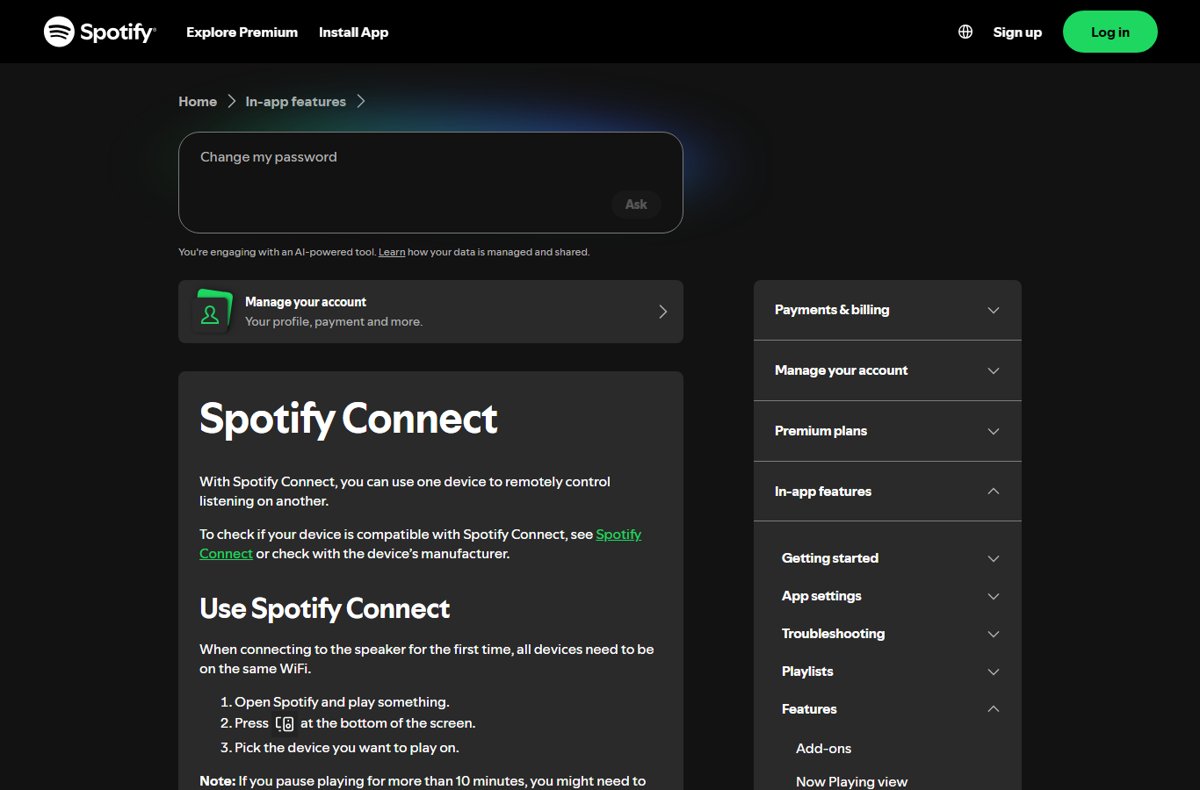
Spotify Connect lets one device remotely control listening on another. The PC runs the music; the phone sends the commands.
- On the PC, open the Spotify desktop app and leave it running.
- On the phone, open Spotify and play any song, album or podcast.
- Tap the device icon in the Now Playing bar at the bottom.
- Select your computer's name under the list of available devices.
- Tap the device icon again and use the volume slider to change the PC's volume.
- To move playback back to the phone, tap the device icon and select your phone.
If you pause for more than 10 minutes, Spotify may drop the connection. Tap the device icon and pick the PC again to reconnect. To turn the PC volume up or down from far away, use the slider in the Connect menu; more ways to raise Spotify volume on Windows help when the slider is already at maximum.
Option 2: a phone remote using the media keys
A phone remote app turns your phone into a wireless keyboard or media remote for the PC. It sends the same play, pause and track keys a physical keyboard would, and the Spotify desktop app responds to them while it is running.
- Pick a remote app from a developer you trust that has both a phone app and a PC companion.
- Install the PC companion from the developer's own website, then the phone app from the App Store or Google Play.
- Pair the phone with the PC following the app's own instructions, usually on the same Wi-Fi network.
- Open the Spotify desktop app on the PC.
- Use the remote app's Play/Pause, Next and Previous buttons to control Spotify.
This route cannot browse playlists or change the queue, because media keys only send transport commands. Spotify Connect is the better choice for anything beyond play, pause and skip.
Voice commands that work with Spotify
Spotify's own DJ can send requests to your other devices, including a laptop or PC. Siri and Google Assistant control the Spotify app on the phone itself; Spotify does not document them passing commands through to a PC, so test them on your own setup.
| Assistant | What you can ask | Setup |
|---|---|---|
| Siri (iPhone) | Play songs, albums, artists, playlists and podcasts; skip tracks; play or pause; change the volume; like a song | Works with any supported version of the Spotify app |
| Siri with Apple Intelligence | The same commands with more natural phrasing | iPhone 15 Pro or later, iOS 27 or later, Apple Intelligence on in Settings > Apple Intelligence & Siri |
| Spotify DJ (Premium) | Type or talk requests that control other devices, such as "Play Discover Weekly on my laptop" or "Skip this track on the kitchen speaker" | Open DJ from Home, search for DJ, or tap the chat window in the Now Playing view, then tap the microphone to talk |
| Google Assistant (Android) | Control the Spotify app on your Android phone | Link Spotify in the Google Home app for Google Home and Nest speakers |
On a Mac
Spotify Connect works the same way with the Spotify desktop app on a Mac: open the app, tap the device icon on your phone and pick the Mac. Only the keyboard shortcuts differ.
| Action | Windows | Mac |
|---|---|---|
| Play or pause | Space | Space |
| Shuffle | Ctrl + S | Alt + S |
| Repeat | Ctrl + R | Alt + R |
| Go to Search | Ctrl + L | Cmd + Shift + L |
| Open Search | Ctrl + K | Cmd + K |
| Mute or unmute | M | M |
| Like or dislike song | Alt + Shift + B | Alt + Shift + B |
How to check Spotify is playing on your PC
- Look at the bottom of the Spotify app on your phone: the Now Playing bar shows the name of the device that is playing.
- Tap the device icon and confirm your computer is the highlighted device.
- Press pause on the phone and check that the music stops on the PC speakers.
- Move the volume slider in the Connect menu and listen for the change on the PC.
If a button doesn't reach Spotify
Your PC does not appear in the device list
The devices are on different networks, signed in to different accounts, or the phone is hiding non-local devices.
- Sign in to the same Spotify account on the phone and the PC.
- Connect both to the same Wi-Fi network.
- On the phone, open Spotify Settings > Apps and devices and switch off Local device visibility so the app can see devices that are not on your Wi-Fi.
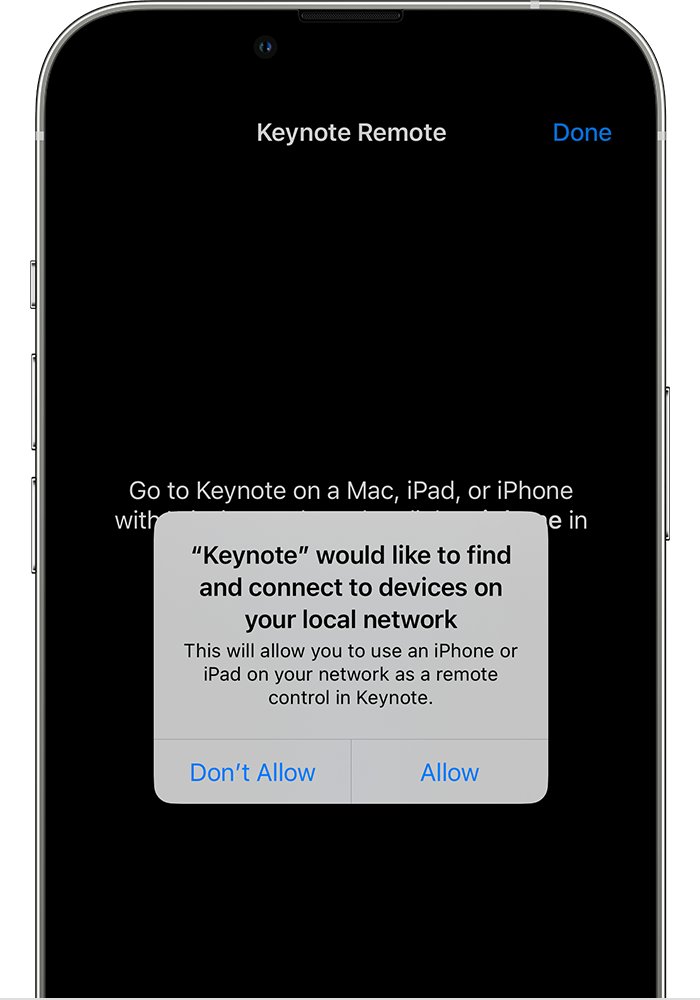
- On an iPhone, open Settings > Spotify > Local Network and switch it on.
- If several devices share the same name, try connecting to each in turn.
Connect stopped working after a pause
Spotify can drop a Connect session after more than 10 minutes of pause.
- Tap the device icon on the phone.
- Select the PC again.
- If it still fails, restart the Spotify app on both the phone and the PC.
Volume buttons on the iPhone do not change the PC volume
Apple discontinued the technology that let Spotify control connected-device volume with the iPhone's side buttons.
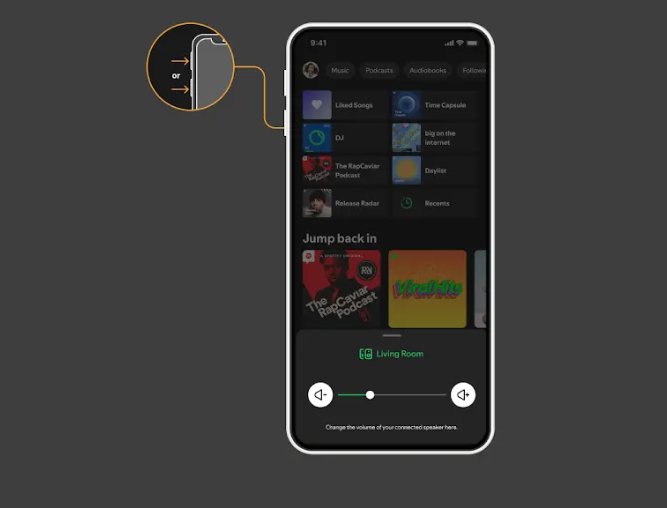
- Press a volume button once to bring up the slider at the bottom of the Spotify screen.
- Drag that slider, or open the Connect menu from the device icon and use its slider.
Spotify keeps stopping on the PC
The desktop app is in offline mode, the connection is unstable, or a firewall is blocking Spotify.
- In the desktop app on Windows, open the three-dot menu, select File and switch off Offline mode if it is on.
- Check that other apps and web pages load on the PC.
- Make sure your firewall is not blocking Spotify.
- Update the Spotify app, then restart it.
Spotify will not play on the computer at all
An outdated or damaged desktop app, or too little free memory.
- Restart the Spotify app.
- Update the app.
- Reinstall the app if updating does not help; downloaded songs must be downloaded again afterwards.
- Make sure the PC has at least 250MB of available memory and an up-to-date operating system.
Remove unknown devices from your Spotify device list
On a shared network you may see devices that belong to other people, or a device where your account is still signed in.
- On the phone, open Spotify Settings > Apps and devices and switch on Local device visibility to show only local devices.
- Open the device list, select the three dots next to a device you do not recognize and choose Log out of this device.
- Unlink Spotify from manufacturer apps you no longer use, such as Amazon Alexa.
- For extra safety, use Sign out everywhere on your Spotify account page and reset your password.
Control Spotify on PC from phone: frequently asked questions
How do I connect Spotify on my phone to my computer?
Open the Spotify desktop app on the computer, then play a song on your phone, tap the device icon at the bottom of the screen and pick the computer. Both devices need the same Spotify account, and the same Wi-Fi network for the first connection.
Can I control Spotify on my PC with an Android phone or iPhone?
Yes. Spotify Connect works the same on Android and iPhone. On an iPhone, also allow Spotify to use your local network under Settings > Spotify > Local Network, or the PC may not appear in the device list.
How do I control Spotify with the keyboard?
Press Space to play or pause, Ctrl + S for shuffle and Ctrl + R for repeat on Windows. On a Mac, shuffle is Alt + S and repeat is Alt + R. The same shortcuts work in the desktop app and the web player.
How do I turn Spotify down on my PC from my phone?
Tap the device icon in the Now Playing bar while the PC is playing and drag the volume slider. On an iPhone, the side volume buttons no longer change connected-device volume, so press one to bring up the on-screen slider and drag it instead.
How do I keep Spotify playing on my laptop?
Keep the Spotify desktop app open and online, because playback stops if offline mode is on or the connection drops. If you pause for more than 10 minutes during a Connect session, reselect the laptop from the device icon on your phone.
Why does Spotify keep stopping on my PC?
The usual causes are offline mode, an unstable internet connection or a firewall blocking Spotify. Switch off Offline mode under File in the three-dot menu, check other sites load, then update and restart the Spotify app.
Can I use Spotify on a computer without installing the app?
Yes. The Spotify web player runs in a browser and can be controlled with the same keyboard shortcuts. From the web player you can only use devices you have already signed in to, or Google Cast devices on your network when you use Chrome.
Can I use voice commands to control Spotify?
Yes. Siri can play music, skip tracks, play or pause and change the volume in the Spotify app on an iPhone. Google Assistant can control the Spotify app on Android, and Google Home speakers can use Spotify once it is linked in the Google Home app.
Best way to control Spotify on a computer from your phone
Use Spotify Connect: open the desktop app, tap the device icon on your phone and pick the PC. It is free inside the Spotify apps, gives full control of playlists, queue and volume, and works on both Windows and Mac. Keep a phone remote app only if you also want to control other players on the PC. To send music to speakers, TVs and consoles the same way, pair Spotify with your other devices.