To completely remove a printer in Windows 11 or 10, disconnect it, remove it in Printers & scanners, delete its driver package, clear the spool folder and uninstall the maker's software.
Removing the printer in Settings alone leaves the driver behind, so this guide covers each cleanup step, the PowerShell commands, and what to do when Windows refuses or the printer keeps coming back. Should you want the printer back once the cleanup is done, start from the Windows 11 and 10 printer guide.
How to completely remove a printer in Windows 11 or 10
Work through these steps in order. Each one is explained in its own section below.
- Disconnect the printer from your computer: unplug the USB cable or turn off a wireless printer.
- Remove the printer in Settings > Bluetooth & devices > Printers & scanners (Windows 11) or Settings > Devices > Printers & scanners (Windows 10).
- Delete the printer driver and its driver package with PowerShell.
- Stop the Print Spooler service, delete the leftover files in
C:\Windows\System32\spool\PRINTERS, then start the service again. - Uninstall the device in Device Manager with Show hidden devices turned on.
- Uninstall the printer maker's software from Settings > Apps > Installed apps.
- Restart the PC and check that the printer and its driver are gone.
Remove the printer from Windows Settings
Unplug a USB printer before you start. If the device is still connected, Windows can rediscover it and reinstall its driver right after removal or at the next restart.
| Windows version | Path | Final action |
|---|---|---|
| Windows 11 | Start > Settings > Bluetooth & devices > Printers & scanners > select the printer | Select Remove, then Yes to confirm |
| Windows 10 | Start > Settings > Devices > Printers & scanners > select the printer | Select Remove device, then confirm |
Repeat this for every copy of the printer in the list, such as "(Copy 1)" entries or the same model added over both USB and Wi-Fi. Pull a full list of installed printers to spot duplicates quickly.
Remove the printer driver with Print server properties and PowerShell
Settings removes the printer queue but not the driver. Use Printer server properties to read the exact driver name, then delete it with PowerShell, which can also remove it from the driver store.
- Open Settings > Bluetooth & devices > Printers & scanners and, under Related settings, select Printer server properties.
- Select the Drivers tab and note the exact name of your printer's driver under Installed printer drivers.
- Select Start, type PowerShell, right-click Windows PowerShell and select Run as administrator.
- Run
Get-PrinterDriverto confirm the driver name. - Run
Remove-PrinterDriver -Name "Your driver name" -RemoveFromDriverStore, replacing the text in quotes with the name you noted. - If the command fails, remove any remaining printer that uses the driver, then run it again.
The -RemoveFromDriverStore switch deletes the driver package from the driver store as well, so Windows cannot silently reuse it the next time the printer is plugged in.
Stop the Print Spooler and delete leftover printer files
The spool folder holds pending print jobs. Clearing it removes jobs left by the old printer that can keep the queue or the driver busy, and you need to stop the Print Spooler service before Windows lets you delete them.
- Press Windows key + R, type
services.mscand press Enter. - Scroll to Print Spooler, right-click it and select Stop.
- Open File Explorer and go to
C:\Windows\System32\spool\PRINTERS. - Delete all files in this folder, not the folder itself.
- Return to Services, right-click Print Spooler and select Start.
- Double-click Print Spooler and confirm Startup type is Automatic, then select OK.
If a single document is the problem, you can cancel a stuck print job from the print queue without stopping the service.
Remove the printer from Device Manager
Device Manager can still hold a hidden entry for a printer that is no longer connected. Sign in with an administrator account, or the option to delete the driver software may not appear.
- Select Start, type Device Manager and open it.
- Select View and turn on Show hidden devices.
- Expand Print queues and Printers.
- Right-click the old printer and select Uninstall device.
- In Confirm Device Removal, select Delete the driver software for this device if it is offered.
- Select OK and restart the PC if Windows asks.
Remove the printer using Command Prompt or PowerShell
PowerShell does the whole cleanup in a few lines and works when Settings shows an error. Run PowerShell as administrator before you start.
Get-Printer
Remove-Printer -Name "Your printer name"
Get-PrinterPort
Remove-PrinterPort -Name "Your port name"
Get-Printer lists every printer and printer connection on the PC. Remove-Printer deletes the named printer. Get-PrinterPort and Remove-PrinterPort list and delete the port the old printer used, such as a leftover network port.
You should see: Running Get-Printer again no longer lists the printer, and Get-PrinterPort no longer lists its port.
From Command Prompt, rundll32 printui.dll,PrintUIEntry /dl /n"Your printer name" deletes a local printer and /dd with the driver model deletes a printer driver.
Remove printer software from Installed apps
Many printers install a scanning app, an ink monitor or an updater that survives driver removal and can add the printer back.
- Select Start > Settings > Apps > Installed apps.
- Find each app from the printer maker, such as a printer assistant, scan utility or driver package entry.
- Select More (the three dots) > Uninstall and follow the prompts.
- Open Control Panel > Programs > Programs and Features and remove any printer entry that Settings did not list.
- Restart the PC.
Remove unused printer drivers and driver packages in Windows 11 and 10
Old drivers stay in the driver store long after the printer is gone. PnPUtil lists and deletes them by their published name.
- Open Command Prompt as administrator.
- Run
pnputil /enum-driversand find the printer driver by its provider and class. - Note its Published Name, which looks like
oem12.inf. - Run
pnputil /delete-driver oem12.inf /uninstall, using your own published name. - Repeat for any other unused printer driver packages.
Be careful: if no other driver package matches a device that still uses this one, that device stops working until you reinstall its driver. Create a restore point before deleting drivers you are unsure about.
Check if the printer has been fully removed
- Open Printers & scanners and confirm the printer is no longer listed.
- Open Printer server properties > Drivers and confirm its driver is gone from Installed printer drivers.
- Run
Get-PrinterandGet-PrinterDriverin PowerShell and confirm neither lists the printer. - Open Device Manager with Show hidden devices on and confirm no entry remains under Print queues or Printers.
- Restart the PC and check the list once more, because a printer that reappears now is being reinstalled automatically.
To set up the device again later, add the printer in Windows 11 and Windows installs a fresh driver.
What to do if Windows refuses to remove the printer?
Why can't I delete a printer? The Remove button fails or does nothing
Pending jobs or a stuck spooler keep the printer in use.
- Open the printer's queue from Printers & scanners > Open print queue and cancel every job.
- Restart the Print Spooler service in services.msc.
- Try Remove again, or run
Remove-Printer -Name "Your printer name"in an administrator PowerShell window.
The printer driver cannot be removed because it is in use
A printer queue, hidden device or pending job still references the driver.
- Remove every printer that uses the driver, including copies and network entries.
- Stop the Print Spooler, clear
C:\Windows\System32\spool\PRINTERS, and start the service again. - Uninstall the hidden device in Device Manager with Show hidden devices turned on.
- Run
Remove-PrinterDriveragain, or delete the package withpnputil /delete-driver.
The printer keeps coming back after removal
Windows rediscovered a connected device, or Windows Update reinstalled a driver it considers missing.
- Unplug the USB cable or turn off the printer before you remove it.
- Uninstall the maker's software, which can re-add the printer.
- Delete the driver package from the driver store with -RemoveFromDriverStore or PnPUtil.
- Check Windows Update settings if the driver returns after updates.
The option to delete the driver software is missing
The account does not have administrator rights.
- Sign out and sign in with an administrator account.
- Open Device Manager again and repeat Uninstall device.
Why you may need to completely remove a printer?
| Situation | Why a full removal helps |
|---|---|
| Replacing or selling a printer | Leaves no unused printers, drivers or ports on the PC |
| Driver problems after an update or upgrade | A clean reinstall gets a fresh driver instead of the damaged one |
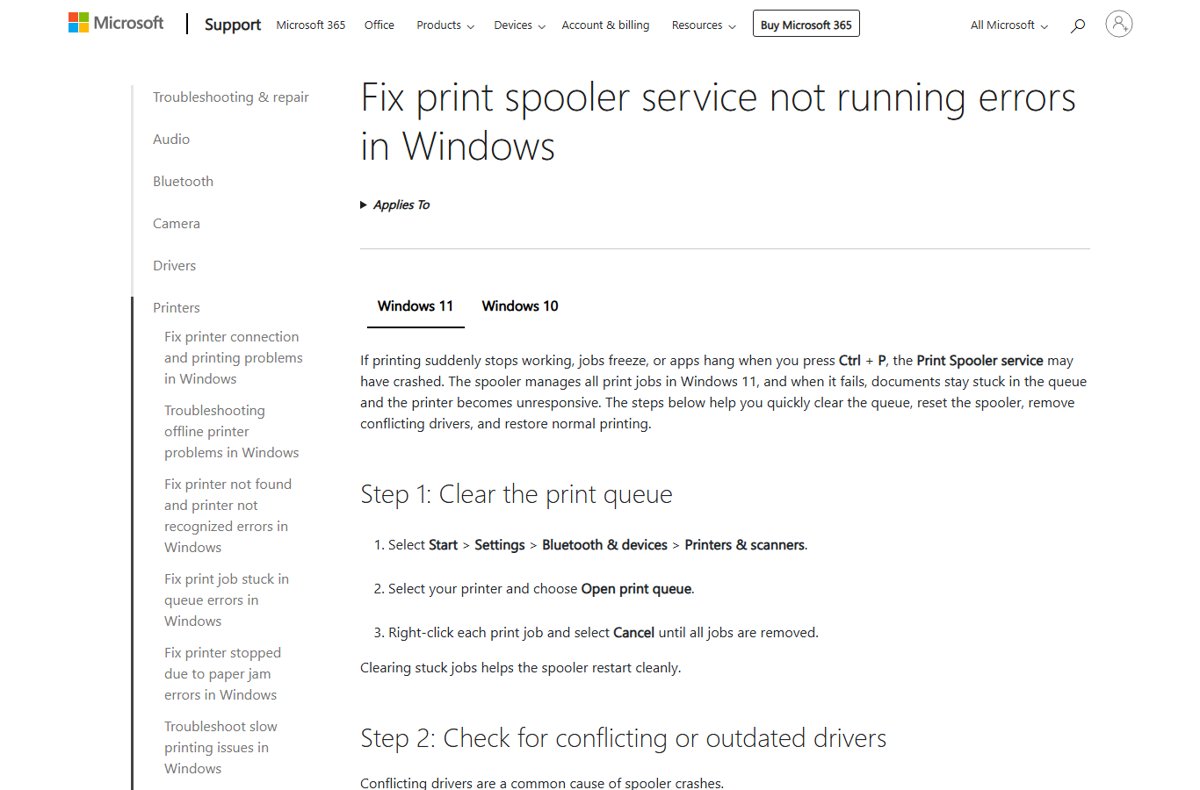
| Print Spooler crashes | Conflicting, old or duplicate printer drivers are a common cause |
| Duplicate printers or (Copy 1) entries | Clears every copy so only one working printer remains |
| Printer stuck offline or in an error state | Removing and reinstalling the printer refreshes driver files and settings |
| Windows protected print mode | Printers that are not compatible are uninstalled and must be reinstalled manually if you turn the mode off |
Remove a printer in Windows FAQs
Does removing a printer delete the driver too?
No. Removing a printer in Printers & scanners deletes the printer queue only. The driver stays installed until you remove it with Remove-PrinterDriver, Device Manager's delete-driver option, or PnPUtil.
Why does my printer keep coming back after removal?
Windows reinstalls a printer it can still detect, so a connected USB printer returns after removal or a restart. Windows Update can also reinstall a driver it considers missing. Unplug the printer first and delete the driver package.
Is it safe to delete printer spool files?
Yes. Microsoft's own fix for stuck queues is to stop the Print Spooler and delete all files in C:\Windows\System32\spool\PRINTERS. You only lose documents still waiting to print.
Can I reinstall the printer later?
Yes. Open Printers & scanners, select Add device, and Windows finds a connected printer and installs a driver. You can also install the latest driver from the printer maker's support site.
Do I need administrator access to remove a printer completely?
Yes, for the driver cleanup. Device Manager may not show the option to delete driver software without administrator rights, and driver and spooler commands need an elevated PowerShell or Command Prompt window.
What happens if I delete the wrong printer driver?
Any printer that used it stops working until a driver is installed again. Reinstall the printer from Printers & scanners or from the maker's site. A restore point made beforehand lets you roll back.
Can Windows automatically reinstall printer drivers?
Yes. If Windows Update detects that a needed driver is missing, it can reinstall it. Removing the driver package from the driver store and disconnecting the printer stops an unwanted reinstall.
How do I remove all printers in Windows?
Run Get-Printer in an administrator PowerShell window to list them, then run Remove-Printer -Name with each name. Leave built-in entries such as Microsoft Print to PDF if you still use them.
How do I remove old printers from my computer that are no longer connected?
Remove them in Printers & scanners, then open Device Manager, turn on Show hidden devices, and uninstall leftover entries under Print queues and Printers. Delete their drivers with Remove-PrinterDriver.
Why can't I remove a printer in Windows?
Pending print jobs, a stuck Print Spooler, or missing administrator rights usually block removal. Cancel all jobs, restart the spooler, and try again from an administrator account or with Remove-Printer.