Open Settings > System > About to see your Dell laptop model, and read the Service Tag (Dell's serial number) from the label under the laptop or with one PowerShell command.
This guide covers every official route: Windows Settings, PowerShell and Command Prompt, SupportAssist, the BIOS, System Information, and Dell's own product detection.
Check Dell laptop model and Service Tag in Windows
Dell laptops do not use a separate serial number. The Service Tag is the serial number, and Windows reads it straight from the firmware.
- Right-click Start and select Settings.
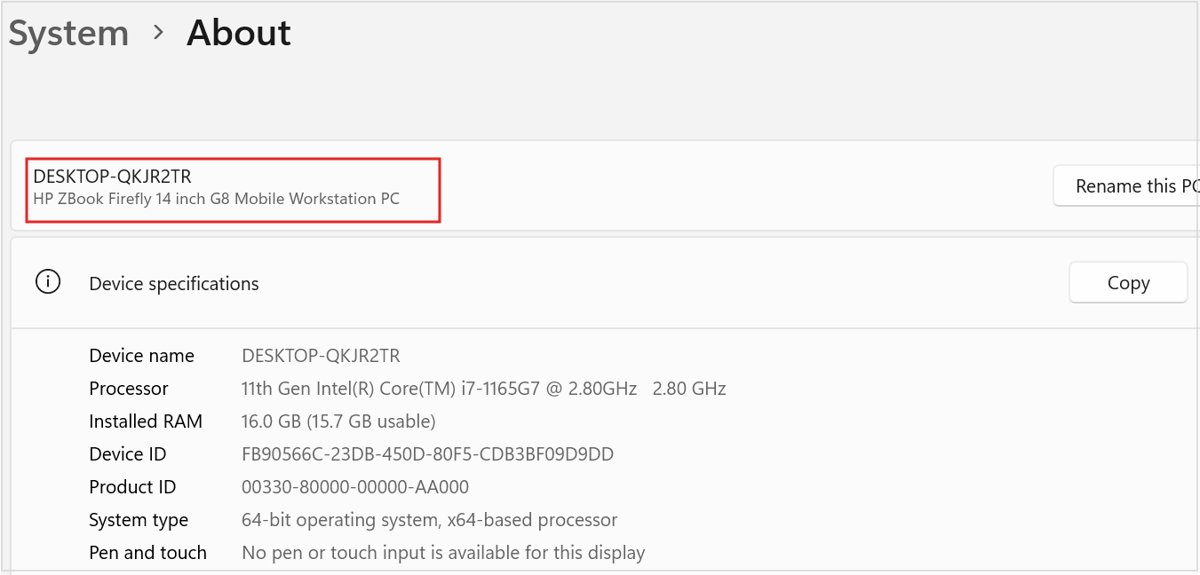
- Select System, then About. The device name appears at the top with the model name just below it.
- Right-click Start again and open Terminal or Windows PowerShell.
- Type
Get-CimInstance -ClassName Win32_BIOSand press Enter. - Read the SerialNumber line. That value is your Dell Service Tag.
Write both values down before you contact support, register the laptop or check warranty.
Which way to find a Dell model or Service Tag fits your situation?
| Your situation | Use this | What it shows |
|---|---|---|
| Windows starts normally | Settings > System > About, then PowerShell | Model name and Service Tag |
| Laptop will not boot into Windows | BIOS setup (press F2 at startup) or the bottom label | Service Tag, usually under Overview or System Information |
| Laptop is switched off or dead | Label or etching on the bottom cover | Service Tag (ST) and Express Service Code (EX) |
| SupportAssist is already installed | SupportAssist home screen | Service Tag, with product details one click away |
| You want the full system profile | System Information (msinfo32) | System Manufacturer, System Model, System SKU and BIOS details |
| You only have the Service Tag | Dell Support website search | The model and its support page |
Use Windows management instrumentation commands (WMI)
Windows exposes the Service Tag and model through Windows Management Instrumentation (WMI). PowerShell is the safe choice on current builds, because Dell notes that the older WMIC tool is disabled by default in Windows 11 24H2 and newer.
- Type PowerShell in the Windows search box and select Windows PowerShell.
- For the Service Tag, run
Get-CimInstance -ClassName Win32_BIOSand read the SerialNumber value. - Dell's own shorter form also works:
GWMI -Class Win32_Bios | select SerialNumber. - For the model, run
Get-CimInstance -ClassName Win32_ComputerSystemand read the Model and Manufacturer columns. - On older Windows 10 or Windows 11 builds where WMIC is still present, open Command Prompt as administrator and run
wmic bios get serialnumber. - If the WMIC command returns an error, switch back to the PowerShell commands above.
Microsoft notes that WMI output is only as good as the data the manufacturer stored, so some fields can be empty. When that happens, read the Service Tag from the bottom label or the BIOS.
Check Dell SupportAssist
SupportAssist comes preinstalled on most consumer Dell laptops and shows the Service Tag on its first screen.
- Select Start and type SupportAssist.
- Open SupportAssist from the results.
- Read the Service Tag on the main screen.
- Select the Service Tag to open more product details, including the model.
If SupportAssist is missing, you can download Dell SupportAssist or use any other method on this page.
Access BIOS
Booting into the Dell BIOS works even when Windows is damaged, missing or locked behind a forgotten password.
- Restart the laptop, or switch it on if it is off.
- Press F2 repeatedly as soon as the Dell logo appears.
- In BIOS setup, open Overview or System Information.
- Read the Service Tag field. The model name is usually shown on the same page.
- Exit without saving any changes.
Check other apps for laptop model
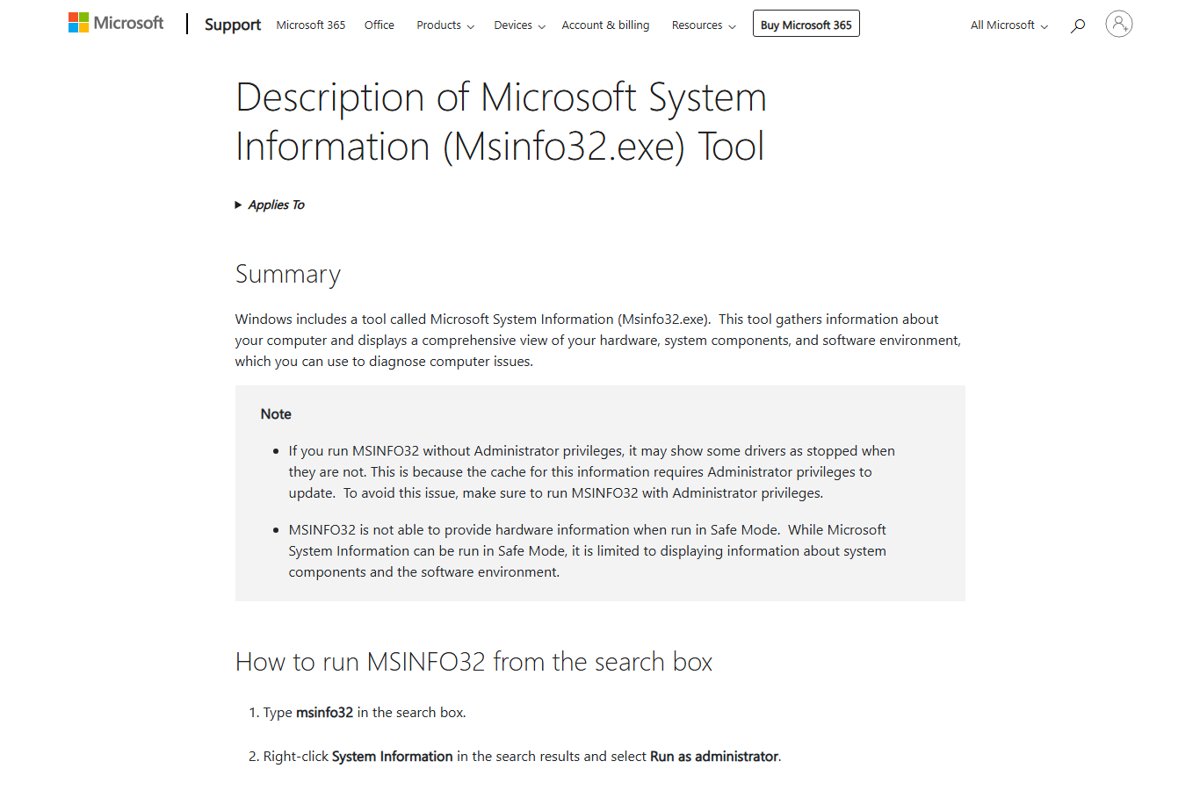
Windows has several built-in tools that show the model. System Information is the most complete, because it also lists the System SKU, which separates variants that share one model name.
| Tool | How to open it | Where to look |
|---|---|---|
| Windows 11 Settings (also Windows 10) | Settings > System > About, or run ms-settings:about |
Model name directly under the device name |
| System Information | Select Start, type msinfo32, select System Information |
System Summary: System Manufacturer, System Model and System SKU |
| DirectX Diagnostic Tool | Type dxdiag in the search box and select dxdiag |
System tab, under System Information |
| Battery report | Run powercfg /batteryreport in Command Prompt |
Creates an HTML report in the current folder; it is built for battery history, so use System Information for the model |
Find a Dell model from the Service Tag on Dell Support
Dell's support site can read the tag for you, or look up the model from a tag you already have.
- Open the Dell Support home page at dell.com/support on the Dell laptop.
- Under Identify your product or search support, select Detect This PC or View This PC.
- Allow SupportAssist to read the Service Tag when prompted.
- On another device, type the Service Tag, Express Service Code or model into the same field instead.
- Select Search to open the support page for that exact laptop.
The same tag also lets you check Dell warranty status and download Dell drivers built for your configuration.
Dell Service Tag vs Express Service Code vs model number
| Identifier | Label on the laptop | What it is for |
|---|---|---|
| Service Tag | SVC Tag or ST | The unique serial number of your laptop; used for warranty, drivers and support |
| Express Service Code | ESC or EX | A numeric version of the Service Tag, printed next to it |
| Model name | Shown in Windows and on Dell Support | The product line and model, such as an Inspiron, Latitude, Vostro or XPS number, or a newer name such as Dell 14 Plus |
| System SKU | Shown in System Information | Separates hardware variants that share the same model name |
How to confirm the Dell Service Tag is correct
- Compare the PowerShell SerialNumber value with the label under the laptop.
- Enter the tag on Dell Support and select Search.
- Check that the product page shows the same model as Settings > System > About.
- If the two models differ, trust the bottom label and the BIOS, then contact Dell support.
Dell serial number not showing: fixes by symptom
The Service Tag sticker under the laptop is worn off
Stickers fade with use; some models etch the tag instead of printing it.
- Tilt the laptop under a bright light and look for an etched tag on the bottom cover.
- Boot Windows and run
Get-CimInstance -ClassName Win32_BIOSin PowerShell. - If Windows will not start, press F2 at the Dell logo and read the tag in BIOS setup.
wmic bios get serialnumber does not work
WMIC is disabled by default in Windows 11 24H2 and newer.
- Open Windows PowerShell instead of Command Prompt.
- Run
Get-CimInstance -ClassName Win32_BIOS. - Read the SerialNumber line in the output.
The serial number field is blank or shows a placeholder
Some hardware information is not stored in the firmware in a form Windows can read.
- Read the Service Tag from the bottom label instead.
- Press F2 at the Dell logo and check the Service Tag field in BIOS setup.
- If both are missing, contact Dell support with your proof of purchase.
Settings does not show the model name
The About page varies slightly between Windows builds.
- Select Start and type
msinfo32. - Open System Information and read System Model in System Summary.
Dell laptop model and serial number FAQ
How do I find my Dell laptop model number?
Open Settings, select System, then About. The model name appears directly under the device name. System Information (msinfo32) shows the same value as System Model, along with the System SKU that separates variants of one model.
Where is the Dell model number located on the laptop?
Dell prints the Service Tag and Express Service Code on a label or etching on the bottom cover. The model name is shown in Windows Settings, in the BIOS and on the Dell Support page that opens when you search for your Service Tag.
Is the Dell Service Tag the same as the serial number?
Yes. Dell laptops use the Service Tag as their serial number. Windows reports it in the SerialNumber field of PowerShell's Win32_BIOS output, and Dell uses the same tag for warranty, drivers and support cases.
Can I find my Dell model number from the Service Tag?
Yes. Go to Dell Support, type the Service Tag into Identify your product or search support, and select Search. Dell opens the support page for that exact laptop, which names the model and lists its drivers and manuals.
How do I check my Dell model number with a command?
Open PowerShell and run Get-CimInstance -ClassName Win32_ComputerSystem. The Model column shows the Dell model and the Manufacturer column shows the maker. For the Service Tag, run Get-CimInstance -ClassName Win32_BIOS and read SerialNumber.
How do I find the serial number on a Dell laptop that will not turn on?
Turn the laptop over and read the Service Tag from the label or etching on the bottom cover. If the label is unreadable, a barcode or QR code scanner app on your phone can often read the code printed beside it.
How do I tell the model number of any laptop, including HP?
The Windows methods work on every brand. Settings > System > About shows the model, and msinfo32 lists System Manufacturer and System Model. Laptop makers also print the model or serial on a bottom label, as Lenovo does with its Lenovo serial lookup tool.
What is the Dell Express Service Code?
The Express Service Code is a numeric version of the Service Tag. It is printed next to the tag as ESC or EX, and Dell Support accepts it in the same search box as the Service Tag or the model.