To use Copilot in Microsoft Word, open a document, select the Copilot button in the lower-right corner (or press Alt + C), and type what you want drafted, rewritten or summarized in the chat pane.
This guide covers who gets Copilot in Word 365, how to enable and find it, drafting, adding and rewriting text, chatting about a document, turning Copilot off, and fixes when the button is missing.
How to use Copilot in Word 365 right now
These steps work in Word for Microsoft 365 on Windows and Mac, and in Word for the web, once your account includes Copilot. If you are new to Word itself, learn its basic features and ribbon tabs first.
- Open Word and sign in with the Microsoft account or work account that has Copilot.
- Open a blank or existing document.
- Select the Copilot button in the lower-right corner of the document, or press Alt + C on Windows (Cmd + Control + I on Mac, F6 on any platform).
- In the chat pane, describe what you want: the topic, audience, tone, format and length.
- Review what Copilot produces, then keep it, discard it, regenerate it, or refine it with a follow-up prompt.
An overview of how to use Copilot’s AI features in Word
Copilot in Word combines large language models with your document to draft, summarize, answer questions, refine and restructure content. Every feature below opens from the same chat pane.
| Feature | What it does | Where you start |
|---|---|---|
| Draft | Writes a new document or section from your prompt | Chat pane on a blank page or at the cursor |
| Reference files | Pulls information from a document, email or meeting you name | Type / in the prompt and pick the file |
| Add content | Expands a document with a section, paragraph, checklist or table | Chat pane with Edit mode on |
| Rewrite | Produces a revised version of selected text | Select text, then Copilot on the mini toolbar |
| Transform content | Turns selected text into a table or image | Select text, then ask Copilot |
| Summarize and ask | Gives a summary, key takeaways, action items or an explanation | Chat pane, with Chat only to leave the document untouched |
| Voice | Takes spoken questions and requests | Microphone button in the Copilot pane |
| Model Selector | Chooses a reasoning level, Auto, or a model provider such as OpenAI or Claude | Chat pane |
How to enable Copilot in Microsoft Word
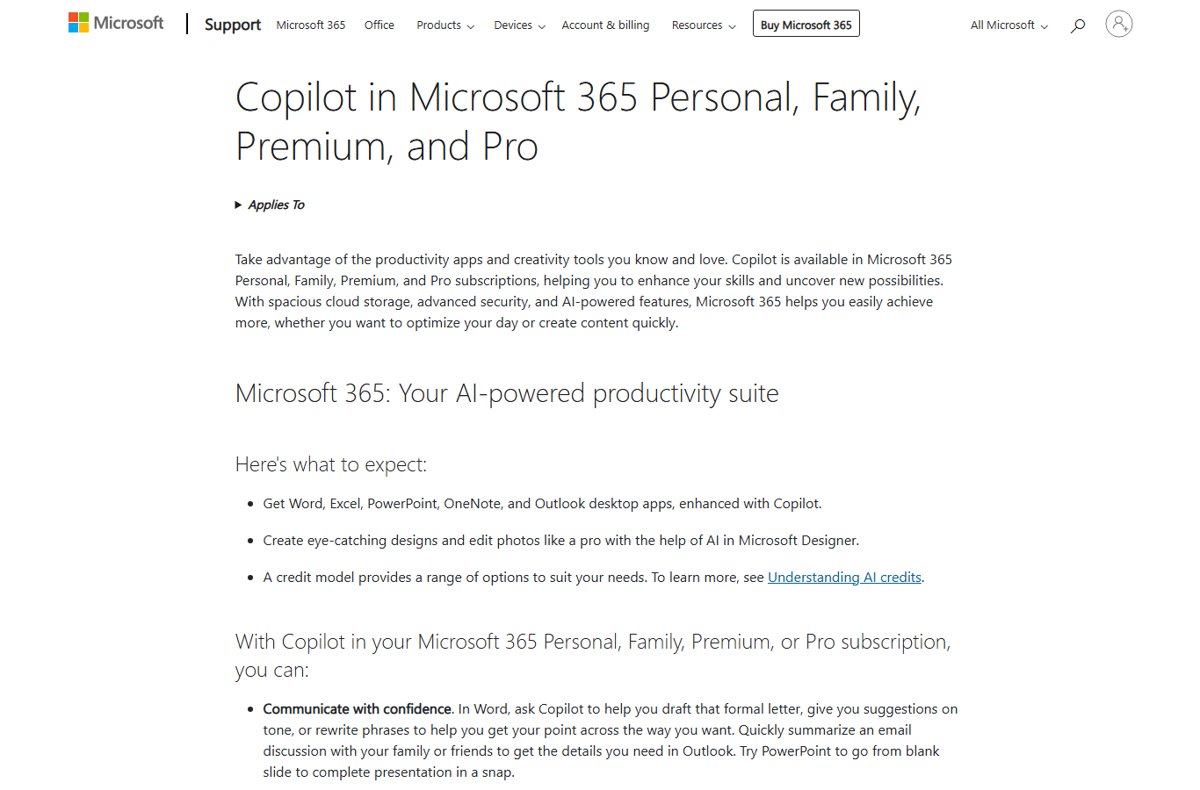
Copilot is included in Microsoft 365 Personal, Family, Premium and Pro subscriptions, and in business plans through a Microsoft Copilot license. Use is metered through AI credits on personal plans. If you are still choosing a plan, compare the Microsoft Word price options first.
- Confirm your subscription is Microsoft 365 Personal, Family, Premium or Pro, or that your organization assigned you a Copilot license.
- Install the latest Word updates so your build supports Copilot.
- In Word, select File > Account and select Update License, then close and restart all Microsoft 365 apps.
- Select File > Options > Copilot and make sure Enable Copilot is checked (personal Microsoft accounts on Windows).
- Under File > Account > Account Privacy > Manage Settings, confirm Experiences that analyze your content and All connected experiences are turned on.
- Open a document and look for the Copilot button in the lower-right corner.
Where is Copilot in Word 365?
Microsoft consolidated Copilot's entry points into one Copilot Dynamic Action Button anchored in the lower-right corner of the document. The rollout began in April 2026 and reached Word on Windows, Mac and the web worldwide by June 2026.
- Look in the lower-right corner of the document for the Copilot button.
- Press Alt + C on Windows or Cmd + Control + I on Mac to move focus to it; F6 does the same on every platform.
- Select the button to open the Word Agent in the chat pane on the right.
- To tuck it away, right-click the button and select Dock, or drag it to the side of your content.
- To work from the ribbon instead, right-click the button and select Move to ribbon; Windows and Mac remember this choice per app.
Move to ribbon needs Word build 16.0.20129.15140 or later on Windows, or 16.109.525.2 or later on macOS. If you used Alt + H, F, X before, press F6 instead. If the ribbon itself is collapsed, display the Word ribbon first.
Drafting text with Copilot
- Open a blank document, or place the cursor where the new content should go.
- Open Copilot from the lower-right corner of the window.
- Describe the outcome in the prompt box, including topic, audience, tone, format and length, for example: "Draft a one-page cover letter for a junior accountant role, formal tone, three short paragraphs."
- To base the draft on existing material, type / and choose a document, email or meeting from the list.
- Select Generate.
- Read the draft and keep it, discard it, regenerate it, or send a follow-up prompt such as "make the second paragraph shorter".
Adding text to a document with Copilot
In an existing document, Copilot can add a new section, paragraph, checklist or table that fits around what is already there.
- Click where the new content belongs in the document.
- Open Copilot; the chat pane opens with Edit mode turned on.
- Describe the addition, for example: "Add a section after the introduction that lists the project risks as a table."
- In a shared document, review the preview Copilot shows in chat; nothing is added until you approve it.
- Check the inserted text against your facts before you move on.
Rewriting & transforming text with Copilot
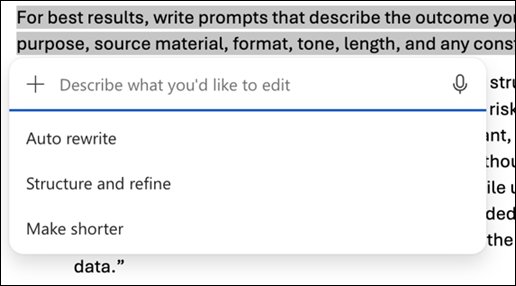
- Select the sentence, paragraph or section you want changed.
- Select Copilot on the mini toolbar that appears next to the selection, or open Copilot from the document.
- Choose Auto Rewrite, or describe the change: rewrite, reorganize, reformat, summarize, change the tone, or turn it into a table.
- Review the result.
- Select Replace to swap in the new text, Insert below to keep both versions, or Regenerate for another version.
For document-wide changes, describe them in the chat pane instead, from a small tweak to a full revision.
Chatting with Copilot about your Word document
- Open the document you want to understand and open Copilot.
- Select Chat only if you want answers in the pane without any change to the document.
- Ask for a summary, key takeaways, open questions or action items, or ask Copilot to explain a section.
- Select the microphone button to ask by voice; you can interrupt a spoken answer with a new request.
- Use the thumbs-up or thumbs-down button on a response to send feedback.
Depending on your license and settings, a summary can also appear at the top of a document when you open it. You can later view or delete your Copilot prompt history from your Microsoft account.
How to use Copilot within other Microsoft 365 apps
The same Copilot license that unlocks Word also brings Copilot to the other Microsoft 365 apps, so you can jump into your favorite app and find the same button there. Each app's Copilot works on the file or meeting in front of you, so you can create, rewrite and ask questions without leaving the flow of that app for a separate search.
| App | What Copilot does there | Who gets it |
|---|---|---|
| Word | Creates, edits and explores documents | Microsoft 365 Personal, Family, Premium, Pro, or a work Copilot license |
| Excel | Generates data and formulas, creates charts and PivotTables, and finds insights in your data | Same plans as Word |
| PowerPoint | Creates and refines presentations | Same plans as Word |
| Outlook | Works with your inbox and calendar | Same plans as Word |
| OneNote | Adds AI help inside your notebooks, such as a to-do list from your notes | Same plans as Word |
| Teams | Gives meeting highlights, action items and key discussion points, and answers questions during or after a meeting | Work accounts with a Microsoft Copilot license |
| OneDrive and SharePoint | Microsoft Copilot is available in OneDrive and SharePoint Online for business subscribers | Work accounts with a Microsoft Copilot license |
| Copilot Chat and the Copilot app | A new chat creates content, catches you up and answers questions that are not tied to one open file | Desktop app on Windows and Mac, the web, and iOS and Android |
For work, a Microsoft Copilot license sits on top of a Microsoft 365 Business Basic, Business Standard, Business Premium, E3, E5, F1 or F3 plan, or Office E1, E3 or E5.
Which Copilot action should you use in Word?
| You want to | Use this | Why |
|---|---|---|
| Start from a blank page | Draft with a detailed prompt | Copilot builds the whole structure at once |
| Base a draft on a report or meeting | Type / and pick the file | Keeps facts tied to your source |
| Fix one paragraph's wording | Select text > Copilot > Auto Rewrite | Fastest single-passage change |
| Keep the original next to a rewrite | Insert below | Compare both before deleting one |
| Turn a list of figures into a grid | Ask Copilot to transform the text into a table | No manual table building |
| Understand a long document | Chat only summary or questions | Leaves the document untouched |
How to check Copilot is working in Word
- Open any document and confirm the Copilot button shows in the lower-right corner.
- Press Alt + C (Windows) and check that focus moves to the button or the chat edit box.
- Type a short prompt such as "Summarize this document in three bullets" and select Chat only.
- Confirm a response appears in the chat pane within a few seconds.
How to turn off Copilot in Word 365
These settings apply when you are signed in with a personal Microsoft account. Each app and each device has its own checkbox, and turning it off affects everyone who uses that device.
- On Windows, select File > Options > Copilot in Word.
- Clear the Enable Copilot checkbox, select OK, and close and restart Word.
- On a Mac, open the Word menu and go to Preferences > Authoring and Proofing Tools > Copilot, clear Enable Copilot, and restart Word.
- If the checkbox is missing, update Word (Version 2412 or later on Windows, 16.93 or later on Mac).
- As a fallback, select File > Account > Account Privacy > Manage Settings and clear Turn on experiences that analyze your content, then restart.
The privacy fallback also turns off other connected features such as text predictions in Word and PowerPoint Designer. Copilot cannot be switched off in Word for the web, iOS or Android, and work or school accounts follow the organization's settings.
Copilot not showing in Word 365: fixes
The Copilot button disappeared from the ribbon
The button moved to the lower-right corner of the document in the 2026 update.
- Look in the lower-right corner of the document.
- Right-click the button and select Move to ribbon if you want it back on the ribbon.
No Copilot button anywhere in Word
The license has not refreshed, the build is old, or the subscription does not include Copilot.
- Install the latest Office updates.
- Select File > Account > Update License, then close and restart all Microsoft 365 apps.
- Check which Copilot license you have; Copilot comes with Microsoft 365 Personal, Family, Premium and Pro, or a Microsoft Copilot license.
Copilot missing on a work computer
Copilot features are not available on Semi-Annual Enterprise Channel.
- Select File > Account and read the Product Information section.
- If it says Semi-Annual Enterprise Channel, ask your help desk to move the device to Current Channel or Monthly Enterprise Channel.
- Use Word for the web in the meantime, which needs no channel change.
Copilot stays greyed out after signing in
Connected experiences are turned off, or Copilot is disabled in Options.
- Select File > Account > Account Privacy > Manage Settings.
- Turn on Experiences that analyze your content and All connected experiences.
- Check File > Options > Copilot > Enable Copilot, then restart Word.
Check Copilot's text before you keep it
Read and fact-check every Copilot draft or rewrite before you accept it, and run the Similarity check when originality matters. Copilot writes fluently but can misstate facts, can produce near-identical text for people using the same prompt, and processes a limited number of words per prompt. On the Home tab, open Editor and scroll to Similarity to compare your text with online sources.
Copilot in Word privacy, chat history and responsible AI
Copilot in Word uses large language models on the text you give it. Here is what happens to that text and which controls you have.
| Question | Answer |
|---|---|
| Which content does Copilot read? | Only the document you are working in, or another file you ask it to look at |
| Is my document used to train the AI? | No. Prompts, responses and file contents in Microsoft 365 apps are not used to train foundation models |
| Is my chat history kept? | In Word on Windows, Mac, mobile and the web, your prompts and responses stay visible after you reopen the app; you can export them from the Microsoft privacy dashboard |
| Which settings control data use? | Experiences that analyze content and All connected experiences; turning off either one blocks Copilot in Word, Excel, PowerPoint, Outlook and OneNote |
| How does Microsoft handle responsible AI? | Copilot in Word was reviewed by Microsoft's Responsible AI team, filters offensive language in prompts and results, and takes reports through the thumbs-up and thumbs-down buttons |
| How do I personalize the Copilot experience? | Pick a model in Model Selector, dock the button or move it to the ribbon, use voice, or clear Enable Copilot to switch it off for Word on that device |
Expert Q&A: Copilot in Word 365
What is Copilot in Word 365?
Copilot in Word is an AI assistant built into Word for Microsoft 365 that drafts, rewrites, summarizes and restructures text, answers questions about your document, and can turn selected text into a table. It opens from a button in the lower-right corner of the document.
Is Copilot included in Word 365?
Yes, for Microsoft 365 Personal, Family, Premium and Pro subscribers, with usage based on AI credits. Business users need a Microsoft Copilot license assigned by their organization.
Where is Copilot in Word 365?
Copilot sits in the lower-right corner of the document as the Copilot Dynamic Action Button. Press Alt + C on Windows, Cmd + Control + I on Mac, or F6 anywhere to reach it, and right-click it to move it to the ribbon.
How do I enable or activate Copilot in Word 365?
Update Word, select File > Account > Update License, and restart your Microsoft 365 apps. Then confirm File > Options > Copilot > Enable Copilot is checked and that connected experiences are turned on under Account Privacy.
How do I access Copilot in Word 365 with the keyboard?
Press Alt + C on Windows, or Cmd + Control + I on a Mac, to move focus to the Copilot button; F6 works on all platforms. If the chat pane is already open, Alt + C moves focus straight to the chat box.
Can I turn off Copilot in Word 365?
Yes, with a personal Microsoft account on Windows or Mac. Clear Enable Copilot under File > Options > Copilot on Windows, or Preferences > Authoring and Proofing Tools > Copilot on Mac, then restart Word. It cannot be turned off in Word for the web or mobile.
How do I disable Copilot in Word 365 on a work account?
You cannot disable it yourself. The Enable Copilot checkbox is not available with work or school accounts, so Copilot availability is controlled by your organization's IT admin.
Does removing the Copilot icon from the ribbon turn Copilot off?
No. Removing the icon only hides that entry point, and Copilot stays reachable from other places such as the shortcut menu. Clear the Enable Copilot checkbox to switch it off.
Bottom line: how to get the most from Copilot in Word
Use Copilot for first drafts, rewrites of single passages and summaries, give it detailed prompts with a source file, and review every result before you keep it. Detailed prompts and / file references produce drafts tied to your material, while the Replace, Insert below and Chat only controls keep you in charge of what changes in the document. The same approach works when you enable Copilot in Excel.