Open Terminal or Command Prompt, run winget search <app> to find a package, winget install --id <ID> to install it, and winget upgrade --all to update every app WinGet can match.
This guide covers getting WinGet on Windows 11, Windows 10, Windows Server 2025 and Windows Sandbox, every everyday command, pinning, export and import, settings, logs and the fixes for when winget upgrade does not work.
Fastest way to install and upgrade apps with WinGet
WinGet is the command-line client for the Windows Package Manager service. It ships inside App Installer on Windows 11 and supported Windows 10 builds, so there is usually nothing to set up.
- Right-click Start and select Terminal, or open Command Prompt from Start search.
- Type
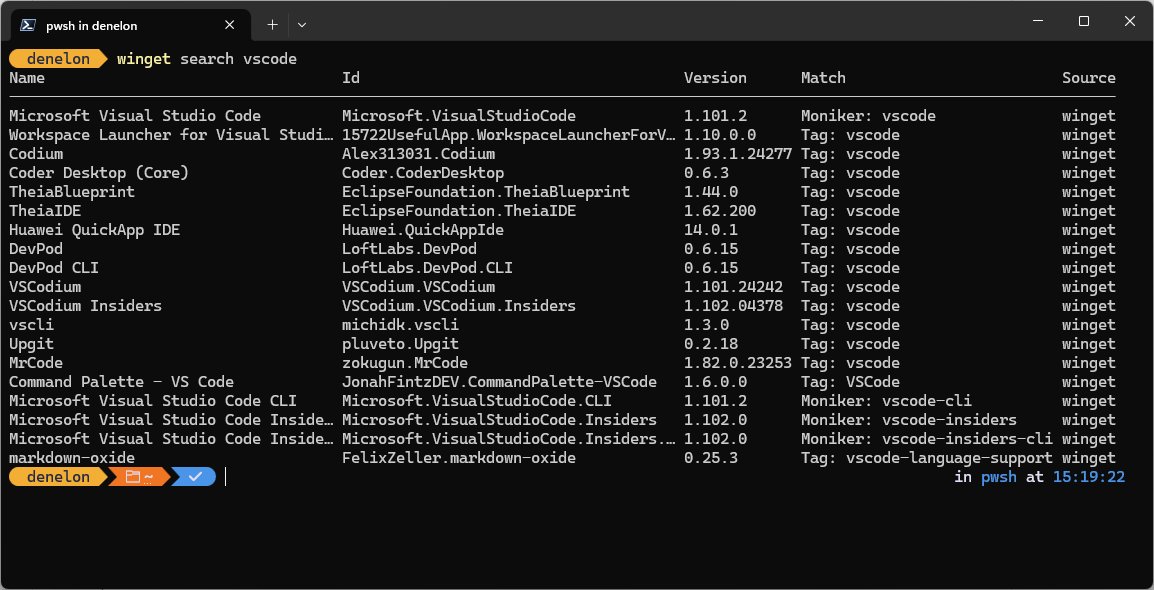
winget search firefox(replace firefox with the app you want) and press Enter. - Copy the value in the Id column, for example
Mozilla.Firefox. - Run
winget install --id Mozilla.Firefoxand accept the source agreement if WinGet asks. - Run
winget upgradeon its own to preview every app that has a newer version. - Run
winget upgrade --allto install all of those updates in one pass.
Run the upgrade preview first. It shows exactly which apps --all is about to touch, so nothing changes by surprise.
What is WinGet and why use it?
WinGet is a command-line tool that discovers, installs, upgrades, removes and configures applications on Windows 10, Windows 11 and Windows Server 2025. It is the client interface to the Windows Package Manager service.
| Task | Without WinGet | With WinGet |
|---|---|---|
| Install an app | Find the vendor site, download the installer, click through setup | winget install --id <ID> from any terminal |
| Update desktop apps | Open each app or its updater one by one | winget upgrade --all updates every app WinGet can match |
| Set up a new PC | Reinstall each app by hand | winget export on the old PC, winget import on the new one |
| Keep one app on its current version | Turn off that app's own updater | winget pin add --id <ID> keeps it out of bulk upgrades |
| Automate installs | Write a script per installer | One command format for EXE, MSI, MSIX and other installer types |
Install WinGet on Windows 11, Windows 10 and Windows Server 2025
WinGet is part of App Installer, a system component. On desktop editions the Microsoft Store delivers and updates it; on Windows Server 2025 it arrives through Windows updates.
WinGet has few prerequisites beyond the Windows version: the client is supported only on Windows 10 version 1809 (build 17763) or later.
| Your system | How WinGet gets there | What to do |
|---|---|---|
| Windows 11 | Included in App Installer, updated by the Microsoft Store | Nothing. Run winget --version to confirm it is present. |
| Windows 10, version 1809 or later | Included in App Installer, updated by the Microsoft Store | Sign in once as a user. If winget is missing, install App Installer or update it from the Microsoft Store. |
| Windows 10 before version 1809 | Not supported | Update Windows 10 to a supported version first. |
| Windows Server 2025 | Delivered and updated through Windows updates | Install the latest updates, then run winget --version. |
| New user profile, WinGet not yet available | Registration runs in the background after the first sign-in | Run Add-AppxPackage -RegisterByFamilyName -MainPackage Microsoft.DesktopAppInstaller_8wekyb3d8bbwe in PowerShell. |
| Windows Sandbox | Not included, and the Sandbox has no Microsoft Store | Bootstrap it with the PowerShell module, shown in the next section. |
| Preview builds (developers only) | Windows Insider Canary or Dev Channel, or the preview package from the WinGet releases page | Join the Insider Canary or Dev Channel to get preview versions automatically from the Store. |
The standalone preview package installs a preview client but does not turn on automatic preview updates from the Store. The Insider route does.
Install WinGet on Windows Sandbox with Repair-WinGetPackageManager
Windows Sandbox starts clean every time and has neither WinGet nor the Microsoft Store. The supported route installs the Microsoft.WinGet.Client module from the PowerShell Gallery and lets it bootstrap WinGet.
$progressPreference = 'silentlyContinue'
Install-PackageProvider -Name NuGet -Force | Out-Null
Install-Module -Name Microsoft.WinGet.Client -Force -Repository PSGallery | Out-Null
Repair-WinGetPackageManager -AllUsers
Run the four lines in Windows PowerShell inside the Sandbox. The first hides the progress bar, the next two install the NuGet provider and the WinGet module, and Repair-WinGetPackageManager -AllUsers installs WinGet for every user.
You should see: winget --version returns a version number instead of an error.
Add -IncludePrerelease to Repair-WinGetPackageManager for a preview build, or -Scope AllUsers to Install-Module to install the module machine-wide. Get-Help Repair-WinGetPackageManager -Full lists every parameter.
Use WinGet to search, install and uninstall apps
WinGet matches your query against the package name, ID and moniker as a case-insensitive substring. Wildcards are not supported, so an ID is the most reliable target.
- Run
winget search <appname>and note the Id and Source columns. - Run
winget show --id <ID>to see the publisher, version and installer WinGet will use. - Run
winget install --id <ID>to install the latest version. - Add
--version <number>to install a specific version, for examplewinget install --id Microsoft.PowerToys --version 0.91.1. - List several IDs separated by spaces to install more than one package in a single command.
- Run
winget uninstall --id <ID>to remove an app; add--source wingetto skip the Microsoft Store agreement prompt.
add is an alias of install, and remove and rm are aliases of uninstall. If a query matches more than one package, WinGet stops and asks you to narrow it down.
WinGet upgrade all command
winget upgrade with no arguments lists every installed app that has a newer version in a configured source. Adding --all installs all of them, one after another.
winget upgrade --all --include-unknown --accept-package-agreements --accept-source-agreements--all (also -r or --recurse) upgrades every package with an update. --include-unknown (-u) also upgrades apps whose installed version WinGet cannot read. The two --accept switches answer the license prompts so the run does not stop halfway.
You should see: Each app reports a successful install, and running winget upgrade again lists fewer packages or none.
Add --silent (-h) to hide installer windows during an unattended run. Pinned apps are skipped by --all unless you add --include-pinned.
--all does not mean every program on the PC. It covers only installed apps that WinGet matches to a package in a configured source, so apps installed from elsewhere with no matching package keep updating through their own updater.
winget upgrade options you will actually use
update is an alias of upgrade, so winget update --all does exactly the same thing. These are the switches that change the result most often, as practical examples you can copy.
| Goal | Command | Notes |
|---|---|---|
| Preview available updates | winget upgrade |
Changes nothing; run it before --all |
| Upgrade one app | winget upgrade --id Microsoft.PowerToys |
Use the ID from winget list for an exact match |
| Upgrade several named apps | winget upgrade Microsoft.Edit Microsoft.NuGet |
IDs separated by spaces |
| Upgrade to a specific version | winget upgrade powertoys --version 0.15.2 |
Without --version, the highest version is used |
| Include apps with unknown versions | winget upgrade --all --include-unknown |
Some apps report no version, so WinGet skips them by default |
| Include pinned apps | winget upgrade --all --include-pinned |
Only non-blocking pins are overridden |
| Quiet installs | --silent or -h |
Suppresses installer UI |
| Replace rather than install side by side | --uninstall-previous |
Removes the old version first; behaviour depends on the package |
| Limit to one source | --source winget |
Skips the Microsoft Store catalog |
| Allow a restart | --allow-reboot |
Lets an installer restart Windows if it needs to |
Avoid --ignore-security-hash. It installs a package even when the installer's hash does not match the manifest, which Microsoft marks as not recommended.
WinGet commands list
Use this table as a quick reference to the essential WinGet commands. Run winget --help for this usage list on your own machine, or winget <command> --help for one command's switches.
| Command | What it does |
|---|---|
install |
Installs the specified application |
search |
Searches the configured sources for an application |
show |
Displays details for an application |
list |
Displays installed packages; --upgrade-available shows only those with updates |
upgrade |
Upgrades one, several or all installed applications |
uninstall |
Uninstalls the specified application |
repair |
Repairs the selected application |
pin |
Stops or limits upgrades for a package |
export |
Writes the installed packages to a JSON file |
import |
Installs every package listed in a JSON file |
download |
Downloads an application's installer without running it |
source |
Adds, edits, lists, updates, removes, resets or exports repositories |
settings |
Opens the settings.json file |
features |
Shows the status of experimental features |
configure |
Configures the system into a desired state from a configuration file |
hash |
Generates the SHA256 hash for an installer |
validate |
Validates a manifest before you submit it |
dscv3 |
PowerShell Desired State Configuration (DSC) v3 resource commands |
Global options work with every command: --version (-v), --info, --wait, --logs, --verbose-logs, --ignore-warnings, --disable-interactivity, --proxy and --no-proxy.
Exclude an app from winget upgrade –all with winget pin
A pin limits what WinGet does to a package. It does not stop the app's own updater, and the app can still be updated outside WinGet.
- Run
winget listand copy the app's Id. - Run
winget pin add --id <ID>to skip the app duringwinget upgrade --allwhile still allowingwinget upgrade --id <ID>. - Run
winget pin add --id <ID> --blockinginstead to block every WinGet upgrade of that app. - Run
winget pin add --id <ID> --version 0.70.*to allow only versions inside that range. - Run
winget pin listto see current pins. - Run
winget pin remove --id <ID>when you want WinGet to update the app again.
--force overrides blocking and gating pins for a single run. winget pin reset clears all pins.
Schedule weekly winget upgrade –all with Task Scheduler
The most common real-world example of WinGet automation is a scheduled task that runs the bulk upgrade for you. Create it as your own user account, because the WinGet CLI is not supported when a task runs as SYSTEM.
schtasks /create /tn "WinGet weekly upgrade" /sc weekly /d SUN /st 09:00 /tr "cmd /c winget upgrade --all --silent --accept-package-agreements --accept-source-agreements --disable-interactivity"Run it in a normal (non-admin) Command Prompt. /sc weekly /d SUN /st 09:00 runs the task every Sunday at 09:00 in 24-hour time, and the task runs with your permissions because no /ru account is given. /tr calls cmd, which finds winget on your PATH.
You should see: schtasks reports success, and WinGet weekly upgrade appears in Task Scheduler Library with Sunday 09:00 as its next run time.
Automation needs restraint: pin any app you must keep on a fixed version before the first run, and read the log after each run. Run schtasks /delete /tn "WinGet weekly upgrade" to remove the task.
Best practices for safe winget upgrades
| Practice | Command or action | Why |
|---|---|---|
| Check first, then update | winget upgrade, then winget upgrade --all |
The preview shows every app the bulk upgrade will change |
| Close your open apps first | Save work and close apps on the preview list | An installer may replace a program you are using with unsaved work |
| Review apps that should not update right now | winget pin add --id <ID> |
Pinned apps are skipped by --all |
| Fewer prompts for unattended runs | --silent --accept-package-agreements --accept-source-agreements |
Stops license and installer prompts pausing the run |
| Keep the hash check | Never add --ignore-security-hash |
Microsoft marks skipping the installer hash check as not recommended |
| Reboot if needed | --allow-reboot, or restart after the run |
Some installers finish only after a restart |
Export and import apps with WinGet to set up a new PC
winget export writes a JSON list of the apps it can match to a source. winget import installs that list on another PC, one package at a time.
- On the old PC, run
winget export -o C:\Temp\apps.json. - Read any warnings: apps WinGet cannot match to a source are left out of the file.
- Open the JSON file in a text editor and delete any PackageIdentifier entries you do not want.
- Copy the file to the new PC.
- Run
winget import -i C:\Temp\apps.json --accept-package-agreements --accept-source-agreements. - Add
--ignore-unavailableso one missing package does not stop the run.
Export with --include-versions to record exact versions; import with --ignore-versions to install the latest instead. --no-upgrade skips apps that are already installed.
WinGet administrator considerations: elevation and install scope
Installer behaviour changes depending on whether WinGet runs elevated. Run it from an administrator PowerShell window only for apps you trust.
| Situation | What happens |
|---|---|
| Normal (non-admin) prompt, app needs elevation | Windows shows a UAC prompt; declining it makes the install fail |
| Administrator prompt | No elevation prompts appear, so installers run without asking |
| Adding, removing or resetting a source | Requires administrator privileges |
| MSIX packages | Scope behaves reliably for user or machine installs |
| MSI packages | Usually reliable, but some are wrapped in an EXE and vary |
| EXE installers | Scope is not deterministic; some ignore --scope or decide from your admin group membership |
| Running as NT AUTHORITY\SYSTEM | The WinGet CLI is not supported; use the Microsoft.WinGet.Client module for machine-wide apps |
Use --scope user or --scope machine with install or upgrade to request a scope. A user-scope install can still need administrator approval.
WinGet supported installer formats
| Installer type | Notes |
|---|---|
| EXE | Supported with Silent and SilentWithProgress flags |
| MSI and WIX | Windows Installer packages |
| MSIX and APPX | Packaged Windows apps |
| INNO and NULLSOFT | Common third-party setup engines |
| BURN | WiX bundle installers |
| ZIP | Archive packages |
| PORTABLE | Apps that run without installing; --purge removes their folder on uninstall or upgrade |
| FONT | Font packages from the winget-font source |
Use --installer-type with install or upgrade when a package offers more than one installer type and you need a specific one.
Scripting WinGet with the Microsoft.WinGet.Client PowerShell module
The WinGet CLI prints tables meant for people. For scripts, Microsoft publishes the Microsoft.WinGet.Client module on the PowerShell Gallery, which also works in the system context where the CLI does not.
Install-Module -Name Microsoft.WinGet.Client -Repository PSGalleryRun it in Windows PowerShell or PowerShell 7. Add -Scope AllUsers from an elevated session to install it for every user.
You should see: Get-Command -Module Microsoft.WinGet.Client lists the module's cmdlets, including Repair-WinGetPackageManager.
For plain CLI scripts, add --disable-interactivity and both --accept switches so a prompt never blocks the run, and check the exit code after each command.
Customize WinGet settings in settings.json
WinGet reads its defaults from a settings.json file. config is an alias of the settings command.
- Run
winget settingsto open settings.json in your default JSON editor (Notepad unless you changed it). - Keep the
$schemaline at the top so editors that support JSON schema can suggest valid settings. - Add a
sourceblock withautoUpdateIntervalInMinutesto control how often WinGet refreshes its sources. - Add a
loggingblock with"level": "verbose"to make every command write detailed logs. - Add a
visualblock to change output, such as"progressBar": "rainbow". - Save the file and close the editor.
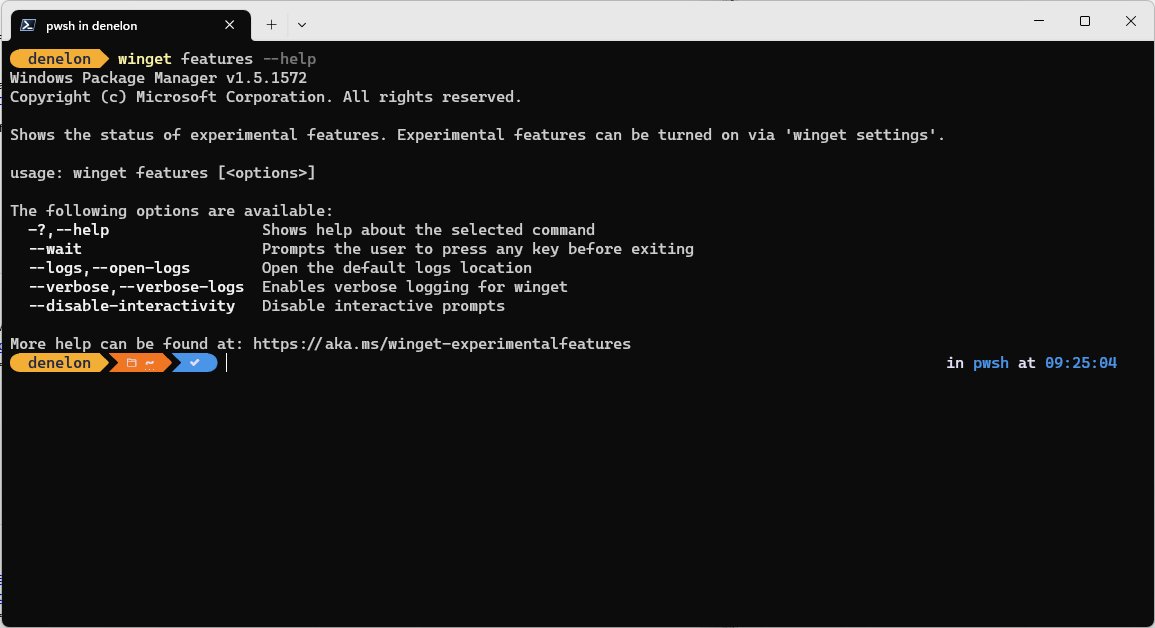
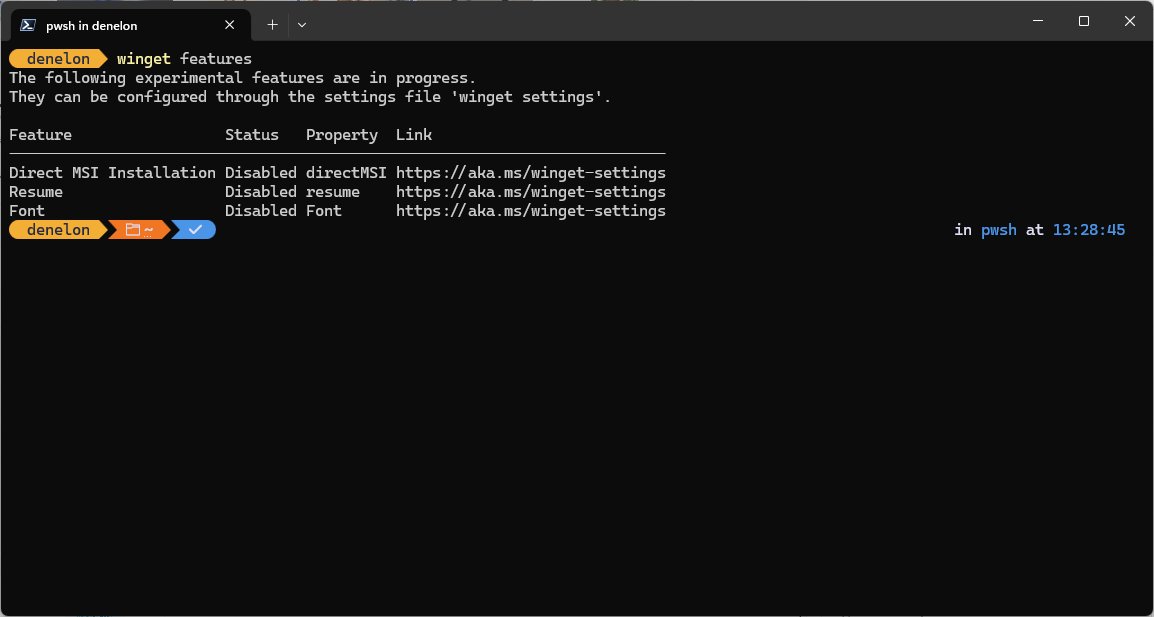
winget features shows which experimental features your client has. winget settings export prints the current settings, and winget settings --enable <setting> or --disable changes administrator settings.
Check that winget upgrade worked
- Run
winget --versionto confirm the client works and note its version. - Run
winget list --upgrade-availableto see packages that still have an update. - Run
winget list --id <ID>for a single app and compare the Version column with the Available column. - Run
winget pin listif an app you expected to update is still listed; a pin may be holding it back. - Run
winget list --include-unknown --upgrade-availableto show apps with unreadable versions that--allskipped. - To know what changed, run the upgrade with
-o C:\Temp\winget-upgrade.log(or--log) and read the file afterwards; WinGet writes that run's log, package by package, to the path you give.
When every update completed successfully and none are left, winget list shows only the installed version and drops the Available column.
WinGet debugging and troubleshooting with logs
WinGet writes a diagnostic log for every command. By default it deletes logs older than 7 days or beyond 128 MB in total, and each file wraps at 16 MB.
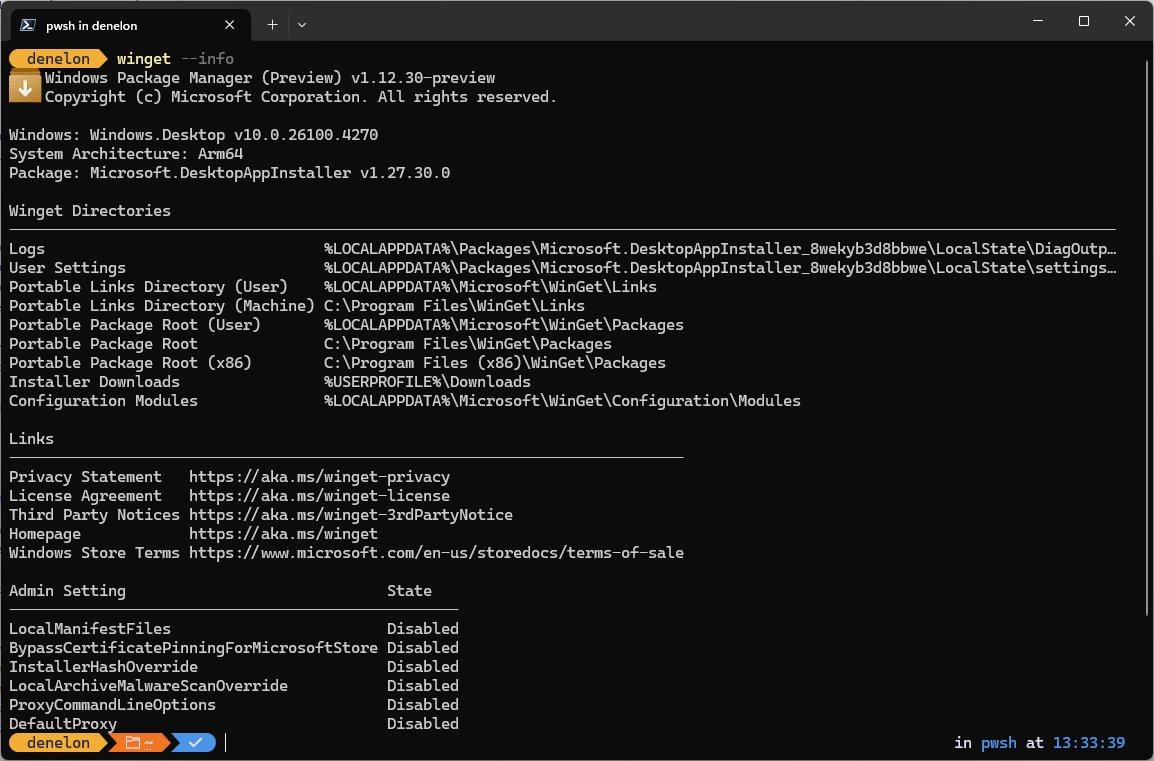
winget upgrade --all --verbose-logs --open-logs--verbose-logs records the full exchange with sources and CDNs, and --open-logs opens the log folder when the command finishes. The default folder is %LOCALAPPDATA%\Packages\Microsoft.DesktopAppInstaller_8wekyb3d8bbwe\LocalState\DiagOutputDir.
You should see: File Explorer opens the DiagOutputDir folder with a new log named for this run.
Run winget --info to print the log path, the client version and any group policies applied to WinGet. Run winget error <code> to translate an exit code from WinGet, MSIX or MSI; many EXE installers use their own codes it cannot explain.
Troubleshooting winget upgrade not working
'winget' is not recognized as a command
App Installer is missing, out of date, not yet registered for this user, or its folder is not on PATH.
- Sign out and back in once if this is a new user profile, then try again.
- Run
Add-AppxPackage -RegisterByFamilyName -MainPackage Microsoft.DesktopAppInstaller_8wekyb3d8bbwein PowerShell. - Install or update App Installer from the Microsoft Store.
- If it still fails, run
Install-Module -Name Microsoft.WinGet.Client -Force -Repository PSGalleryand thenRepair-WinGetPackageManager -Force -Latest.
winget upgrade –all skips an app that has an update
The app reports no version, so WinGet cannot compare it, or the app is pinned.
- Run
winget upgrade --all --include-unknownto include apps without a readable version. - Run
winget pin listand remove the pin withwinget pin remove --id <ID>, or add--include-pinned. - Run
winget source updateto refresh the package catalog, then preview withwinget upgradeagain.
winget upgrade fails without a UAC prompt or the install is cancelled
The installer needs elevation and the prompt was declined, or the scope does not match how the app was installed.
- Run the same command again and approve the UAC prompt.
- Open Terminal (Admin) for apps you trust that need machine-wide installs.
- Add
--scope machineor--scope userto match how the app was originally installed.
Winget says no installed package found matching input criteria
The name or ID you typed does not match how WinGet lists the installed app.
- Run
winget list <part of the name>to find the app's exact Id. - Run the command again with
--id <ID> -eso WinGet uses that exact, case-sensitive ID. - If the app is not in
winget listat all, WinGet does not track it; update it from the vendor or the Microsoft Store.
Installer hash or signature validation fails
The installer file on the vendor's server no longer matches the SHA256 hash recorded in the package manifest, usually after the vendor republishes a file.
- Run
winget source updateto fetch the latest manifests, then retry the upgrade. - If it still fails, wait for the manifest to be updated or install that update from the vendor's website.
- Do not add
--ignore-security-hash; Microsoft marks skipping the hash check as not recommended.
403 Forbidden when WinGet downloads a package
The software vendor's server blocks the WinGet user agent, even though a browser download works.
- Run
winget show --id <ID>to find the publisher and installer details. - Download and install that update from the vendor's own website instead.
- Pin the app with
winget pin add --id <ID>so--allstops failing on it.
Microsoft Store agreement prompt every time you upgrade or uninstall
WinGet queries every configured source, including msstore, which has its own agreement.
- Add
--accept-source-agreementsto accept it once for that run. - Add
--source wingetto target only the community repository.
WinGet works for you but not in a scheduled task or deployment script
The script runs as SYSTEM, where the WinGet CLI is not supported.
- Run the task as a signed-in user instead of SYSTEM.
- For machine-wide apps under SYSTEM, use the Microsoft.WinGet.Client PowerShell module.
- Add
--disable-interactivityso no prompt can hang the run.
Errors 0x801901a0, 0x80d03002 or 0x80070490
These are listed as common errors in the winget-cli repository, usually tied to source access or App Installer state.
- Run
winget error <code>to see WinGet's description of the code. - Run
winget source reset --forcefrom an administrator prompt to restore the default sources. - Update App Installer, then re-run the command with
--verbose-logsand read the log.
Missing tools: what to do when an app is not in WinGet
WinGet has three default sources: msstore (the Microsoft Store catalog), winget (the community repository for apps) and winget-font (fonts, which you must target with --source winget-font).
| Situation | What to do |
|---|---|
| Search finds nothing | Try the publisher name or a shorter query; WinGet matches substrings, not wildcards |
| App exists but only in the Store | Install it with --source msstore |
| Font you want | Search with winget search <name> --source winget-font |
| Company keeps its own repository | An administrator adds it with winget source add --name <name> <URL> |
| App is not packaged anywhere | Submit a package manifest to the community repository; winget validate checks it first |
| You need it today | Install it from the vendor's own site or the Microsoft Store as usual |
Apps installed outside WinGet often still appear in winget list and can be upgraded once WinGet matches them to a source. When no package exists, you can still install apps on a Windows PC from the Microsoft Store or the vendor installer.
WinGet open source details
| Item | Detail |
|---|---|
| Repository | github.com/microsoft/winget-cli |
| Client source | The src folder of the repository |
| Build environment | A Visual Studio 2022 C++ solution, set up with the WinGet Configuration file in the .github folder |
| Contributing | Sign the Microsoft Contributor License Agreement, then open pull requests from a branch on your own fork |
| Known issues and return codes | Maintained in the same repository, alongside the list of common errors |
WinGet upgrade FAQ
What is winget upgrade?
winget upgrade is the WinGet command that updates installed applications. Run on its own, it lists every app with a newer version in a configured source. With an ID it updates that app, and with --all it updates every listed app.
How do I winget upgrade all apps?
Run winget upgrade --all in Terminal or Command Prompt. Add --include-unknown to cover apps that report no version, and --accept-package-agreements --accept-source-agreements so license prompts do not pause the run. Preview the list with winget upgrade first.
What is the difference between winget update and winget upgrade?
There is none. update is an official alias of upgrade, so winget update --all and winget upgrade --all run the same command with the same options and the same result.
How do I upgrade WinGet itself to the latest version?
Update App Installer, because WinGet ships inside it. The Microsoft Store updates App Installer on Windows 11 and Windows 10. From PowerShell, Repair-WinGetPackageManager -Force -Latest in the Microsoft.WinGet.Client module installs the latest release.
Is WinGet updated through Windows Update?
Not on Windows 11 or Windows 10, where the Microsoft Store delivers and updates App Installer, which contains WinGet. On Windows Server 2025, App Installer and WinGet are delivered and updated through Windows updates.
Why is winget upgrade not working?
The usual causes are an app with no readable version, a pin on the package, a declined UAC prompt, a vendor that blocks WinGet downloads with a 403 error, or an outdated App Installer. Add --include-unknown, check winget pin list and update App Installer.
How do I stop winget upgrade –all from updating certain apps?
Pin them before you run it. winget pin add --id <ID> excludes an app from --all, and adding --blocking stops every WinGet upgrade of it. Run winget upgrade without --all first to see exactly what would change.
Is winget upgrade safe?
WinGet checks each installer's hash against its manifest and refuses a mismatch unless you add --ignore-security-hash, which Microsoft does not recommend. Use only trusted sources, preview updates first, and run elevated only for apps you trust.
Does winget upgrade work in PowerShell?
Yes. The winget command runs the same way in PowerShell, Windows Terminal and Command Prompt. For scripts, the Microsoft.WinGet.Client module on the PowerShell Gallery adds cmdlets that return objects instead of text tables.
How do I run winget upgrade silently?
Add --silent (or -h) to suppress installer windows, plus --accept-package-agreements --accept-source-agreements and --disable-interactivity so nothing prompts. Some apps still show UI if their installer ignores the silent flag.
Does winget upgrade work on Windows 10?
Yes, on Windows 10 version 1809 (build 17763) or later, where App Installer provides WinGet. Older Windows 10 versions are not supported, so update Windows first.
Bottom line: should you use winget upgrade –all?
Yes, but run winget upgrade first, pin anything you need to keep on its current version, and then run winget upgrade --all --include-unknown. One command updates most of a PC's desktop apps with hash-checked installers, and the preview plus pins remove the only real downside: an update you did not want.