To solve Application Error 0xc0000142, repair or reinstall the app that fails, install pending Windows updates, and then repair Windows system files with DISM and SFC.
The code means a DLL the program loads failed to initialize, so this guide walks through every fix for Windows 11 and Windows 10, including Office, games and other apps that show the error.
The fastest way to fix error 0xc0000142
Most cases come from a damaged app install or a missing update. These steps clear them without touching the registry.
- Restart the PC, then try the app once more.
- Select Start > Settings > Windows Update and select Check for Windows updates, then Download & install anything offered.
- Select Start > Settings > Apps > Installed apps.
- Select the More icon next to the failing app, then Advanced options or Modify, and choose Repair if it is offered.
- If there is no repair option, uninstall the app, restart, and reinstall it from the publisher.
- Open the app again to confirm the error is gone.
If the error persists, work through the numbered fixes below in order. Each one targets a different reason the DLL fails to load.
What does error 0xc0000142 mean?
| Item | Detail |
|---|---|
| Status name | STATUS_DLL_INIT_FAILED |
| Windows description | {DLL Initialization Failed} Initialization of the dynamic link library failed. The process is terminating abnormally. |
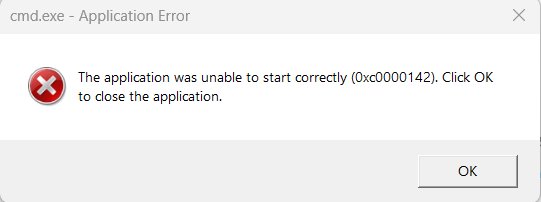
| Message you see | The application was unable to start correctly (0xc0000142). |
| Decimal form | -1073741502, which some scripts and logs show instead of the hex code |
| Common triggers | A damaged app install, outdated runtimes, corrupt system files, an AppInit DLL injected into every app, or a driver conflict |
Which 0xc0000142 fix should you try first?
| Your situation | Start with | Why |
|---|---|---|
| Word, Excel, Outlook or PowerPoint shows the error | The Office fix section below | Microsoft documents a specific update and repair order for Office |
| A game such as GTA 5 or League of Legends fails | Fix 2 (runtimes), then Fix 6 (graphics driver) | Games depend on Visual C++, DirectX and the GPU driver |
| Every app or many apps fail | Fix 3 (System File Checker), then Fix 7 (AppInit_DLLs) | A system-wide cause affects all programs at once |
| One older program fails after a Windows upgrade | Fix 4 (compatibility mode) | The program predates current Windows behaviour |
| An app with non-English text fails | Fix 5 (region and system locale) | Some non-Unicode programs need a matching system locale |
| Nothing above helps | Fix 8 (Process Monitor) | It shows which DLL the program loaded last before it stopped |
Fix 1 – Run the application as an administrator
An app that needs elevated rights can fail while loading a DLL when it runs as a standard user.
- Right-click the app's shortcut or its .exe file.
- Select Run as administrator.
- Select Yes in the User Account Control prompt.
- Use the app normally to confirm it stays open.
If running as administrator fixes it only temporarily, reinstall the app so its files and permissions are written cleanly.
Fix 2 – Install latest C++, .NET Framework and DirectX
Programs load the Visual C++, .NET Framework and DirectX runtimes as DLLs, so a missing or damaged runtime produces this exact error.
| Runtime | How to get the current version | Note |
|---|---|---|
| Visual C++ Redistributable (v14) | Install the latest supported package from Microsoft Learn: aka.ms/vc14/vc_redist.x64.exe for 64-bit Windows, vc_redist.x86.exe for 32-bit apps | One v14 package covers apps built with Visual Studio 2015 through 2026; the x64 package also carries ARM64 binaries |
| Older Visual C++ (2013 and earlier) | Install the version the app's publisher names | These install side by side with v14 |
| .NET Framework 4.8.1 | Install Windows updates; it is included in Windows 11 22H2 and later | It runs every .NET Framework 4 app |
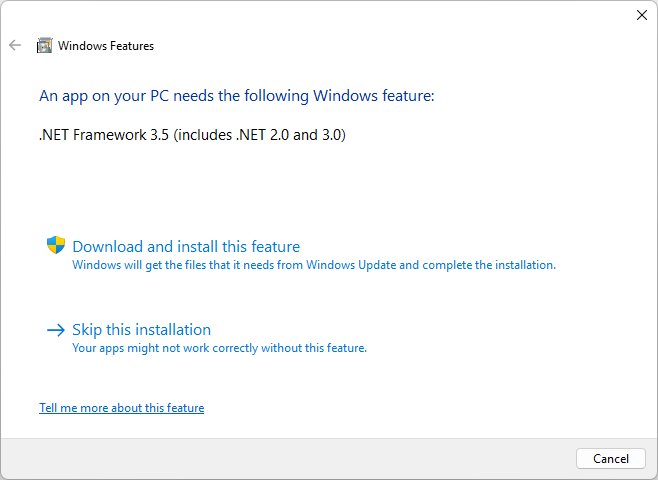
| .NET Framework 3.5 | Search for Windows Features, open Turn Windows features on or off, and tick .NET Framework 3.5 (includes .NET 2.0 and 3.0) | On Windows 11 26H1 (build 28000) and later it is a standalone installer only |
| DirectX 12 and 11.3 | Install all updates through Windows Update | There is no standalone package for these versions |
| DirectX 9 components for older games | Install the DirectX End-User Runtime from Microsoft | It leaves your current DirectX version unchanged |
Restart the PC after installing runtimes, then open the app again.
Fix 3 – Run System File Checker on your computer
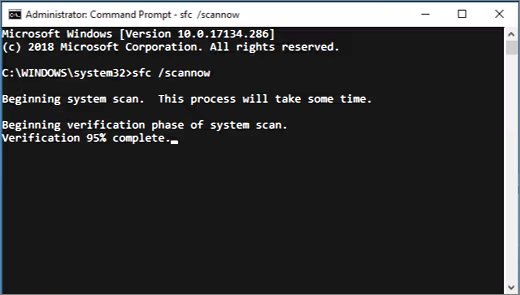
Corrupt Windows system DLLs break every app that loads them. Run a DISM image repair first, because it supplies the files System File Checker uses for repairs.
Open Command Prompt as administrator, run DISM.exe /Online /Cleanup-image /Restorehealth, wait for it to finish, then run the command below.
sfc /scannowSystem File Checker scans protected Windows files and replaces damaged copies using the store that DISM just repaired. Keep the window open until the scan reaches 100%.
You should see: "Windows Resource Protection did not find any integrity violations" or "Windows Resource Protection found corrupt files and successfully repaired them." Restart after a repair.
If SFC reports that it could not perform the requested operation, run it again from Safe Mode.
Fix 4 – Run the program in compatibility mode
Older programs can fail on Windows 11 or 10 because of architecture or security changes. First check the publisher's website for an updated version, then let Windows apply compatibility settings.
- Select Start > Settings > System > Troubleshoot > Other troubleshooters.
- Find Program Compatibility Troubleshooter and select Run.
- Choose the failing program from the list, or select it manually if it is not listed.
- Select Try recommended settings, then Start the program to test it.
- If it opens, select Next, then Yes, save these settings for this program.
- Select Close.
Fix 5 – Select correct region
Some programs that do not use Unicode fail to start when the system locale does not match their language. This changes the locale Windows uses for those programs, and it needs administrator rights.
- Select Start, type Change date, time or number formats, and open the Region dialog.
- Select the Administrative tab.
- Under Language for non-Unicode programs, select Change system locale.
- Choose the language the program was written for, then select OK.
- Select Apply and restart the PC when prompted.
- Open the program again; revert the locale the same way if it makes no difference.
Fix 6 – Update your NVIDIA driver
Games and graphics apps load GPU driver DLLs at startup, so an outdated or damaged NVIDIA, AMD or Intel driver can trigger 0xc0000142.
- Select Start > Settings > Windows Update > Advanced options.
- Make sure Receive updates for other Microsoft products is turned on.
- Under Additional options, select Optional updates and install any display driver listed.
- For an NVIDIA card, open nvidia.com/drivers and use the NVIDIA App or Manual Driver Search to get the latest GeForce driver.
- Install the driver and restart the PC, even if the installer does not ask.
Fix 7 – Reset the value of LoadAppInit_DLLs in the registry
AppInit_DLLs loads a listed DLL into every interactive app. Microsoft notes that malware uses it far more than legitimate software, and a bad entry here makes many apps fail at once.
When Secure Boot is enabled, Windows disables AppInit_DLLs anyway, so this fix matters mainly on PCs with Secure Boot turned off. Back up the key before you change it.
- Press Win + R, type regedit, and press Enter. Select Yes at the prompt.
- Go to HKEY_LOCAL_MACHINE\SOFTWARE\Microsoft\Windows NT\CurrentVersion\Windows.
- Right-click the Windows key, select Export, and save a backup.
- Double-click LoadAppInit_DLLs in the right pane.
- Change Value data to 0 (AppInit_DLLs disabled) and select OK.
- Note any path listed in AppInit_DLLs; an unknown DLL there is worth a full malware scan.
- Restart the PC and open the app.
To undo the change, double-click the backup .reg file you exported and restart.
Fix 8 – use Process Monitor
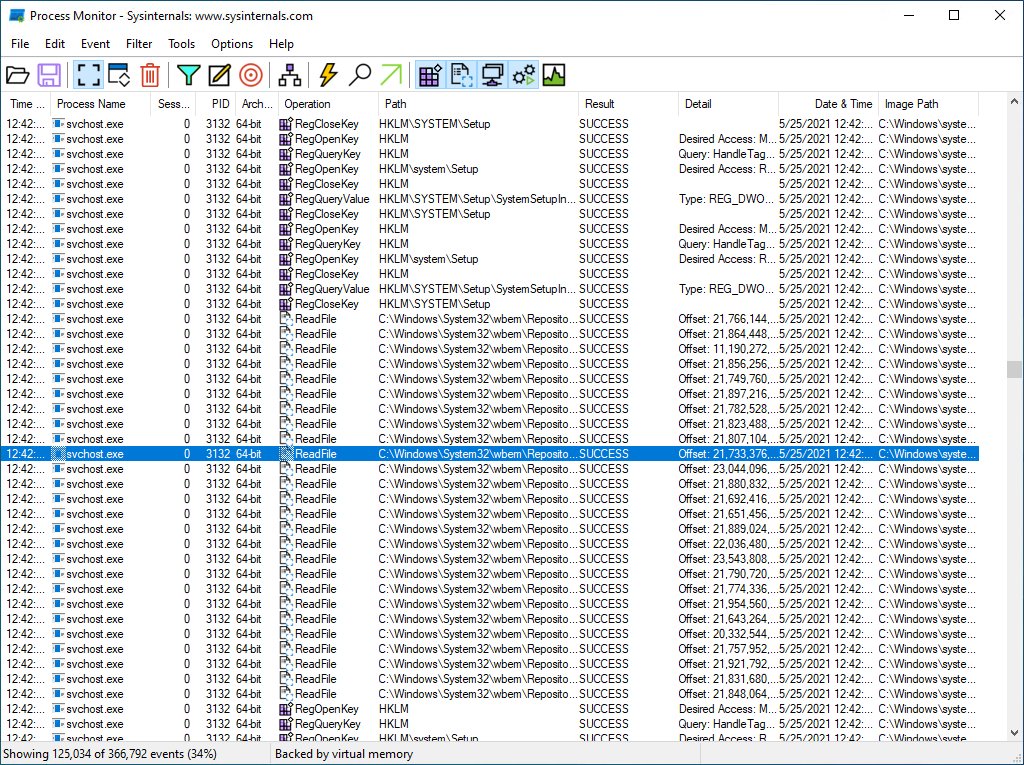
Process Monitor is Microsoft's Sysinternals tool that records file, registry and process activity in real time. It shows the last DLL the failing program touched before Windows terminated it. It runs on Windows 11 and later.
- Get Process Monitor from the Sysinternals page on learn.microsoft.com and open it as administrator.
- Open the Filter menu and add a filter where Process Name is the failing program's .exe, then select Include.
- Start the failing program and wait for the 0xc0000142 message.
- Stop the capture as soon as the error appears so the log stays short.
- Scroll to the last entries for the process and look for .dll paths whose result column shows a failure instead of success.
- Reinstall the program or runtime that owns that DLL.
Fix 9 – Reregister DLL files using a command
regsvr32 registers one COM DLL at a time. Use it only for a specific DLL named in the error or found in Process Monitor; mass-registering every DLL in System32 is not a Microsoft fix and can produce hundreds of errors.
regsvr32 <full path to the DLL>Run it in Command Prompt as administrator. regsvr32 writes the DLL's registration to the registry; /u unregisters it and /s hides the confirmation message.
You should see: A dialog reports that DllRegisterServer succeeded. A message that the entry point was not found means the DLL is not a COM component and does not need registering.
Fix 10 – Replace DLL files without downloading them from DLL sites
Never download a single DLL from a DLL download website. The file can be the wrong version or carry malware, and it rarely fixes an initialization failure. Replace damaged DLLs from their real source instead.
| Who owns the DLL | How to replace it safely |
|---|---|
| Windows (System32 or SysWOW64) | Run DISM and sfc /scannow from Fix 3 |
| Visual C++, .NET or DirectX (msvcp, vcruntime, d3dx files) | Reinstall the runtime from Fix 2 |
| The program itself (in its install folder) | Repair or reinstall the program from the publisher |
| A game launcher | Use the launcher's own repair or verify option, or reinstall the game |
| The graphics driver | Reinstall the driver from Fix 6 |
Fix 11 – Perform a clean boot
A clean boot starts Windows with only Microsoft services and no startup apps. If the program opens in that state, another app or service was interfering with the DLL it loads.
- Sign in as an administrator, select Search, type msconfig and open System Configuration.
- On the Services tab, select Hide all Microsoft services, then Disable all, and select Apply.
- On the Startup tab, select Open Task Manager.
- On the Startup apps tab, select each Enabled item and select Disable. Note which ones you disabled.
- Close Task Manager, select OK in System Configuration and restart the PC.
- Open the app that showed 0xc0000142. If it now starts, re-enable half of the services and startup items at a time, restarting after each change, until the error returns and you find the app or service causing the problem.
To return to a normal startup, open System Configuration, select Normal Startup on the General tab, clear Hide all Microsoft services and select Enable all on the Services tab, re-enable the startup apps in Task Manager, and restart. On a work PC, network policy can block these settings.
Fix 12 – Run a CHKDSK (check disk) scan
File system errors on the drive can damage the program or DLL files that fail to initialize. Check Disk finds and fixes them; run it in Command Prompt as administrator.
chkdsk C: /fChecks drive C: and fixes logical file system errors. Because Windows is using the system drive, chkdsk asks whether to check it the next time the PC restarts; type Y and restart. Use /r instead of /f to also locate bad sectors and recover readable data, which takes much longer.
You should see: After the restart, chkdsk checks the drive and corrects errors automatically before Windows loads, then restarts the PC. Open the app again once you are signed in.
Fix error 0xc0000142 in Office, games and Adobe apps
Error 0xc0000142 in Word, Excel, Outlook or PowerPoint
An outdated Office build, a damaged Office install, or the Office Software Protection Platform service not running.
- Make sure Office is version 2102 (Build 13801.20808) or later: open Task Scheduler, go to Task Scheduler Library > Microsoft > Office, right-click Office Automatic Updates 2.0 and select Run.
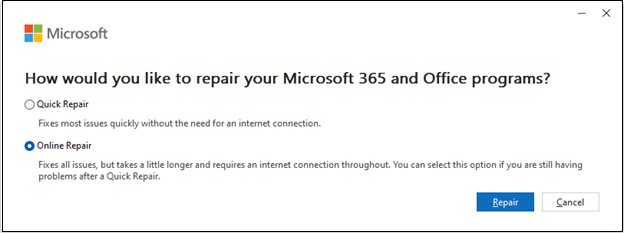
- Right-click Start, select Installed apps, select your Office product, choose Modify, then Online Repair > Repair.
- Install all pending Windows updates.
- Open Services, double-click Office Software Protection Platform, set Startup type to Automatic and select Start if it is stopped.
- If it still fails, uninstall Office, restart, and reinstall it.
Error 0xc0000142 in GTA 5, League of Legends and other games
A missing runtime, an outdated graphics driver, or damaged game files.
- Install the latest Visual C++ Redistributable and DirectX components from Fix 2.
- Update the graphics driver as in Fix 6.
- Use the game launcher's repair or verify option, or reinstall the game.
- Never use a downloaded "0xc0000142 fix" or DLL pack from a third-party site.
Error 0xc0000142 in Adobe apps such as InDesign
A damaged app install or a missing runtime the app depends on.
- Run the app as administrator once (Fix 1).
- Install the Visual C++ Redistributable from Fix 2 and restart.
- Uninstall the app with the publisher's own installer, restart, and reinstall it.
"The application was unable to start correctly (0xc0000142)" for every app
Corrupt system files or a bad AppInit DLL loaded into every program.
- Run DISM and sfc /scannow from Fix 3.
- Check LoadAppInit_DLLs as in Fix 7.
- Open Windows Security > Virus & threat protection > Scan options and run a Full scan.
- Restart and test again.
How to confirm error 0xc0000142 is fixed
- Restart the PC after your last change.
- Open the app that failed from its normal shortcut, not as administrator.
- Use it long enough to open a file or start a game session.
- Open the app twice more after closing it to confirm the fix holds across launches.
Error 0xc0000142 FAQ
What is error 0xc0000142?
Error 0xc0000142 is the Windows status STATUS_DLL_INIT_FAILED. A program tried to load a dynamic link library, the library failed to initialize, and Windows ended the program. It appears as "The application was unable to start correctly (0xc0000142)."
What does error 0xc0000142 mean for my app?
It means the app never finished starting. One of the DLLs it depends on, from Windows, a runtime such as Visual C++, a driver or the app itself, is missing, damaged or blocked. Repairing the owner of that DLL fixes the error.
How to fix 0xc0000142 error on Windows 11?
Install pending Windows updates, repair or reinstall the app from Settings > Apps > Installed apps, then run DISM and sfc /scannow in an elevated Command Prompt. If it continues, install the latest Visual C++ Redistributable and update your graphics driver.
How to fix application error 0xc0000142 in Office?
Update Office to version 2102 or later, run Online Repair from Installed apps, install Windows updates, and make sure the Office Software Protection Platform service is running. Uninstall and reinstall Office if the error remains.
Does error 0xc0000142 happen on Windows 10 too?
Yes. The same status code and the same fixes apply to Windows 10 and Windows 11. On Windows 10 the repair options sit under Settings > Apps > Apps & features instead of Installed apps.
Should I download a 0xc0000142 fix or DLL file?
No. Third-party fix tools and single DLL downloads can carry malware or the wrong file version. Replace damaged DLLs with SFC and DISM, the official runtime installers, or a clean reinstall of the app.
How to fix 0xc0000142 in GTA 5?
Install the latest Visual C++ Redistributable and DirectX components, update the graphics driver, and use the launcher's repair or verify option. Reinstall the game if those steps do not clear the error.
Is 0xc0000142 caused by a virus?
Usually not, but malware can inject DLLs into every app through AppInit_DLLs and cause it. If many apps fail at once, check the LoadAppInit_DLLs value and run a full scan in Windows Security.
Get error 0xc0000142 sorted out in Windows 11 and Windows 10
"The application was unable to start correctly (0xc0000142)" has several causes, so troubleshoot it with multiple methods in a fixed order rather than at random.
Restart, install Windows updates and repair or reinstall the failing app first; then reinstall the Visual C++, .NET and DirectX runtimes, run DISM and sfc /scannow, and update the graphics driver. Those steps replace the DLLs that most often fail to initialize from their official sources. Clean boot, CHKDSK, the LoadAppInit_DLLs check and Process Monitor are for the cases they leave unsolved.