The best Windows Defender settings are real-time and cloud-delivered protection, tamper protection, controlled folder access, memory integrity, reputation-based protection, exploit protection and the firewall on every network profile.
This guide shows where each one lives in the Windows Security app on Windows 11 and Windows 10, the state to set it to, how to confirm it is active, and what to do when a switch is greyed out or will not stay on.
What are the best Windows Defender settings?
All seven live in the Windows Security app, which holds Microsoft Defender Antivirus, Microsoft Defender Firewall and SmartScreen. Several are already on by default, so the job is to confirm them and switch on the two that ship off: controlled folder access and, on older installs, memory integrity.
| Setting | Where to find it in Windows Security | Set it to | What it stops |
|---|---|---|---|
| 1. Real-time and cloud-delivered protection | Virus & threat protection > Manage settings | On (plus Automatic sample submission) | Malware in files you open, download or run |
| 2. Tamper protection | Virus & threat protection > Manage settings | On | Malicious apps switching your Defender settings off |
| 3. Controlled folder access | Virus & threat protection > Manage ransomware protection | On | Ransomware and untrusted apps changing files in Documents, Pictures, Desktop and other protected folders |
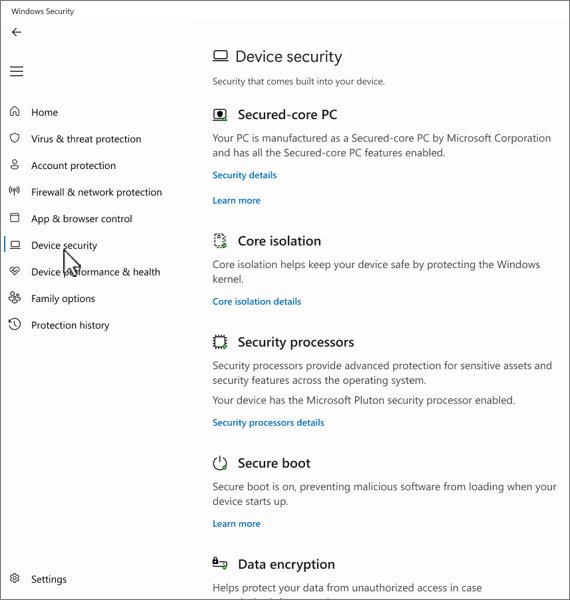
| 4. Core isolation (memory integrity) | Device security > Core isolation details | On | Malicious low-level drivers hijacking the Windows kernel |
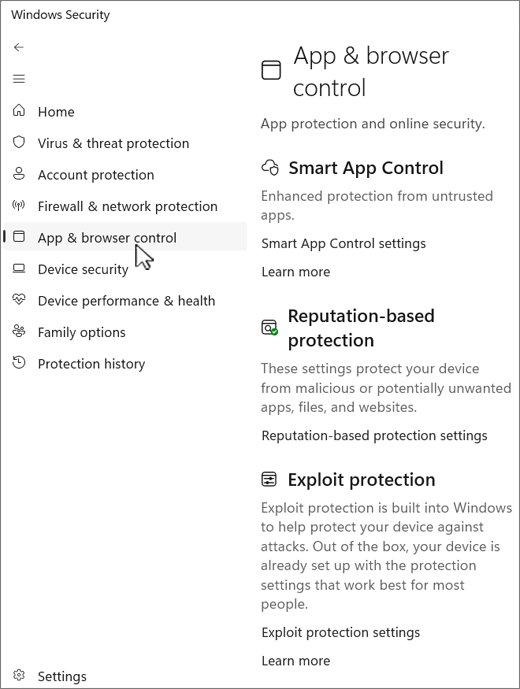
| 5. Reputation-based protection | App & browser control > Reputation-based protection settings | Every switch on, including Potentially unwanted app blocking | Unrecognised downloads, phishing sites and adware-style apps |
| 6. Exploit protection | App & browser control > Exploit protection settings | System settings left at Use default | Memory-corruption attacks against apps and Windows |
| 7. Firewall and network protection | Firewall & network protection | On for Domain, Private and Public networks | Unsolicited inbound connections from other devices |
How to open Windows Defender settings in Windows 11 and Windows 10
Windows Defender is now called Microsoft Defender Antivirus, and its settings sit inside the Windows Security app. It is built into Windows and runs from the moment the PC starts, so there is nothing to install.
- Select Start and type Windows Security.
- Open Windows Security from the results.
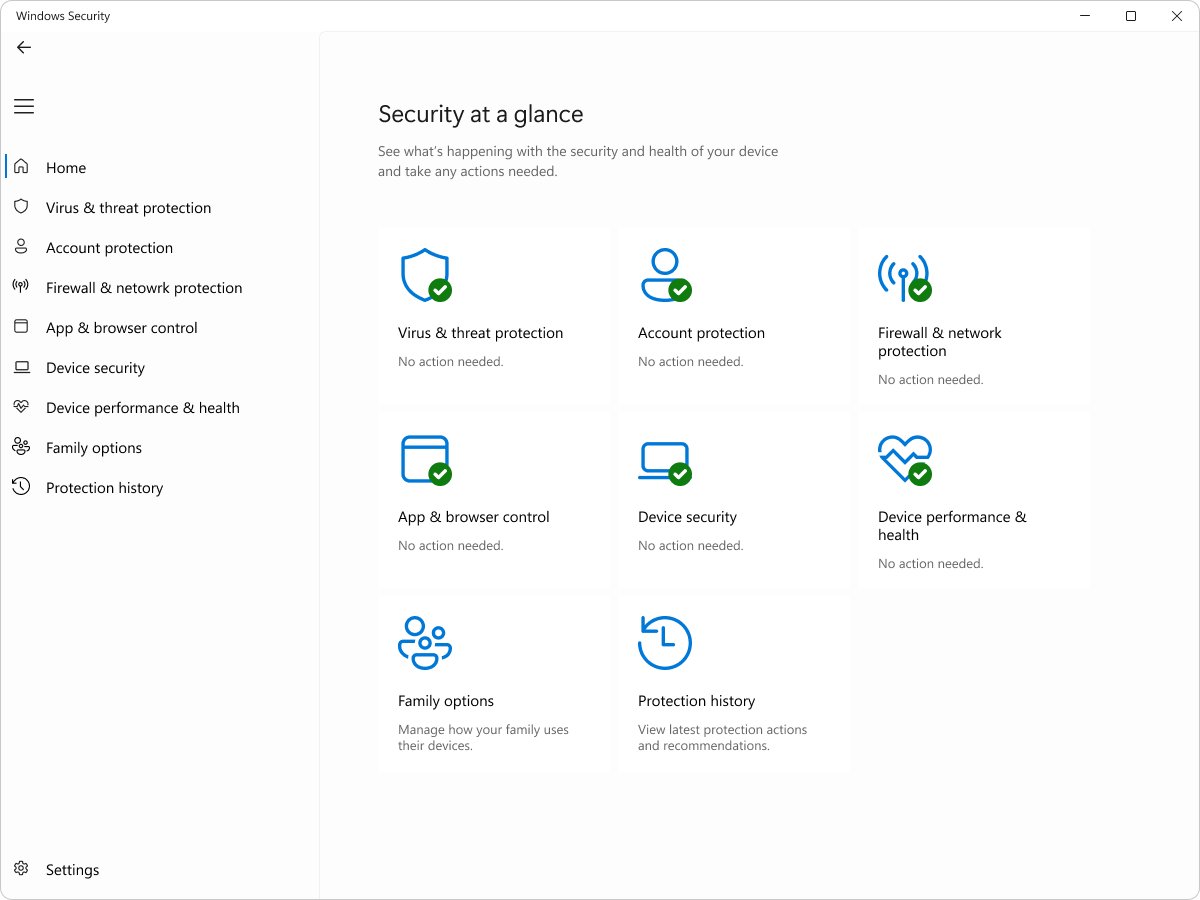
- Check the home page: a green icon on an area means no action is needed, yellow means a recommendation, and red needs attention now.
- Select Virus & threat protection for the antivirus settings, App & browser control for SmartScreen and exploit protection, Device security for core isolation, or Firewall & network protection for the firewall.
- Approve the User Account Control prompt when a switch asks for it. Changing these settings needs an administrator account.
If another antivirus app is installed and turned on, Microsoft Defender Antivirus turns itself off automatically and the antivirus switches disappear. Uninstalling the other product turns Defender back on. If the app itself will not start, turn Windows Security back on first.
1. Real-time protection and cloud-delivered protection settings
Real-time protection scans files and programs as they are opened or run. Cloud-delivered protection lets Defender check suspicious items against Microsoft's constantly updated cloud data while you are online, which identifies new threats more accurately than local signatures alone.
- Open Windows Security and select Virus & threat protection.
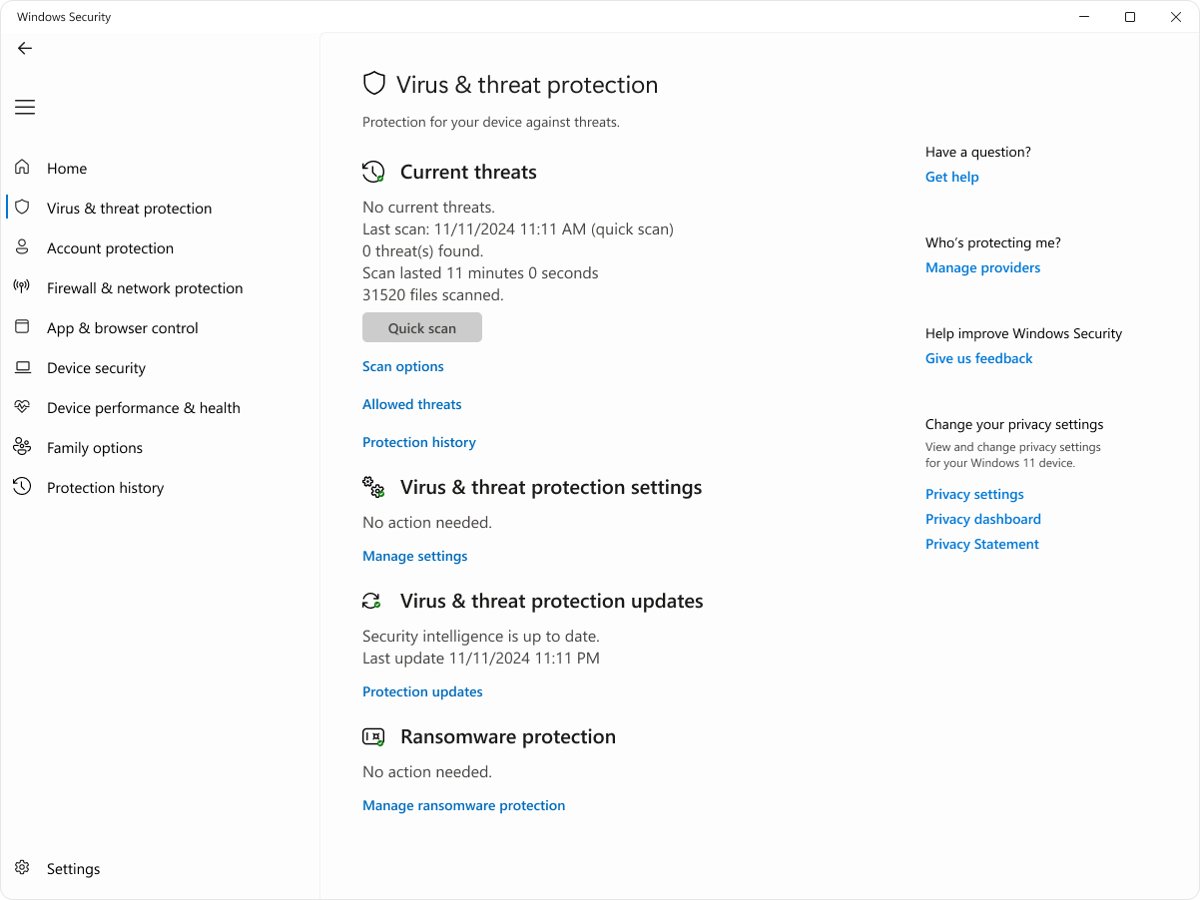
- Under Virus & threat protection settings, select Manage settings.
- Set Real-time protection to On.
- Set Cloud-delivered protection to On.
- Set Automatic sample submission to On so Defender can send suspicious files to Microsoft for analysis.
- Go back one page, select Protection updates, then select Check for updates to pull the latest security intelligence.
Microsoft notifies you before sending a requested file that contains personal information, so sample submission does not upload your documents silently. Security intelligence also arrives through Windows Update settings, so keep updates on.
2. Turn on tamper protection in Windows Security
Tamper protection stops other apps from changing key Defender settings such as real-time protection and cloud-delivered protection. An administrator can still change them in the Windows Security app; malware running in the background cannot.
- Open Windows Security > Virus & threat protection.
- Select Manage settings under Virus & threat protection settings.
- Scroll to Tamper protection and set it to On.
- Select Yes on the User Account Control prompt.
On current Defender platform versions, turning tamper protection on also turns cloud-delivered protection on if it was off. Tamper protection does not affect how a third-party antivirus registers with Windows Security.
3. Controlled folder access for ransomware protection
Controlled folder access blocks unknown or untrusted apps from changing files in protected folders. Documents, Pictures, Videos, Music and Desktop are protected by default, and you can add any other folder. It ships turned off, so this is the setting most PCs are missing.
- Open Windows Security > Virus & threat protection.
- Scroll down and select Manage ransomware protection.
- Under Controlled folder access, slide the toggle to On and select Yes on the User Account Control prompt.
- Select Protected folders, then + Add a protected folder to include folders such as a second data drive or a project folder.
- When a trusted app is blocked, select Allow an app through Controlled folder access, then + Add an allowed app.
- Choose Recently blocked apps to pick the app from the block list, or Browse all apps to select its .exe file.
Add only apps you trust. Any allowed app can change protected files, so a compromised allowed app puts those folders at risk. The same page holds Ransomware data recovery, which backs files up to OneDrive so you can restore them after an attack.
4. Core isolation and memory integrity in Windows Security
Memory integrity, also called Hypervisor-protected Code Integrity (HVCI), uses hardware virtualization to check kernel code in an isolated environment before Windows runs it. This makes it hard for malicious drivers to take over the PC. It needs hardware virtualization enabled in UEFI or BIOS.
- Open Windows Security and select Device security.
- Under Core isolation, select Core isolation details.
- Set Memory integrity to On and approve the User Account Control prompt.
- Restart the PC so the change takes effect.
- Return to Core isolation details and confirm Local Security Authority protection is On; it guards the credentials used to sign in to Windows.
- If the CPU supports Intel Control-flow Enforcement Technology or AMD Shadow Stack, also turn on Kernel-mode Hardware-enforced Stack Protection.
Turning memory integrity on also switches on the Microsoft vulnerable driver blocklist, which stops drivers with known security holes from loading.
5. Reputation-based protection and SmartScreen settings
Reputation-based protection is Microsoft Defender SmartScreen. It compares apps, files, downloads and websites against what Microsoft knows about malicious sites and publishers, and it blocks potentially unwanted apps that show ads, mine cryptocurrency or bundle extra software.
- Open Windows Security and select App & browser control.
- Select Reputation-based protection settings.
- Turn on Check apps and files so downloaded apps and files are checked before they run.
- Turn on SmartScreen for Microsoft Edge to block known phishing, scam and malware sites.
- On Windows 11, turn on Phishing protection and tick the warnings you want, such as a warning when you reuse your password or type it into Notepad.
- Turn on Potentially unwanted app blocking.
- Turn on SmartScreen for Microsoft Store apps.
Phishing protection is not available on Windows 10 and only protects the password typed to sign in to Windows 11. If the switches are missing or greyed out, turn SmartScreen back on first. In Microsoft Edge, also open Settings > Privacy, search, and services and turn on Block potentially unwanted apps, which is off by default.
6. Exploit protection settings in Windows Security
Exploit protection applies memory mitigations such as Data Execution Prevention and address space layout randomization to Windows and to individual apps. It already runs with settings that suit most people, so the best setting is to confirm the system defaults have not been weakened.
| System setting | Default state | Recommendation |
|---|---|---|
| Control flow guard (CFG) | Use default (On) | Keep on |
| Data Execution Prevention (DEP) | Use default (On) | Keep on |
| Force randomization for images (Mandatory ASLR) | Use default (Off) | Leave off unless every app you use is tested with it; some apps and drivers break |
| Randomize memory allocations (Bottom-up ASLR) | Use default (On) | Keep on |
| High-entropy ASLR | Use default (On) | Keep on |
| Validate exception chains (SEHOP) | Use default (On) | Keep on |
| Validate heap integrity | On for 64-bit and 32-bit apps | Keep on |
To check them, open Windows Security > App & browser control > Exploit protection settings and review the System settings tab. Set any changed entry back to Use default and restart. Use the Program settings tab only for a specific app that needs a stricter or looser rule.
7. Firewall and network protection settings
Microsoft Defender Firewall should be on for all three network profiles. Public networks such as café Wi-Fi deserve the strictest rules because most devices on them belong to strangers.
- Open Windows Security and select Firewall & network protection.
- Select Domain network and set Microsoft Defender Firewall to On.
- Go back, select Private network and set Microsoft Defender Firewall to On.
- Go back, select Public network and set Microsoft Defender Firewall to On.
- On the Public network page, tick Blocks all incoming connections, including those in the list of allowed apps if you use untrusted Wi-Fi often and your apps still work with it.
- When an app you need is blocked, use Allow an app through firewall instead of turning the firewall off.
If something stops working after changes made by you or another app, Restore firewalls to default on the same page resets the rules to factory state. Try that before you turn Windows Firewall off.
How to check Windows Defender protection is turned on
The Windows Security home page is the quickest proof, and PowerShell confirms the two settings the app does not summarise on its home page.
- Open Windows Security and confirm every area on the home page shows a green icon.
- Open Virus & threat protection > Manage settings and confirm Real-time protection, Cloud-delivered protection and Tamper protection all read On.
- Open Windows PowerShell as administrator and run
Get-MpPreference | Format-Table PUAProtection. A value of 1 means potentially unwanted apps are blocked; 2 means audit mode only; 0 means off. - Run
Get-MpPreference | Format-Table EnableControlledFolderAccess. A value of 1 means controlled folder access is on. - Open Device security > Core isolation details and confirm Memory integrity reads On after the restart.
- Run a Microsoft Defender full scan from Scan options to confirm the engine runs and finds nothing.
Other Windows Defender settings: Smart App Control, parental controls and exclusions
These settings sit next to the seven above. They suit specific situations rather than every PC.
| Setting | Where it is | When to use it |
|---|---|---|
| Smart App Control | App & browser control > Smart App Control settings | Windows 11 only, and only on a new install or after a reset. It blocks untrusted and unsigned apps; once switched off it cannot return to evaluation mode without reinstalling or resetting Windows. |
| Parental controls (Family options) | Family options > View family settings | Opens Microsoft Family Safety to set screen time, content filters and activity reports for child accounts. |
| Exclusions | Virus & threat protection > Manage settings > Add or remove exclusions | Only for a trusted file, folder, file type or process that real-time scanning slows down. Use the full path for a process exclusion; an exclusion is safer than turning protection off. |
| Dev Drive protection | Virus & threat protection > Manage settings | Windows 11 developers using a Dev Drive; it scans that volume asynchronously in performance mode. |
| Microsoft Defender Antivirus (offline scan) | Virus & threat protection > Scan options | When malware keeps returning; it restarts the PC and scans before Windows loads. |
How to reverse a Windows Defender setting that breaks an app
Fix the conflict for one app before turning a whole protection layer off.
- For a blocked save or edit, open Manage ransomware protection and add the app under Allow an app through Controlled folder access.
- For a blocked network app, open Firewall & network protection > Allow an app through firewall and allow that app.
- For an app that crashes after an exploit protection change, open Exploit protection settings > Program settings, select the app and set the changed mitigation back to its default.
- To undo every firewall change at once, select Restore firewalls to default on the Firewall & network protection page.
- To switch a setting off entirely, return to the page where you turned it on and set the toggle to Off. Real-time protection turns itself back on after a short while.
Windows Defender settings greyed out or turning off: fixes
Windows Defender switches are missing and Windows Security names another antivirus
A third-party antivirus is installed and turned on, so Microsoft Defender Antivirus turned itself off.
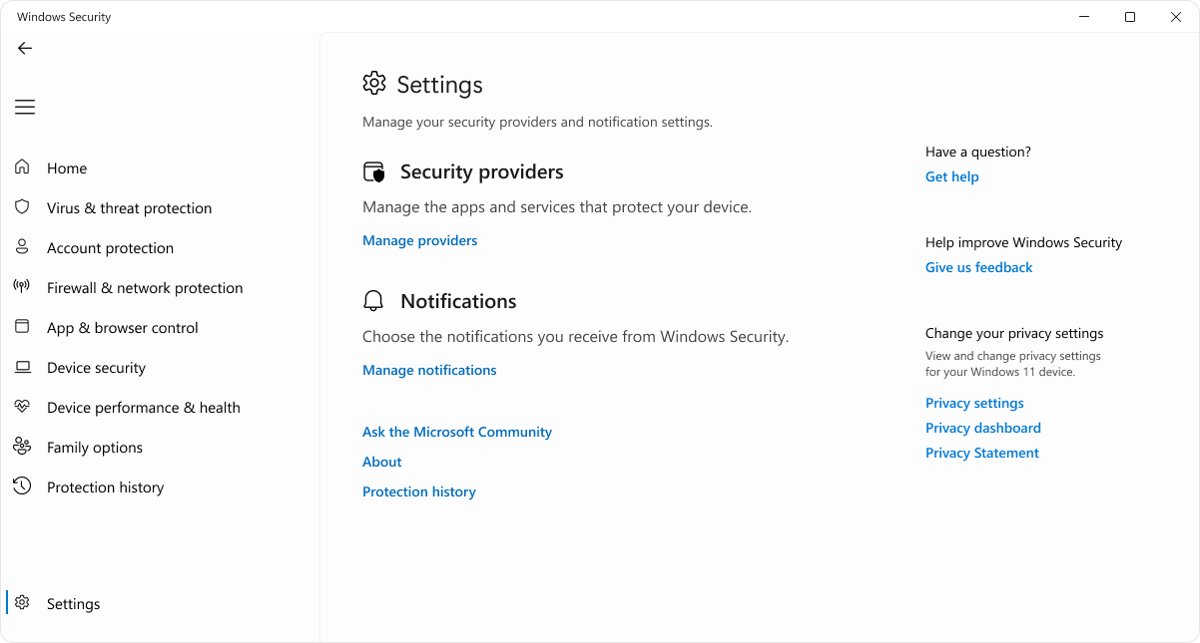
- Open Windows Security > Settings > Manage providers to see which product is active.
- Keep the other product, or uninstall it from Settings > Apps if you want Defender back.
- Restart and confirm Real-time protection reads On.
A Windows Defender setting is greyed out on a work or school PC
The organisation manages the device, and its policy settings override the Windows Security app.
- Check the bottom of the affected page for a notice that an organisation manages the setting.
- Ask the IT administrator to change the policy; the Windows Security app cannot override it.
- Restart after the policy changes and recheck the setting.
Real-time protection will not turn off for a test
Tamper protection blocks the change.
- Add an exclusion for the specific file or folder instead; it is safer than turning protection off.
- If the toggle must change, turn Tamper protection off first, then turn it back On when you finish.
Memory integrity will not turn on and reports incompatible drivers
A driver installed on the PC does not meet the memory integrity requirements.
- Note the driver names the Core isolation details page lists as incompatible.
- Install an updated driver from Windows Update or the device maker's site.
- If no update exists, remove the device or app that uses the driver, then turn Memory integrity on again.
- Confirm hardware virtualization is enabled in UEFI or BIOS.
A familiar app is blocked from saving files to Documents or Desktop
Controlled folder access is blocking an app that is not on the trusted list.
- Note the path of the blocked app.
- Select the App is blocked notification and choose Add an allowed app.
- Browse to the blocked program and add it, then save the file again in the original folder.
Windows Defender settings FAQ
How do I set up Windows Defender?
Windows Defender needs no installation because it is built into Windows 11 and Windows 10. Open Windows Security, confirm real-time, cloud-delivered and tamper protection are on, then turn on controlled folder access, memory integrity and potentially unwanted app blocking.
Where do I find Microsoft Defender settings?
Microsoft Defender settings are in the Windows Security app. Search for Windows Security from Start, then open Virus & threat protection > Manage settings for antivirus options, or App & browser control, Device security and Firewall & network protection for the rest.
How do I make Windows Defender better?
Turn on the protections that ship off or partly off: controlled folder access, potentially unwanted app blocking, memory integrity on older installs, and the Public network firewall option to block all incoming connections. Keep Windows Update on so security intelligence stays current.
How do I make sure Windows Defender is on?
Open Windows Security and check that every area shows a green icon. Then open Virus & threat protection > Manage settings and confirm Real-time protection reads On. If another antivirus is listed as the active provider, Defender stays off until that product is removed.
Is Windows Defender good enough on its own?
For most home PCs, Windows Security provides antivirus, firewall, ransomware folder protection, SmartScreen and exploit mitigations without another product. Microsoft 365 Personal and Family subscribers also get the separate Microsoft Defender app, which extends protection to Mac, iOS and Android devices.
Why use Microsoft Defender instead of a third-party antivirus?
Microsoft Defender Antivirus is built into Windows, updates through Windows Update and is managed from the same Windows Security app as the firewall and SmartScreen. Running two active antivirus products is not supported, so Defender switches off when another one is installed.
Does turning on memory integrity slow down the PC?
Memory integrity checks kernel code inside a virtualized environment, and Microsoft says the check typically happens very quickly. The common problem is not speed but compatibility: an old driver can block it, so update or remove that driver first.
Should I turn on controlled folder access?
Yes, if you keep important files in Documents, Pictures, Desktop or other personal folders. It blocks untrusted apps, including ransomware, from changing those files. Expect occasional block notifications for legitimate apps and add them through Allow an app through Controlled folder access.
Is Windows Defender the same as Windows Security?
No. Windows Security is the app, and Microsoft Defender Antivirus, formerly Windows Defender, is the antivirus inside it. The app also manages Microsoft Defender Firewall, SmartScreen, device security features and family options.
Bottom line: the Windows Defender settings to change first
Turn on controlled folder access and potentially unwanted app blocking today, confirm memory integrity and tamper protection are on, and leave exploit protection at its defaults. Real-time protection, cloud protection and the firewall are already on for most PCs, so the biggest gains come from the ransomware and adware protections that ship off and from keeping malware from switching the rest off.