To fix IRQL_NOT_LESS_OR_EQUAL, find the driver that crashed, then roll it back or update it; a faulty kernel-mode driver causes this stop code far more often than anything else.
This guide covers what stop code 0xA means, how to read the clues it leaves, every fix from Windows Update to a memory test and a reset, and how to confirm the blue screen is gone on Windows 11 and Windows 10.
The fastest way to fix IRQL_NOT_LESS_OR_EQUAL
Microsoft's bug check reference states that this error is caused by kernel-mode device drivers that use improper addresses, usually after a faulty driver, system service or BIOS was installed. Start with the driver.
- Read the blue screen. If a What failed line names a file ending in
.sys, write that name down: it is the driver to deal with. - If the PC crashes before you can sign in, start it in Safe Mode first (see the Safe Mode section below).
- In the search box on the taskbar, type device manager, then select it from the results.
- Right-click the device that uses the named driver (or the device whose driver you changed most recently) and select Properties.
- Select the Driver tab, then select Roll Back Driver if the problem started after a driver update, or Update driver > Search automatically for drivers if the driver is old.
- Select Start > Settings > Windows Update and select Check for updates to install pending fixes.
- Restart the PC and use it normally. If the blue screen does not return, you are done.
If the blue screen names no driver, or the crash returns, work through the decision table below in order.
What Is the IRQL NOT LESS OR EQUAL Error?
IRQL_NOT_LESS_OR_EQUAL is a Windows bug check (stop code) with the value 0x0000000A. Windows or a kernel-mode driver tried to read, write or run memory at an invalid address while running at a raised interrupt request level (IRQL).
| Term on the screen | What it means for you |
|---|---|
| Stop code IRQL_NOT_LESS_OR_EQUAL | Bug check 0xA. Windows stopped to prevent corruption after invalid memory access at a raised IRQL. |
| IRQL (interrupt request level) | The priority a piece of kernel code runs at. At high levels, code may not touch memory that can be paged out to disk. |
| "Not less or equal" | The IRQL was too high for the memory being accessed, so the access was illegal and Windows halted. |
| DRIVER_IRQL_NOT_LESS_OR_EQUAL | Bug check 0xD1, a close relative. Same fault, but Windows has pinned it on a specific driver. |
| What failed: name.sys | The driver file loaded where the fault happened. It is your strongest lead. |
| Typical root cause | A bad pointer or a pageability bug in driver code, occasionally corrupted memory from faulty RAM. |
The error message itself does not mean Windows is broken. It means one component misbehaved badly enough that continuing would have risked your data.
Common Causes of IRQL NOT LESS OR EQUAL Error
Microsoft's own crash analysis attributes about 70% of stop errors to third-party driver code and about 10% to hardware. Match your situation to a row.
| Cause | How to recognise it | Fix to use |
|---|---|---|
| Faulty or outdated device drivers | A .sys file is named on the blue screen, or crashes began after a driver install |
Roll back or update the driver |
| Hardware conflicts or hardware failures | Crashes began after adding a card, dock or USB device | Remove the new hardware and run the manufacturer's diagnostics |
| Memory issues | Random crashes with different drivers named each time | Windows Memory Diagnostic |
| Overclocking | CPU, RAM or GPU runs above stock settings | Return firmware and tuning tools to default settings |
| Malware or virus infections | Unknown drivers or services, crashes plus other odd behaviour | Microsoft Defender full scan or offline scan |
| Recent software changes | A new antivirus, backup tool, VPN or system service went in shortly before | Uninstall it, clean boot, or System Restore |
| System file corruption | Crashes plus other Windows errors, failed updates | DISM, then SFC |
| Windows upgrade incompatibility | Error appeared after moving to a newer Windows version | Update or remove drivers, services, antivirus and backup tools that do not support the new version |
Comprehensive Troubleshooting and Fix Strategies
Try the fixes in this order. Each row is cheaper and safer than the one below it, and the last rows remove data or settings.
| Your situation | Try this | Why |
|---|---|---|
| Crashed once and has not returned | Restart your computer, then Check for Windows Updates | One-off faults happen; updates carry fixed drivers |
| Cannot reach the desktop | Boot into Safe Mode | Safe Mode loads only basic drivers, so the faulty one usually stays off |
| A driver is named, or a driver just changed | Roll Back or Update Drivers | Drivers cause most 0xA crashes |
| Began after installing an app, update or device | Uninstall Recently Installed Software or Drivers | Removes the change that introduced the fault |
| Other Windows errors alongside the crash | Perform System File Check (SFC) and Use DISM Tool | Repairs corrupted system files |
| Random crashes with no pattern | Check Hardware: RAM and Storage | Faulty memory corrupts pointers in any driver |
| CPU, RAM or GPU is tuned | Disable Overclocking | Unstable timings flip bits in memory |
| Crash follows a background program | Perform a Clean Boot | Isolates third-party services |
| Worked last week, no idea what changed | Use System Restore | Reverts drivers and system files, keeps personal files |
| Unknown drivers or services appear | Check for Malware | Malicious kernel drivers can trigger stop codes |
| Nothing above helped | Reset or Reinstall Windows | Replaces the whole software stack; only hardware remains |
Boot into Safe Mode
Use Safe Mode when the crash hits before or right after sign-in. If your drive is encrypted, have your BitLocker recovery key ready before you start.
- If you can reach the desktop, open Settings > System > Recovery (Windows 10: Update & Security > Recovery) and select Restart now next to Advanced startup.
- If you can reach only the sign-in screen, hold Shift while you select Power > Restart.
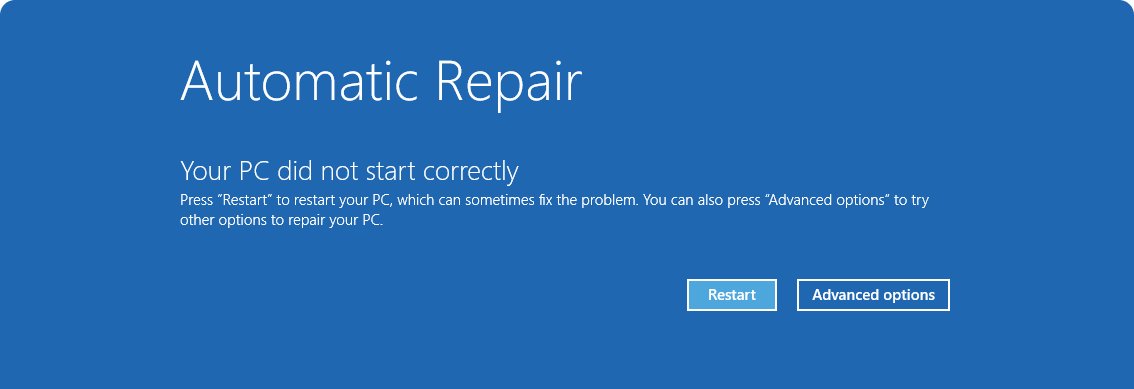
- If Windows never loads, turn the PC on and hold the power button to force it off as soon as the Windows logo appears; do this twice, and the third start opens Automatic Repair.
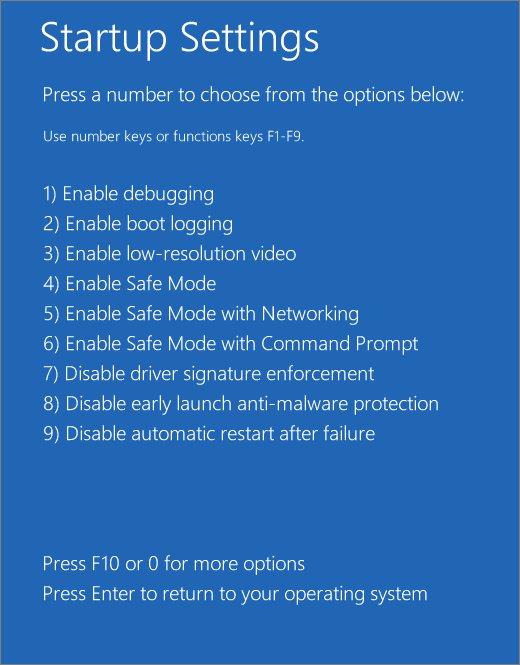
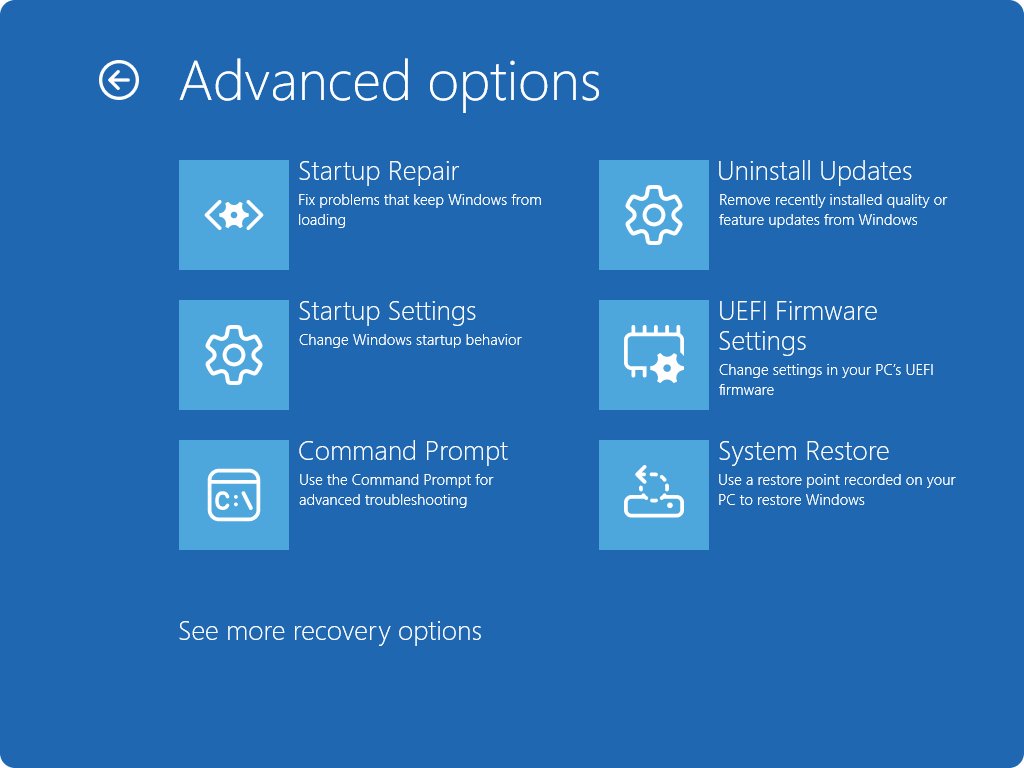
- In Windows Recovery Environment, select Troubleshoot > Advanced options > Startup Settings > Restart.
- Press 4 or F4 for Safe Mode, or 5 or F5 for Safe Mode with Networking if you need to download a driver.
- Apply the driver, update or uninstall fixes below, then restart normally.
If the PC keeps returning to Safe Mode, press Win + R, type msconfig, select OK, and clear the Safe boot check box under Boot options.
Check for Windows Updates
Microsoft's stop-error checklist starts with installing the latest Windows and cumulative updates, because they ship corrected Microsoft drivers and fixes for known crashes. Restart the computer first; a clean restart clears one-off faults.
- Select Start > Power > Restart and let Windows load fully.
- Select Start > Settings > Windows Update.
- Select Check for updates and install everything offered.
- If you see Update and restart under Start > Power, select it to finish pending updates.
- Check your PC or motherboard maker's support site for a newer BIOS or UEFI firmware, which Microsoft also lists as a stop-error step, and follow their instructions to apply it.
Roll Back or Update Drivers
Roll back when crashes started right after a driver update. Update when the driver is old or named on the blue screen and no rollback exists.
- In the search box on the taskbar, type device manager, then select it from the results.
- Expand the category for the suspect device (network adapters and display adapters are frequent culprits).
- To roll back: right-click the device, select Properties, open the Driver tab, select Roll Back Driver, and confirm with Yes.
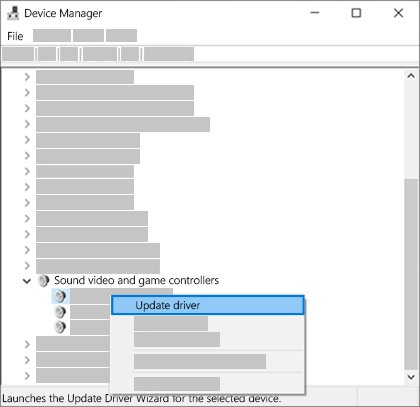
- To update: right-click the device, select Update driver, then Search automatically for drivers.
- If Windows finds nothing newer, download the driver from the device or PC manufacturer's own website and install it.
- To reinstall cleanly: right-click the device, select Uninstall device, tick Attempt to remove the driver for this device, select Uninstall, then restart so Windows reinstalls it.
Microsoft's advice for the related 0xD1 stop code is the same: if a driver is identified, update it through its manufacturer, or disable it and watch for stability. Never use a third-party "driver updater" tool for this.
Uninstall Recently Installed Software or Drivers
Microsoft lists a newly installed driver, system service, antivirus or backup tool as the usual trigger for bug check 0xA. Remove the most recent change first.
- Remove a Windows update: select Start > Settings > Windows Update > Update history > Uninstall updates, select the update, then Uninstall.
- Uninstall the app or system utility you added most recently, especially one that installs its own drivers, such as a VPN, RGB lighting or tuning tool.
- Remove new hardware: shut down, disconnect the device or card added most recently, and start the PC again.
- If a security or backup product was installed recently, uninstall it and check whether the crashes stop; then ask its vendor for a version compatible with your Windows build.
- Restart and use the PC for the activity that used to crash it.
If Windows cannot start, the same update removal is available in Windows Recovery Environment under Troubleshoot > Advanced options > Uninstall Updates.
Perform System File Check (SFC) and Use DISM Tool
Run DISM first, because it repairs the component store SFC copies clean files from. Open Command Prompt as administrator: type cmd in Search, right-click Command Prompt, and select Run as administrator.
For every SFC switch and result message, see the SFC /scannow step-by-step guide.
DISM.exe /Online /Cleanup-image /Restorehealth
sfc /scannow
DISM repairs the Windows image using Windows Update as its source and can take several minutes. SFC then scans all protected system files and replaces corrupted ones with a cached copy. Leave the window open until verification reaches 100%.
You should see: "Windows Resource Protection did not find any integrity violations" or "Windows Resource Protection found corrupt files and successfully repaired them." If you see "could not perform the requested operation", run SFC again in Safe Mode.
Check Hardware: RAM and Storage
Bad RAM corrupts memory addresses, which is exactly the kind of invalid pointer this stop code reports. Save your work first, because the memory test restarts the PC.
- Select Start, type Windows Memory Diagnostic, and press Enter.
- Choose to restart and run the test now, or schedule it for the next restart.
- Let the standard test finish. For a deeper pass, press F1, set Test Mix to Extended with the arrow keys, and press F10 to apply.
- After Windows restarts, open Event Viewer, go to the System log, and open the MemoryDiagnostics-Results entry to read the result.
- Check the drive: in an administrator Command Prompt, run
chkdsk /fand type Y to schedule the check at the next restart if the drive is in use. - If either test reports errors, run your PC maker's own hardware diagnostics and replace the failing module or drive.
Microsoft also recommends keeping 10 to 15 percent of the system drive free when troubleshooting stop errors.
Disable Overclocking
Memory or processor settings beyond the manufacturer's rating can pass benchmarks yet flip bits under load, which surfaces as random 0xA crashes blaming innocent drivers.
- Close any CPU or GPU tuning utility and set its profile back to default or stock.
- Restart and open Settings > System > Recovery > Advanced startup > Restart now.
- Select Troubleshoot > Advanced options > UEFI Firmware Settings > Restart.
- In the firmware, load the default settings using the option your motherboard or PC manufacturer documents, then save and exit.
- Use the PC normally for a day. If the crashes stop, the overclock was the cause.
Perform a Clean Boot
A clean boot starts Windows with only Microsoft services, which isolates a third-party service driver without removing anything.
- Sign in as an administrator, select Search, type msconfig, and select System Configuration.
- On the Services tab, select Hide all Microsoft services, then Disable all, then Apply.
- On the Startup tab, select Open Task Manager.
- On the Startup apps tab, select each Enabled item and select Disable, noting what you turned off.
- Close Task Manager, select OK in System Configuration, and restart.
- If the crashes stop, turn services back on half at a time and restart each time until the crash returns; the last group holds the culprit.
Use System Restore
System Restore reverts system files, registry settings, drivers and installed programs to a restore point, without touching your personal files.
- Press Win + R, type
rstrui.exe, and press Enter (or open Control Panel > Recovery > Open System Restore). - In Restore system files and settings, select Next.
- Pick a restore point dated before the crashes began; tick Show more restore points if you need older ones.
- Select Next, then Finish. Windows restarts automatically when the restore completes.
- If Windows will not start, open Windows Recovery Environment and select Troubleshoot > Advanced options > System Restore instead.
Check for Malware
Malware that installs kernel drivers can crash Windows in the same way a buggy driver does. Use the scanner built into Windows.
- Open the Windows Security app and select Virus & threat protection.
- Select Scan options, choose Full scan, and select Scan now.
- If you suspect persistent malware, return to Scan options, choose Microsoft Defender Antivirus (offline scan), and select Scan now; save your work, because the PC restarts.
- Remove or quarantine anything found, then restart.
Reset or Reinstall Windows
Reset is the last software fix. If 0xA crashes survive a clean reinstall, the cause is hardware. Back up your files and have your BitLocker recovery key ready first.
- Open Settings > System > Recovery.
- Under Recovery options, select Reset PC.
- Choose Keep my files to reinstall Windows and keep documents, or Remove everything for a full clean start.
- Follow the prompts to finish, then reinstall drivers from Windows Update or the PC maker's site before adding third-party apps.
- If Windows cannot start, open Windows Recovery Environment and select Troubleshoot > Reset this PC.
How to check the blue screen is really fixed
A day without a crash is encouraging, but the logs give you proof. Use them after any fix above.
- Press Win + R, type
eventvwr.msc, and press Enter. - Open Windows Logs > System and look for critical errors after the time you applied the fix. The Windows Event Viewer guide explains filtering by level and date.
- Open File Explorer and check
%SystemRoot%\Minidump: no new dump file since your fix means no new crash has been recorded. - Repeat the task that used to trigger the blue screen, such as gaming, streaming or waking from sleep.
- If a new crash appears, note any driver named on it and return to the decision table.
Fix IRQL_NOT_LESS_OR_EQUAL when the usual fixes do not work
The blue screen shows a "What failed" file name
Windows recorded the driver loaded at the fault; it is the most likely culprit.
- Search the file name on the device maker's support site to learn which device it belongs to.
- Roll back or update that device's driver in Device Manager.
- If no fixed driver exists, disable the device in Device Manager and check whether the crashes stop, then contact its manufacturer.
Stop code DRIVER_IRQL_NOT_LESS_OR_EQUAL (0xD1)
The same fault as 0xA, attributed to a driver; network drivers are a common source.
- Install the latest cumulative update through Settings > Windows Update.
- Update the network adapter driver from the adapter or PC manufacturer.
- Check the System log in Event Viewer for errors naming a device at the time of the crash.
Stop code IRQL_NOT_LESS_OR_EQUAL appears at every startup
A driver or service that loads at boot is faulting before you can sign in.
- Interrupt startup twice with the power button to reach Automatic Repair.
- Use Troubleshoot > Advanced options > Startup Settings to boot into Safe Mode.
- Roll back the last driver, or use Uninstall Updates or System Restore from the same menu.
The error started after upgrading to a newer Windows version
Microsoft names incompatible drivers, system services, virus scanners and backup tools as the trigger during upgrades.
- Update every driver and security or backup product to a version that supports your new Windows release.
- Uninstall any tool whose vendor offers no compatible version.
- If crashes continue, perform a clean boot to find the remaining service.
Windows Memory Diagnostic reports hardware problems
At least one RAM module is returning bad data.
- Remove any memory overclock or tuning profile and test again.
- Run your PC maker's own memory diagnostics to identify the module.
- Replace the failing module; software fixes cannot correct faulty RAM.
Additional Tips and Precautions
| Precaution | Why it matters |
|---|---|
| Keep your BitLocker recovery key to hand | Safe Mode, Startup Settings, System Restore and Reset all ask for it on encrypted drives |
| Back up files before System Restore or Reset | Remove everything deletes personal files; a failed restore is easier to recover with a backup |
| Use Driver Verifier only as an advanced step | Typing verifier starts Driver Verifier Manager, but it slows the PC and causes extra crashes; Microsoft advises testing only suspect drivers, and it cannot run in Safe Mode, which is how you turn it off |
| Get drivers only from Windows Update or the manufacturer | Third-party driver updaters can install the wrong or unsigned driver and make the crash worse |
| Keep automatic memory dumps turned on | Advanced system settings > Startup and Recovery > Settings > Automatic memory dump preserves the evidence a technician needs |
| Do not keep removing security software | Uninstall a suspect antivirus only to test, then install a compatible version or rely on Microsoft Defender |
Frequently Asked Questions
How do I fix stop code IRQL_NOT_LESS_OR_EQUAL?
Roll back or update the driver named on the blue screen, install Windows updates, then run DISM and SFC. If crashes continue, test RAM with Windows Memory Diagnostic, remove overclocks, and use System Restore. Reset Windows only when nothing else works.
What does IRQL_NOT_LESS_OR_EQUAL mean?
It means Windows or a kernel-mode driver accessed memory at an invalid address while running at a raised interrupt request level. Windows stops with bug check 0xA to prevent corruption. The cause is usually a bad pointer or pageability bug in a driver.
What is stop code 0xA?
Stop code 0xA, or 0x0000000A, is the numeric value of the IRQL_NOT_LESS_OR_EQUAL bug check. Both names describe the same crash, and the fixes in this guide apply to either.
What is the difference between IRQL_NOT_LESS_OR_EQUAL and DRIVER_IRQL_NOT_LESS_OR_EQUAL?
Both report invalid memory access at a raised IRQL. DRIVER_IRQL_NOT_LESS_OR_EQUAL is bug check 0xD1 and means Windows attributed the fault to a specific driver. IRQL_NOT_LESS_OR_EQUAL is 0xA and can involve Windows or a driver.
How do I find out what failed?
Read the What failed line on the blue screen for a driver file name. Then open Event Viewer and check the System log for critical errors at the crash time. Minidump files in %SystemRoot%\Minidump hold the full details for WinDbg analysis.
Can bad RAM cause IRQL_NOT_LESS_OR_EQUAL?
Yes. Faulty memory can corrupt a driver's pointers, producing an invalid address that triggers the crash. Run Windows Memory Diagnostic, then read the MemoryDiagnostics-Results entry in the System log of Event Viewer.
Is IRQL_NOT_LESS_OR_EQUAL a hardware or software problem?
It is usually software. Microsoft attributes about 70% of stop errors to third-party driver code and about 10% to hardware. If the error survives a Windows reset, treat it as a hardware fault.
How do I fix IRQL_NOT_LESS_OR_EQUAL on Windows 11?
The fixes are the same on Windows 11 and Windows 10. Only some Settings paths differ: Recovery is under Settings > System on Windows 11 and under Update & Security on Windows 10.
Why does IRQL_NOT_LESS_OR_EQUAL keep happening at startup?
A driver or service that loads during boot is faulting. Interrupt startup twice to reach Automatic Repair, boot into Safe Mode from Startup Settings, and roll back the latest driver or uninstall the latest update.