To stop screen recording on a Mac, click the Stop button in the menu bar at the top of the screen, or press Command + Control + Esc. Both methods work with recordings started using the macOS Screenshot tool or QuickTime Player.
After you stop recording, macOS saves the video automatically or opens it in QuickTime Player, depending on how the recording was started and the save location you selected. The same methods work on MacBook Air, MacBook Pro, iMac, Mac mini, and other Macs.
If you cannot see the Stop button, the keyboard shortcut is usually the fastest way to end the recording. The sections below also cover QuickTime recordings, missing controls, save locations, and recordings that refuse to stop.
How to Stop Screen Recording on Mac
Apple gives you two quick ways to stop a screen recording made with the built-in macOS recording tools.
| Method | What to do |
|---|---|
| Menu bar | Click the square Stop Recording button at the top of the screen |
| Keyboard shortcut | Press Command + Control + Esc |
The menu-bar method is easiest when the recording controls are visible. The keyboard shortcut is useful during a full-screen recording when you do not want to move the pointer to the menu bar.
Stop Screen Recording on Mac with a Keyboard Shortcut
The keyboard shortcut to stop a native Mac screen recording is:
Command + Control + Esc
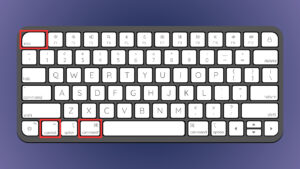
Press all three keys together while the recording is running. macOS will immediately stop the screen capture and begin saving the video.
This shortcut works for recordings made with the Screenshot app and for screen recordings started through QuickTime Player on current versions of macOS.
Shortcut: Press Command + Control + Esc to stop screen recording on a Mac.
Do not confuse this with Shift + Command + 5. Shift + Command + 5 opens the Screenshot toolbar so you can start a recording, change recording options, or choose what part of the screen to capture.
Stop Screen Recording from the Mac Menu Bar
While macOS is recording your screen, a small Stop Recording icon appears in the menu bar near the upper-right corner of the display.
- Move the pointer to the top of the screen if the menu bar is hidden.
- Find the Stop Recording button.
- Click it once.
The icon looks like a solid square inside a circle. Once clicked, the recording ends and macOS saves the captured video.
If you are using a Mac with multiple displays, look across the menu bar on the active displays if you cannot immediately find the button.
How to Stop QuickTime Screen Recording on Mac
QuickTime Player uses the macOS Screenshot recording controls on current Mac systems. This means stopping a QuickTime screen recording works almost exactly the same way.
You can use either method:
- Click the Stop Recording button in the macOS menu bar.
- Press Command + Control + Esc.
After the recording stops, QuickTime Player normally opens the video so you can watch, trim, share, or save it.
If you started recording by opening QuickTime Player > File > New Screen Recording, you do not need to return to the QuickTime window to stop it. Use the menu-bar button or keyboard shortcut instead.
How to Stop a Screen Recording Started with Shift + Command + 5
Shift + Command + 5 opens Apple’s Screenshot toolbar, where you can record the entire screen, a selected portion, or, on newer versions of macOS, an individual window.
Once recording begins, the Screenshot toolbar disappears. To end the recording:
- Click the Stop button in the menu bar, or
- Press Command + Control + Esc.
You do not need to press Shift + Command + 5 again before stopping the recording.
Where Does a Screen Recording Go After You Stop It?
By default, Mac screen recordings are saved to the Desktop. Apple uses a filename similar to:
Screen Recording 2026-09-03 at 9.18.25 PM.movThe exact date and time will reflect when you created the recording.
Screen recordings use the .mov video format. You can open them with QuickTime Player, iMovie, and many other video players and editors.
Check the floating thumbnail
After stopping a recording, you may briefly see a thumbnail in the lower-right corner of the screen.
You can:
- Click it to preview and trim the recording.
- Drag it into another app or Finder folder.
- Wait for it to disappear and save automatically.
Check where macOS is saving screen recordings
If the recording is not on your Desktop:
- Press Shift + Command + 5.
- Click Options.
- Look under Save to.
The selected location is where new recordings will be saved. It may be Desktop, Documents, Clipboard, Mail, Messages, QuickTime Player, or another folder you previously selected.
Screen Recording Won’t Stop on Mac
If clicking the Stop button does nothing, try the keyboard shortcut first:
Command + Control + Esc
If the recording continues, work through these fixes.
1. Make sure macOS is doing the recording
The Mac shortcut stops recordings created by Apple’s Screenshot tool or QuickTime screen recorder. If you are recording through OBS Studio, Zoom, Microsoft Teams, Loom, ScreenFlow, or another application, use that application’s Stop Recording control instead.
2. Bring the menu bar into view
If an app is running full screen, move the pointer to the very top of the display and wait for the menu bar to appear. Then click the Stop Recording icon.
3. Try the shortcut again
Press Command + Control + Esc together rather than pressing the keys one after another.
If you use a non-standard keyboard layout, verify that the Escape key is working normally.
4. Force Quit only if the recorder is frozen
If QuickTime Player or another recording app has completely stopped responding, press Option + Command + Esc to open Force Quit Applications.
Force quitting should be a last resort because an interrupted recording may not save correctly. Try the normal Stop button and Command + Control + Esc first.
Stop Screen Recording on MacBook Air or MacBook Pro
The process is the same on MacBook Air and MacBook Pro. There is no separate recording shortcut for Apple silicon Macs, Intel Macs, or different MacBook generations.
Use either:
- Command + Control + Esc, or
- The Stop Recording button in the menu bar.
The same controls also work on iMac, Mac mini, Mac Studio, and Mac Pro when using Apple’s built-in screen recorder.
How to Cancel a Screen Recording Before It Starts
If you opened the Screenshot toolbar but have not started recording yet, press Esc to cancel and close the controls.
This is different from stopping an active recording:
| Action | Shortcut |
|---|---|
| Open screen recording controls | Shift + Command + 5 |
| Cancel before recording starts | Esc |
| Stop an active recording | Command + Control + Esc |
Frequently Asked Questions
What is the shortcut to stop screen recording on Mac?
Press Command + Control + Esc. This stops screen recordings created with the macOS Screenshot tool or QuickTime Player.
How do I stop screen recording on a Mac without using the mouse?
Press Command + Control + Esc. You do not need to click the menu-bar Stop button.
Where is the Stop Recording button on Mac?
It appears in the menu bar at the top of the screen while a native screen recording is active. The icon looks like a square Stop symbol inside a circle.
Why can’t I see the Stop Recording button on my Mac?
Your menu bar may be hidden by a full-screen app, or the recording may be running through a third-party program rather than Apple’s recorder. Move the pointer to the top of the screen or use Command + Control + Esc.
How do I stop QuickTime screen recording?
Click the Stop Recording icon in the menu bar or press Command + Control + Esc. QuickTime normally opens the finished video after recording stops.
Does Shift + Command + 5 stop screen recording?
No. Shift + Command + 5 opens the Screenshot controls. The shortcut for stopping an active recording is Command + Control + Esc.
Where are Mac screen recordings saved?
They are saved to the Desktop by default. Press Shift + Command + 5 and open Options to see or change the current save location.
What format does Mac use for screen recordings?
Mac screen recordings are saved as .mov video files. On supported Macs running newer versions of macOS, recording options can also affect the video encoding used inside that file.
Will stopping a screen recording delete it?
No. Stopping normally causes macOS to finish and save the recording. Force quitting the recording application is more likely to leave an incomplete or unsaved file.
Can I stop a Zoom or OBS recording with Command + Control + Esc?
Not reliably. That shortcut is intended for Apple’s built-in screen recording tools. Use the Stop Recording button inside Zoom, OBS Studio, or whichever third-party app is creating the recording.
Can I change where Mac screen recordings are saved?
Yes. Press Shift + Command + 5, select Options, and choose a location under Save to.