To change the password on a MacBook, open System Settings > Users & Groups, click the information button beside your account, and select Change. Enter your current Mac login password, create a new one, verify it, and save the change. The same steps work on MacBook Air and MacBook Pro.
Your Mac login password is different from your Apple Account password. The login password unlocks the Mac and authorizes changes on the computer, while the Apple Account password is used for iCloud, the App Store, Apple Music, Find My, and other Apple services.
This guide covers changing your MacBook login password, resetting it when you have forgotten it, changing another user’s password as an administrator, updating your Apple Account password, and fixing common password problems.
How to Change Password on MacBook
If you know your current login password, changing it takes less than a minute.
- Click the Apple menu in the upper-left corner.
- Select System Settings.
- Open Users & Groups.
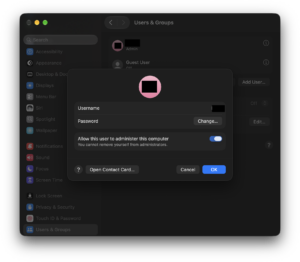
- Click the Info button beside your user account.
- Click Change next to the password option.
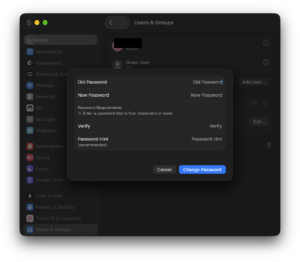
- Enter your current password in the Old Password field.
- Enter the new password.
- Enter it again in the Verify field.
- Add a password hint if you want one.
- Click Change Password.
The new password takes effect immediately. Use it the next time you unlock, restart, or sign in to your MacBook.
Change MacBook Password on macOS Tahoe, Sequoia, Sonoma & Ventura
Recent versions of macOS use System Settings rather than the older System Preferences interface. Apple continues to provide the password controls through your user account settings.
The main path is:
Apple menu > System Settings > Users & Groups > Your Account > Change Password
On some newer macOS versions, you may also see a dedicated Login Password section in System Settings. If it appears, open it and click Change.
You do not need to change your Apple Account password when changing the password used to unlock your Mac.
How to Change MacBook Password on Older macOS Versions
Older releases such as macOS Monterey and earlier use System Preferences instead of System Settings.
- Click the Apple menu.
- Select System Preferences.
- Open Users & Groups.
- Select your user account.
- Click Change Password.
- Enter the old password.
- Enter and verify the new password.
- Save the change.
The wording and layout vary slightly between macOS releases, but you are changing the same local user login password.
How to Change MacBook Lock Screen Password
The MacBook lock screen uses the same password as your macOS user account. There is no separate lock-screen password to change.
Changing the login password through Users & Groups also changes the password used when:
- You start or restart the Mac.
- You wake it from sleep and macOS asks for a password.
- You unlock the screen.
- You authorize certain system changes.
- You install software that requires administrator approval.
If your MacBook has Touch ID, you can continue unlocking it with your fingerprint, but macOS will still periodically require the actual login password, including after a restart.
How to Change MacBook Password Without Knowing the Old Password
If you have forgotten the current password, you cannot use the normal Change Password screen because macOS asks for the old password first. Instead, reset the password from the login screen or macOS Recovery.
Reset the password from the Mac login screen
- Restart the MacBook and wait for the login screen.
- Select your user account.
- Enter an incorrect password up to three times.
- Look for a password-reset message or question mark beside the password field.
- Select the available reset option.
- Follow the instructions shown by macOS.
Depending on how the Mac is configured, macOS may ask you to sign in with your Apple Account or enter a FileVault recovery key.
After verification, create a new Mac login password and restart the computer if prompted.
Reset a MacBook password using macOS Recovery
If the reset option does not appear on the normal login screen, use macOS Recovery.
Apple silicon MacBook
- Shut down the MacBook.
- Press and hold the power/Touch ID button.
- Keep holding it until Loading startup options appears.
- Select Options.
- Click Continue.
- Follow the password-recovery prompts.
Intel MacBook
- Restart the Mac.
- Immediately press and hold Command + R.
- Release the keys when the Apple logo or Recovery screen appears.
- Follow the available password-reset instructions.
Recovery may ask for your Apple Account credentials, FileVault recovery key, or another administrator account depending on the security configuration of the Mac.
Reset MacBook Password Using Apple Account
A Mac can allow the login password to be reset with the Apple Account associated with the user. This option must already be available for the account and can depend on FileVault and the version of macOS.
If macOS offers an Apple Account reset option:
- Select the password-reset message at the login window.
- Enter the email address or phone number associated with your Apple Account.
- Enter your Apple Account password.
- Enter the verification code sent to a trusted device if requested.
- Select the Mac user account whose password you want to reset.
- Create a new login password.
Your Apple Account password itself does not automatically become the new MacBook password. You are using the Apple Account to verify your identity before creating a new local login password.
Reset MacBook Password Using a FileVault Recovery Key
If FileVault is enabled, macOS may allow you to reset your forgotten login password with the Mac’s FileVault recovery key.
The FileVault recovery key is different from an Apple Account recovery key. Apple currently uses a 24-character alphanumeric FileVault recovery key for Mac disk recovery.
- Start the password-reset process from the login screen or macOS Recovery.
- Select the option to use the recovery key if it appears.
- Enter the FileVault recovery key exactly as provided.
- Select your user account.
- Create a new password.
On a Mac running macOS Tahoe 26 or later, the FileVault recovery key may also be available in the Passwords app on another Apple device signed in to the same Apple Account.
Do not confuse this with the separate 28-character recovery key that can be created for an Apple Account.
How to Change Another User’s Password on MacBook
An administrator can reset the login password for another local user account on the same Mac.
- Sign in to an administrator account.
- Open System Settings.
- Select Users & Groups.
- Click the Info button beside the other user.
- Click Reset.
- Enter the new password and verify it.
- Save the change.
This is a password reset rather than a normal password change because the administrator does not need to know the user’s previous password.
Important: Resetting another user’s password can create a new login keychain. Passwords stored in the previous keychain may remain inaccessible unless the user still knows the old password.
How to Change Apple ID Password on MacBook
Apple now calls Apple ID an Apple Account. Its password is separate from your Mac login password.
To change your Apple Account password on a MacBook:
- Open the Apple menu > System Settings.
- Click your name at the top of the sidebar.
- Select Sign-In & Security.
- Click Change Password.
- Enter your MacBook login password when requested.
- Follow the instructions to create a new Apple Account password.
Changing this password affects services that use your Apple Account, including iCloud, the App Store, Apple Music, FaceTime, iMessage, Find My, and other Apple devices signed in to the same account.
MacBook Login Password vs Apple Account Password
| Password | What it controls |
|---|---|
| Mac login password | Unlocks your MacBook and authorizes local system changes |
| Apple Account password | Protects iCloud, App Store, Find My, Apple Music, and other Apple services |
| FileVault recovery key | Can help unlock or recover an encrypted Mac when the login password is forgotten |
| Apple Account recovery key | Optional recovery method for regaining access to an Apple Account |
These credentials can interact during account recovery, but they are not interchangeable.
What Happens to Keychain After Changing Your MacBook Password?
When you change your password normally while you know the old password, macOS can also update the login keychain password to match.
The situation is different when the login password has been reset because the old password was forgotten. The old login keychain may still be encrypted with the previous password.
If you cannot unlock the old keychain, macOS may create a new one. Passwords previously stored only in the old keychain can become inaccessible and may need to be entered again.
This is one reason a normal password change is preferable to a reset whenever you still know the current password.
Fix MacBook Password Not Working After Changing It
Make sure you are entering the Mac login password
Do not enter your Apple Account password unless macOS specifically asks for it. The normal Mac login screen expects your local user password.
Check Caps Lock and keyboard layout
Passwords are case-sensitive. Make sure Caps Lock is off and verify that macOS is using the expected keyboard layout, especially if your password contains symbols.
Restart the Mac
If the new password is rejected immediately after changing it, restart the MacBook and enter the new password again at the login window.
Use the password hint
If a password hint was created, click the question mark beside the password field or enter the wrong password several times until macOS offers the hint.
Wait if the account is temporarily locked
Repeated failed login attempts can temporarily lock the account. If macOS displays a waiting period, let that time expire, restart the Mac, and try again.
Use password recovery
If the password still does not work, use the reset options at the login window or start macOS Recovery. Avoid repeatedly guessing passwords once you know the account needs to be reset.
How to Create a Strong MacBook Password
Your Mac login password should be difficult for another person to guess while still being practical to type regularly.
- Use a long password rather than a short variation of an old one.
- Avoid names, birthdays, phone numbers, or obvious keyboard patterns.
- Do not reuse your email, banking, or work password.
- Use a password hint that helps you remember the password without revealing it.
- Keep any FileVault recovery key somewhere separate from the MacBook.
If the Mac contains sensitive work or personal information, also enable FileVault under System Settings > Privacy & Security > FileVault.
Frequently Asked Questions
How do I change my MacBook password?
Open System Settings > Users & Groups, click the information button beside your account, select Change, enter the old password, and create a new one.
How do I change the password on a MacBook Air?
The process is the same as on a MacBook Pro. Open System Settings > Users & Groups, select your account, and change the login password.
How do I change the password on a MacBook Pro?
Go to Apple menu > System Settings > Users & Groups, click the Info button beside your account, then select Change.
Can I change my MacBook password without the old password?
You cannot use the normal password-change screen without the current password. If you have forgotten it, use the password-reset options at the login screen or in macOS Recovery.
Is my MacBook password the same as my Apple ID password?
No. Your MacBook login password unlocks the computer. Your Apple Account password, formerly called the Apple ID password, protects Apple services such as iCloud and the App Store.
Does changing my Apple Account password change my Mac login password?
No. They are separate passwords. Changing one does not automatically replace the other.
Does changing my MacBook password change Touch ID?
Touch ID can continue to work after a normal password change, but macOS still requires the updated password in situations where fingerprint authentication is not allowed, including after restarting the Mac.
Can I remove the MacBook login password completely?
Modern macOS security features rely on the user login password, and Apple does not provide a supported way to use a normal protected Mac account without one. You can change when the password is required after sleep, but that is different from deleting the account password.
Why is my old MacBook password still being requested by Keychain?
The login keychain may still be protected by the previous password, especially after a password reset. Enter the old password if you still know it. If you do not, macOS may need to create or reset the login keychain.
What if I forgot both my MacBook and Apple Account passwords?
Try the Mac password-reset options in macOS Recovery. Depending on your setup, you may be able to use a FileVault recovery key. Apple Account recovery is a separate process if you also need to regain access to your Apple Account.
What if I lost my FileVault recovery key?
Other recovery options may still be available depending on how FileVault was configured. On macOS Tahoe 26 or later, the recovery key may also appear in the Passwords app on another Apple device signed in to the same Apple Account.
Will changing my MacBook password delete my files?
A normal password change does not delete your files. Resetting a forgotten password can affect access to passwords and other information stored in an old login keychain, but it does not normally erase the files in your user account.