You can connect two monitors to a MacBook Pro through a docking station, but the correct setup depends on the chip inside your Mac. Newer MacBook Pro models with M4, M5, Pro, or Max chips support two or more external displays natively, while the 13-inch MacBook Pro with a base M1 or M2 chip supports only one native external display and needs a DisplayLink dock for a true dual-monitor setup.
The docking station also matters. A Thunderbolt dock can handle dual extended displays on supported MacBook Pro models, while many inexpensive USB-C dual-HDMI docks rely on DisplayPort MST and will mirror the same image on both monitors in macOS instead of creating two separate desktops.
This guide covers MacBook Pro dual-monitor docking station setups for M1, M2, M3, M4, and M5 models, including Thunderbolt docks, USB-C docks, DisplayLink, HDMI connections, lid-closed setups, and fixes for monitors that mirror, flicker, or fail to appear.
Can a MacBook Pro Support Dual Monitors?
Most recent MacBook Pro models can run at least two external monitors, but there are important exceptions. Check the chip before buying a docking station because the number of HDMI ports on a dock does not override the MacBook Pro’s own display limits.
| MacBook Pro | Native external display support | Dual monitors without DisplayLink? |
|---|---|---|
| M5 | Up to 2 external displays | Yes |
| M5 Pro | Up to 3 external displays | Yes |
| M5 Max | Up to 4 external displays | Yes |
| M4 | Up to 2 external displays | Yes |
| M4 Pro | Up to 2 external displays | Yes |
| M4 Max | Up to 4 external displays | Yes |
| M3 | Up to 2 external displays with the MacBook lid closed | Yes, with lid closed |
| M3 Pro | Up to 2 external displays | Yes |
| M3 Max | Up to 4 external displays | Yes |
| 13-inch M2 | 1 external display | No |
| M2 Pro | Up to 2 external displays | Yes |
| M2 Max | Up to 4 external displays | Yes |
| 13-inch M1 | 1 external display | No |
| M1 Pro | Up to 2 external displays | Yes |
| M1 Max | Up to 4 external displays | Yes |
Apple’s current M4 and M5 MacBook Pro models can keep the built-in laptop display active while driving two external monitors. The base M3 MacBook Pro is different because its second external display works only when the laptop lid is closed.
MacBook Pro Docking Station Dual Monitor Setup
For a MacBook Pro that natively supports two external displays, the cleanest setup is a compatible Thunderbolt docking station with two independent video outputs.
Step 1: Check which MacBook Pro chip you have
- Click the Apple menu.
- Select About This Mac.
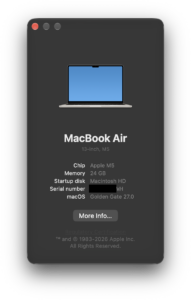
- Look for Chip.
You may see M1, M1 Pro, M1 Max, M2, M2 Pro, M3, M4, M5, or another chip. This determines whether macOS can drive two external displays natively.
Step 2: Check the docking station
Look for a dock that explicitly states that it supports multiple extended displays on macOS. Do not assume that a dock with two HDMI ports will provide two separate desktops on a Mac.
For a normal dual-monitor MacBook Pro setup, look for:
- Thunderbolt 4 or Thunderbolt 5 connectivity for newer MacBook Pro models.
- Two independent display outputs supported on macOS.
- HDMI 2.0 or better for 4K at 60Hz.
- DisplayPort 1.4 when using DisplayPort monitors.
- Enough USB-C Power Delivery to charge your MacBook Pro.
- DisplayLink support if you have a base M1 or M2 MacBook Pro and need two external monitors.
Step 3: Connect both monitors to the dock
Connect each monitor to a separate video output on the docking station using HDMI, DisplayPort, USB-C, or Thunderbolt.
For example:
- Monitor 1: Dock HDMI port → HDMI monitor.
- Monitor 2: Dock DisplayPort → DisplayPort monitor.
Two HDMI connections can also work if the dock provides two independent macOS-compatible outputs.
Step 4: Connect power to the docking station
Connect the dock’s power adapter before connecting it to the MacBook Pro. A powered docking station can charge the MacBook while running the monitors, USB devices, Ethernet, storage, and other accessories.
Check the dock’s Power Delivery rating if you want a true single-cable setup. A dock with insufficient charging power can still work, but the battery may charge slowly or lose charge during demanding workloads.
Step 5: Connect the dock to the MacBook Pro
Connect the dock’s host cable to a Thunderbolt or USB-C port on the MacBook Pro.
Apple silicon Macs may display an Allow accessory to connect? message the first time you connect a new dock. Select Allow.
If you previously denied access, open:
System Settings > Privacy & Security > Accessories
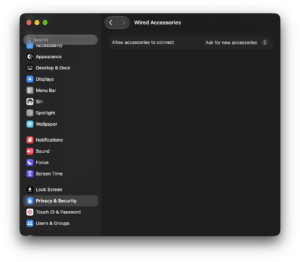
and review the accessory connection setting.
Step 6: Extend the desktop across both monitors
- Open System Settings.
- Select Displays.
- Choose the first monitor.
- Set Use as to an extended display rather than mirroring.
- Repeat for the second monitor.
- Click Arrange and drag the displays into the same left-to-right order as your physical setup.
You can also choose which monitor acts as the main display.
MacBook Pro Dual Monitor Setup with One Dock
A single docking station can run two external displays when both the MacBook Pro and the dock support that configuration.
For newer M4 and M5 MacBook Pro models, Apple supports multiple monitors over Thunderbolt, and compatible hubs or daisy-chained Thunderbolt displays can carry multiple displays through one Thunderbolt connection without increasing the Mac’s overall display limit.
M1 Pro, M2 Pro, M3 Pro, and Max-series models also support multiple external displays natively, although the maximum resolution and refresh rate depend on the chip and connection type.
A good one-cable desk setup looks like this:
MacBook Pro
    |
Thunderbolt cable
    |
Docking station
   / \
HDMI  DisplayPort
 |       |
Monitor 1  Monitor 2
The same dock can also provide charging, Ethernet, USB ports, storage, keyboard, mouse, and audio through the single connection to the MacBook Pro.
MacBook Pro M1 Dual Monitor Docking Station Setup
The 13-inch MacBook Pro with the base M1 chip natively supports only one external display, even though it has two Thunderbolt/USB 4 ports. Connecting a normal dual-HDMI dock does not increase that limit.
For two independent external monitors, use a docking station based on DisplayLink technology.
How to use two monitors on an M1 MacBook Pro with DisplayLink
- Use a docking station that specifically supports DisplayLink.
- Install DisplayLink Manager for macOS.
- Connect the DisplayLink dock to your MacBook Pro.
- Connect both monitors to the dock.
- Open System Settings > Privacy & Security > Screen Recording.
- Allow DisplayLink Manager.
- Quit and reopen DisplayLink Manager if prompted.
- Open System Settings > Displays and arrange the monitors.
macOS requires Screen Recording permission because DisplayLink creates a virtual display and sends rendered screen pixels through USB. DisplayLink says the software does not record or transmit that screen content to Synaptics.
MacBook Pro M2 Dual Monitor Docking Station Setup
The 13-inch MacBook Pro with the base M2 chip has the same basic native display limitation as the M1 model: Apple supports one external display up to 6K at 60Hz.
If you need two external monitors, choose a DisplayLink docking station and install DisplayLink Manager.
MacBook Pro models with M2 Pro or M2 Max do not have this limitation. M2 Pro supports two external displays natively, while M2 Max supports up to four.
MacBook Pro M3 Dual Monitor Docking Station Setup
The base M3 MacBook Pro can run two external monitors without DisplayLink, but the MacBook lid must be closed.
For Apple’s supported dual-monitor configuration:
- Update the MacBook Pro to macOS Sonoma 14.6 or later.
- Connect an external keyboard and mouse or trackpad.
- Connect the MacBook to power, either directly or through the dock.
- Connect the first external monitor.
- Close the MacBook Pro lid.
- Connect the second monitor.
Apple supports the first display up to 6K at 60Hz or 4K at 144Hz and the second up to 5K at 60Hz or 4K at 100Hz in this configuration.
If you reopen the MacBook Pro lid, one of the external displays disconnects because the base M3 chip does not support the internal display plus two external monitors simultaneously.
MacBook Pro M4 and M5 Dual Monitor Docking Station Setup
The base M4 and M5 MacBook Pro models support two external monitors while the built-in MacBook display remains active, which makes the dual-monitor docking setup much simpler.
M4 and M5 models support two external displays up to 6K at 60Hz or 4K at 144Hz, depending on the connection and display configuration.
Pro and Max chips support equal or higher display counts, so DisplayLink is generally unnecessary when you only need two monitors.
A compatible Thunderbolt dock is normally preferable because it uses the Mac’s native display hardware and does not require DisplayLink Manager or Screen Recording permission.
Thunderbolt Dock vs USB-C Dock for MacBook Pro Dual Monitors
| Dock type | Dual extended monitors on Mac | Software required? |
|---|---|---|
| Thunderbolt 4/5 dock | Yes, when supported by the Mac and dock | No |
| USB-C dock with two native macOS display outputs | Depends on dock and Mac | Usually no |
| USB-C MST dual-HDMI dock | Usually no, monitors may mirror | No |
| DisplayLink dock | Yes, including many single-native-display Macs | Yes |
Why some dual-HDMI docks only mirror on MacBook Pro
Many inexpensive USB-C dual-display adapters use DisplayPort Multi-Stream Transport, or MST, to split one DisplayPort signal into multiple independent displays.
macOS does not support MST for multiple independently extended displays in the same way Windows does. As a result, a dock advertised as “dual HDMI” can show the same desktop on both monitors instead of providing Monitor 1 and Monitor 2 as separate workspaces.
If you want dual extended monitors, check the manufacturer’s macOS specifications rather than relying on the number of HDMI ports.
MacBook Pro Docking Station Dual HDMI Setup
A dual-HDMI docking station can work with a MacBook Pro, but only if its internal display technology supports independent monitors on macOS.
There are three common types:
- Thunderbolt-based dual-display dock: Uses the Mac’s native display support.
- DisplayLink dual-HDMI dock: Uses DisplayLink Manager to create additional displays.
- MST dual-HDMI dock: Common on Windows docks, but macOS may mirror the two outputs.
For two 4K monitors at 60Hz, the dock, monitor inputs, and HDMI cables must all support the required bandwidth. An older HDMI cable can cause 30Hz refresh rates, black screens, flickering, or reduced resolution.
Use MacBook Pro with Two Monitors and the Lid Closed
You can use a MacBook Pro in closed-display mode with a docking station, external monitors, keyboard, and mouse.
- Connect the dock and both monitors.
- Connect an external keyboard and mouse or trackpad.
- Make sure the MacBook Pro is receiving power.
- Allow the connected accessories if macOS asks.
- Close the MacBook Pro lid.
The external monitors should remain active.
Closed-display mode is required for the base M3 MacBook Pro when using two external monitors natively. It is optional on M4, M5, Pro, and Max models that support two monitors alongside the built-in display.
Fix MacBook Pro Docking Station Dual Monitors Not Working
Both monitors show the same screen
Open System Settings > Displays and make sure the displays are set to extend rather than mirror.
If macOS sees both physical monitors as one display, your docking station may use MST. A standard MST dock cannot provide two independent extended displays on macOS. Use a compatible Thunderbolt or DisplayLink dock instead.
Only one monitor is detected
First check the native display limit of your MacBook Pro. A base M1 or M2 MacBook Pro supports one native external display, so a standard dock cannot activate a second one.
If your Mac supports two displays:
- Disconnect and reconnect the dock.
- Restart the monitors.
- Test each monitor individually.
- Swap the HDMI or DisplayPort cables.
- Connect one monitor directly to the MacBook Pro to isolate the dock.
- Update macOS.
Apple specifically recommends connecting a display directly to the Mac when troubleshooting a monitor that does not work correctly through a hub or dock.
DisplayLink monitor is blank
Make sure DisplayLink Manager is running and has Screen Recording permission:
System Settings > Privacy & Security > Screen Recording
Enable DisplayLink Manager, then quit and reopen the app.
Monitor only works at 30Hz instead of 60Hz
Check the entire display chain. The docking station, connection type, video cable, and monitor input must all support the requested resolution and refresh rate.
For 4K at 60Hz over HDMI, use a dock and cable that support at least HDMI 2.0.
Monitors flicker through the dock
Try a shorter or higher-quality cable, update macOS, disconnect unnecessary high-bandwidth devices from the dock, and make sure the dock has its own power supply.
If the problem disappears when the monitor connects directly to the MacBook Pro, the dock, cable, or available video bandwidth is the likely cause.
MacBook Pro does not recognize the docking station
Reconnect the dock while the Mac is unlocked. Apple silicon Mac laptops can require approval before a new USB or Thunderbolt accessory is allowed to communicate with the system.
Check System Settings > Privacy & Security > Accessories if the authorization prompt does not appear.
DisplayLink Limitations on MacBook Pro
DisplayLink is useful when the Mac’s native display hardware does not support the number of monitors you need, but it has some tradeoffs.
- DisplayLink Manager must remain installed and running.
- macOS requires Screen Recording permission.
- The additional screens are software-driven rather than direct GPU display outputs.
- Some protected streaming video can show a black screen while a DisplayLink display is connected.
- Display performance can depend on USB bandwidth and system load.
For a MacBook Pro that already supports two displays natively, a Thunderbolt dock is normally the simpler choice. DisplayLink is most useful for base M1 and M2 models or setups that need more displays than the Mac supports natively.
Frequently Asked Questions
Can I connect two monitors to a MacBook Pro with a docking station?
Yes. Most MacBook Pro models support two or more monitors, although base M1 and M2 models need DisplayLink for a second external display. The base M3 supports two external monitors only while the MacBook lid is closed.
What docking station do I need for dual monitors on MacBook Pro?
Use a Thunderbolt dock that explicitly supports two independent displays on macOS when your MacBook Pro natively supports two monitors. For a base M1 or M2 MacBook Pro, choose a DisplayLink docking station.
Why does my MacBook Pro docking station mirror both monitors?
The dock may rely on DisplayPort MST. macOS does not support MST for multiple independent extended displays, so two outputs from an MST dock can show the same image.
Can an M1 MacBook Pro support two monitors?
The 13-inch M1 MacBook Pro natively supports one external display. You can run two external monitors with a DisplayLink docking station and DisplayLink Manager.
Can an M2 MacBook Pro support two monitors?
The 13-inch base M2 MacBook Pro supports one native external display. M2 Pro supports two, while M2 Max supports up to four. A base M2 model needs DisplayLink for two external monitors.
Can an M3 MacBook Pro run two external monitors?
Yes. A base M3 MacBook Pro supports two external monitors when the laptop lid is closed. M3 Pro and M3 Max models support multiple displays without this restriction.
Can M4 and M5 MacBook Pro models use two monitors with the lid open?
Yes. Base M4 and M5 MacBook Pro models support two external displays while the built-in screen remains active.
Do I need DisplayLink for a MacBook Pro dual-monitor setup?
Only when the Mac does not natively support the number of displays you want or when the dock itself relies on DisplayLink. Most Pro, Max, M4, and M5 dual-monitor setups can use native Thunderbolt display output.
Can I connect two HDMI monitors to one MacBook Pro USB-C port?
Yes, but the dock must support two independent macOS displays through Thunderbolt or DisplayLink. A basic USB-C MST dual-HDMI adapter will usually mirror the monitors instead.
Does a Thunderbolt dock support two monitors on MacBook Pro?
Yes, when the MacBook Pro itself supports two external displays and the dock is designed to carry two independent display streams on macOS.
Can a docking station bypass Apple’s external display limit?
A normal Thunderbolt or USB-C dock cannot increase the Mac’s native display limit. DisplayLink can add software-driven displays beyond that native limit because it uses a different display technology.
Can I use two 4K monitors with a MacBook Pro docking station?
Yes, on compatible MacBook Pro models and docks. Check that the dock supports dual 4K output at your desired refresh rate and use suitable HDMI, DisplayPort, or Thunderbolt cables.
Why does Netflix show a black screen with DisplayLink?
DisplayLink says some DRM-protected video services can stop displaying protected content while DisplayLink screens are active. Disconnecting the DisplayLink display or using a native display connection can resolve the issue.