Your default browser keeps changing in Windows because the choice was only partly saved, a Windows update re-assigned it, or a program or extension keeps setting a different browser.
This guide fixes each cause on Windows 11 and Windows 10: setting every web link type correctly, scanning for unwanted software, updating and resetting the browser, and stopping the reset after updates.
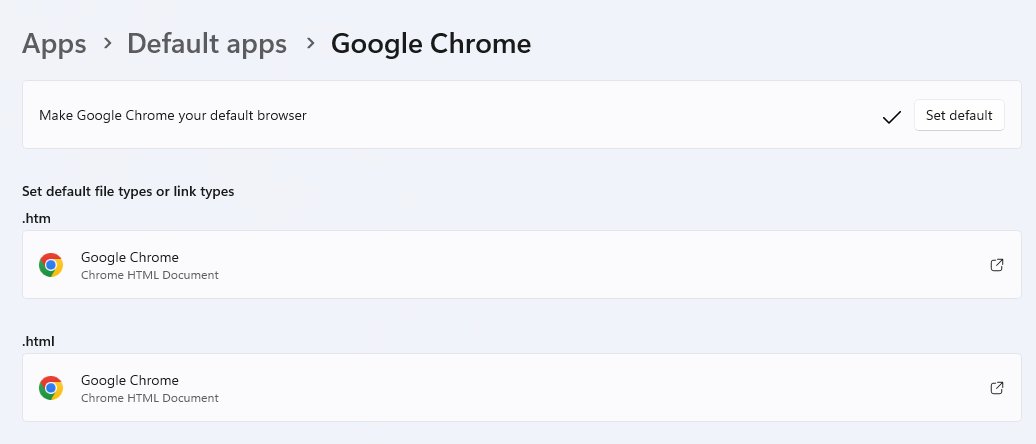
Double-check default browser settings
Set the default in Windows Settings, not only from the browser's own prompt. Windows 11 lets you make one browser the default for every web file and link type with a single button.
- Select Start, then Settings.
- Select Apps, then Default apps.
- Under Set defaults for applications, search for your browser, for example Chrome or Firefox.
- Select the browser in the results.
- Next to Make [browser] your default browser, select Set default.
- Scroll through the Set default file types or link types list and confirm the browser is shown for the web types such as HTTP, HTTPS, .htm and .html.
- Select any type still assigned to another browser and choose your browser from the list.
On Windows 10, open Settings > Apps > Default apps, select the app under Web browser and pick your browser. The default web browser settings in Windows 11 and 10 work the same way for Edge, Chrome, Firefox, Brave or Opera.
Why does my default browser keep changing in Windows?
Windows stores default apps per user account and per file or link type. Anything that rewrites those choices, or leaves some of them on the old browser, makes the default appear to switch back.
| Cause | What you notice | Fix in this guide |
|---|---|---|
| Only some link or file types were changed | Web links open in one browser, .html files in another | Double-check default browser settings |
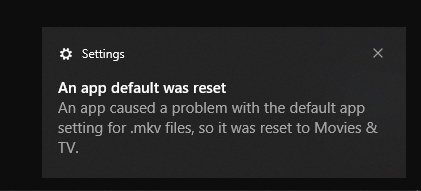
| Windows upgrade or feature update re-assigned defaults | An "An app default was reset" notification, often back to Microsoft Edge | Set the default again after the update |
| Unwanted software or a browser extension | Default browser, home page or search engine change without your permission | Scan for malware, then reset the browser |
| Outdated browser build | The browser keeps asking to be the default or fails to save the choice | Update your preferred browser |
| Old Internet Explorer associations on Windows 10 | Some links still open in Internet Explorer or redirect to Edge | Disable Internet Explorer |
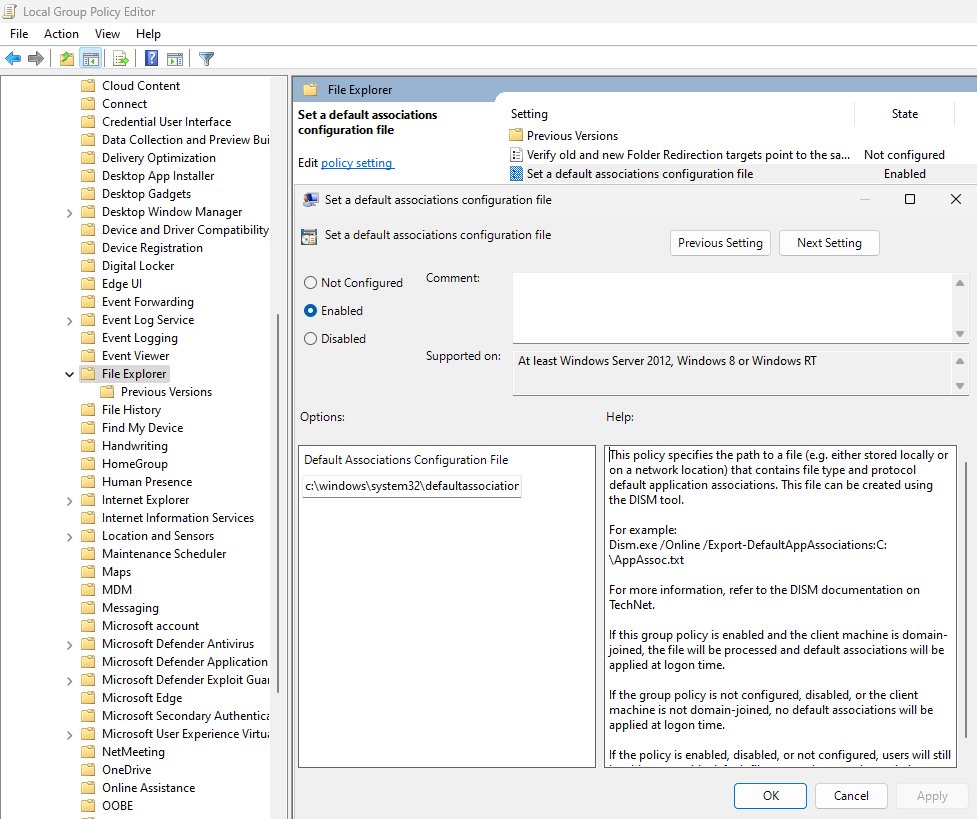
| Work or school management | Defaults return to a set value on every sign-in | Ask the IT administrator |
Microsoft notes that on an upgrade, Windows may re-assign default handlers for some built-in apps. That is the most common reason a default browser flips to Edge after a big update, and you can remove Microsoft Edge as the default the same way you set any other browser.
Set default browser as administrator
If the setting does not stick, make the change while signed in to the account you actually use. Defaults are saved per user, so a change made in another account does not carry over.
- Sign in to Windows with the account whose default browser keeps changing.
- Confirm the account is an administrator in Settings > Accounts > Your info; it shows Administrator under your name.
- Close every window of the browser you want as the default.
- Select Start, type the browser name, right-click it and select Run as administrator.
- Open the browser's settings page and use its default browser option, which opens Windows Default apps.
- Select Set default for the browser, then close the browser and open it again normally.
If several people share the PC, each account has to set its own default browser. One account's choice does not change another's.
Alternative way to set a default browser (Windows 10 only)
Windows 10 has a Web browser tile on the Default apps page, plus a per-app page that lists every type the browser can open. Use both when the tile alone does not hold.
- Open Start > Settings > Apps > Default apps.
- Under Web browser, select the browser that is currently listed.
- In the Choose an app window, select your preferred browser.
- On the same page, select Set defaults by app.
- Select your browser, then select Manage.
- Change each web type that still shows another browser, especially HTTP, HTTPS, .htm and .html.
If Chrome still refuses to become the default in Windows 10, the same Default apps page is where you fix it.
Use EdgeDeflector
EdgeDeflector is a third-party, open-source utility, not a Microsoft tool. It intercepted links that Windows opens with the microsoft-edge: protocol and passed them to your default browser instead.
| Your situation | What to do | Why |
|---|---|---|
| Normal web links keep opening in Edge | Fix the default browser in Default apps | EdgeDeflector never controlled HTTP and HTTPS links |
| Default browser flips after an update | Set the default again and check every web type | A redirect tool does not stop Windows re-assigning defaults |
| Only links from Windows features open in Edge | Accept Edge for those links, or open the link and copy it into your browser | Those links use a separate Edge protocol, not the web link types |
| You already installed EdgeDeflector | Uninstall it in Settings > Apps > Installed apps if links stop working | Windows updates have changed how the Edge protocol is handled |
Do not install a redirect tool to fix a default browser that keeps changing. The causes in this guide are fixed in Windows Settings and in the browser itself.
Disable Internet Explorer
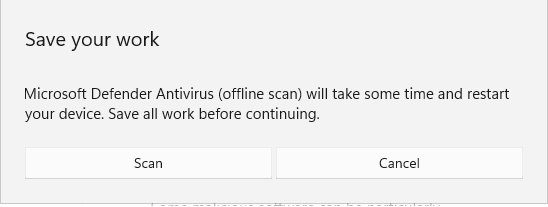
Windows 11 does not include the Internet Explorer 11 desktop app. On Windows 10, Microsoft has permanently disabled it on Semi-Annual Channel versions and redirects it to Microsoft Edge, but old file associations can still point to it.
| Your PC | What happens to Internet Explorer | What to do |
|---|---|---|
| Windows 11 | Not included | Nothing; set your default browser in Default apps |
| Windows 10 Home or Pro | Desktop app out of support since June 15, 2022 and permanently disabled | Make sure no web type in Default apps still lists Internet Explorer or Edge if you want another browser |
| Windows 10 Pro or Enterprise with Group Policy | Can be turned off as a standalone browser by policy | Open the Group Policy Editor, go to Computer Configuration > Administrative Templates > Windows Components > Internet Explorer, open Disable Internet Explorer 11 as a standalone browser and select Enabled |
| Windows 10 LTSC | Still supported for the life of that release | Leave it unless you need it gone; the default browser setting decides where links open |
With that policy on, shortcuts and file associations that used Internet Explorer open in Microsoft Edge instead. Fix the web types in Default apps afterwards so they go to your chosen browser.
Scan for malware
Google lists a home page or search engine that keeps changing without your permission as a sign of unwanted software. The same software can change your default browser, so remove it before you set the default again.
- Open Start > Settings > Apps > Installed apps.
- Uninstall any program you did not choose to install, especially one added around the time the problem started.
- Open the Windows Security app and select Virus & threat protection.
- Under Current threats, select Scan options, select Full scan, then Start a full scan.
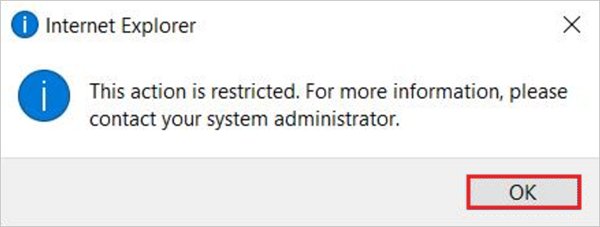
- If the problem continues, save your work and run Microsoft Defender Antivirus (offline scan) from the same page; the PC restarts to run it.
- Open Protection history in Windows Security to see what the scan found and removed.
Set your default browser again only after the scan is clean. Otherwise the same program can switch it back at the next restart.
Run malware scan via Chrome
Chrome's own tools target the browser side of the problem: extensions and settings that unwanted software changed. Use them after the Windows Security scan.
- Open Chrome, select More (three dots) at the top right, then Extensions > Manage extensions.
- Select Remove on any extension you did not install yourself, then confirm.
- Select More > Settings, then Privacy and security > Security.
- Under Safe Browsing, select Enhanced protection to get warnings about dangerous downloads and sites.
- Open
chrome://settingsand look for a notice that Chrome restored settings that were changed. - If the default browser still changes, reset Chrome as described below.
Chrome checks its settings each time it starts and restores them if unwanted software changed them. A repeated notice is a sign that something on the PC keeps making the change.
Update your preferred browser
An up-to-date browser registers its file and link types correctly with Windows. Update it, then set the default again.
| Browser | Where to update | Finish |
|---|---|---|
| Google Chrome | More > Help > About Google Chrome | Select Relaunch; no button means Chrome is current |
| Microsoft Edge | Settings and more > Settings > About Microsoft Edge | Select Restart if an update was installed |
| Mozilla Firefox | Menu > Help > About Firefox | Restart Firefox when the update finishes |
| Windows itself | Settings > Windows Update > Check for updates | Restart, then recheck Default apps |
Recheck Default apps after every Windows feature update. That is the moment a reset to Edge is most likely.
Reset your preferred browser
A reset removes changes made by extensions and unwanted software in one pass. Bookmarks and saved passwords are kept.
| Browser | How to reset | What is reset |
|---|---|---|
| Google Chrome | More > Settings > Reset settings > Restore settings to their original defaults > Reset settings | Search engine, home page and startup tabs, new tab page, pinned tabs, site settings, cookies and site data; extensions and themes are turned off |
| Microsoft Edge | Type edge://settings/reset in the address bar, select Restore settings to their default values and confirm |
Startup page, search engine, pinned tabs; extensions are turned off |
After the reset, turn back on only the extensions you trust, then set the browser as default in Windows again. A Chrome reset applies to every device signed in to the same Chrome profile.
Confirm the default browser stays set after a restart
- Restart the PC and sign in.
- Open Settings > Apps > Default apps and select your browser; every web type should list it.
- Open a link from an email or a document; it should open in your chosen browser.
- Double-click a saved .html file; it should open in the same browser.
- Repeat the check after the next Windows update, and set the default again if a reset notification appears.
Default browser keeps changing to Edge in Windows 11 or 10
"An app default was reset" notification
Windows re-assigned a file or link type, often during an upgrade.
- Select the notification or open Settings > Apps > Default apps.
- Select your browser and select Set default.
- Check every web type in the list and change any that show another browser.
Default browser changes back to Edge after a Windows update
Feature updates can re-assign default handlers for built-in apps.
- Install all pending updates and restart.
- Set the default browser again in Default apps.
- Restart once more and confirm the setting held.
Default browser changes after every restart
A program that starts with Windows rewrites the setting.
- Uninstall programs you do not recognise from Installed apps.
- Run a full scan, then an offline scan, in Windows Security.
- Reset the browser and set the default again.
Some links open in the right browser, others do not
Only part of the web file and link types were changed.
- Open Default apps and select your browser.
- Change HTTP, HTTPS, .htm and .html to your browser one by one.
- Test a link from an email and a saved .html file.
Default apps settings change on every sign-in on a work PC
The organisation sets default app associations centrally.
- Ask your IT administrator whether default apps are managed.
- Request your preferred browser if the policy allows a choice.
- Do not try to override the policy on a managed device.
Default browser keeps changing FAQ
Why does Windows keep changing my default browser to Edge?
Windows can re-assign default apps during an upgrade or feature update, and it shows an "An app default was reset" notice when it does. Open Settings > Apps > Default apps, select your browser and select Set default to change it back.
How do I stop my default browser from changing?
Set the browser for every web type in Default apps, remove unwanted programs and extensions, run a Windows Security scan, and keep the browser updated. Recheck the setting after each Windows feature update, which is when resets usually happen.
Can malware change my default browser?
Yes. Unwanted software can change your browser's home page, search engine and default browser without permission. Uninstall unknown programs, run a full and an offline scan in Windows Security, then reset the browser and set the default again.
Does resetting Chrome change the default browser?
No. Resetting Chrome restores its own settings, such as the search engine, startup pages and extensions, but does not change which browser Windows uses by default. Set the default in Windows Default apps after the reset.
Do I need administrator rights to change the default browser?
No. Each Windows account sets its own default browser in Settings > Apps > Default apps. Administrator rights help when installing or updating a browser, and on managed work PCs the administrator may control default apps.
Why do links still open in Internet Explorer or Edge on Windows 10?
Some web types may still point to Internet Explorer or Edge. Internet Explorer 11 is permanently disabled on most Windows 10 versions and redirects to Edge, so set HTTP, HTTPS, .htm and .html to your browser in Default apps.
Is EdgeDeflector safe to use?
EdgeDeflector is a third-party tool, not made by Microsoft, and it only redirected links that Windows opens with the Edge protocol. It does not stop a default browser from changing, so fix the setting in Default apps instead.
What else can you do?
If the default browser still changes after every fix here, create a new Windows user account, set the default browser there, and use it for a day to see whether the setting holds. Default apps are stored per account, so a clean account shows whether the problem is a damaged profile or something system-wide such as a program, a policy or a Windows update.
If the new account keeps the setting, move your files to it. If it does not, you can also set or change default programs for other file types and confirm nothing else is being reset.