To remove Yahoo from Chrome, Firefox, or Edge, open the browser's settings and pick a different default search engine, then fix the home page and remove any extension you did not install.
This guide gives the exact settings path for each browser, the reset option for Chrome and Edge, and fixes for when Yahoo search keeps coming back.
Change Yahoo search to Google in Chrome, Firefox, or Edge
Yahoo usually shows up in two places: the search engine used by the address bar and the page that opens at startup. Change the search engine first, because that is what sends your typed searches to Yahoo.
| Browser | Where the search engine setting is | What to pick |
|---|---|---|
| Google Chrome | More (three dots) > Settings > Search engine > Change | Google, Bing or any engine other than Yahoo |
| Mozilla Firefox | Menu (three horizontal lines) > Settings (Options in older versions), then the default search engine setting | Any default search engine other than Yahoo |
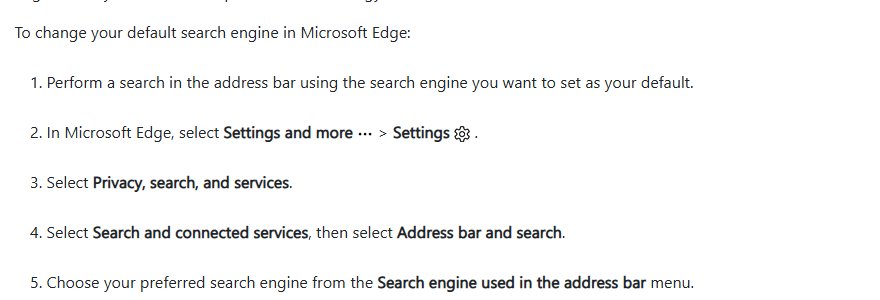
| Microsoft Edge | Settings and more > Settings > Privacy, search, and services > Search and connected services > Address bar and search | Bing or Google in Search engine used in the address bar |
If the setting will not change or flips back after a restart, unwanted software is the usual cause. Google lists a search engine that keeps changing without permission as a sign of malware on the computer.
How to remove Yahoo from your Chrome?
Chrome stores Yahoo in three places: the default search engine, the site search list and the startup pages. These steps clear all three on Windows, Mac and Chromebook and replace Yahoo search with Google as the default.
- Open Chrome and select More (three dots) at the top right, then Settings.
- Select Search engine, then under Search engine select Change and pick Google or another engine that is not Yahoo.
- Select Manage search engines and site search to see every search shortcut Chrome keeps.
- Next to any Yahoo entry under Site search, select More > Delete. Select Deactivate instead if Delete is not offered.
- Select More > Extensions > Manage extensions and find any extension you do not recognise.
- Select Remove on that extension, then select Remove again to confirm.
- Go back to Settings, select On startup in the left sidebar, and choose Open the New Tab page.
- If you use Open a specific page or set of pages, select More next to any Yahoo address and choose Delete.
If a Yahoo toolbar or add-on came with other software, also remove the Yahoo extension from Chrome before you restart the browser.
How to remove Yahoo from Firefox?
Firefox keeps the default search engine and the home page as separate settings, so change both. Newer Firefox versions call the settings page Settings; older versions call it Options.
- Open Firefox and select the three horizontal lines next to the profile icon.
- Select Settings (or Options in older versions).
- Find the default search engine setting and choose any engine other than Yahoo.
- Select the Home icon in the settings sidebar.
- Under New Windows and Tabs, open the dropdown next to Homepage and new windows.
- Choose Firefox Home (Default), Blank Page, or Custom URLs with an address you trust.
- Open the Firefox add-ons manager from the same menu and remove any extension you did not install yourself.
If Yahoo returns every time Firefox starts, uninstall the Windows program that installed it (covered below). Firefox reads its settings again at startup, so a program that rewrites them will undo these changes.
How to remove Yahoo from Edge?
Edge only lists search engines you have already searched with. To set Google as the default in Edge, search once with Google from the address bar so it appears in the list.
- Go to google.com in Edge and run one search, so Edge adds Google to its engine list.
- Select Settings and more (three dots) > Settings.
- Select Privacy, search, and services, then Search and connected services, then Address bar and search.
- Open Search engine used in the address bar and choose Bing or Google.
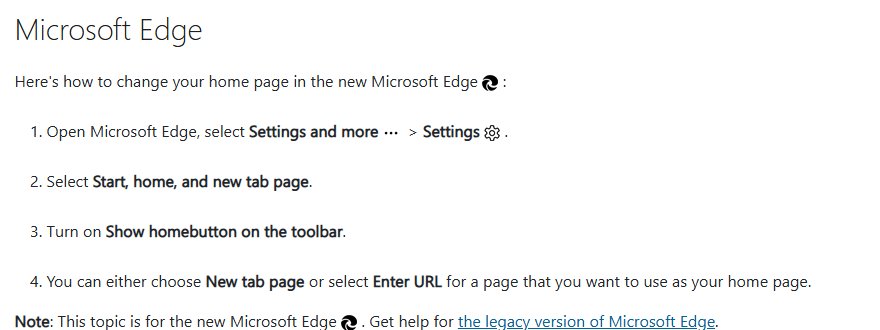
- Go back to Settings and select Start, home, and new tab page.
- Under the home button setting, choose New tab page or select Enter URL for a page you trust.
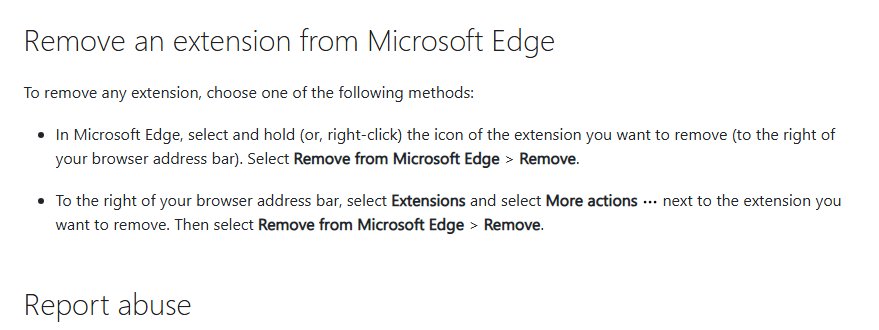
- Select Extensions to the right of the address bar, then Manage extensions.
- Next to any extension you do not recognise, select More actions > Remove from Microsoft Edge, then Remove.
Edge's home page usually goes back to MSN or the new tab page; you can restore MSN as your homepage if that is what you used before Yahoo appeared.
Reset Chrome or Edge settings to remove Yahoo
A reset puts the search engine, startup pages and extensions back to their defaults in one pass. Use it when Yahoo survives the manual steps above.
| Browser | How to reset | Reset to default | Kept |
|---|---|---|---|
| Google Chrome | More > Settings > Reset settings > Restore settings to their original defaults > Reset settings | Default search engine, homepage and startup tabs, new tab page, pinned tabs, content settings, cookies and site data; extensions and themes are turned off | Bookmarks and saved passwords |
| Microsoft Edge | Type edge://settings/reset in the address bar, then select Restore settings to their default values |
Pinned tabs, startup page, search engine and extensions | Bookmarks, history and saved passwords |
After a Chrome reset, turn extensions back on from More > Extensions > Manage extensions, and only turn on the ones you trust. A Chrome reset applies on every device where you are signed in to the same Chrome profile.
Uninstall the program that set Yahoo as your search engine
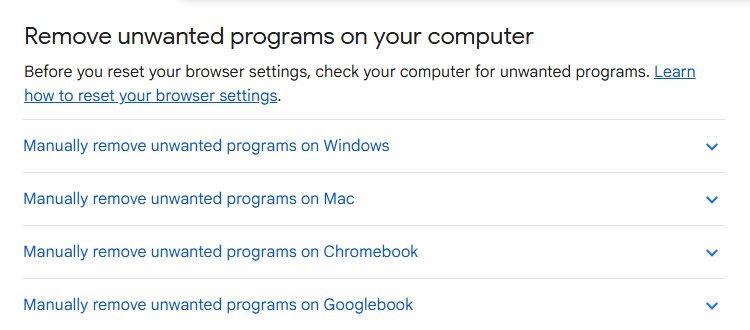
Free software installers sometimes bundle a program that keeps setting Yahoo as the search engine. Remove it from Windows first, or the browser fixes will not stick.
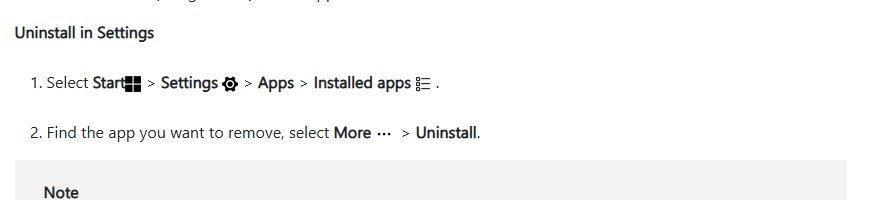
- Select Start, then Settings.
- Select Apps, then Installed apps.
- Look for a program you did not choose to install, especially one added on the day Yahoo appeared.
- Select that app, then select Uninstall and confirm.
- Open Windows Security, select Virus & threat protection, then Scan options.
- Run a full scan. If it finds nothing and Yahoo still returns, run the Microsoft Defender Antivirus (offline scan) from the same page; the PC restarts to run it.
Results of both scans appear under Protection history in Windows Security. Remove or quarantine anything listed before you reset the browser.
Check Yahoo is gone from your browser
- Close every browser window, then open the browser again.
- Confirm the startup page is the new tab page or the page you chose, not Yahoo.
- Type a test word in the address bar and press Enter; the results page should come from the engine you picked.
- Restart the PC and repeat both checks, since a startup program can rewrite the settings after a reboot.
- In Chrome, open
chrome://settingsto see any notice about settings that Chrome restored.
Chrome checks its settings at every launch and restores the search engine to a safe default if unwanted software changed it, then shows a small notice on the search results page.
Yahoo search keeps coming back in Chrome, Firefox, or Edge
Browser keeps redirecting to Yahoo after you change the search engine
A program or extension rewrites the setting each time the browser or PC starts.
- Uninstall unknown programs from Settings > Apps > Installed apps.
- Remove every extension you did not install yourself.
- Reset Chrome or Edge settings, then set the search engine again.
Yahoo opens when the browser starts
The startup page or home page still points to a Yahoo address.
- In Chrome, go to Settings > On startup and choose Open the New Tab page.
- In Edge, go to Settings > Start, home, and new tab page and replace any Yahoo address.
- In Firefox, set Homepage and new windows to Firefox Home (Default).
An extension causes Yahoo search redirects
Some extensions change the search engine or new tab page as part of what they do.
- Turn off all extensions, then search from the address bar.
- If the redirect stops, turn extensions back on one at a time to find the one responsible.
- Remove that extension from the browser's extensions page.
Search engine setting is greyed out or says it is managed
A work or school policy, or software posing as one, controls the search engine.
- On a work or school device, ask the IT administrator, who sets the search engine for you.
- On a home PC, run a full scan in Windows Security, then an offline scan if the policy remains.
- Reset the browser after the scan and set the search engine again.
Remove Yahoo from browser FAQs
Why does my browser keep redirecting to Yahoo?
Your browser keeps redirecting to Yahoo because a program or extension changed its search engine and keeps changing it back. Uninstall unknown programs in Windows, remove unfamiliar extensions, then reset the browser and set your search engine again.
Is Yahoo a virus?
No. Yahoo Search is a legitimate search engine. The problem is software that sets Yahoo as your search engine without asking, which Google lists as a sign of unwanted software or malware on the computer. Remove that software and Yahoo stops appearing.
How do I stop Yahoo from opening when I start my browser?
Change the startup page. In Chrome, select Settings > On startup > Open the New Tab page. In Edge, use Start, home, and new tab page. In Firefox, set Homepage and new windows to Firefox Home (Default).
Will resetting the browser remove Yahoo?
Yes, in most cases. Resetting Chrome or Edge returns the search engine, startup page and extensions to their defaults. If a Windows program set Yahoo, it can change the setting again, so uninstall that program before you reset.
Can extensions cause Yahoo search redirects?
Yes. An extension that changes your search engine or new tab page can send searches to Yahoo. Turn off all extensions, test a search, then turn them back on one at a time to find and remove the one responsible.
Does resetting Chrome delete my bookmarks and passwords?
No. Resetting Chrome keeps your bookmarks and saved passwords. It resets the search engine, home page, startup tabs, pinned tabs, site settings, cookies and site data, and turns off extensions until you turn them back on.
Can I delete Yahoo from the Chrome search engine list?
Yes, for site search shortcuts. In Chrome, go to Settings > Search engine > Manage search engines and site search, then select More > Delete next to the Yahoo entry. Change the default search engine to another engine first.