Yes, Apple TV 4K supports multiple profiles: go to Settings > Profiles and Accounts > Add New Profile to give each person their own watchlist, watch history and recommendations.
This guide covers profiles with an Apple Account, managed profiles for people without one, switching, the default profile, Home app setup, profile passcodes and fixes for common profile problems.
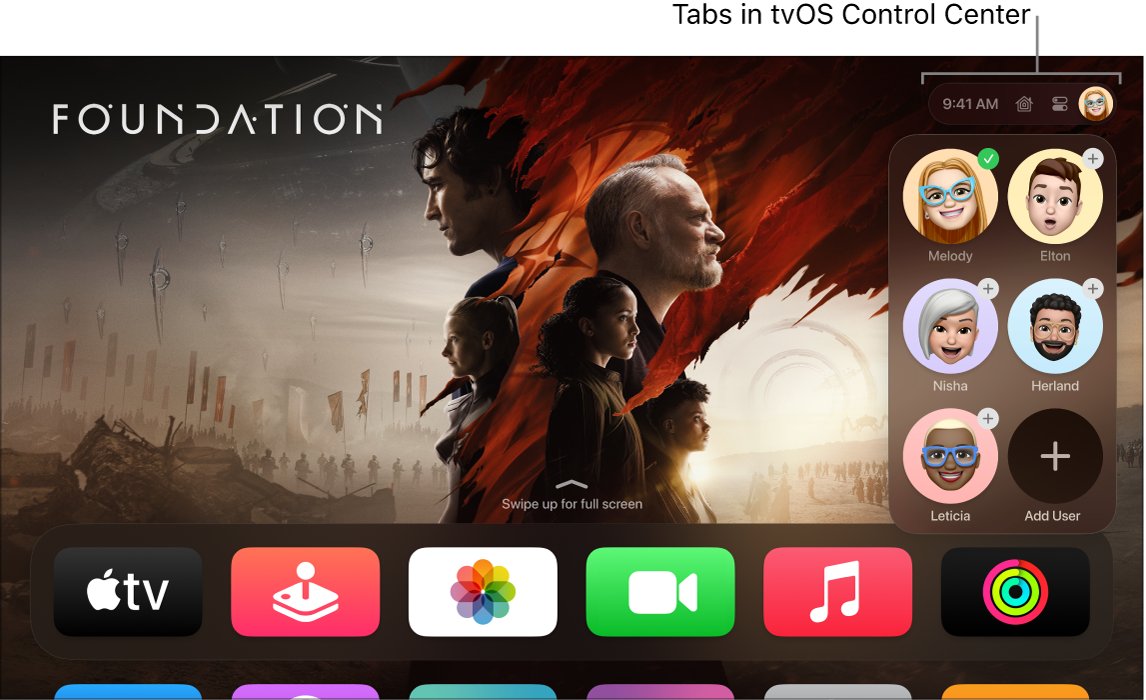
How to set up multiple profiles on Apple TV
Each profile gets its own Apple TV app watchlist, watch history and personalized recommendations, plus its own Music, Podcasts and Game Center data when it uses an Apple Account.
- Open Settings on Apple TV 4K.
- Go to Profiles and Accounts > Add New Profile.
- Select Sign in with Apple Account for an adult with an Apple Account, or Create Profile for someone without one.
- Follow the onscreen instructions to sign in, or enter a name and choose an image.
- Repeat for each person in the household.
You can also add a profile from Control Center: press and hold the TV button on the remote, go to the profiles tab, then select Add Profile.
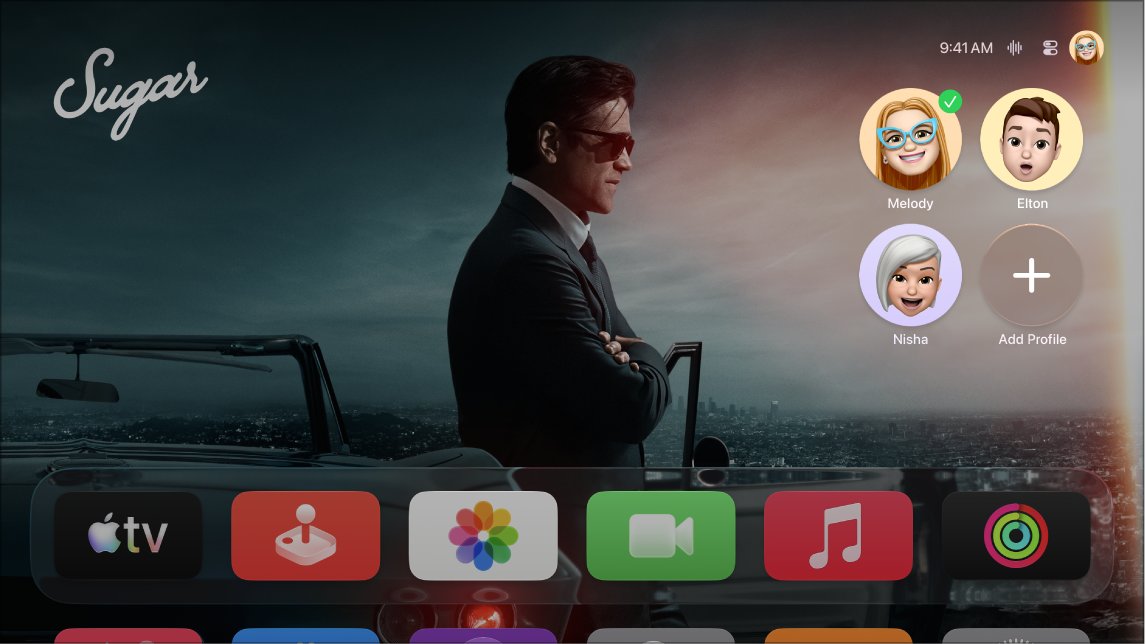
Apple TV user profiles: Apple Account vs managed profiles
Apple TV 4K has two types of profiles. A managed profile is created by someone who already has an Apple Account profile, and each Apple Account profile can manage up to five of them.
| Feature | Apple Account profile | Managed profile |
|---|---|---|
| Needs an Apple Account | Yes | No |
| Own watchlist, history and recommendations | Yes | Yes |
| Syncs Music, Podcasts, Game Center and paired AirPods settings | Yes | No |
| Child setting with age-appropriate content | No | Optional |
| Makes purchases | Yes, through its own Store account | No |
| Who can delete it | The profile owner signs out with Remove Profile | The managing profile, confirmed with its Apple Account password |
| Appears in the Apple TV app on other devices | Where that account signs in | Wherever the managing profile signs in, including smart TVs and consoles |
An adult's managed profile can be upgraded to a full Apple Account later from Settings > Profiles and Accounts > the profile > Upgrade to Apple Account.
Create a managed profile on Apple TV for a child
Managed profiles suit children and anyone in the house without an Apple Account. You need your own Apple Account profile on the Apple TV first.
- Go to Settings > Profiles and Accounts > Add New Profile.
- Select Create Profile, then enter a name and choose an image.
- On the Finish Profile screen, select Child to turn on age-appropriate content.
- Accept the suggested restrictions, or select Customize to pick TV show and movie categories.
- Select Managed By and choose which Apple Account manages the profile.
- Select Done.
A Child profile shows only age-appropriate content and search results based on the restrictions you set. The managing profile can see the profile's playback and searches.
How to switch profiles on Apple TV
Only one profile is active at a time. Switching signs out the previous profile and refreshes the TV and Music apps with the new profile's watchlist, collections and recommendations.
| Where you are | How to switch |
|---|---|
| Turning Apple TV on | Select a profile on the profile screen that appears |
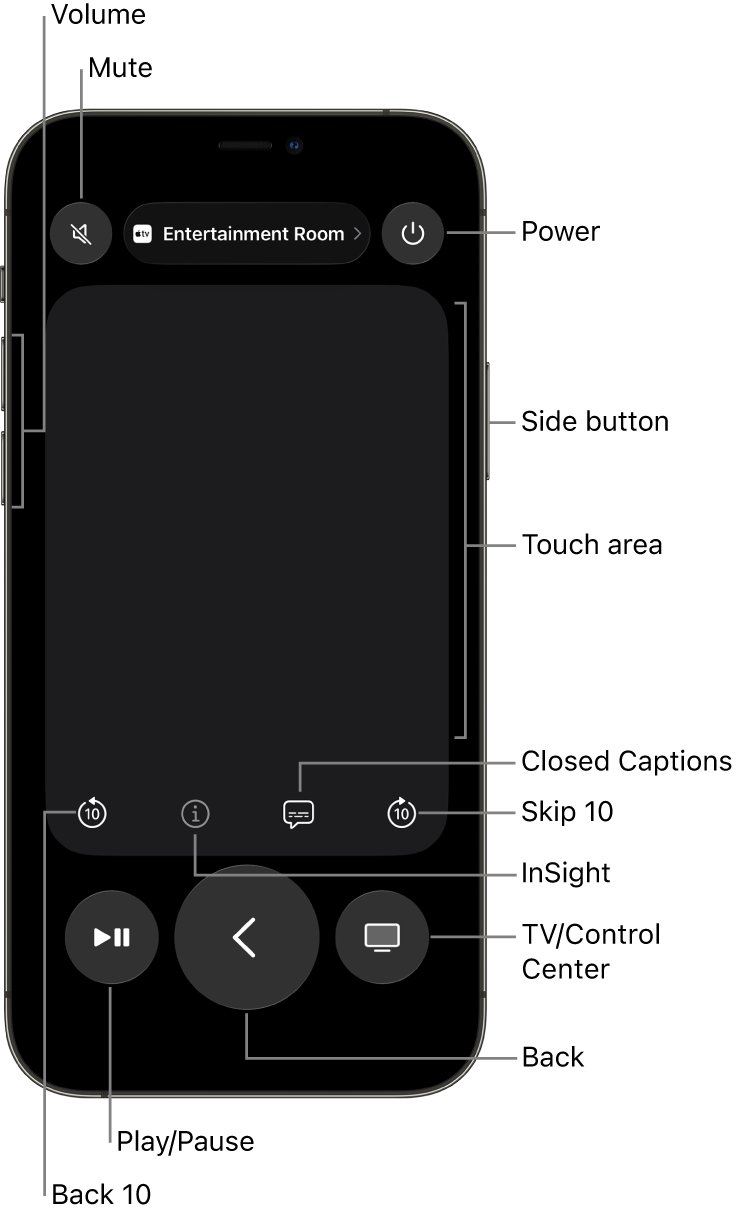
| Anywhere | Press and hold the TV button, go to the profiles tab in Control Center, then select a profile |
| Settings | Profiles and Accounts > Switch Current Profile, then select a name and sign in if prompted |
| Using Siri | Press and hold the Siri button and say "Switch to my profile" once voice recognition is set up |
Switching does not change the Photos app or other settings tied to the default profile's Apple Account. If the remote stops responding, pair or reset the Apple TV remote before trying again.
Add Apple TV profiles from the Home app
The Home app on iPhone, iPad or Mac can add several Apple Account profiles at once and choose which Apple TV each person appears on.
- Make sure the Apple TV 4K is assigned to a room in the Home app on the same network.
- Open the Home app, tap the button in the upper-right corner, then choose Home Settings.
- Tap Invite People, enter the person's Apple Account email address, then tap Send Invite.
- On their device, the invitee taps Accept in the Home app.
- They open Home Settings, tap their name, tap Show Me on Apple TV 4K, and turn on the Apple TV devices they want.
This lets one Apple TV in a bedroom carry a single profile while the living room Apple TV carries the whole household.
Lock an Apple TV profile with a 4-digit code
A passcode stops others from opening a profile's watch history, recommendations and watchlist when they switch profiles in the Apple TV app.
- Open Settings on Apple TV 4K.
- Go to Apps > TV, select the profile name, then select Restrictions.
- Select Require 4-Digit Code.
- If prompted, confirm your account by scanning the QR code with your phone or opening the link in a browser.
- Enter a 4-digit passcode, then enter it again to confirm.
The same Restrictions screen sets movie and TV show ratings for each profile. Select Change 4-Digit Code to change the passcode later.
Apple TV default profile and what it controls
The default profile is the Apple Account used to set up the Apple TV. A few features work only for it, no matter who is the current profile.
| Feature | Default profile only? |
|---|---|
| iCloud Photos in the Photos app | Yes |
| One Home Screen across Apple TV devices | Yes |
| Shared with You recommendations | Yes |
| Watchlist, history and recommendations | No, every profile |
| Recognize My Voice | No, up to six profiles |
| For All of You recommendations | No, any profile can be included |
To change it, go to Settings > Profiles and Accounts, select the name listed as Default, select Remove Profile, then select Add Profile and sign in with the new Apple Account.
Get shared recommendations for multiple users on Apple TV
For All of You recommendations combine each selected profile's taste and viewing history to find something everyone will watch.
- Open the Apple TV app on Apple TV 4K.
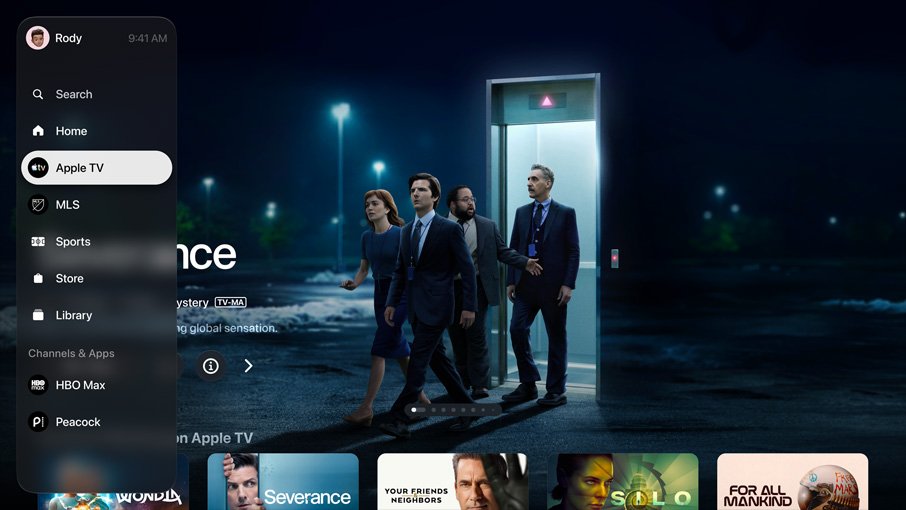
- Open the sidebar, then select Home.
- Navigate down to the For You row, then to the profile icon in its top-right corner.
- Select Set Up, then select the profiles to include.
- Select OK.
With two profiles selected, the row is called For Both of You.
Check which profile is active on Apple TV
- Press and hold the TV button to open Control Center.
- Go to the profiles tab and look for the selected profile.
- Or go to Settings > Profiles and Accounts and check the current and Default profiles.
- Open the Apple TV app and confirm the watchlist and Continue Watching row belong to that person.
Apple TV profiles not working: fixes
Profile screen appears every time Apple TV wakes
Choose Profile on Wake is turned on.
- Go to Settings > Profiles and Accounts.
- Turn Choose Profile on Wake off.
Unknown family members suggested as profiles
Members of your Home or family group signed in to an Apple device, so Apple TV suggests them.
- Open the profiles tab in Control Center.
- Select the person, then choose Don't suggest [name].
- To hide all suggestions, go to Settings > Profiles and Accounts > Suggested Profiles and choose Hide.
Can't create profiles on Apple TV with a school or work account
Managed Apple Accounts set up by schools or IT departments aren't supported on Apple TV 4K.
- Sign in with a personal Apple Account instead.
- Or create a managed profile from an existing personal Apple Account profile.
Photos or Home Screen don't change after switching profiles
iCloud Photos and One Home Screen follow the default profile only.
- Go to Settings > Profiles and Accounts.
- Select the profile listed as Default and select Remove Profile.
- Select Add Profile and sign in with the Apple Account that should be the default.
Can't delete a managed profile
The managing profile must confirm the deletion with its Apple Account password.
- Go to Settings > Profiles and Accounts and select the profile.
- Select Delete Profile.
- Sign in or confirm on the managing person's iPhone or iPad.
Apple TV multiple profiles FAQ
Can you have multiple profiles on Apple TV?
Yes. Apple TV 4K supports profiles with an Apple Account and managed profiles for people without one. Each profile gets its own watchlist, watch history and recommendations in the Apple TV app.
Does Apple TV have profiles?
Yes. Profiles live under Settings > Profiles and Accounts on Apple TV 4K and in the profiles tab of Control Center. Only one profile is active at a time.
How do you create profiles on Apple TV?
Go to Settings > Profiles and Accounts > Add New Profile. Choose Sign in with Apple Account for an adult, or Create Profile for a managed profile with a name, image and optional Child setting.
Can you make profiles on Apple TV without an Apple Account?
Yes. A managed profile needs no Apple Account, but someone with an Apple Account profile on the Apple TV must create and manage it. Each Apple Account profile can manage up to five.
Can multiple people use Apple TV at the same time?
Only one profile is active on an Apple TV 4K at a time. Switching profiles signs the previous one out and loads the new profile's watchlist and recommendations.
Can Apple TV have multiple users with different Apple Accounts?
Yes. Each person can sign in with their own Apple Account as a profile, either on the Apple TV or through the Home app. The account that set up the Apple TV stays the default profile.
How do you set up multiple profiles on the Apple TV app on a smart TV?
Create managed profiles on an Apple TV 4K first. They then appear in the Apple TV app on a smart TV, game console or streaming device wherever the managing profile signs in.
Is Family Sharing the same as Apple TV profiles?
No. Family Sharing shares purchases and subscriptions with up to six family members across Apple devices and must be set up on an iPhone, iPad or Mac. Profiles only separate viewing on the Apple TV.