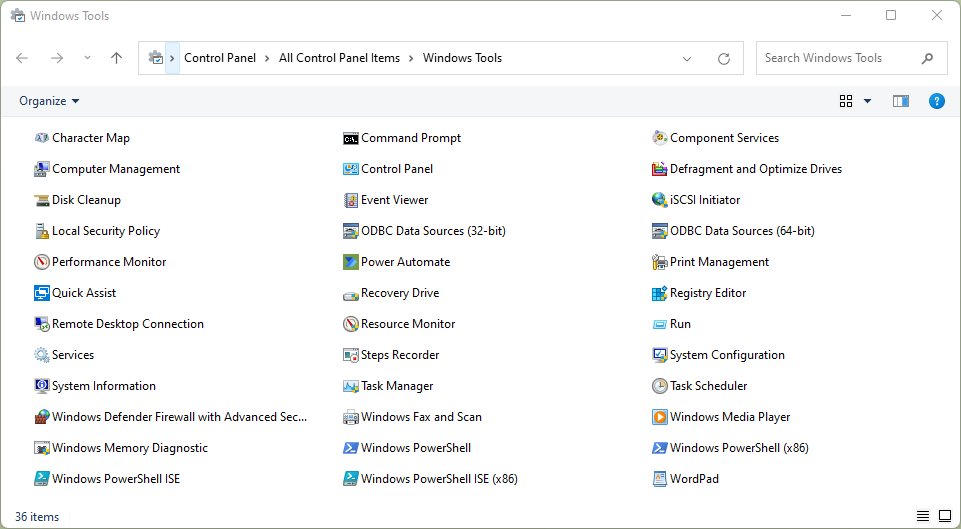
The system utilities screen in Windows 11 is the Windows Tools folder, and the fastest way to open it is to press Win + R, type control admintools and press Enter.
This guide covers seven ways to open it, the key tools inside, a desktop shortcut, and fixes when it will not open.
Method 2: Use the Run command to open Windows Tools
The Run box is the quickest route and works the same on Windows 10, where the folder is called Administrative Tools.
- Press Win + R to open the Run box.
- Type
control admintools. - Press Enter or select OK.
- Double-click any tool in the Windows Tools window to open it.
What is the system utilities screen in Windows 11?
Windows Tools is a folder in the Windows 11 Control Panel that holds tools for system administrators and advanced users. In Windows 10 the same folder is named Administrative Tools.
The tools in the folder vary with your Windows edition, so a Home PC can show fewer entries than a Pro PC.
| Windows version | Folder name | Where it lives |
|---|---|---|
| Windows 11 | Windows Tools | Control Panel |
| Windows 10 | Administrative Tools | Control Panel |
Why you should know how to access system utilities
When one route is broken, another still gets you to the tools you need to fix the PC.
| Your situation | Best method | Why |
|---|---|---|
| Keyboard works normally | Run command | Three keystrokes, no menus |
| Mouse only | Start menu | Open it from the app list |
| Already in Control Panel | Control Panel | One click from System and Security |
| Working in a terminal | Command Prompt or PowerShell | Same command as Run |
| You use it every day | Desktop shortcut | Double-click from the desktop |
Method 1: Open system utilities screen using the Start menu
- Select Start on the taskbar.
- Type
Windows Tools. - Select Windows Tools in the results, or press Enter.
Method 3: Open system utilities via the Control Panel
- Press Win + R, type
controland press Enter. - Select System and Security.
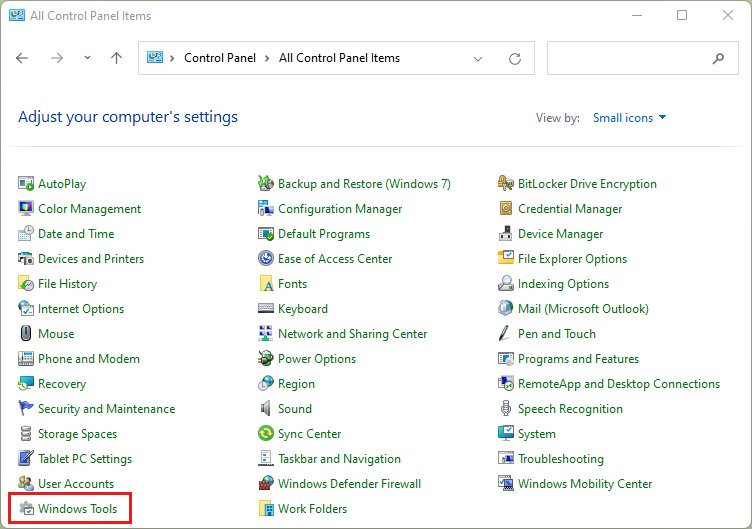
- Select Windows Tools at the bottom of the list.
If Control Panel is in Large icons or Small icons view, select Windows Tools directly.
Method 4: Access system utilities via File Explorer
- Press Win + E to open File Explorer.
- Click in the address bar, type
Control Paneland press Enter. - Select System and Security, then Windows Tools.
Method 5: Open system utilities via Command Prompt
control admintoolsOpen Command Prompt from Start, type the command and press Enter.
You should see: The Windows Tools window opens on the desktop.
Method 6: Open system utilities through PowerShell
control admintoolsOpen Windows PowerShell or Terminal from Start, type the same command and press Enter.
You should see: The Windows Tools window opens, exactly as it does from Run.
Method 7: Access through Settings search
- Press Win + I to open Settings.
- Type
Windows Toolsin the Find a setting box. - Select Windows Tools if it appears. If it does not, use the Start menu search instead.
Key system utilities available in Windows 11
Each of these tools can also be opened on its own from the Run box with the command shown.
| Tool | Run command | What it does |
|---|---|---|
| Computer Management | compmgmt.msc |
Manages disks, services, devices, shared folders and users in one window |
| Event Viewer | eventvwr.msc |
Shows system, security and application event logs for troubleshooting |
| System Configuration | msconfig |
Troubleshoots startup with General, Boot, Services, Startup and Tools tabs |
| System Information | msinfo32 |
Lists hardware, drivers, services and running processes |
| Registry Editor | regedit |
Views and edits the system registry |
| Local Group Policy Editor | gpedit.msc |
Manages local policy settings; not available on Windows 11 Home |
Additional tools accessible via the system utilities screen
The folder also lists tools that are easiest to launch from it rather than by command. Exact entries depend on your edition.
| Tool | Use it to |
|---|---|
| Disk Cleanup | Remove temporary and unneeded files |
| Performance Monitor | Track system performance counters over time |
| Resource Monitor | See live CPU, memory, disk and network use per process |
| Task Scheduler | Run programs or scripts on a schedule |
| Services | Start, stop and set startup type for Windows services |
| Command Prompt | Run text commands |
| Windows Memory Diagnostic | Test the PC's RAM for errors at restart |
Creating a shortcut for easy access
- Right-click an empty area of the desktop and select New > Shortcut.
- Type
control admintoolsin the location box and select Next. - Name the shortcut
Windows Toolsand select Finish. - Right-click the new shortcut and select Show more options > Pin to taskbar if you want it on the taskbar.
Understanding how system utilities help you
Several of these tools change low-level settings, so use them with care.
| Tool | Helps you | Caution |
|---|---|---|
| System Configuration | Find a startup problem | Wrong changes can make Windows unstable; back up first |
| Registry Editor | Change hidden settings | A bad edit can stop Windows from starting; back up the registry first |
| Local Group Policy Editor | Enforce local policies | Test changes before relying on them |
| Event Viewer | Read error logs after a crash | Read-only for most tasks |
Tips for efficient use of system utilities
- Confirm the window title reads Windows Tools before you open anything.
- Right-click a tool and select Run as administrator when it needs full rights, such as System Information for complete driver and service details.
- Switch the folder to Details view to see each tool's description.
- Open frequent tools directly from Run with the commands in the table above to skip the folder.
The System32 folder holds the program files many of these tools run from.
Troubleshooting: If you can’t open the system utilities screen
Run command does nothing or shows an error
The command was mistyped or Control Panel is blocked.
- Retype
control admintoolswith a single space and no quotes. - Try
controlalone. If Control Panel will not open either, the block is on Control Panel itself.
A tool inside the folder is missing
Available tools vary by Windows edition.
- Press Win + R and type the tool's own command, such as
gpedit.msc. - If Windows says it cannot find it, that tool is not part of your edition.
A tool opens but says access is denied
The tool needs administrator rights.
- Right-click the tool and select Run as administrator.
- Sign in with an administrator account if prompted.
Windows 11 system utilities screen FAQ
What is the system utilities screen called in Windows 11?
It is called Windows Tools. It is a Control Panel folder that holds tools for system administrators and advanced users. Windows 10 calls the same folder Administrative Tools.
What command opens Windows Tools?
Type control admintools in the Run box, Command Prompt or PowerShell and press Enter. The Windows Tools folder opens on the desktop.
Where is Administrative Tools in Windows 11?
Administrative Tools was renamed Windows Tools in Windows 11. Open Control Panel, select System and Security, then select Windows Tools.
Is Windows Tools the same on every edition?
No. The tools in the folder vary with the Windows edition. For example, the Local Group Policy Editor is not available on Windows Home.
How do I open Computer Management in Windows 11?
Press Win + R, type compmgmt.msc and press Enter. You can also right-click Start or search the Start menu for Computer Management.
How do I open System Configuration in Windows 11?
Press Win + R, type msconfig and press Enter. Back up before changing startup settings, because incorrect changes can make Windows unstable.