In the new Outlook app on Windows 11, sync settings live under Settings > General > Offline, where you choose how many days of email and which folders stay synced to the PC.
This guide covers those options, the matching slider in classic Outlook, manual sync, adding a Google Workspace or Gmail account, and fixes when the Outlook app is not syncing.
Change Outlook app sync settings in Windows 11
These steps apply to the new Outlook for Windows, the app that replaced Windows Mail on Windows 11. Changes save per device, not to your mailbox.
- Open Outlook and select Settings (the gear icon).
- Select General, then Offline.
- Make sure Enable offline email, calendar, and people is turned on.
- Under Days of email to save, pick 7, 30, 90 or 180 days.
- Under Folders to save, pick the set of folders that should sync.
- Select Save.
If the PC is short of storage, Outlook saves fewer items than you chose, or turns offline access off.
New Outlook sync settings explained
| Setting | Choices | Default | Effect |
|---|---|---|---|
| Enable offline email, calendar, and people | On or Off | On | Off stops Outlook keeping a local copy for use without internet |
| Days of email to save | 7, 30, 90, 180 days | 30 days | How far back mail is stored on the PC |
| Folders to save | Default (Inbox, sent, drafts, archive, deleted and snoozed); Default and favorites; Default, favorites, and recently used | Default and favorites | Which folders are kept on the PC |
| Sync (View tab) or F9 | Manual action | n/a | Checks for new mail and sends the Outbox now |
Change sync settings in classic Outlook
Classic Outlook, the desktop app from Microsoft 365, uses a slider instead. It works for Exchange and Microsoft 365 accounts with Cached Exchange Mode turned on.
- Select File > Account Settings > Account Settings.
- Select your Exchange or Microsoft 365 account and select Change.
- Under Offline Settings, move the Mail to keep offline slider to All, 12 months, 6 months, 3 months or 1 month.
12 months is the default. If the slider is missing, Cached Exchange Mode is probably off for that account.
How to sync Outlook app manually
- In new Outlook, select Mail in the navigation bar.
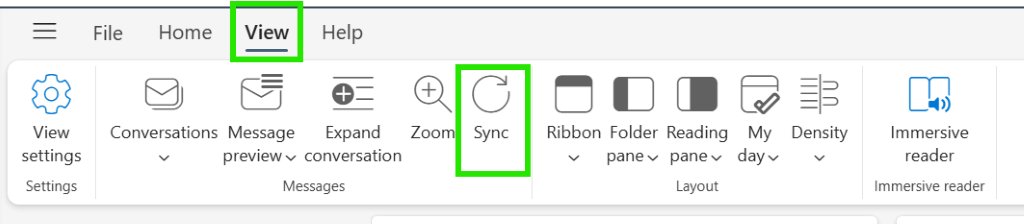
- On the View tab, select Sync, or press F9.
- Watch for the status message at the bottom of the message list while Outlook syncs.
- In classic Outlook, select Send / Receive > Send/Receive All Folders, or press F9.
- To sync one account in classic Outlook, select Send/Receive Groups, point to the account and select Inbox.
How to connect Google Workspace to Outlook
A Google Workspace or Gmail address syncs in the same Outlook app once you add it. Google asks you to approve access during sign-in.
- In new Outlook, select the View tab, then View settings.
- Select Accounts > Your accounts.
- Select Add account, enter or choose the Google address, and select Continue.
- Sign in with Google and select Allow on the permissions window.
- Select Done. Mail from the account now follows the same Offline settings.
- In classic Outlook, select File > Add Account, enter the address, select Connect and follow the Google sign-in.
To stop syncing an account, open Your accounts, select Manage next to it and select Remove.
Windows Mail app sync settings
Use the new Outlook app instead of the old Windows Mail app for sync settings on Windows 11. Support for Windows Mail, Calendar and People ended on December 31, 2024, so its old Change mailbox sync settings dialog is no longer maintained. The new Outlook Offline settings above are the replacement.
Outlook app not syncing in Windows 11
New Outlook desktop app not syncing new mail
Outlook has not checked the server since it lost connection, or it is working from its offline copy.
- Check that the PC is online, then press F9 or select View > Sync.
- Open Settings > General > Offline and confirm offline access is on and Save was selected.
- Close Outlook completely and open it again.
Older emails are missing from the Outlook app
Only the chosen number of days or folders is stored on the PC.
- Raise Days of email to save to 90 or 180, or the classic slider to All.
- Change Folders to save to include favorites and recently used folders.
- Select Save and give Outlook time to download the extra mail.
Classic Outlook shows Working Offline and won't sync
Work Offline is switched on.
- Select Send / Receive and check whether Work Offline is highlighted.
- Select Work Offline once to go back online.
- Press F9 to sync all folders.
A Gmail or Google Workspace account won't sync
Google access was not granted, or classic Outlook is an older build that rejects the password.
- Remove the account from Your accounts and add it again, selecting Allow at the Google prompt.
- In an older classic Outlook, turn on two-step verification for the Google account and sign in with an app password.
Outlook app sync settings FAQ
How do I change Outlook sync settings?
In new Outlook, open Settings > General > Offline, choose the days of email and folders to save, and select Save. In classic Outlook, use File > Account Settings > Account Settings > Change and move the Mail to keep offline slider.
How do I sync the Outlook app?
Press F9 in either version. In new Outlook you can also select View > Sync, and in classic Outlook Send / Receive > Send/Receive All Folders. A status message shows while the sync runs.
How do I update sync settings in Outlook?
Change the values under Settings > General > Offline and select Save. New Outlook applies the new days and folders on that PC; other devices keep their own settings.
How do I adjust sync settings in Outlook to keep more email?
Set Days of email to save to 180 in new Outlook, or drag the classic Outlook slider to All. Both keep more mail on the PC for offline reading and faster search, at the cost of disk space.
What is the default sync setting in new Outlook?
New Outlook saves 30 days of email from the default folders and your favorites, with offline access turned on. Classic Outlook keeps 12 months of mail by default.
Why is the Outlook app not syncing?
Common causes are no internet connection, Work Offline switched on in classic Outlook, offline settings that exclude a folder, or a Google account that lost permission. Press F9 first, then check the Offline settings.
Can I still use Windows Mail sync settings?
No. Support for Windows Mail, Calendar and People ended on December 31, 2024. The new Outlook for Windows replaces it, and its sync options sit under Settings > General > Offline.