Windows Defender Security Center in Windows 10 is the built-in security dashboard that current builds of Windows 10 and Windows 11 call Windows Security, and you open it by searching the Start menu for Windows Security.
This guide shows how to open it, what each of its seven areas controls, how the scan types differ, and how to fix a quick scan that will not run.
How to open Windows Defender Security Center in Windows 10
The app is part of Windows 10 version 1703 and later, so there is nothing to download or install.
- Select Start and type Windows Security.
- Select Windows Security in the results to open the dashboard.
- Alternatively, select the shield icon in the notification area of the taskbar.
- On Windows 11, you can also go to Settings > Privacy & security > Windows Security and pick an area.
The home page shows a tile for each protection area, with a green tick where no action is needed.
Windows Defender security center
Windows Security is a status and settings hub, not the antivirus engine itself. Microsoft Defender Antivirus, Windows Firewall and SmartScreen each run on their own and report their state to it.
The name Microsoft Defender Security Center now refers to the web portal businesses use to manage Microsoft Defender for Endpoint, which is a different product from this app.
| Area | What it controls |
|---|---|
| Virus & threat protection | Microsoft Defender Antivirus scans, real-time protection, exclusions, protection history and ransomware protection |
| Account protection | Sign-in and account protection settings |
| Firewall & network protection | Windows Firewall status and settings for each network profile |
| App & browser control | Microsoft Defender SmartScreen settings and Exploit protection |
| Device security | Security features built into your hardware, such as virtualization-based security |
| Device performance & health | Reports on drivers, storage space and Windows Update issues |
| Family options | Links to parental controls and online safety settings |
You cannot uninstall Windows Security. Turning off its interface does not turn off Microsoft Defender Antivirus or Windows Firewall either.
If the dashboard shows stale or missing status, turn on the Security Center service that feeds it.
Virus & threat protection
This is the area you will use most. It holds the scan buttons, protection updates and the real-time protection switch.
- Open Windows Security and select Virus & threat protection (the shield icon on the left).
- Select Quick scan to scan the most common malware locations now.
- Under Virus & threat protection updates, select Protection updates and then Check for updates to get the latest security intelligence.
- Under Virus & threat protection settings, select Manage settings and confirm Real-time protection is On.
- In the same page, select Add or remove exclusions under Exclusions if a trusted file or folder keeps being flagged.
- Under Ransomware protection, select Manage ransomware protection to set up Controlled folder access or OneDrive recovery.
If you switch real-time protection off, Windows turns it back on automatically after a short delay. If another antivirus product is installed, Microsoft Defender Antivirus turns itself off and this page says so.
You can also have Defender block adware and potentially unwanted apps as well as viruses.
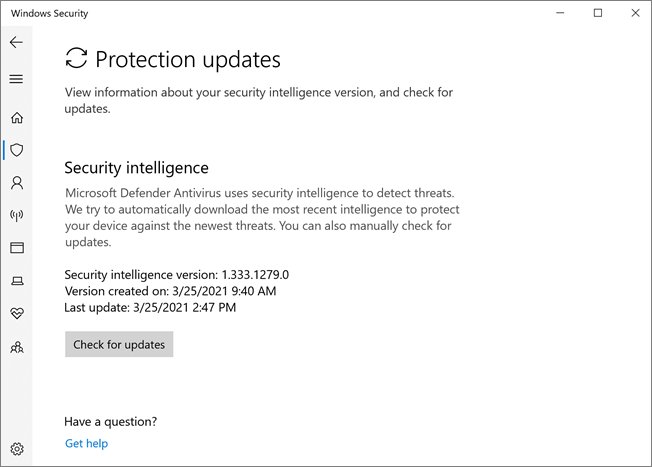
Windows Defender offline scan vs full scan vs quick scan explained
Microsoft recommends a quick scan in most cases, because real-time protection already checks files as they are opened and closed.
| Scan type | What it checks | When to use it |
|---|---|---|
| Quick scan | Locations where malware registers to start with Windows, such as registry keys and startup folders, plus mounted USB drives | Routine checks and the first response to a suspected infection |
| Full scan | Everything a quick scan covers, then all mounted fixed disks and, if configured, removable and network drives | A quick scan finds nothing but the PC still behaves suspiciously; it can take hours |
| Custom scan | Only the files and folders you pick | Checking one download folder or a USB drive |
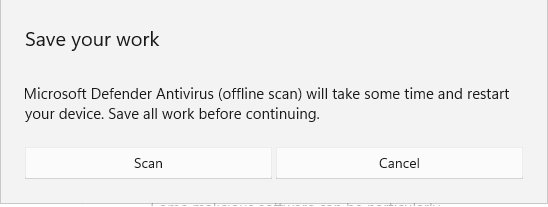
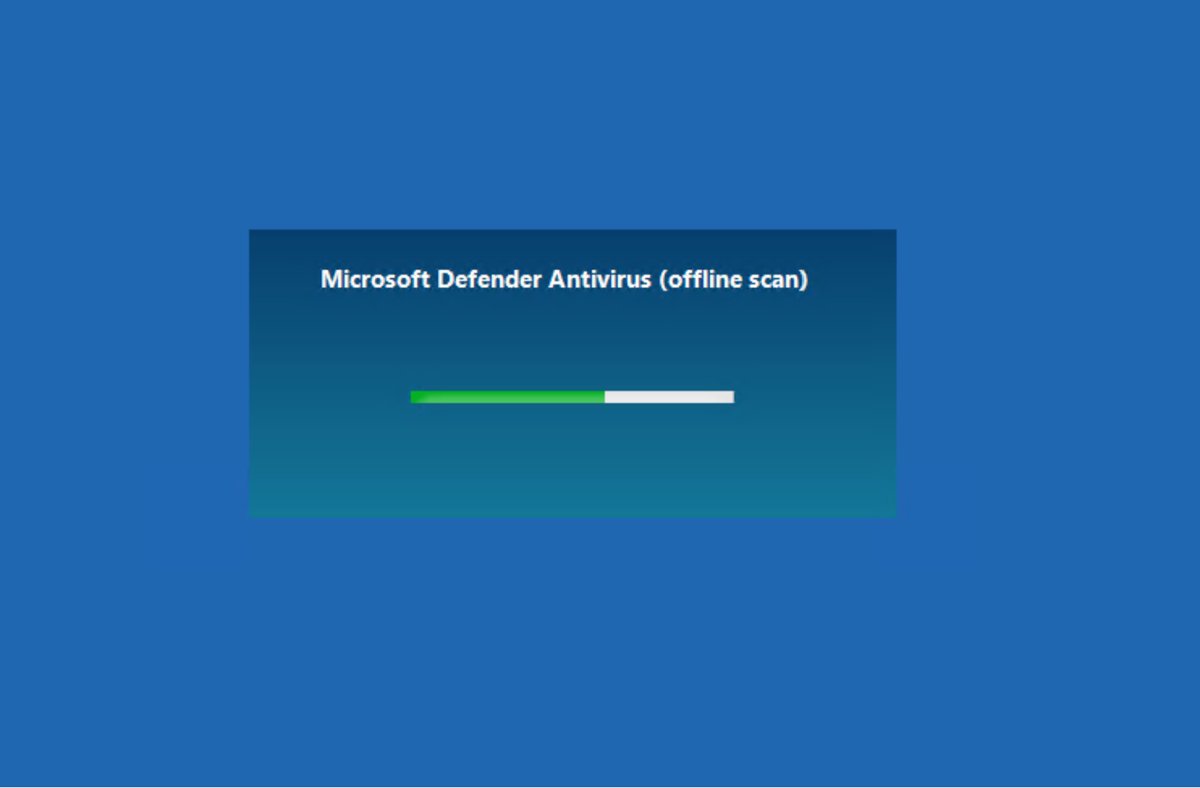
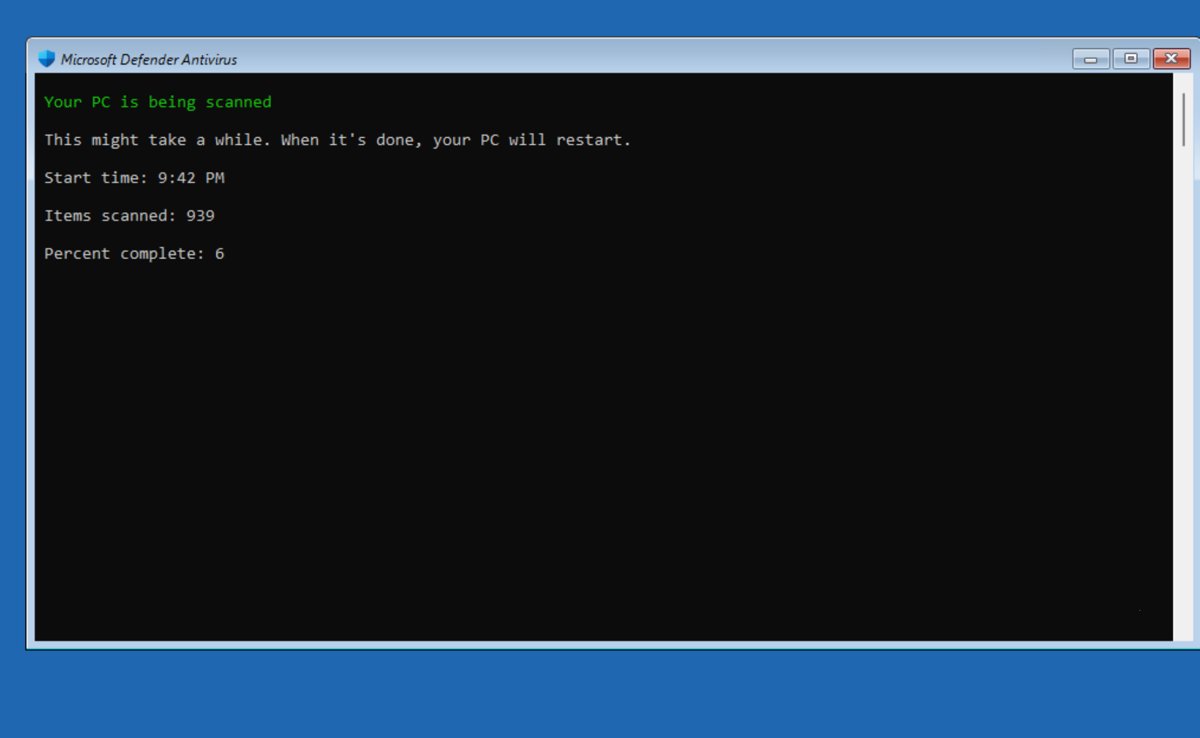
| Microsoft Defender Offline scan | Runs from a trusted environment outside Windows to catch rootkits and boot-record malware | Malware that hides from normal scans or keeps coming back; takes about 15 minutes and restarts the PC |
To run any scan other than quick, select Virus & threat protection > Scan options, choose the type, and select Scan now. A full scan uses the definitions installed when it starts, so update Defender manually first.
Run a Windows Defender scan from PowerShell
Open Windows PowerShell as administrator. The Defender module is built into Windows 10 and Windows 11.
Start-MpScanStarts an on-demand Microsoft Defender Antivirus scan. Use Start-MpWDOScan instead to restart into a Microsoft Defender Offline scan, after saving your work.
You should see: The command returns to the prompt when the scan ends, and any detections appear under Protection history in Windows Security.
Firewall & network protection
Windows Firewall keeps a separate on/off state for domain, private and public networks.
- Open Windows Security and select Firewall & network protection.
- Check that each network profile shows Firewall is on.
- Select the profile marked (active) to see its settings.
- Turn Microsoft Defender Firewall back On if it is off and you do not use another firewall.
- Select Allow an app through firewall if a trusted program cannot connect.
App & browser control
This area holds Microsoft Defender SmartScreen, which warns about unrecognized apps and malicious sites, and Exploit protection.
- Open Windows Security and select App & browser control.
- Review the SmartScreen settings shown on the page and keep the warnings turned on.
- Scroll to Exploit protection and select Exploit protection settings to view system-wide and per-program mitigations.
- Leave mitigations at their defaults unless an app vendor tells you to change a specific one.
Device performance & health
This page is a health report rather than a settings page. It tells you where Windows needs attention.
| Report item | What a warning means |
|---|---|
| Windows Update | Updates are failing or pending, so the PC is missing fixes |
| Storage capacity | The drive is low on free space |
| Device driver | A driver is not working correctly |
| Overall status | A green tick means no action is needed on this page |
Select the item with a warning to see the suggested fix, then rerun the report from the same page.
Family options
Family options does not hold the controls itself. It links to parental controls and to tips for keeping children safe online, managed through Microsoft Family Safety.
| What you can do | Where it leads |
|---|---|
| Set up parental controls | Microsoft Family Safety, signed in with your Microsoft account |
| See children's devices | The device list for your family group |
| Hide this area on work PCs | Group Policy: Windows components > Windows Security > Family options > Hide the Family options area |
How to clear Windows Defender protection history in Windows 11
Protection history lists detections and actions from recent scans. Windows removes items from the scan history folder automatically after 15 days by default, and you can shorten that period.
- Open Windows Security and select Virus & threat protection > Protection history to review the current entries.
- Act on any item that still shows Action needed before clearing anything.
- Right-click Start and select Terminal (Admin) or Windows PowerShell (Admin).
- Run
Set-MpPreference -ScanPurgeItemsAfterDelay 1to keep scan history items for one day. - Wait a day and reopen Protection history; older items are removed.
- Run
Set-MpPreference -ScanPurgeItemsAfterDelay 15afterwards to restore the default.
The same steps work on Windows 10. A value of zero tells Windows never to remove items.
Check Windows Defender is protecting your PC
- Open Windows Security and look for a green tick on every tile on the home page.
- Select Virus & threat protection and confirm the last scan date under Current threats.
- Select Protection updates and check that the security intelligence date is recent.
- Open Firewall & network protection and confirm the active network shows Firewall is on.
Windows Defender Quick Scan not working in Windows 11
These fixes apply to Windows 10 as well.
If the app itself reports it is off, activate Windows Security before working through the symptoms below.
Quick scan is grey or Virus & threat protection shows another antivirus
A third-party antivirus is installed, so Microsoft Defender Antivirus has turned itself off.
- Open Virus & threat protection and read which provider is listed.
- Run scans from that product, or uninstall it from Settings > Apps if you want Defender back.
- Restart the PC and reopen Windows Security.
Settings are greyed out with a managed-by-organization message
Group Policy, Intune or Configuration Manager controls these settings, and they take precedence over the app.
- Ask the administrator who manages the PC to change the policy.
- On a home PC, run
Start-MpScanfrom an elevated PowerShell window to scan anyway.
The scan fails or stops right after it starts
Out-of-date security intelligence or a pending Windows update.
- Select Protection updates > Check for updates.
- Install pending updates in Settings > Windows Update and restart.
- Run Quick scan again.
Offline scan does nothing after you select Scan now
Windows Recovery Environment is disabled, or the PC runs on an ARM processor, which offline scan does not support.
- Turn Windows Recovery Environment back on; with it disabled, the offline scan silently does nothing.
- Suspend BitLocker first if it protects the system drive, so you are not asked for the recovery key.
- Select Scan options > Microsoft Defender Offline scan > Scan now again.
Windows Defender security center FAQ
Is Windows Defender Security Center the same as Windows Security?
Yes. Windows Defender Security Center is the earlier name of the Windows Security app in Windows 10. It is the same dashboard for antivirus, firewall, SmartScreen and device security, found by searching Start for Windows Security.
Where is Windows Defender Security Center in Windows 11?
Search the Start menu for Windows Security, or go to Settings > Privacy & security > Windows Security. The shield icon in the taskbar notification area opens the same app on both Windows 11 and Windows 10.
Do I need to download the Windows Defender Security Center app?
No. Windows Security is built into Windows 10 version 1703 and later and into Windows 11. It cannot be uninstalled, so there is no separate download to look for, and offers of one should be treated with suspicion.
What is the difference between Microsoft Defender and Windows Security?
Windows Security is the built-in dashboard. Microsoft Defender Antivirus is the antivirus engine it reports on. The separate Microsoft Defender app comes with Microsoft 365 Family and Personal and covers Windows, Mac, iOS and Android devices.
Is Windows Defender enough protection for Windows 10?
For most home users, Microsoft Defender Antivirus with real-time protection, Windows Firewall and SmartScreen turned on gives solid built-in protection. Keep Windows Update and protection updates current, because the protection depends on recent security intelligence.
How do I open Windows Defender Security Center settings?
Open Windows Security, select Virus & threat protection, then select Manage settings under Virus & threat protection settings. That page holds real-time protection, cloud-delivered protection, tamper protection and exclusions.
Does disabling Windows Security turn off the antivirus?
No. Hiding or disabling the Windows Security interface does not turn off Microsoft Defender Antivirus or Windows Firewall. Defender only switches off when another up-to-date antivirus product is installed.
How long does a Windows Defender full scan take?
A full scan can take a few hours or longer, depending on how much data is on your drives. A quick scan usually finishes in minutes, and a Microsoft Defender Offline scan takes about 15 minutes plus a restart.




![How to turn on/off ad blocker in Microsoft Edge? [step-by-step]](https://techdows.com/wp-content/uploads/2026/10/How-to-turn-onoff-ad-blocker-in-Microsoft-Edge-step-by-step-1-600x338.jpg)