The Microsoft Teams machine-wide installer today is teamsbootstrapper.exe, which Microsoft offers on its Learn page for bulk Teams deployment and which installs new Teams for every user on a PC.
This guide covers the single-PC and offline installs, organization-wide deployment, autostart control, VDI setup, removal and the errors you are most likely to hit.
Get the Teams machine-wide installer for all users
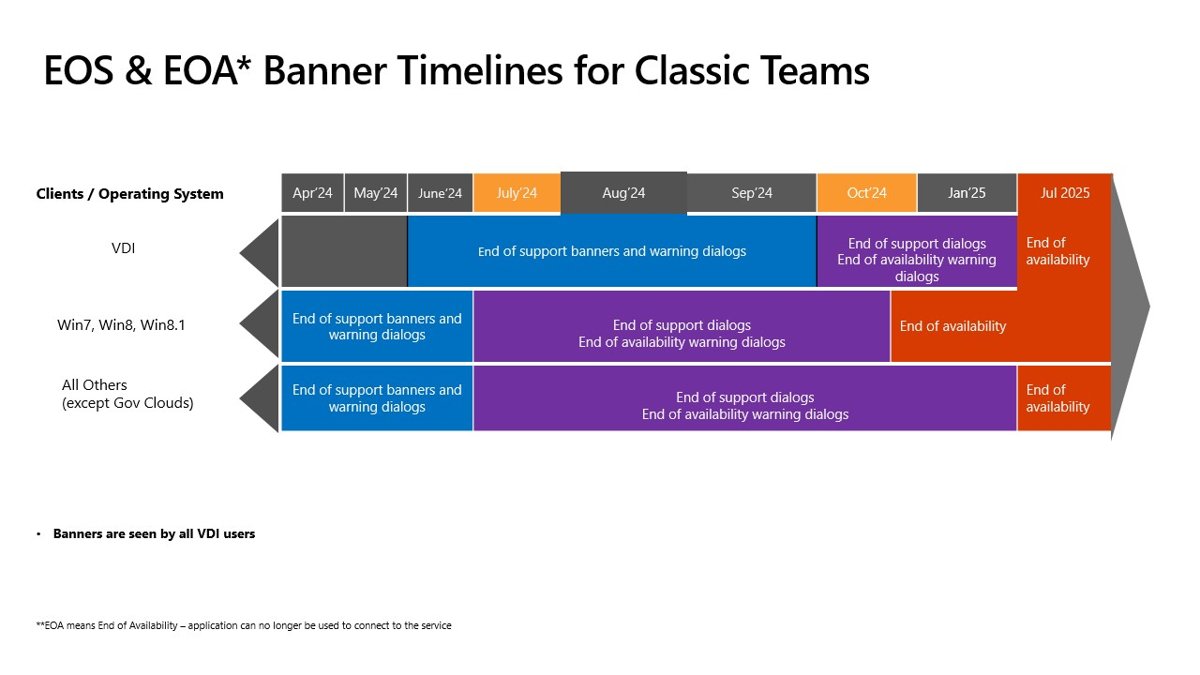
The old classic Teams MSI stopped working when classic Teams reached end of availability on July 1, 2025, so the bootstrapper is the route that works now.
- Open the Microsoft Learn article Bulk deploy the Microsoft Teams desktop client and select Download the .exe installer.
- Save teamsbootstrapper.exe to a folder such as
C:\temp. - Open Command Prompt as administrator.
- Change to the folder that holds the file, then run
.\teamsbootstrapper.exe -p. - Read the success or failure message the installer prints on the command line.
Teams is now provisioned for every existing user on that computer and for any user who signs in later.
If only one account on a home PC needs the app, download Microsoft Teams the normal way instead.
Microsoft Teams machine wide installer
A machine-wide installer puts Teams on the computer once, instead of once per user profile. Classic Teams did this with an MSI, while new Teams uses a small online bootstrapper that provisions an MSIX package.
| Item | Classic Teams machine-wide installer | New Teams bootstrapper |
|---|---|---|
| File | MSI package | teamsbootstrapper.exe plus the Teams MSIX package |
| How it installs | Per-user copy installed when each user signs in | Provisions the MSIX for all current and future users |
| Status | End of availability July 1, 2025 | Current, supported method |
| Install command | No longer applies | teamsbootstrapper.exe -p |
| Remove command | No longer applies | teamsbootstrapper.exe -x |
| Updates | Retired | Automatic, powered by Delivery Optimization |
If a user installed a different Teams version earlier, the provisioned version replaces it.
Teams machine-wide installer system requirements
| Requirement | What Microsoft lists |
|---|---|
| Windows | Meets the Teams client system requirements; for VDI, Windows 10.0.19041 or later (Windows LTSC excluded) |
| Windows Server (VDI) | Windows Server 2022 build 20348.2402 or later, or Windows Server 2025 build 26100.2886 or later |
| Office | Microsoft 365 Apps or Office LTSC 2021 |
| WebView2 | Updated to the most current version |
| Delivery Optimization | Turned on for Teams updates; Download Mode 100 (Bypass) is not supported |
| Notifications | Show notification banners on under System > Notifications > Microsoft Teams |
| Installer version | The latest bootstrapper; compare Properties > Details > Product version with a fresh download |
Install Teams machine-wide with the offline MSIX package
The offline option uses a local Teams MSIX file, which cuts the bandwidth each PC uses for the first install. The MSIX can sit in a local folder or on a UNC share.
- Download teamsbootstrapper.exe from the Learn bulk deployment article.
- On the same page, download the MSIX that matches the PC: MSIX x86, MSIX x64 or ARM64.
- Open Command Prompt as administrator.
- For a local file, run
.\teamsbootstrapper.exe -p -o "c:\path\to\teams.msix". - For a network share, run
.\teamsbootstrapper.exe -p -o "\\server\share\teams.msix"with your own UNC path. - Confirm the command line reports success.
Use the full path to the MSIX. A relative path returns error 0x80070057.
Deploy the Teams machine-wide installer across your organization
Microsoft supports pushing the same bootstrapper with Intune for Microsoft 365 apps, Microsoft Configuration Manager, Group Policy software installation or another distribution tool. Each target PC runs the provisioning command.
teamsbootstrapper.exe -pDownloads the latest Teams MSIX from Microsoft and provisions it for all users on the computer. Add -o "<full path to msix>" to install from a local or UNC copy instead.
You should see: The command line prints a success status. Details are logged in C:\WINDOWS\Temp\teamsprovision.log.xxxxxxxx.
Propagate configuration settings with Intune
Intune handles two jobs here: it delivers the installer, and it can deliver the registry values that shape how Teams behaves. On Mac, Intune pushes a preference file instead.
| Setting | Where it lives | Value |
|---|---|---|
| Installer | Intune Windows app assignment | Run teamsbootstrapper.exe -p on the device |
| Government cloud endpoint (Windows) | HKEY_CURRENT_USER\SOFTWARE\Policies\Microsoft\Office\16.0\Teams, DWORD CloudType | 1 Commercial, 2 GCC, 3 GCCH, 4 DoD, 7 Gallatin |
| Government cloud endpoint (Mac) | Domain com.microsoft.teams2, integer key CloudType | Same numbers, pushed as an Intune preference file |
| VDI optimization | HKLM\SOFTWARE\Microsoft\Teams, DWORD IsWVDEnvironment | 1 |
| Autostart per user | TeamsTfwStartupTask key (see the autostart section) | State 0 to 4 |
How to prevent/disable automatic start
A provisioned Teams package does not start with Windows until the user opens it once. After that first launch, the user setting, a system-wide policy and a per-user registry key decide whether it starts.
- In Teams, open Settings > General and clear Autostart Teams to stop it starting for that user.
- To stop it from Windows instead, turn Teams off in the Windows startup apps settings.
- If Autostart Teams is greyed out, check HKEY_LOCAL_MACHINE\SOFTWARE\Microsoft\Windows\CurrentVersion\Policies\System: values of 0 for EnableFullTrustStartupTasks, EnableUwpStartupTasks, SupportFullTrustStartupTasks and SupportUwpStartupTasks block startup tasks for all packaged apps.
- To control Teams by script, set State under HKEY_CURRENT_USER\Software\Classes\Local Settings\Software\Microsoft\Windows\CurrentVersion\AppModel\SystemAppData\MSTeams_8wekyb3d8bbwe\TeamsTfwStartupTask: 0 disabled, 2 enabled.
- Restart the PC or sign out and back in to apply a policy change.
State 1 means the user turned it off, and only that user can turn it back on. State 3 and 4 mean a policy set it.
How to deploy Microsoft Teams in VDI environments
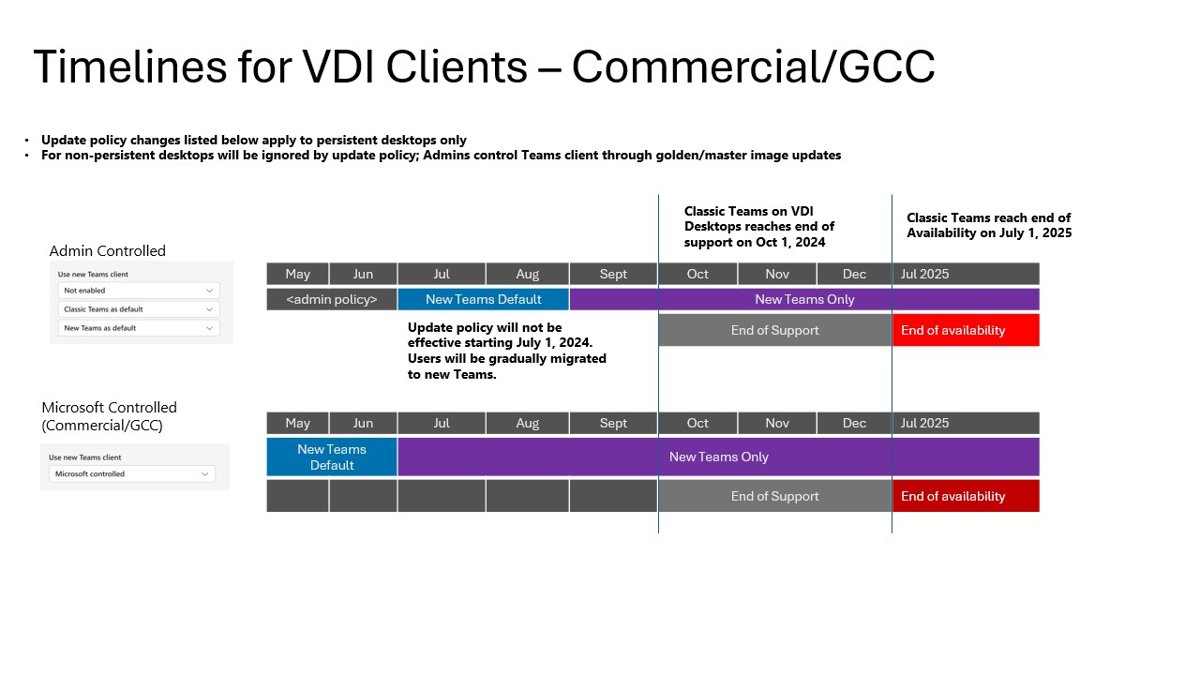
Virtual desktops use the same bootstrapper, plus a registry value that tells Teams it runs in a virtual desktop. Windows Server 2019 is no longer supported and needs a DISM install.
- Confirm the image runs Windows 10.0.19041 or later, Windows Server 2022 or Windows Server 2025 at the builds Microsoft lists.
- Install or update WebView2 on multi-user images.
- Run
teamsbootstrapper.exe -p, orteamsbootstrapper.exe -p -o "<full path to msix>"for an offline image. - On Azure Virtual Desktop and Windows 365, create DWORD IsWVDEnvironment with value 1 under HKLM\SOFTWARE\Microsoft\Teams.
- To add the Teams Meeting add-in for Outlook machine-wide, run
teamsbootstrapper.exe -p --installTMAinstead. - Seal the image only after the install reports success.
To publish Teams as a RemoteApp, use shell:appsFolder\MSTeams_8wekyb3d8bbwe!MSTeams as the path.
Check the Teams machine-wide install worked
- Read the status line the bootstrapper printed after the command finished.
- Open C:\WINDOWS\Temp and look for the newest teamsprovision.log file.
- Sign in to the PC with a second user account and open Microsoft Teams from the Start menu.
- In PowerShell as administrator, run
Get-AppxPackage *MSTeams* -AllUsersand confirm the MSTeams package is listed.
How to remove the Microsoft Teams machine-wide installer
Every removal command runs from an administrator Command Prompt or PowerShell window. Close classic Outlook first if the Teams Meeting add-in is installed.
- Open Command Prompt as administrator in the folder that holds teamsbootstrapper.exe.
- Run
teamsbootstrapper.exe -x -mto uninstall Teams machine-wide. - Run
teamsbootstrapper.exe -xinstead to remove Teams and the Outlook meeting add-in together. - Without the bootstrapper, open PowerShell as administrator and run
Get-AppxPackage *MSTeams* -AllUsers | Remove-AppxPackage -AllUsers. - To remove Teams for your own account only, run
Get-AppxPackage *MSTeams* | Remove-AppxPackagewithout administrator rights.
Fix Teams machine-wide installer errors
Error 0x80070057 when installing from an MSIX
The command used a relative path instead of the full path.
- Rerun the command with the full path, for example
teamsbootstrapper.exe -p -o "c:\temp\MSTeams-x64.msix". - Keep the path in double quotes.
The install fails with an unfamiliar HRESULT code
An old bootstrapper or a blocked download.
- Download the bootstrapper again and compare Product version under Properties > Details.
- Look up the code in the Microsoft list of common HRESULT values.
- Read the newest teamsprovision.log in C:\WINDOWS\Temp for the failing step.
Autostart Teams is greyed out
A system-wide policy disables startup tasks for packaged apps.
- Open the Policies\System key listed in the autostart section.
- Set the Enable values to 2 and the Support values to 1 if your policy allows it.
- Restart the PC.
Meeting add-in missing from Outlook after the install
The plain -p command does not install the add-in machine-wide.
- Close classic Outlook.
- Run
teamsbootstrapper.exe --installTMA. - Open Outlook and check for the Teams meeting button.
Final thoughts on the Teams machine-wide installer
Use teamsbootstrapper.exe with -p for any all-users Teams install, and add -o with a local MSIX when bandwidth or offline images matter. The classic Teams MSI no longer works after July 1, 2025, and the bootstrapper is the method Microsoft documents and updates.
Teams machine-wide installer FAQ
What is the Microsoft Teams machine-wide installer?
It is an installer that puts Teams on a computer for every user instead of one profile at a time. For new Teams, that installer is teamsbootstrapper.exe, which provisions the Teams MSIX package for current and future users.
How does the Microsoft Teams machine-wide installer work?
The bootstrapper downloads the latest Teams MSIX from Microsoft, or uses a local copy you name with -o, and provisions it for all users. It also updates the registry so Teams works with Office, then prints a success or failure message.
Can I still download the classic Teams machine-wide MSI?
It no longer helps. Classic Teams reached end of availability on July 1, 2025, and after that date the classic client stops working. Use teamsbootstrapper.exe to install new Teams for all users instead.
How can I remove the Microsoft Teams machine-wide installer?
Run teamsbootstrapper.exe -x -m from an administrator Command Prompt to uninstall Teams machine-wide. PowerShell also works: Get-AppxPackage *MSTeams* -AllUsers piped to Remove-AppxPackage -AllUsers removes it for every user.
What are the system requirements for the Teams machine-wide installer?
The PC must meet the Teams client system requirements, run Microsoft 365 Apps or Office LTSC 2021, have current WebView2 and allow Delivery Optimization. Download Mode 100 (Bypass) is not supported.
Can you use installer parameters to disable auto start?
The bootstrapper has no autostart switch. A provisioned Teams package does not autostart until the first launch, and after that you control it with the Autostart Teams setting, the startup tasks policy or the TeamsTfwStartupTask State registry value.
Does the machine-wide installer update Teams automatically?
Yes. Teams updates itself after provisioning, and Delivery Optimization powers those updates. Running teamsbootstrapper.exe -p again always installs the latest Teams client, and users can still update Microsoft Teams manually from the app.
Does the Teams machine-wide installer work on ARM PCs?
Yes. Microsoft offers an ARM64 Teams MSIX alongside the x86 and x64 packages, and you pass it to the bootstrapper with the -o switch for an offline install.