The Photos option is usually missing on iCloud.com because the Apple Account has web-only access, Advanced Data Protection has turned off web data access, or iCloud Photos is not on for your devices.
This guide shows how to bring Photos back on iCloud.com and what to do when only some photos appear.
Quick fix for Photos missing on iCloud.com
- Go to icloud.com/photos and confirm you are signed in to the same Apple Account your iPhone uses.
- On your iPhone, open Settings, tap your name, then tap iCloud.
- Tap iCloud.com and turn on Allow Data Access.
- Go back to iCloud, tap Photos and turn on Sync this device.
- Reload iCloud.com in your browser.
Why is the Photos option on iCloud missing?
| Cause | What you see | Fix |
|---|---|---|
| Web-only Apple Account | Photos is not among the apps on iCloud.com | Sign in on an Apple device to get the full app set |
| Advanced Data Protection is on | Data on iCloud.com is not available | Turn on Allow Data Access from a trusted device |
| Wrong Apple Account | Photos opens but the library is empty or different | Sign out and sign in with the account your devices use |
| iCloud Photos turned off | No photos from the iPhone reach iCloud | Turn on Sync this device |
| Photos tile removed | Photos is missing from the homepage only | Add the Photos tile with Customize |
Allow data access on iCloud.com with Advanced Data Protection
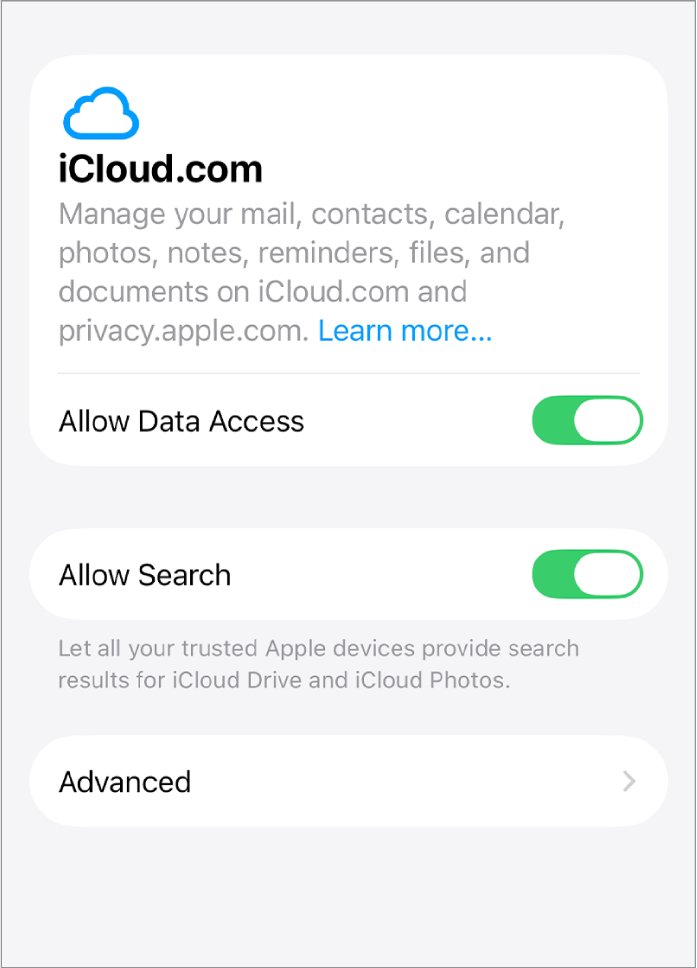
When Advanced Data Protection is on, access to your data on iCloud.com is turned off so it stays on trusted devices. Turning on web access lets a trusted device give the browser temporary access.
- On iPhone or iPad, open Settings and tap your name.
- Tap iCloud, then tap iCloud.com.
- Turn on Allow Data Access, and turn on Allow Search if you want to search photos on the web.
- On a Mac, choose Apple menu > System Settings, click your name, click iCloud, then click Data Access on iCloud.com.
- Sign in at iCloud.com and approve access on your trusted device when asked.
Turn on iCloud Photos on iPhone and Mac
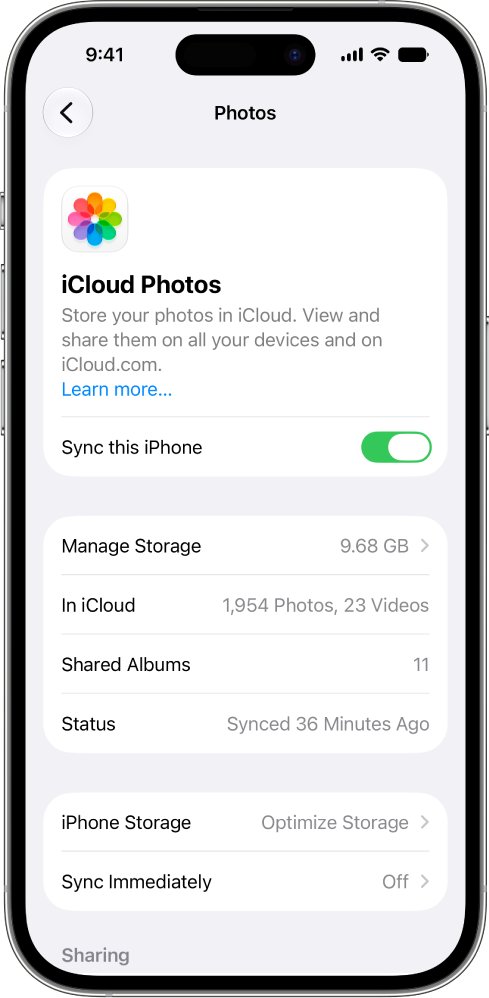
Photos only reach iCloud.com from devices with iCloud Photos on, signed in to the same Apple Account. Upload time depends on library size and internet speed.
- On iPhone or iPad, open Settings, tap your name, then tap iCloud.
- Tap Photos and turn on Sync this device.
- On a Mac, choose Apple menu > System Settings, click your name, then click iCloud.
- Under Saved to iCloud, click Photos and turn on Sync this Mac.
- Keep the devices on Wi-Fi until the library finishes uploading.
Add the Photos tile to the iCloud.com homepage
- Go to iCloud.com and sign in.
- Scroll to the bottom of the homepage and select Customize.
- Select Add Tile, then choose Photos.
- Drag the tile where you want it.
- Select Done in the top-left corner.
iCloud photos not showing on iPhone
When Sync this device is off, the iPhone Photos app shows only photos stored on that iPhone, not the iCloud library. With Optimize Storage on, the iPhone keeps space-saving versions and downloads originals from iCloud when you open them over Wi-Fi or cellular.
Edits and deletions made in the Photos app on one device appear on every device that uses iCloud Photos with the same Apple Account.
- Open Settings, tap your name, then tap iCloud.
- Confirm the Apple Account shown matches the one you use at iCloud.com.
- Tap Photos and turn on Sync this device.
- To save space, tap iPhone Storage and choose Optimize Storage; in iOS 26 or earlier, choose Optimize Storage directly.
- Keep the iPhone connected to Wi-Fi and open the Photos app so the library can download.
How to get photos out of iCloud
Photos download in the most compatible format for the device you use. iCloud Photos is not part of iCloud Backup, so keep your own copies.
- Go to icloud.com/photos and sign in.
- Select the photos or videos you want.
- On a computer, click the download button; to pick a format first, choose More Download Options.
- On a phone or tablet, tap the more button in the bottom-right corner, tap Download, then tap Download again.
Check that Photos shows on iCloud.com
- Take a new photo on the iPhone while on Wi-Fi.
- Open icloud.com/photos and select Library in the sidebar.
- Confirm the new photo appears after the upload finishes.
iCloud not showing all photos
iCloud is only showing some photos
The library is still uploading, or a device has iCloud Photos off.
- Keep each device on power and Wi-Fi until uploads finish.
- Check Sync this device on every iPhone and iPad.
- Confirm every device uses the same Apple Account.
Photos disappeared from iCloud
A photo deleted on one device is deleted everywhere iCloud Photos is on.
- Go to icloud.com/photos and select Recently Deleted in the sidebar.
- Select the items and select Recover.
- Act within 30 days, after which items are deleted permanently.
Can't delete photos from iCloud
Shared album and shared library rules limit who can delete.
- In a shared album, subscribers can delete only what they added; the creator can delete anything.
- In a shared library, only the person who added an item can permanently delete it before 30 days pass.
iCloud Photos missing FAQ
Why are my photos missing from iCloud?
Photos go missing from iCloud when iCloud Photos is off on the device, the upload has not finished, or you are signed in with a different Apple Account. Deleted items stay in Recently Deleted for 30 days.
Where are my photos on iCloud?
Your iCloud Photos library is at icloud.com/photos under Library in the sidebar. On iPhone and Mac, the same library appears in the Photos app when iCloud Photos is on.
Why can't I see photos in iCloud?
With Advanced Data Protection on, data access on iCloud.com is turned off. Turn on Allow Data Access in Settings > your name > iCloud > iCloud.com. A web-only account may not show Photos at all.
Why aren't my photos going to iCloud?
Sync this device is probably off. Open Settings, tap your name, tap iCloud, tap Photos and turn it on. Large libraries take longer to upload depending on internet speed.
Why is iCloud deleting my photos?
iCloud Photos syncs deletions, so deleting a photo on one device deletes it on every device using iCloud Photos. Recover it from Recently Deleted within 30 days.
How do I get pictures out of iCloud?
Go to icloud.com/photos, select the photos and click the download button on a computer. Use More Download Options to choose a file format before downloading.
Why can't I delete photos from iCloud?
Shared albums and shared libraries limit deletion. Subscribers can delete only items they added to a shared album, and only the person who added an item can permanently delete it from a shared library early.