When Mail stops working on iPhone after an iOS 18 update, the usual causes are the new inbox categories hiding messages, an account that needs its password again, or Mail losing cellular access.
This guide covers each fix in order, from the quickest checks to removing and re-adding the email account.
Quick fix for iPhone Mail not working after iOS 18
Start here. These steps clear most Mail problems that appear right after an update.
- Confirm the iPhone is online by opening a website in Safari.
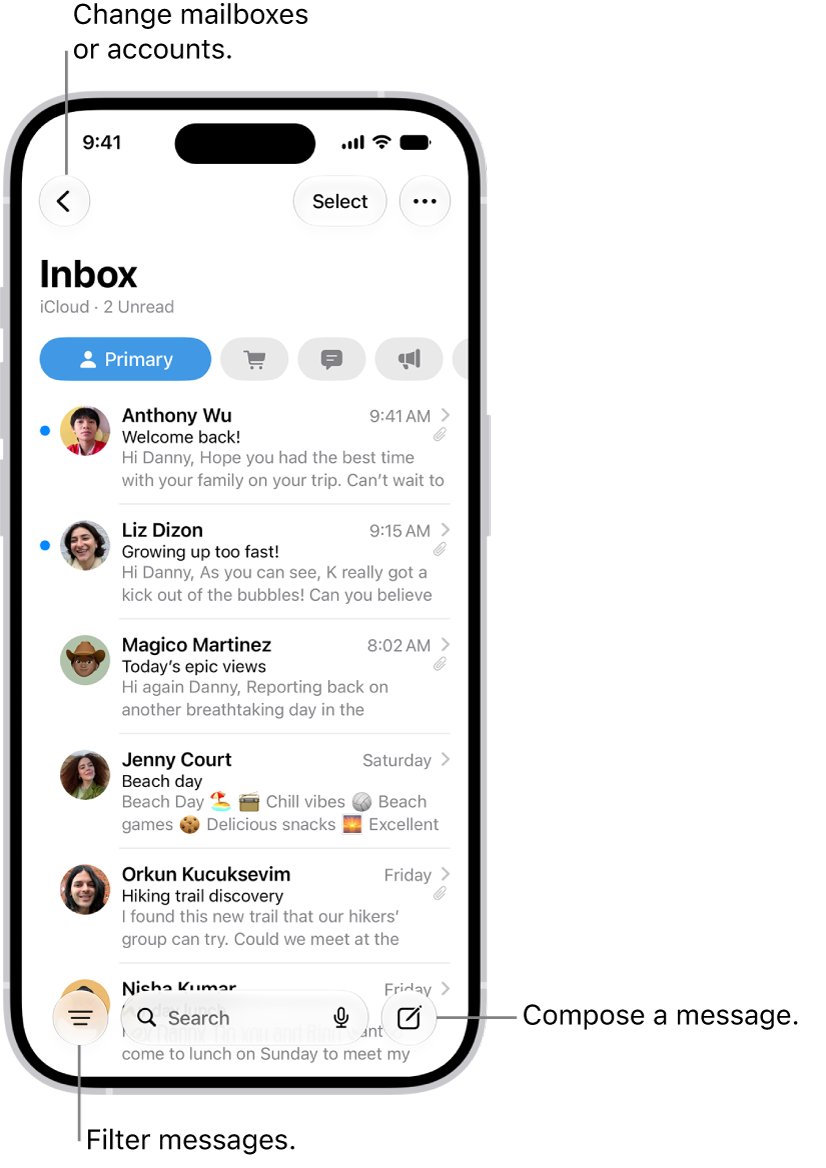
- Open Mail, go to your inbox and swipe left on the categories at the top to open All Mail.
- If Mail asks for a password, sign in to your email provider's website to confirm the password is correct, then enter it in Mail.
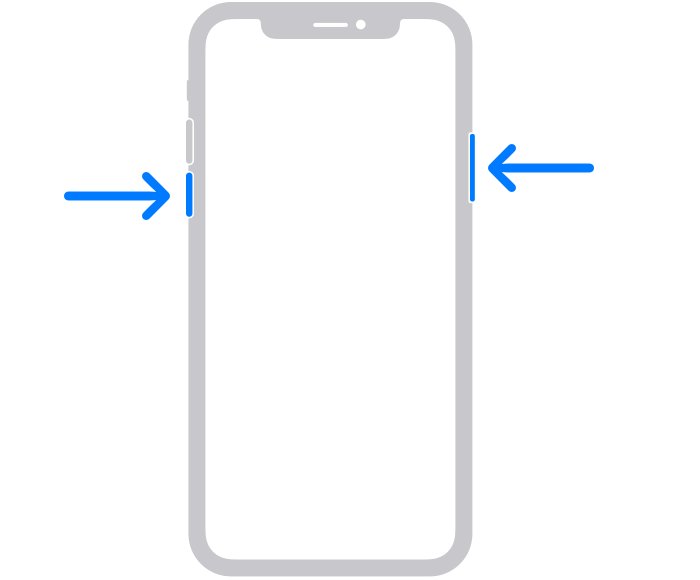
- Restart the iPhone: press and hold a volume button and the side button, drag the slider, wait 30 seconds, then hold the side button until the Apple logo appears.
- Open Settings > General > Software Update and install any newer iOS release.
Why is mail not working on iPhone after the iOS 18 update?
| What you see | Likely cause | Fix section |
|---|---|---|
| Inbox looks empty or some emails seem missing | Mail sorts messages into Primary, Transactions, Updates and Promotions | iPhone Mail categories hiding emails |
| Badge count is lower than your real unread total | The Home Screen badge counts only Primary messages | iPhone Mail categories hiding emails |
| Password prompt or user name error | The provider needs the password again or an app-specific password | Fix iPhone Mail password and sign-in errors |
| Messages stuck and "Cannot Get Mail" | No connection, a provider outage or wrong server settings | iPhone not receiving mail |
| Emails sit in the Outbox | The send failed and Mail saved the message | iPhone not sending mail |
| Mail only works on Wi-Fi | Cellular data is turned off for Mail | Turn on cellular data for iPhone Mail |
iPhone Mail categories hiding emails after iOS 18
The iOS 18 Mail app sorts incoming mail into Primary, Transactions, Updates and Promotions. Newsletters and receipts no longer land in the main list, so the inbox can look like mail stopped arriving.
Messages with time-sensitive information still appear in Primary as well as their own category.
- Open Mail and go to the inbox.
- Swipe left on the categories at the top of the inbox to open All Mail and see every message.
- To turn categories off, tap the options button at the top of the inbox, then tap Show Categories so it is no longer selected.
- To move a sender back to Primary, open one of their messages, tap the options button, tap Categorize Sender, choose Primary and tap Continue.
- To make the badge count every unread email, open Settings > Notifications > Mail > Customize Notifications and turn on All Unread Messages.
Fix iPhone Mail password and sign-in errors
If Mail keeps asking for a password, check it on the provider's website first. A password that works there but fails in Mail usually points to account security settings.
- Sign in to your email provider's website on a computer with the same address and password.
- If the web sign-in fails, reset the password with the provider, then enter the new one in Mail.
- If the web sign-in works, ask the provider whether two-step verification or another restriction is on for the account.
- Create the special password or authorisation the provider requires for mail apps, then enter it in Mail.
- If you still get a user name or password error, contact the provider or your system administrator.
Turn on cellular data for iPhone Mail
When cellular data is off for an app, the iPhone uses only Wi-Fi for it. Mail then looks broken whenever you leave Wi-Fi.
- Open Settings and tap Cellular.
- Check that Cellular Data is on.
- Scroll to the list of apps and turn on the switch next to Mail.
- Tap Cellular Data Options > Data Mode and check whether Low Data Mode is selected, since it pauses background tasks off Wi-Fi.
Change iPhone Mail fetch settings and notifications
New mail can arrive but go unnoticed if the fetch schedule or notifications changed. Both live under the Mail settings.
- Open Settings, tap Apps, then tap Mail.
- Tap Fetch New Data and review the schedule set for each email account.
- Go back to the Mail settings and tap Notifications.
- Allow notifications for Mail and choose the alert style you want.
- Open Mail and pull down on the inbox to check for new messages.
Remove and re-add an email account on iPhone
This rebuilds the account's settings after an update. Backups keep your mail settings but not your email, so confirm your messages are on the provider's server first.
- Sign in to your provider's website and confirm your email is stored there.
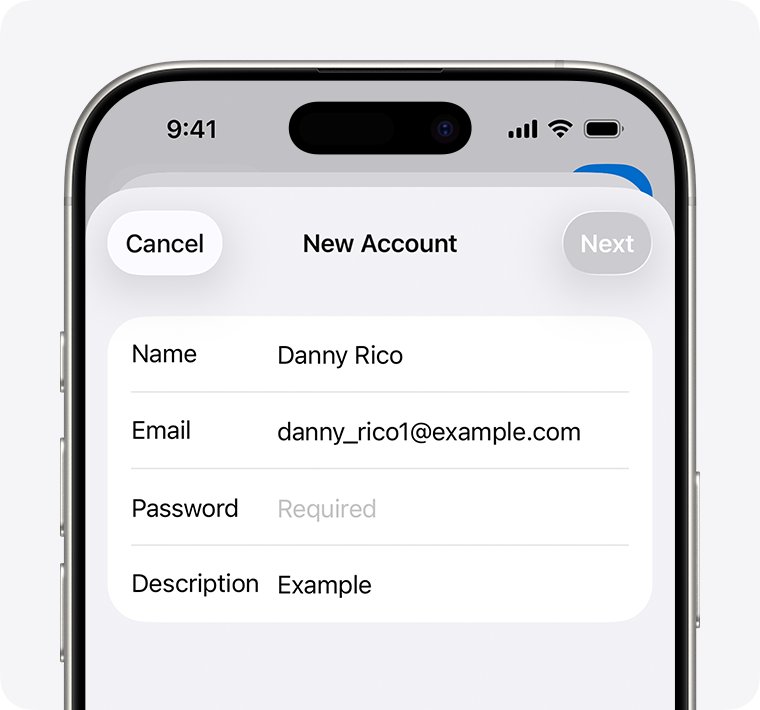
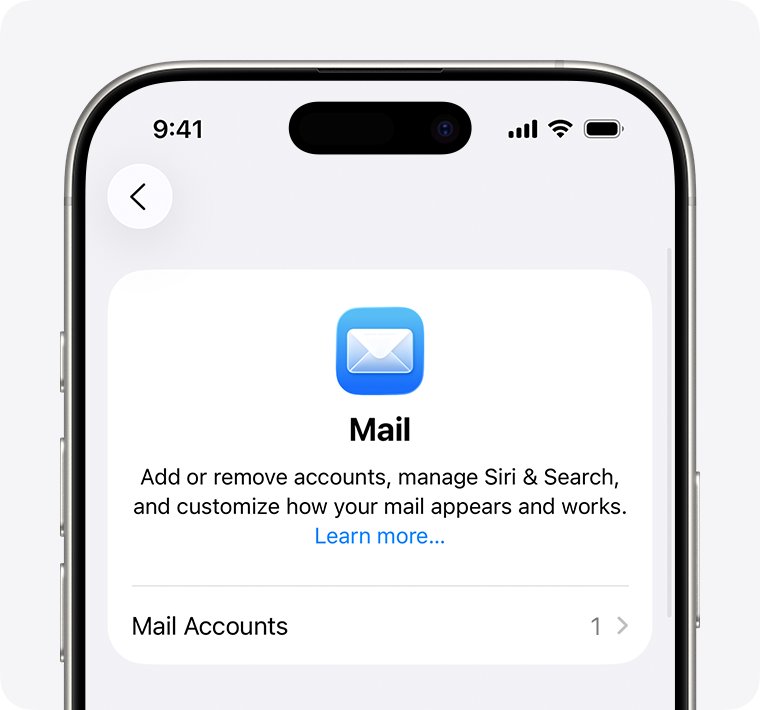
- On the iPhone, open Settings, tap Apps, tap Mail, then tap Mail Accounts.
- Tap the account and tap Delete Account.
- Tap Add Account, choose your provider or enter your email address, and follow the prompts.
- For a less common provider, tap Add Other Account > Mail Account, choose IMAP or POP, and enter the incoming and outgoing server details from your provider.
- Tap Save when Mail verifies the account.
Test that iPhone Mail works again
- Send a test email from another account to the affected address.
- Pull down on the Mail inbox and confirm the message appears in All Mail or Primary.
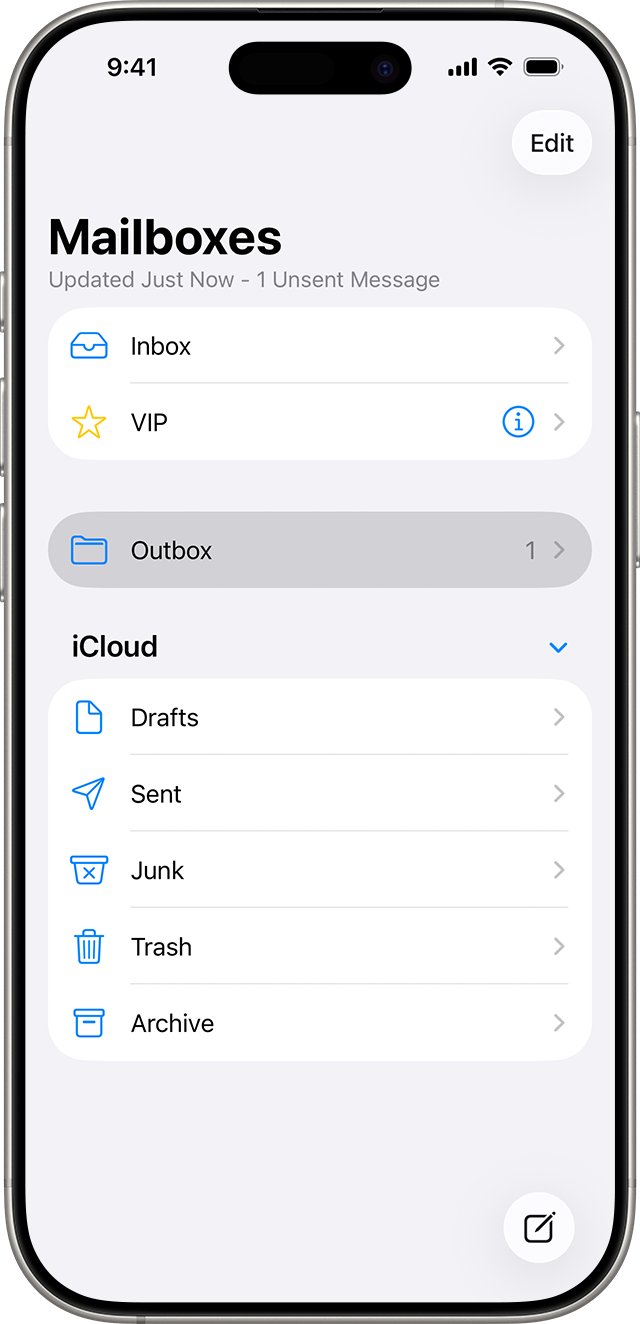
- Reply to the test message and open Outbox in the mailbox list; an empty or missing Outbox means it sent.
- Turn off Wi-Fi and repeat the test to confirm Mail also works on cellular.
Fix iPhone not receiving or sending mail
iPhone not receiving mail
No connection, a provider outage, or emails filed into a category.
- Check the internet connection in Safari.
- Check your provider's status page for a service outage.
- Open All Mail from the inbox categories.
- Confirm your account settings with the provider or administrator.
iPhone not sending mail
The send failed, so Mail moved the message to the Outbox.
- Look for Undo Send in the inbox; while it shows, the message has not gone yet.
- In Mail, go to the mailbox list and tap Outbox.
- Open the stuck email and check the recipient address.
- Tap Send.
iPhone says Cannot Get Mail
Mail cannot reach or sign in to the mail server.
- Confirm the password on the provider's website.
- Ask the provider whether two-step verification needs a special password.
- Delete the account and add it again with the provider's server settings.
iPhone Mail not working after iOS 18 FAQ
Why is mail not working on iPhone?
Mail usually fails because the iPhone is offline, the provider has an outage, the account password changed, or cellular data is off for Mail. After iOS 18, inbox categories can also hide messages so the inbox looks empty.
Why is email not working on iPhone after an update?
An update can prompt Mail to ask for your password again and adds inbox categories that file newsletters and receipts away from Primary. Re-enter the password, open All Mail, and install any newer iOS release.
Why is my iPhone not getting mail?
Check the connection first, then the provider's status page. If messages arrive on the provider's website but not in Mail, open All Mail, review Fetch New Data, and remove and re-add the account.
Why is my Apple Mail not working?
Apple Mail stops working when it cannot reach or sign in to your mail server. Confirm the password on the provider's website, check two-step verification requirements, and re-add the account under Settings > Apps > Mail > Mail Accounts.
Why is my iPhone not receiving mail on cellular data?
Cellular data is probably turned off for Mail. Open Settings > Cellular and turn on the switch next to Mail. With it off, the iPhone uses only Wi-Fi for Mail.
Why is my iPhone not sending mail?
A failed send moves the message to the Outbox. Open the Outbox in the mailbox list, check the recipient address and tap Send. If it fails again, confirm your password and server settings with the provider.
Will deleting my email account remove my emails?
Deleting the account removes downloaded email from the iPhone, and iCloud or computer backups keep only mail settings. Messages stored on the provider's server return when you add the account again.
How do I turn off categories in iPhone Mail?
In a Mail inbox, tap the options button at the top and tap Show Categories to turn it off. You can also swipe left on the categories to open All Mail without turning them off.

![How to turn on/off ad blocker in Microsoft Edge? [step-by-step]](https://techdows.com/wp-content/uploads/2026/10/How-to-turn-onoff-ad-blocker-in-Microsoft-Edge-step-by-step-1-600x338.jpg)