ERR_CONNECTION_RESET means the connection to the website was cut off mid-load, and the usual fix is to reload, clear the browser's cache and cookies, then reset Winsock and TCP/IP in Windows.
This guide covers quick checks, Chrome and Edge fixes, Windows network repairs, phones, Macs and Chromebooks, and the cases where the website itself is at fault.
Start with the fastest checks
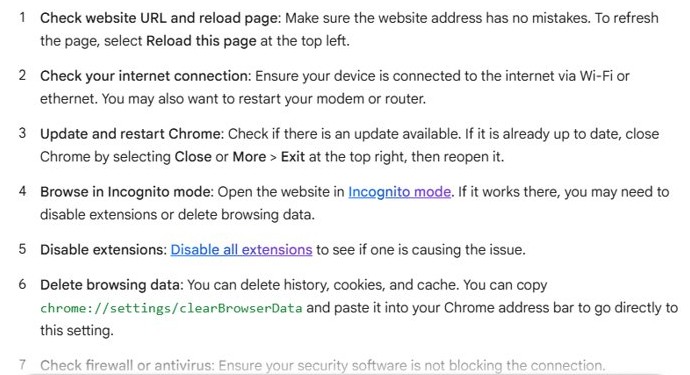
Most resets are temporary. Run these in order and stop as soon as the page loads.
- Check the address is typed correctly and press F5 to reload the page.
- Open the site in an Incognito window in Chrome or an InPrivate window in Edge. If it loads there, the cause is an extension or stored site data.
- Open the same site on another device or network, such as a phone on mobile data, to see whether the site is down for everyone.
- Restart your modem or router, then restart the PC.
- Turn off any VPN or proxy you use and try again.
What ERR_CONNECTION_RESET actually means
The browser reached the server, but something along the path closed the connection before the page finished. That something can sit on your PC, your network or the website's side.
| Where the reset comes from | Typical sign | Section to use |
|---|---|---|
| Browser data or an extension | Site loads in Incognito or InPrivate | Browser fixes |
| Windows network stack or DNS | Every browser fails on many sites | Windows network fixes |
| VPN, proxy, firewall or security software | Error starts after installing or changing one | Windows network fixes |
| Router or ISP | Every device on the network fails | Fastest checks |
| The website or its server | Site fails on every device and network | Website or server section |
Browser fixes that often resolve the error
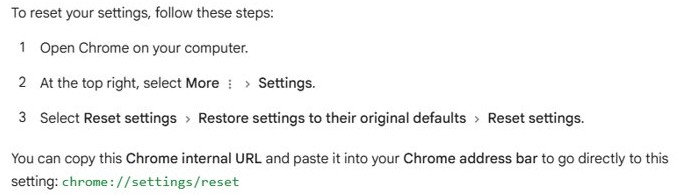
Start with cached data, then extensions, then a settings reset. Bookmarks and saved passwords survive a Chrome settings reset.
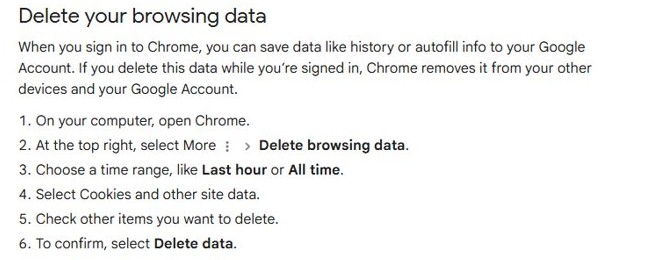
- In Chrome, select More (three dots) > Delete browsing data, set the time range to All time, tick Cookies and other site data and Cached images and files, then select Delete data.
- In Edge, select Settings and more > History > Open history page > Delete browsing data, set Time range to All time, tick Cached images and files, then select Clear now.
- Turn off your extensions one at a time and reload the site after each one.
- Update the browser and restart it.
- Reset Chrome: open Settings > Reset settings, choose to restore settings to their original defaults, then confirm with Reset settings.
- Repair Edge if it still fails: open Settings > Apps > Installed apps, select Microsoft Edge > Modify, then Repair.
A Chrome reset clears the startup pages, pinned tabs, site permissions, cookies and turns off extensions. Edge repair keeps browser data and settings.
Windows network fixes
When every browser fails, reset the Windows network stack. Open Command Prompt as administrator and run these five commands in order, pressing Enter after each.
netsh winsock reset
netsh int ip reset
ipconfig /release
ipconfig /renew
ipconfig /flushdns
netsh winsock reset restores the Windows sockets catalog, netsh int ip reset rewrites TCP/IP settings, the two ipconfig lines request a fresh address and /flushdns empties the DNS cache.
You should see: Each command reports success. Restart the PC afterwards, then reload the site.
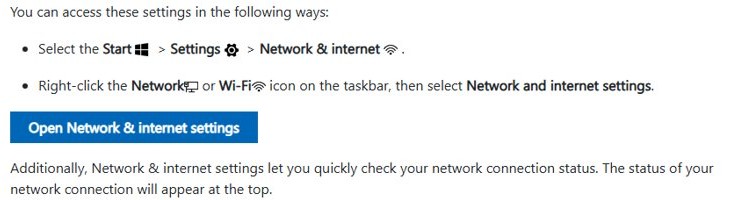
If the reset does not help, change DNS servers: open Settings > Network & internet, select Wi-Fi or Ethernet, select Edit for the DNS setting, choose Manual, turn on IPv4, fill in Preferred DNS and Alternate DNS, then Save.
Also review any proxy in Settings > Network & internet > Proxy, and check whether firewall or antivirus web protection blocks the site. Add an exception for that site rather than turning protection off.
Advanced Windows repairs for persistent resets
Use these when the quick resets fail and the error hits many sites on this PC only.
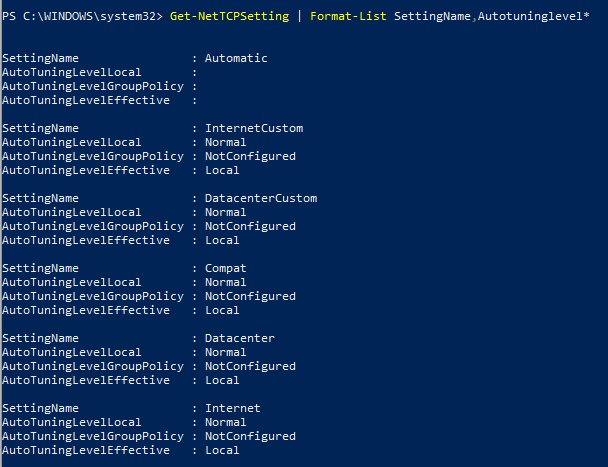
- Restore TCP receive window auto-tuning: run
netsh int tcp set global autotuninglevel=normalin an elevated Command Prompt, then check it withnetsh int tcp show global. - Leave ECN and other TCP global settings at their defaults unless one specific network is known to need a change.
- Open Device Manager, expand Network adapters, right-click the adapter and select Uninstall device. Tick Attempt to remove the driver for this device, confirm, then restart so Windows reinstalls it.
- For Wi-Fi, open the adapter's Properties > Power Management tab and clear Allow the computer to turn off this device to save power.
- Run a full network reset: on Windows 11 go to Settings > Network & internet > Advanced network settings > Network reset; on Windows 10 go to Network & internet > Status > Network reset. Select Reset now and confirm.
Network reset removes installed network adapters and their settings, so VPN clients may need reinstalling. Keep the maker's network driver on hand before uninstalling the adapter. You can also reset network settings in Windows from the same page later.
Mobile, Mac, and Chromebook fixes
| Device | First fix | Next step |
|---|---|---|
| Android | Switch between Wi-Fi and mobile data and reload | Clear Chrome's cookies and cached files, then update Chrome |
| iPhone and iPad | Switch between Wi-Fi and mobile data and reload | Turn off any VPN profile, then update the browser |
| Mac | Try a private window in your browser | Clear the browser's cache and cookies, then restart the router |
| Chromebook | Open the site in an Incognito window | Delete browsing data in Chrome, then restart the Chromebook |
If the error appears on every device on your Wi-Fi, the router or ISP is the cause. Restart the router and test again.
When the website or server is the problem
Only one site fails, on every device and network
The server, its firewall or a load balancer is closing connections.
- Wait a few minutes and reload, since many resets clear on their own.
- Contact the site owner with the time and the exact error text.
- Try the site's other addresses, such as a mobile or status page, if it offers them.
You run the site and visitors report ERR_CONNECTION_RESET
Common server-side causes are a web application firewall rule, an expired or mismatched TLS setup, a crashed backend or an idle timeout shorter than the request.
- Run
Test-NetConnection example.com -Port 443in PowerShell to confirm the port answers. - Check the web server, proxy and firewall logs for resets at the reported time.
- Review recent firewall rule changes and certificate renewals.
- Test from a network outside your own to rule out a local block.
How to prevent ERR_CONNECTION_RESET from returning
| Habit | Why it helps |
|---|---|
| Keep Chrome and Edge updated | Browser updates fix connection bugs |
| Install only extensions you use | Fewer add-ons that rewrite or block traffic |
| Keep network drivers from the PC or adapter maker | Avoids drops after a bad driver update |
| Remove proxies and VPNs you no longer use | Stale proxy settings break connections |
| Restart the router regularly | Clears stuck sessions on the home network |
| Leave TCP settings at defaults | Changed auto-tuning values can cause resets |
ERR_CONNECTION_RESET FAQ
What causes ERR_CONNECTION_RESET?
The connection between the browser and the website was closed before the page loaded. Causes include stale browser data, extensions, VPN or proxy settings, security software, a damaged Windows network stack, the router, or the website's server.
How do I fix ERR_CONNECTION_RESET in Chrome?
Reload the page, try an Incognito window, then delete cookies and cached files from Delete browsing data. If it persists, turn off extensions, update Chrome and reset its settings from Settings > Reset settings.
How do I fix ERR_CONNECTION_RESET in Microsoft Edge?
Try an InPrivate window, then clear cached images and files from the history page's Delete browsing data option. If it still fails, turn off extensions and repair Edge from Settings > Apps > Installed apps > Microsoft Edge > Modify.
Does netsh winsock reset fix ERR_CONNECTION_RESET?
It often does when every browser fails. Run netsh winsock reset and netsh int ip reset from an elevated Command Prompt, renew the address with ipconfig, flush DNS, then restart the PC.
Can a VPN cause ERR_CONNECTION_RESET?
Yes. A VPN or proxy routes traffic through another server that can drop connections. Turn it off and reload the page; if the site loads, change the VPN server or remove the proxy setting.
Is ERR_CONNECTION_RESET my fault or the website's?
Test the site on another device using a different network. If it fails everywhere, the website or its server is at fault. If it works elsewhere, the cause is on your PC or network.
Will a network reset delete my files?
No. Network reset only removes network adapters and their settings, then reinstalls them after a restart. Saved Wi-Fi passwords and VPN clients may need setting up again.
Best fix for ERR_CONNECTION_RESET in Chrome and Edge
The practical bottom line is simple: clear the browser's cookies and cache first, then reset Winsock and TCP/IP if every browser fails. Those two steps cover the most common local causes, and the cross-device test tells you when the website, not your PC, needs fixing.