The Apple Devices app has no setting to change its backup location, so you move the MobileSync Backup folder to D: and leave a directory junction on C: that points to it.
This guide covers where the app stores iPhone and iPad backups, the move and junction steps, how to confirm new backups land on D:, and fixes when the link fails.
Move the Apple Devices backup folder to D: with a junction
Close the Apple Devices app and disconnect your iPhone or iPad before you start, so no backup is running while the folder moves.
- Press Windows key + R, type
%USERPROFILE%\Apple\MobileSync, and press Enter. - If that folder does not open, use
%AppData%\Apple Computer\MobileSyncinstead. - Create a folder on the D: drive, for example
D:\iPhoneBackup. - Move the contents of the Backup folder into
D:\iPhoneBackup, then delete the now-empty Backup folder on C:. - Open Command Prompt from Start.
- Run
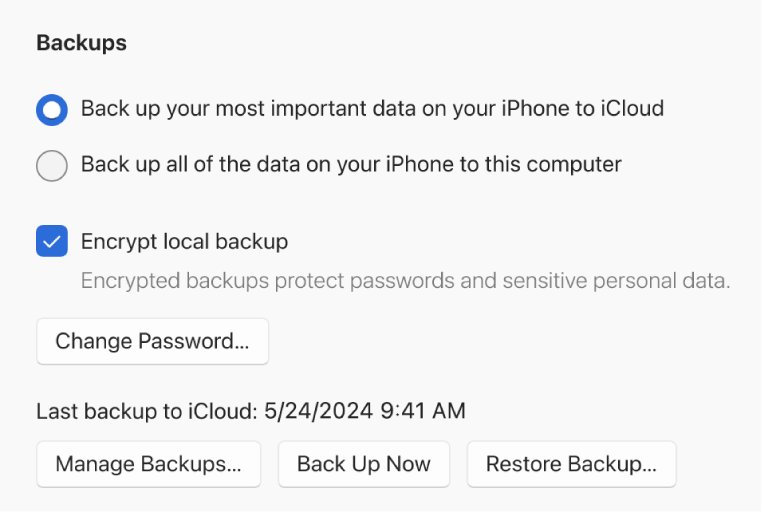
mklink /J "%USERPROFILE%\Apple\MobileSync\Backup" "D:\iPhoneBackup"(use the AppData path from step 2 if that is where your folder was). - Open the Apple Devices app, connect your device, and select Back Up Now on the General page.
The app still writes to its usual path on C:, but Windows redirects every file through the junction to D:.
Apple Devices backup location options on Windows
| Your situation | Use this | Why |
|---|---|---|
| C: is full and you want local backups on D: | Move the folder and create a junction | The app has no location setting, so the junction redirects it |
| You do not need a full local backup | Back up to iCloud from the General page | Backup data leaves the PC entirely |
| You only want to free space once | Delete or archive old backups in Manage Backups | Removes old backups without changing paths |
Where does the Apple Devices app save iPhone backups?
| Path | When it applies |
|---|---|
%USERPROFILE%\Apple\MobileSync\Backup |
The first location Apple lists for PC backups |
%AppData%\Apple Computer\MobileSync\Backup |
Apple's fallback if the first path does not open |
Each device backup sits in its own subfolder inside Backup. Move the whole set together, never single files from inside a backup.
mklink command to change the iPhone backup location
mklink /J "%USERPROFILE%\Apple\MobileSync\Backup" "D:\iPhoneBackup"/J creates a directory junction. The first path is the link the Apple Devices app reads; the second is the real folder on D:. The link path must not already exist.
You should see: Command Prompt confirms the junction, and the Backup folder in File Explorer opens the contents of D:\iPhoneBackup.
Check that new iPhone backups save to D:
- In the Apple Devices app, select your device, open General and select Back Up Now.
- When it finishes, select Manage Backups, right-click the newest backup, and choose Show in Explorer.
- Open
D:\iPhoneBackupand confirm a subfolder with the new backup time is there. - Check that free space on C: did not drop by the size of the backup.
Move iPhone backups back to the C: drive
- Close the Apple Devices app.
- Delete the Backup junction in the MobileSync folder; this removes only the link, not the files on D:.
- Create a normal Backup folder in the same place.
- Move the contents of
D:\iPhoneBackupback into it.
Fix Apple Devices backup location problems
mklink says the file already exists
A Backup folder is still at the link path.
- Confirm the backups are in
D:\iPhoneBackup. - Delete or rename the old Backup folder on C:, then run the command again.
Backups still fill the C: drive
The junction was made in the MobileSync path the app does not use.
- Open both MobileSync paths from the location table.
- Create the junction in the folder where new backups appear.
The backup fails after moving the folder
The D: drive is disconnected, renamed, or uses another drive letter.
- Reconnect the drive and make sure it still uses the letter D:.
- Run Back Up Now again.
Apple Devices backup location FAQ
How do I change my backup location in the Apple Devices app?
The app has no backup location setting. Move the MobileSync Backup folder to the new drive and create a directory junction at the old path with mklink /J, so the app writes through it.
Can I back up an iPhone to an external drive on Windows?
Yes, with the same junction method pointed at a folder on the external drive. Keep the drive connected and on the same letter, or backups fail.
Where are my backup settings in the Apple Devices app?
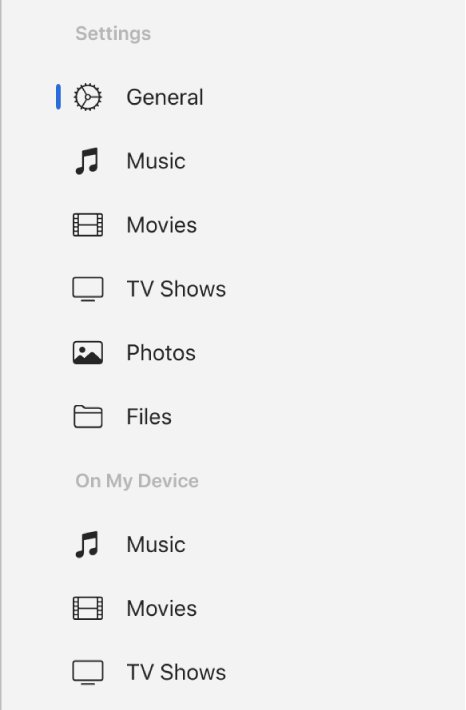
Select your device in the sidebar, then select General. That page holds the iCloud or this-computer choice, Encrypt local backup, Back Up Now, Manage Backups and Restore Backup.
How do I manually do a backup of my iPhone?
Connect the iPhone, select it in the Apple Devices app, open General, and select Back Up Now. The backup starts immediately instead of waiting for the next automatic one.
How do I revert to a backup in the Apple Devices app?
Select the device, open General, select Restore Backup, choose the backup from the pop-up menu, and select Restore. Encrypted backups ask for their password first.
Does moving the backup folder delete old backups?
No. Moving the folder keeps every backup intact, and Manage Backups lists them as before once the junction is in place.



![Copilot not working in Teams [Fix]](https://techdows.com/wp-content/uploads/2026/10/Copilot-not-working-in-Teams-Fix-1-600x338.jpg)