To force uninstall a stubborn program in Windows, close it in Task Manager, then remove it with winget uninstall from an administrator terminal, which can remove apps that Settings refuses to touch.
This guide covers the normal uninstall routes, winget, PowerShell, msiexec with a product code, the Microsoft Program Install and Uninstall troubleshooter, and fixes for the errors that block removal.
Force uninstall a program with winget
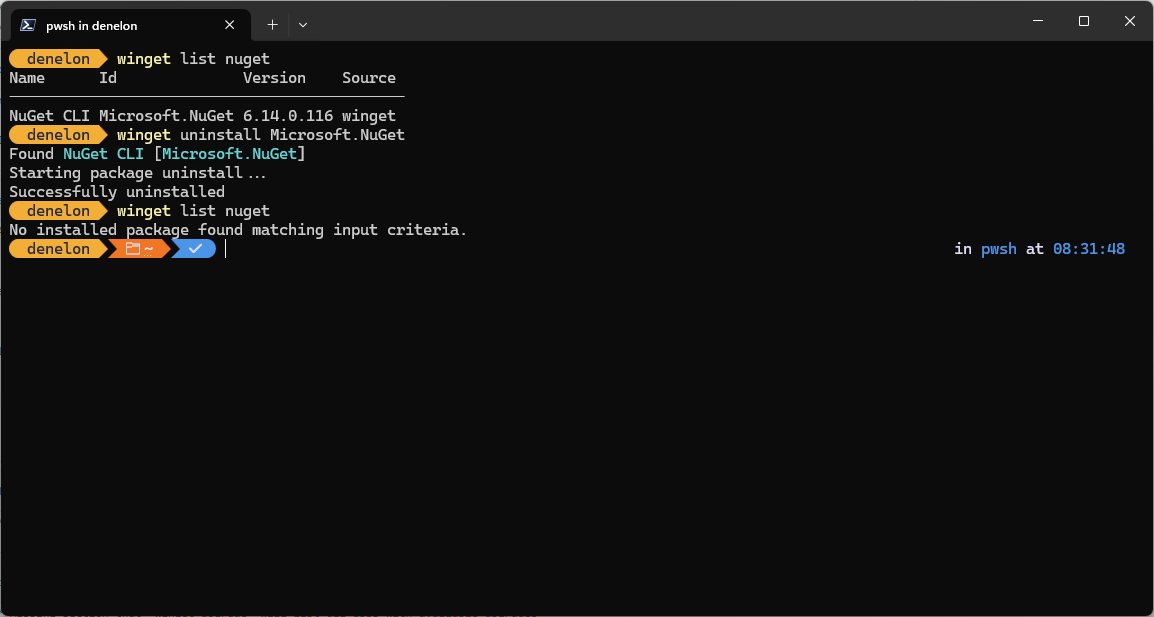
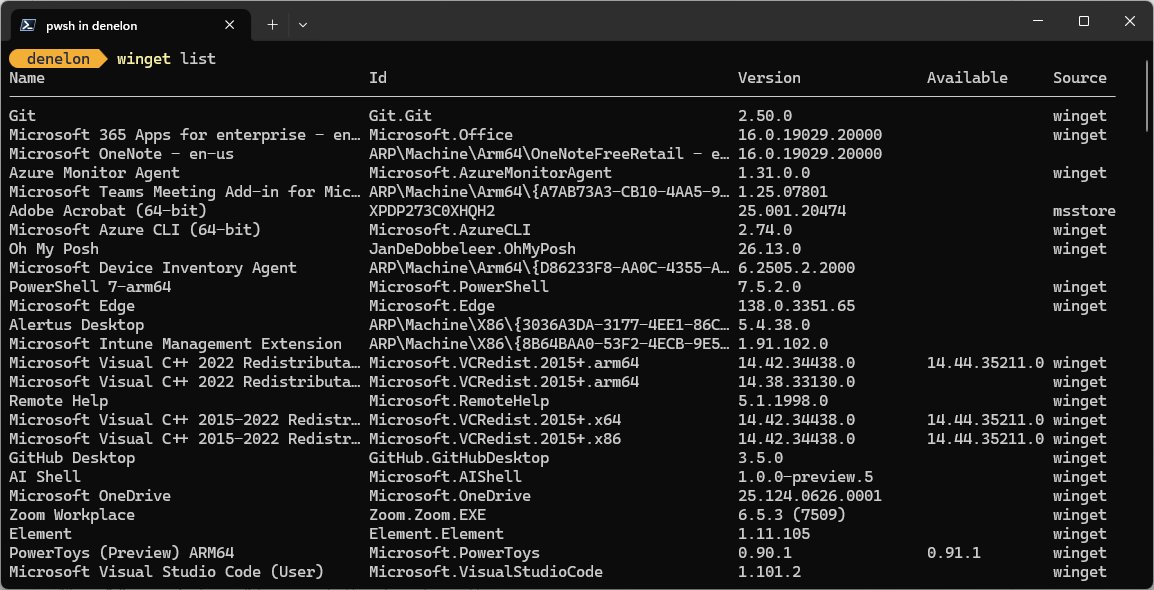
Windows Package Manager (winget) lists every app Windows knows about, not just the ones winget installed, and it can uninstall them by exact ID.
- Close the program, then press Ctrl + Shift + Esc, select any leftover process for it and select End task.
- Right-click Start and select Terminal (Admin), then select Yes at the User Account Control prompt.
- Type
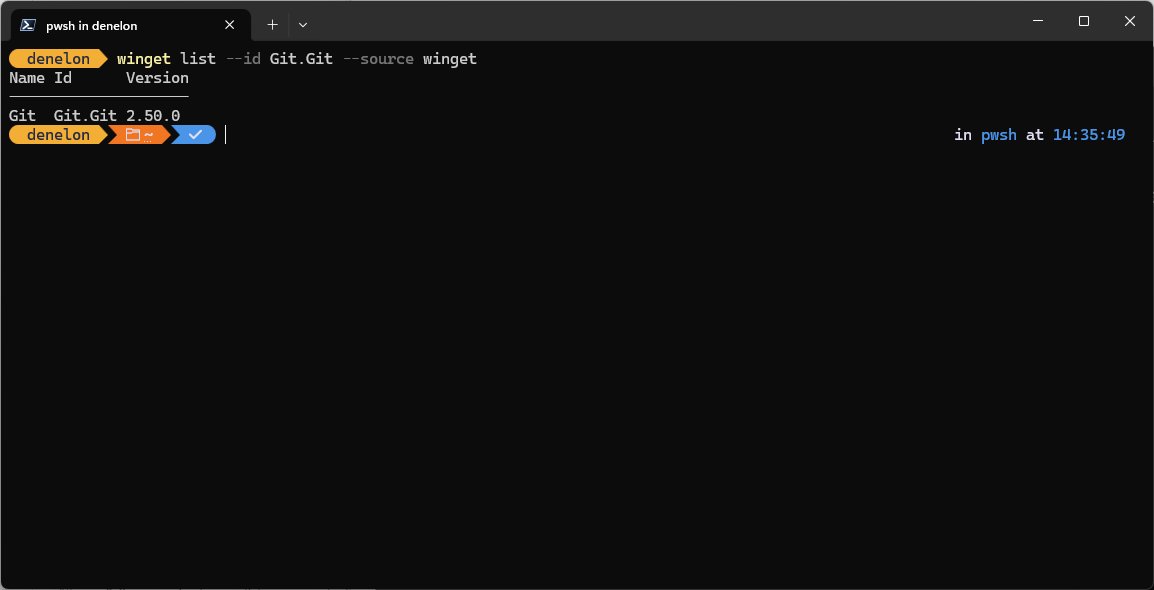
winget listand press Enter to find the program's name and Id column. - Type
winget uninstall --id "<Id>" --exact --source wingetif the app came from the winget source, orwinget uninstall --id "<Id>" --exactfor anything else. - If the uninstaller stalls on prompts, add
--silent, or add--forceto continue past non-security issues. - Restart the PC when the command finishes, then run
winget listagain to confirm the program is gone.
The --source winget flag avoids the Microsoft Store agreement prompt that winget can show while it queries sources.
Ways to force uninstall a program in Windows 11 and 10
| Your situation | Use this | Why |
|---|---|---|
| The program shows in Installed apps and the uninstaller works | Settings or Control Panel | The vendor's own uninstaller runs and cleans up properly |
| Settings greys out or fails on Uninstall | Control Panel > Programs and Features | Microsoft notes some programs can only be removed there |
| The uninstaller window never finishes | winget uninstall --silent |
Suppresses the uninstaller's UI and prompts |
| The MSI installer file is corrupted or missing | msiexec /x {ProductCode} |
Windows Installer removes the product from its cached package |
| Uninstall fails with registry or installer errors on Windows 10 | Program Install and Uninstall troubleshooter | Repairs corrupted registry keys that block removal |
| You prefer PowerShell scripts | Get-Package and Uninstall-Package |
Finds and removes installed packages by name |
Uninstall a program from Settings, Start or Control Panel
Try the standard routes first, because they run the vendor's own uninstaller and completely remove the program in most cases. Some apps are built into Windows and can't be uninstalled by any of these routes, although a few, such as Widgets in Windows 11, have their own removal method.
- Select Start > Settings > Apps > Installed apps.
- Find the program, select More (the three dots), then select Uninstall and confirm.
- If Uninstall is unavailable, type Control Panel in the taskbar search box and open it.
- Select Programs > Programs and Features.
- Right-click the program, select Uninstall or Uninstall/Change, and follow the on-screen directions.
- From Start > All apps, you can also right-click the app and select Uninstall.
If the program runs badly rather than refusing to leave, try Repair or Modify first; a repaired installer often uninstalls cleanly afterwards. Browsers have their own quirks, so force uninstall Microsoft Edge works differently from ordinary programs.
How to uninstall an app with a corrupted or missing MSI installer
When Windows Installer reports that the package is missing or corrupted, uninstall the product by its product code instead of its .msi file. The product code is a GUID in braces.
- Open Terminal (Admin) from the Start right-click menu.
- Run
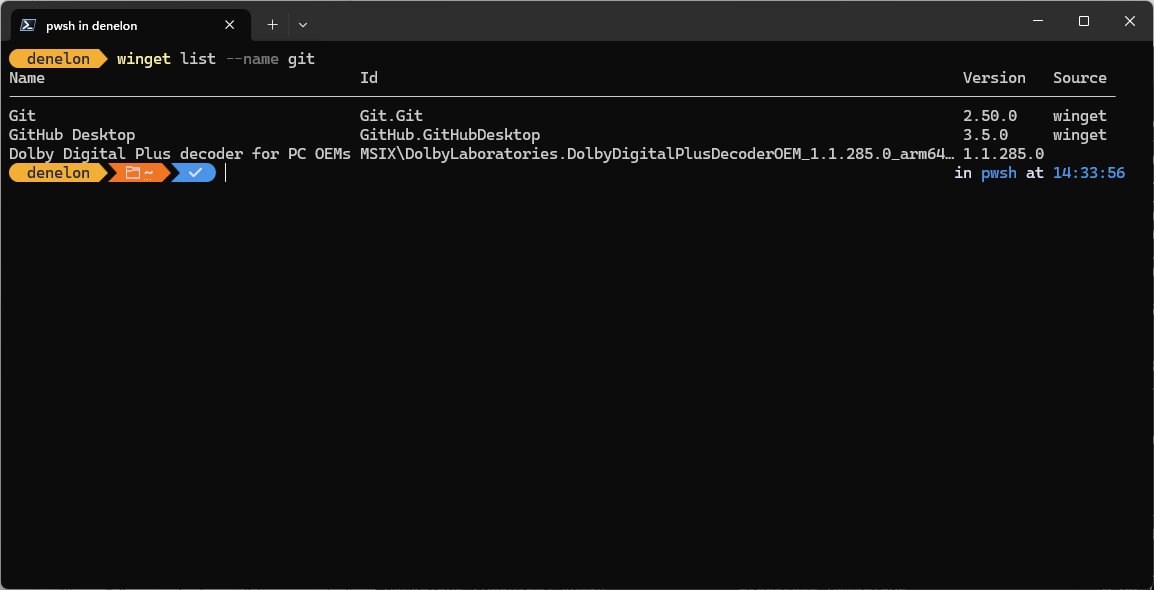
winget list "program name"and copy the GUID shown in the Id column for MSI-based programs. - Run
msiexec.exe /x {ProductCode} /L*V "C:\uninstall.log", replacing{ProductCode}with the GUID including braces. - Add
/qnto run without any UI, or/norestartto stop an automatic restart. - If it fails, open
C:\uninstall.logand read the error messages near the end to find the step that broke.
msiexec /fa {ProductCode} forces all files to reinstall from the package, which repairs a half-broken install so that /x can then remove it.
Uninstall a program with PowerShell Uninstall-Package
Get-Package -Name "*program name*" | Uninstall-Package -ForceGet-Package finds the installed package and pipes its SoftwareIdentity object to Uninstall-Package; -Force runs it without asking for confirmation. Run it in an elevated Windows PowerShell 5.1 window.
You should see: The package no longer appears when you run Get-Package -Name "*program name*" again.
Using the Microsoft Program Install and Uninstall Troubleshooter
Microsoft's Program Install and Uninstall troubleshooter repairs corrupted registry keys on 64-bit Windows, keys that control update data, and problems that block removal through Programs and Features. Microsoft lists it for Windows 10; on Windows 11 its support page points to Repair, Reset and Settings instead.
- Open Microsoft's support article Fix problems that block programs from being installed or removed on support.microsoft.com.
- Select Download troubleshooter; the file is named
MicrosoftProgram_Install_and_Uninstall.meta.diagcab. - Select Run or Open when prompted.
- Tell it you have a problem uninstalling, then pick the program from its list.
- If the program is not in the list, enter its product code when the troubleshooter asks for it.
- Follow the prompts to remove the program and apply the registry fixes.
The product code for an unlisted program sits in the Property table of its MSI file, so the PowerShell lookup above is usually the faster way to get it.
How to confirm a program is fully uninstalled
- Restart the PC so locked files and services are released.
- Open Settings > Apps > Installed apps and search for the program name.
- Run
winget list "program name"in Terminal and check that no match is returned. - Check the program's folder under
C:\Program FilesandC:\Program Files (x86)and delete it if it is now empty of running files.
Fix a program that won't uninstall in Windows
The uninstaller says the program is running
A background process or tray icon still holds its files.
- Press Ctrl + Shift + Esc to open Task Manager.
- Select every process belonging to the program and select End task.
- Run the uninstall again, or restart and uninstall before opening anything else.
Uninstall is greyed out in Settings
The app is built into Windows or only registers with Control Panel.
- Open Control Panel > Programs > Programs and Features and uninstall it there.
- If it is not listed, use
winget listto find it andwinget uninstall --idto remove it.
The program still appears in the list after uninstalling
Its uninstall registry entry was left behind or corrupted.
- On Windows 10, run the Program Install and Uninstall troubleshooter and choose Uninstalling.
- Select the leftover entry and let the troubleshooter remove it.
Windows Installer error about a missing .msi file
The cached installer package was deleted or moved.
- Find the product code with
winget list. - Run
msiexec.exe /fa {ProductCode}to repair from the package if the original installer is available. - Run
msiexec.exe /x {ProductCode}to remove it.
The program reinstalls itself or keeps returning
Unwanted software can restore itself.
- Run a full scan in Windows Security, as Microsoft recommends for removing malware.
- Uninstall the program again after the scan removes anything it finds.
Force uninstall program FAQ
How do I force uninstall a program in Windows 11?
Open Terminal (Admin), run winget list to find the program's Id, then run winget uninstall –id with that Id and –exact. Add –silent if the uninstaller hangs on prompts, then restart the PC.
How do I uninstall a program that is not listed in Control Panel?
Run winget list in Terminal, which shows apps from every installer, then uninstall it with winget uninstall –id. On Windows 10, the Program Install and Uninstall troubleshooter also accepts a product code for unlisted programs.
Can I uninstall a program with Command Prompt?
Yes. Both winget uninstall and msiexec /x {ProductCode} run in an elevated Command Prompt. msiexec only works for programs installed with Windows Installer packages.
Why can't I uninstall some apps in Windows?
Some apps are built into Windows and cannot be uninstalled. Others only register with Control Panel, so their Uninstall button is unavailable in Settings but works in Programs and Features.
Does the Program Install and Uninstall troubleshooter work on Windows 11?
Microsoft's support page lists the troubleshooter under Windows 10 only. For Windows 11, it recommends Repair or Reset in Settings, uninstalling from Installed apps, or Reset this PC.
Is it safe to delete a program's folder instead of uninstalling it?
Deleting the folder alone leaves services, registry entries and the uninstall listing behind. Uninstall first with one of the methods above, then delete any empty folder that remains.
How do I find a program's MSI product code?
Run winget list in Terminal and copy the GUID in the Id column for MSI-based programs. The code also sits in the Property table of the program's MSI file, which IT tools can read.