An iPhone stuck on the support.apple.com/iphone/restore screen is in recovery mode, and you fix it by connecting it to a Mac or Windows PC and choosing Update, or Restore if updating fails.
This guide covers the update route that keeps your data, the full restore, the button presses for each iPhone model, and what to do when the computer cannot finish the job.
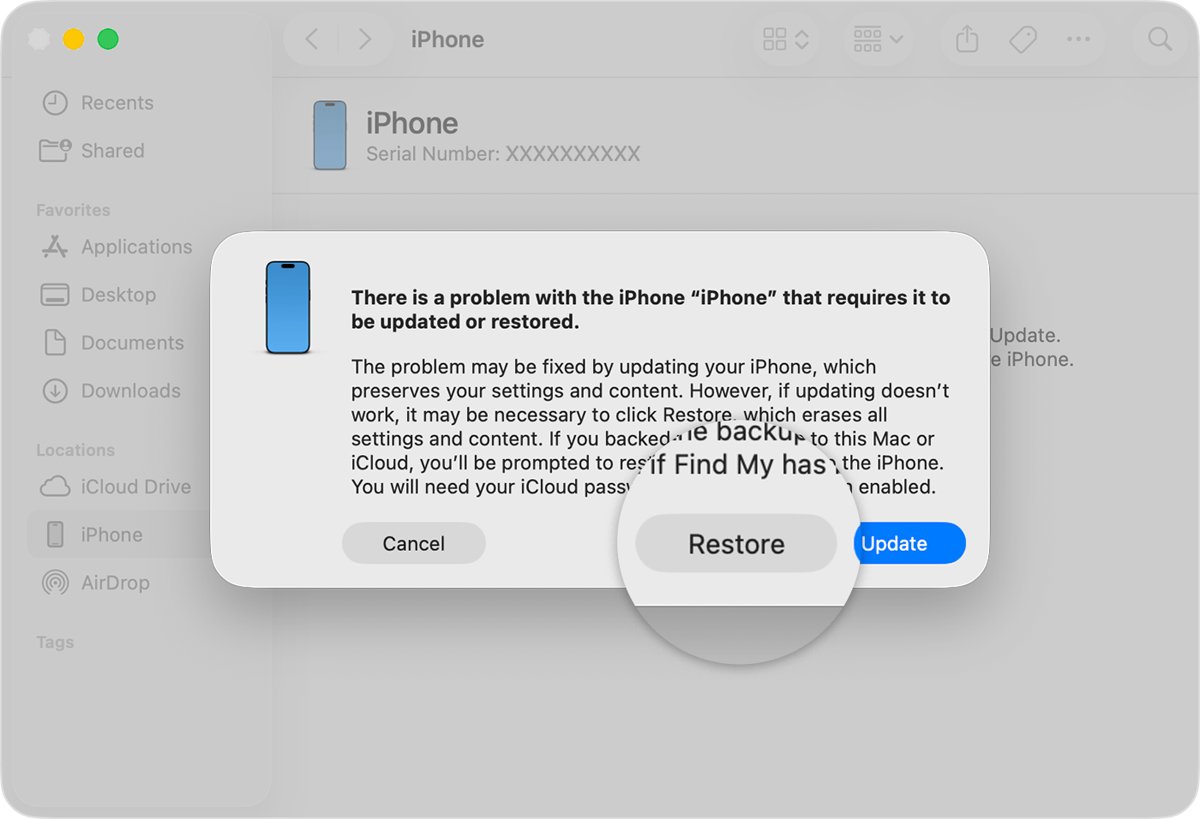
Fix iPhone stuck on support.apple.com/iphone/restore with Update
Try Update first. It reinstalls iOS without erasing your data, while Restore erases everything on the iPhone.
- On a Mac, make sure macOS is up to date. On a Windows PC, install the latest Apple Devices app from the Microsoft Store.
- Connect the iPhone to the computer with a USB cable that can charge it.
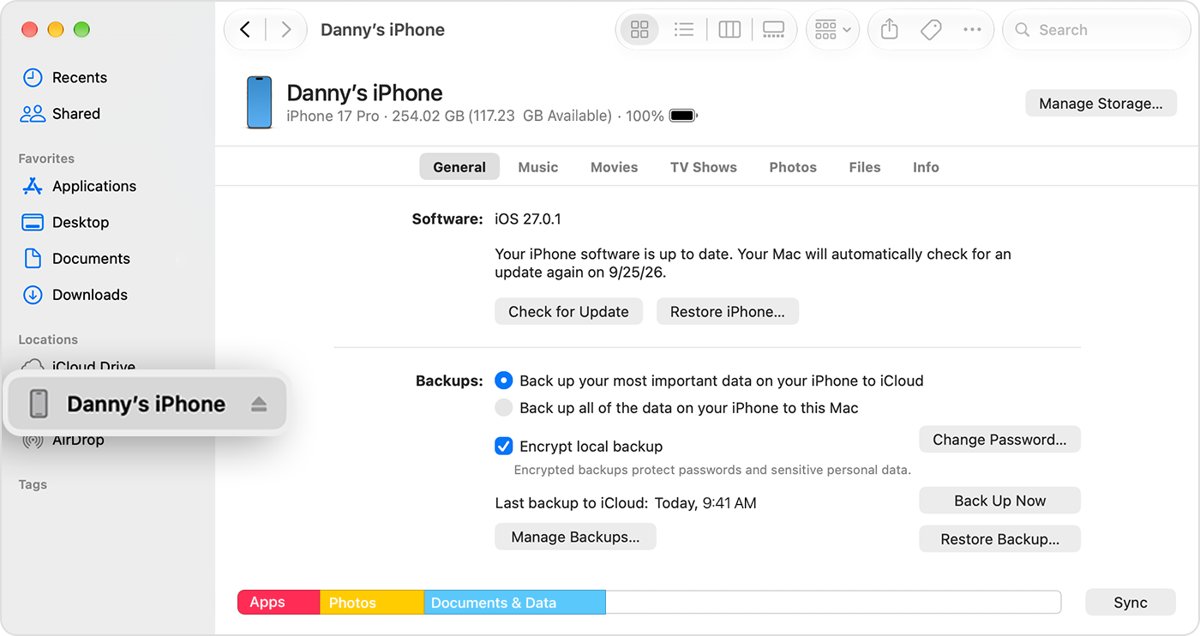
- Open Finder on the Mac, or the Apple Devices app on the PC.
- Select the iPhone in the sidebar. On a Mac it is under Locations.
- When the Update or Restore options appear, click Update.
- Wait while the computer downloads the software, then let the iPhone restart.
If the download takes more than 15 minutes, the iPhone can leave the recovery screen. Let the download finish, then put the iPhone back into recovery mode with the button steps below and choose Update again.
What does support.apple.com/iphone/restore mean on iPhone?
Unlike a black iPhone screen, this is the recovery mode screen, shown with an image of a computer and a cable. Apple calls it the Connect to computer screen.
| What you see | What it means | What to do |
|---|---|---|
| support.apple.com/iphone/restore or Connect to computer screen | iOS cannot start, and the iPhone waits for a computer | Connect to Finder or Apple Devices and choose Update |
| Apple logo for several minutes with no progress bar | Startup is stuck | Force recovery mode, then Update |
| Computer says the device is in recovery mode | Recovery mode is active | Choose Update, then Restore if that fails |
| iPhone keeps starting to Recovery Assistant | On-device recovery cannot fix it | Use a computer and recovery mode |
| Progress bar on screen for several minutes | An update or restore is still running | Leave it connected and wait |
How to put iPhone in recovery mode
Use this when the iPhone is not on the recovery screen when the computer is ready, or when it drops off the screen during a long download. Keep it connected to the computer while you press the buttons.
| iPhone model | Buttons to press | Release when |
|---|---|---|
| iPhone 8 or later, including iPhone SE (2nd generation and later) | Press and quickly release Volume Up, press and quickly release Volume Down, then press and hold the side button | The Connect to computer screen appears |
| iPhone 7 and iPhone 7 Plus | Press and hold the side and Volume Down buttons together | The Connect to computer screen appears |
| iPhone 6s or earlier, including iPhone SE (1st generation) | Press and hold the Home and top (or side) buttons together | The Connect to computer screen appears |
If the buttons do not respond and the recovery screen never appears, the iPhone needs service from Apple.
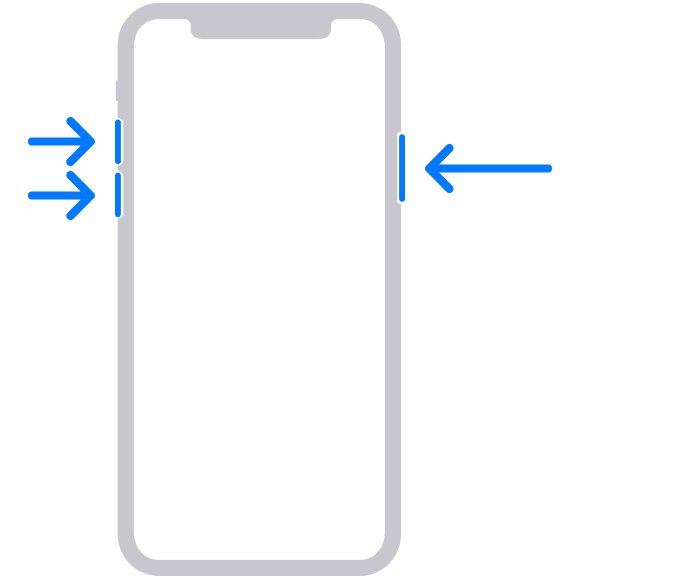
Restore iPhone in recovery mode with a Mac or PC
Use Restore only after Update has failed. It reinstalls iOS and erases all data on the iPhone, so you will need a backup to get your content back.
- Connect the iPhone to the computer and put it into recovery mode with the buttons for your model.
- On a Mac, open Finder and select the iPhone in the sidebar. On a PC, open Apple Devices and select the iPhone.
- Click Restore when the Update or Restore options appear.
- Wait while the computer downloads the software for your iPhone.
- Keep the cable connected until the Hello screen appears on the iPhone.
- Disconnect the iPhone and follow the setup screens.
Restore iPhone from backup after recovery mode
After a restore, the iPhone starts as new. Bring your data back from an iCloud or computer backup during setup.
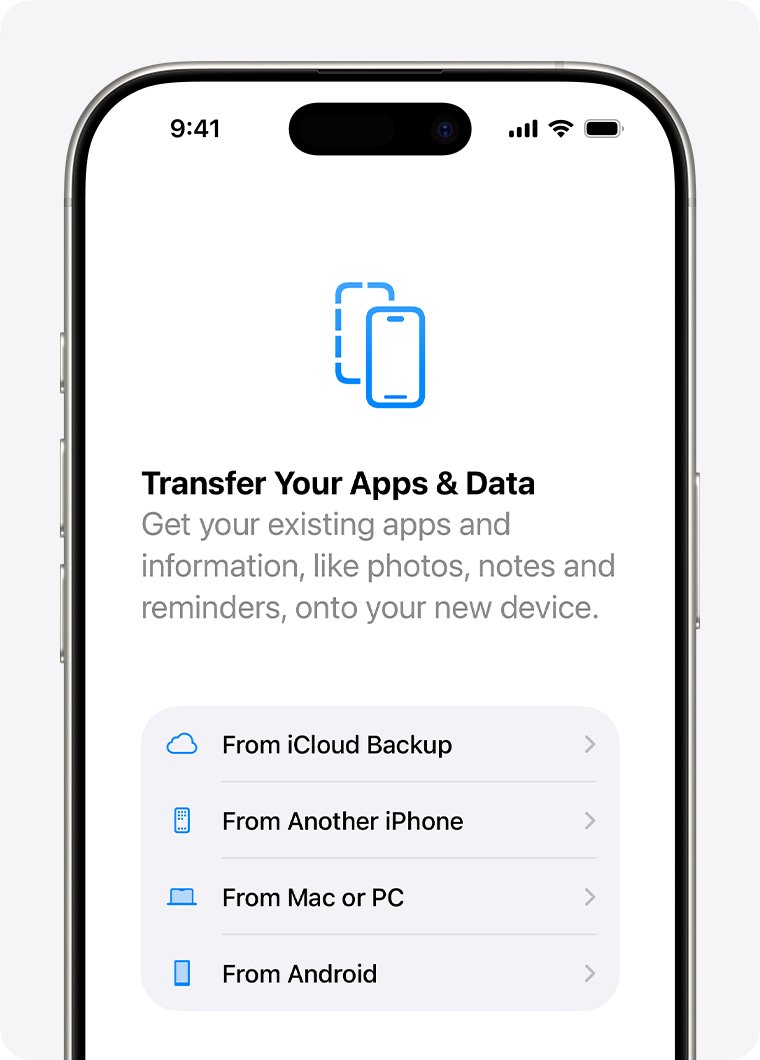
- Follow the setup screens until you reach Transfer Your Apps & Data.
- Tap From iCloud Backup and sign in to your Apple Account, or connect to the computer and click Restore Backup in Finder or Apple Devices.
- Choose the most recent backup by checking the date and size.
- Enter the password if the computer backup is encrypted.
- Keep the iPhone on Wi-Fi and power until the restore finishes.
Update or Restore iPhone in recovery mode
| Your situation | Choose this | Why |
|---|---|---|
| First attempt to clear the restore screen | Update | Reinstalls iOS and keeps your data |
| Update failed or the screen returned | Restore | Reinstalls iOS from scratch, erasing data |
| You forgot the iPhone passcode | Restore | A passcode reset with a computer always erases the device |
| You have no computer | Apple Store or Apple Authorized Service Provider | Recovery mode needs a Mac or PC |
| Buttons are broken or stuck | Apple service | Recovery mode cannot be started |
Check the iPhone is out of recovery mode
- Confirm the iPhone shows the Lock Screen after Update, or the Hello screen after Restore.
- Unlock it, or finish setup, and open Settings.
- Open a couple of apps and confirm they launch without the iPhone restarting and that the touch screen responds.
- Restart the iPhone once and confirm it starts normally without the restore screen.
Fix iPhone stuck in recovery mode after restore
The iPhone leaves the recovery screen during the download
The software download took longer than 15 minutes.
- Leave the computer to finish the download.
- Put the iPhone back into recovery mode with the buttons for your model.
- Choose Update or Restore again; the downloaded software is used.
The computer does not show the iPhone
The Mac or the Apple Devices app is out of date, or the connection is not trusted.
- Update macOS, or update the Apple Devices app on the PC.
- Try a different cable that can charge the iPhone.
- Click Allow if the Mac asks to let the accessory connect, or select Trust on the PC.
Update and Restore both fail with an error
Recovery mode cannot complete the reinstall on this iPhone.
- Note the error code or alert shown by the computer.
- Repeat the restore once more after restarting the computer.
- If it still fails, contact Apple Support or book service at an Apple Store or Apple Authorized Service Provider.
iPhone restore screen FAQ
How do I get my iPhone off the support.apple.com/iphone/restore screen?
Connect the iPhone to a Mac or a Windows PC, open Finder or the Apple Devices app, and select the iPhone. Choose Update to reinstall iOS without erasing data. If that fails, repeat recovery mode and choose Restore.
Will I lose my data fixing an iPhone stuck on the restore screen?
Not if Update works, because it reinstalls iOS and keeps your data. Restore erases everything on the iPhone, so your photos and lost text messages come back only from an iCloud or computer backup.
Can I fix the iPhone restore screen without a computer?
The recovery mode screen needs a Mac or Windows PC to update or restore the iPhone. If you cannot borrow a computer, take the iPhone to an Apple Store or an Apple Authorized Service Provider.
How long does restoring an iPhone in recovery mode take?
It depends on the download speed. Apple warns that the software download can take more than 15 minutes, and the iPhone can leave recovery mode in that time. Let the download finish, then enter recovery mode again.
Why does my iPhone go back to the restore screen after restarting?
The previous update or restore did not finish, often because the iPhone exited recovery mode during a long download. Put it back into recovery mode and choose Update, then Restore if the screen keeps returning.
What if the iPhone buttons do not work for recovery mode?
If a button does not work or sticks and you cannot reach the Connect to computer screen, recovery mode cannot be started. The iPhone then needs service, which you can report to Apple Support.
Can I use the Apple Devices app on Windows to restore an iPhone?
Yes. Install the Apple Devices app from the Microsoft Store on Windows 10 or later, connect the iPhone, select it, then choose Update or Restore. Select Trust on the device if the PC asks.