To log in to Spotify with your Apple ID, open the Spotify login screen, choose Continue with Apple, and confirm with Face ID, Touch ID or your device passcode.
This guide covers the requirements, adding Apple to an existing Spotify account, finding the email Apple shared with Spotify, and fixing an Apple login that stops working.
How to log in to Spotify with Apple ID
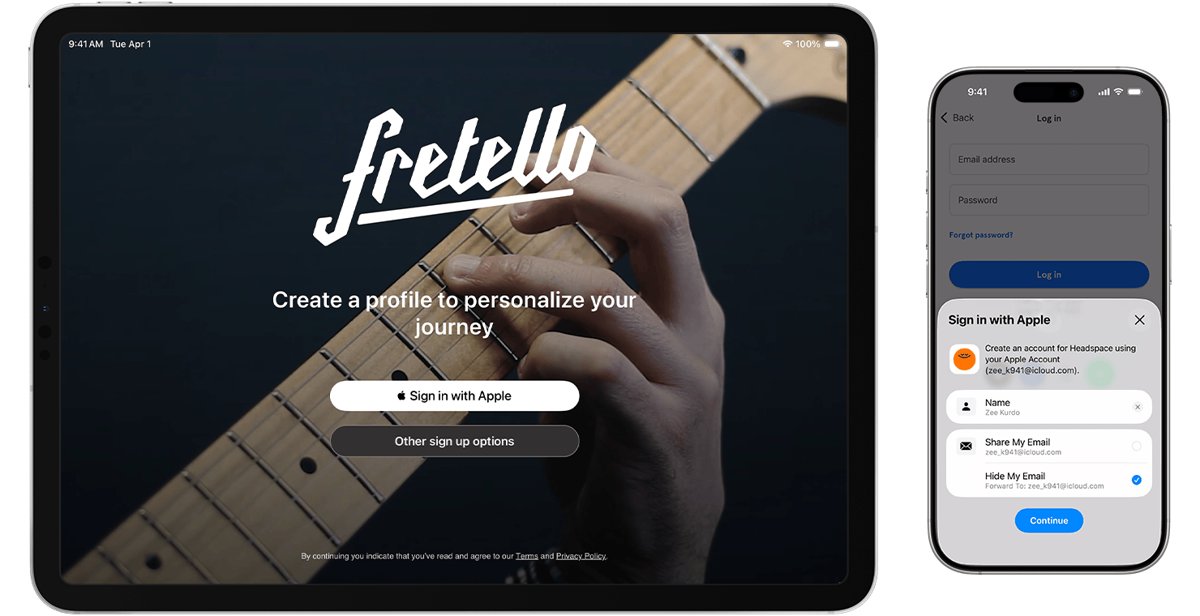
Signing up or connecting with Apple lets you log in with Face ID, Touch ID or your Apple device passcode instead of a Spotify password.
- Open the Spotify app, or go to the Spotify login page in a browser.
- Select Continue with Apple.
- Confirm with Face ID, Touch ID or your device passcode.
- If Spotify asks, choose whether to share your real email or use Hide My Email.
- Wait for Spotify to open your library, which confirms you are signed in to the right account.
Spotify Sign in with Apple requirements
| Requirement | Detail |
|---|---|
| Software | iOS 14 or later on iPhone or iPad |
| Apple ID security | Two-factor authentication turned on for the Apple ID |
| iCloud | Signed in to iCloud with the same Apple ID |
| One account per login | The same Apple ID cannot be attached to two Spotify accounts |
If iCloud is signed out, sign in to your Apple ID on the device first, then retry the Spotify login.
How to link Spotify to Apple ID on an existing account
If you signed up with email, Google or Facebook, add Apple as an extra login method from your Spotify account page.
- Sign in to your Spotify account page in a browser.
- Go to Edit login methods.
- Select Add next to Apple.
- If an Edit button appears next to Available login methods, select it and verify yourself first.
- Confirm the Apple login details. Apple now appears under Current login methods.
If Spotify says the Apple ID is already connected, that Apple ID belongs to a different Spotify account. Sign in with Apple to reach that account instead.
Find the Apple email address shared with Spotify
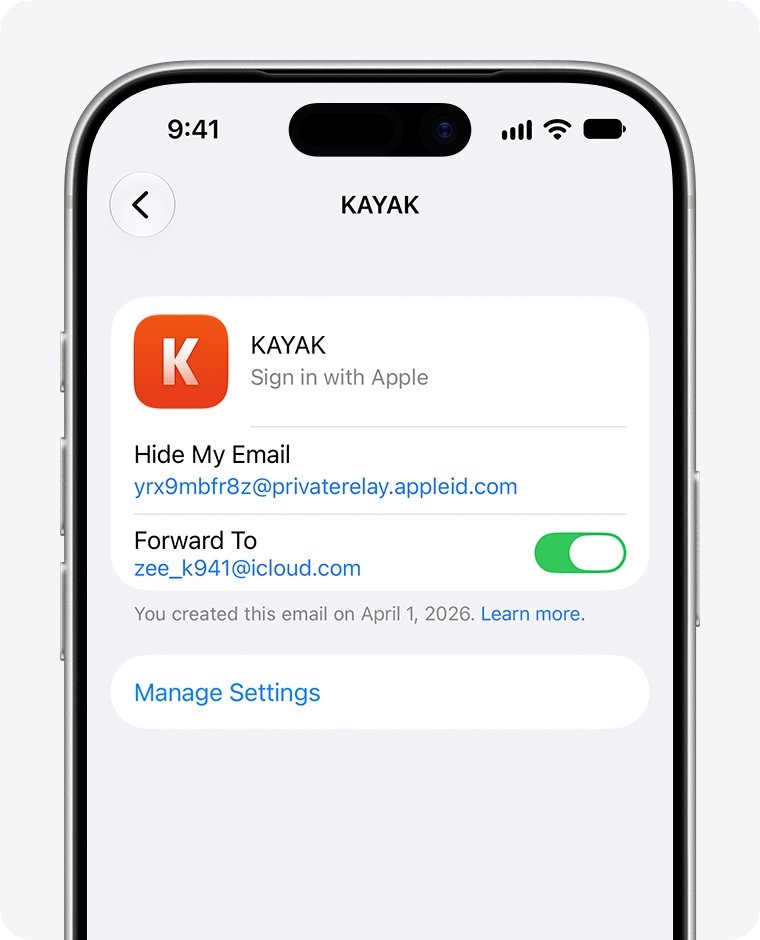
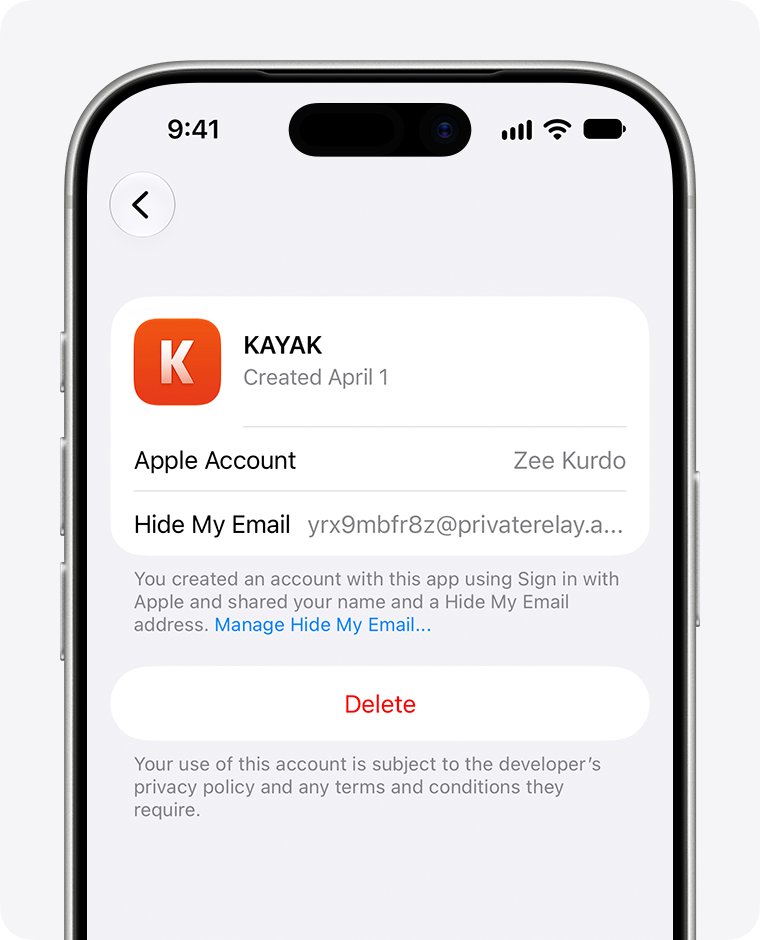
If you chose Hide My Email at sign-up, Apple created a random relay address for Spotify. You need that address to reset a Spotify password.
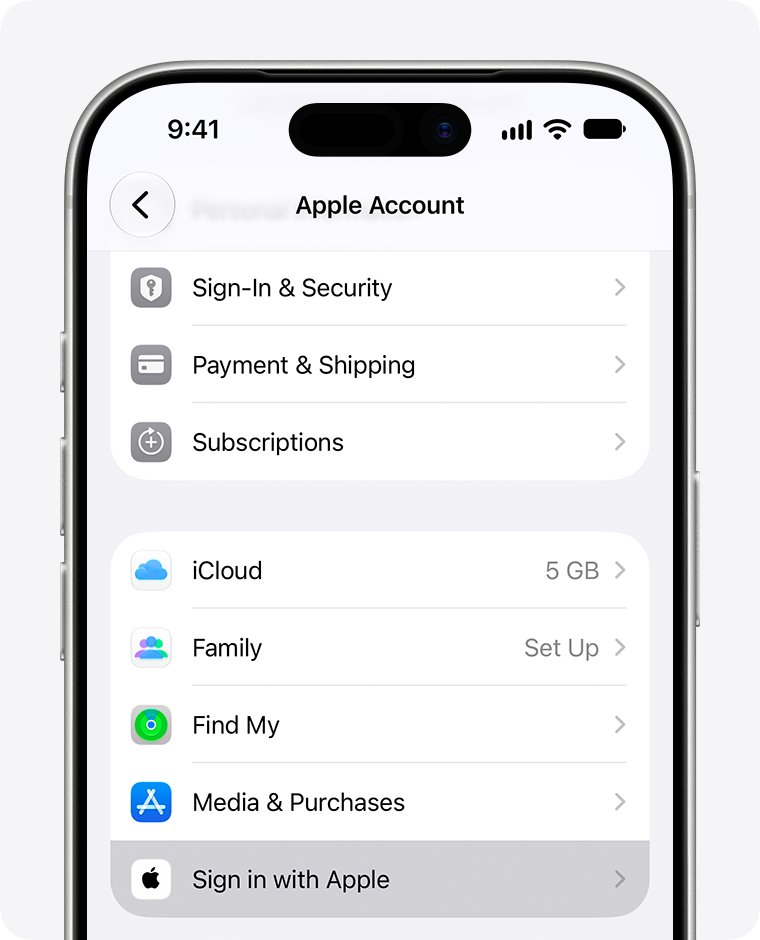
- Open Settings on your iPhone and tap your name.
- Tap Sign in with Apple.
- Select Spotify in the list of apps.
- Note the email address shown as shared with Spotify.
- To see the address on a Mac, open System Settings, click your name, then click Sign in with Apple.
On the web, sign in to account.apple.com, open Sign-In & Security and select Sign in with Apple. Your Spotify email is also listed on your Spotify account page.
Create a Spotify password so you can log in without Apple
A Spotify password lets you sign in with email on devices that do not offer Apple login, such as some TVs or the Spotify app for Windows PC.
- Open the Spotify password reset form.
- Enter the email address shared with Spotify. If you hid your email, use the relay address Apple generated.
- Open the reset email from Spotify in your inbox.
- Set a new password and log in with your email and that password.
Check which login methods your Spotify account uses
- Sign in to your Spotify account page.
- Open Edit login methods.
- Read the Current login methods list. Apple should appear there.
- Keep at least one other method, such as email, so you can still sign in if the Apple login fails.
Fix Spotify Apple login not working
Continue with Apple fails or opens an empty account
The account was created with email, Google, Facebook or a phone number, not Apple.
- Sign out of Spotify.
- Try each sign-up method you might have used: email, phone number, Google and Apple.
- Once in the right account, add Apple under Edit login methods.
Why can't I log in to Spotify after September 2026
From September 1, 2026, Spotify accepts an email address instead of a username for login.
- Log in with your email address, or with Apple, Google or Facebook if connected.
- On the account page, select Edit personal info and check your email is correct.
- If no email is on file, add one from Edit login methods.
Forgot which email or Apple ID the account uses
Hide My Email gave Spotify a relay address you have never seen.
- Check the address under Settings > your name > Sign in with Apple > Spotify.
- Go to Spotify password reset and enter each address you own.
- Spotify only sends the reset email to an address registered on an account.
You stopped using Sign in with Apple for Spotify
Deleting Spotify from the Sign in with Apple list signs you out of the app.
- Open Spotify and choose Continue with Apple again.
- You return to the same Spotify account you used before.
How to log out of Spotify on iPhone
- Tap your profile picture at the top of the Spotify app.
- Tap Settings and privacy.
- Scroll to the bottom.
- Tap Log out.
- To log out of all phones, computers and the web player at once, use Sign out everywhere on your account page.
Spotify Apple ID login FAQ
How do I link Spotify to my Apple ID?
Sign in to your Spotify account page, open Edit login methods and select Add next to Apple. After you confirm the Apple login, Apple appears under Current login methods and works on your iPhone, iPad and the web.
What is my Spotify ID?
Your Spotify ID is your username, a code Spotify assigns to identify your account. You do not need it to log in. Use your email and password, or the method you signed up with, such as Apple or a phone number.
Where is my Spotify ID?
Your username is shown on your Spotify account page. A display name you set replaces it on your profile, so the profile name in the app is not always your username, and neither can be used to log in.
How do I find my Spotify login info?
Open your Spotify account page to see your email, then open Edit login methods to see every connected method. If you are locked out, enter each email you own on the password reset form; only a registered address receives the email.
Why can't I log in to Spotify?
The usual cause is using a different method than the one the account was created with. Try email, phone number, Google and Apple in turn. If you forgot the password, use Spotify password reset with your email or Apple relay address.
How do I log out of Spotify on iPhone?
Tap your profile picture, tap Settings and privacy, scroll to the bottom and tap Log out. Sign out everywhere on the account page logs you out of all phones, computers and the web player, but not speakers, consoles or TVs.
How do I log in to the Spotify app?
Open the app and choose the method your account uses: Continue with Apple, Continue with Google, Continue with Facebook, a phone number, or your email address. Since September 1, 2026, a username alone no longer works.
Can I log in to Spotify without Apple after signing up with Apple?
Yes. Use the Spotify password reset form with the email shared with Spotify, or the Apple relay address if you hid your email. After you set a password, you can log in with that email and password on any device.