To send a large file through email, upload it to cloud storage such as Google Drive or OneDrive and send a share link instead of attaching the file itself.
This guide covers the Gmail Drive-link route step by step, the OneDrive route in Outlook, zipping files, attachment limits, and fixes for the message too large error.
How to send a large file through email (step-by-step)
Gmail does most of the work for you. A file that is too big to attach goes into the message as a Google Drive link.
- Open Gmail on your computer and click Compose.
- Near the bottom of the message, click the Drive icon, Insert files using Drive.
- Select the large file from your Drive; upload it to Google Drive first if it is only on your computer.
- At the bottom of the window, choose Drive link, then click Insert.
- Add the recipient, subject and message, then click Send.
- If Gmail says the recipient cannot open the file, choose a sharing option such as Anyone with the link with view access, or open More options to share only with the people in the email.
If you pick a file over the limit with the normal paperclip, Gmail removes the attachment and adds it as a Drive link automatically.
Why is sending large files through email so difficult?
Every mail service caps the size of a message, and the cap covers the attachment and the email text together. A file just under the limit can still fail once the message text is added.
| Email service | Attachment limit | Route for bigger files |
|---|---|---|
| Gmail (personal account) | 25 MB | Google Drive link, added automatically |
| Gmail (work or school) | Set by the Google Workspace administrator | Google Drive link |
| Outlook.com | 25 MB per Outlook.com sending limits; Microsoft's Outlook attachment article gives 20 MB for internet accounts | OneDrive link, up to 2 GB |
| Outlook with Exchange (business) | 10 MB by default, set by the administrator | OneDrive or SharePoint link |
Send a large file with OneDrive in Outlook
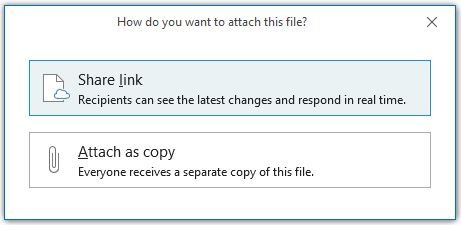
Microsoft lets Outlook.com users share files of up to 2 GB through OneDrive. The same link approach works in new Outlook, classic Outlook and Outlook on the web.
- Upload the file to OneDrive in your browser or the OneDrive folder in File Explorer.
- Right-click the file in OneDrive and choose to share it, then copy the link.
- Open Outlook and start a new message.
- Paste the link into the message body.
- Add the recipient and select Send. The recipient opens the link to download the file.
Business accounts can also save the file to a SharePoint library and share a link from there.
Alternative solutions for sending large files
| Your situation | Use this | Why |
|---|---|---|
| You use Gmail | Google Drive link | Gmail inserts it for you and checks the recipient can open it |
| You use Outlook or Outlook.com | OneDrive link | Shares files up to 2 GB from a Microsoft account |
| Your company uses Microsoft 365 | SharePoint library link | Keeps the file inside your organisation's storage |
| You already use Dropbox | Dropbox share link | Microsoft lists it as a cloud option; paste its link into any email |
| The file is a bit over the limit | Zip it first | Compression can bring documents under 20 to 25 MB |
| You send from Apple Mail on a Mac or iPhone | Mail Drop | Apple Mail offers to send big attachments through iCloud instead |
How to zip a file that is too large to email
Zipping helps most with documents, spreadsheets and folders of many small files. Photos and videos are already compressed, so they rarely shrink much. On a Mac, you can create a ZIP file in Finder instead.
- Open File Explorer and find the file or folder you want to send.
- Right-click it and select Show more options > Send to > Compressed (zipped) folder.
- Find the new zipped folder with the same name in the same location.
- Check its size in the file's Properties.
- Attach the zip if it is under your service's limit; otherwise upload it to Drive or OneDrive and send a link.
Tips for sending large files through email
| Tip | How it helps |
|---|---|
| Share a link instead of attaching | Links sidestep the attachment cap entirely |
| Set link access before you send | Gmail asks for access only when the recipient cannot open the file; choose view access unless they must edit it |
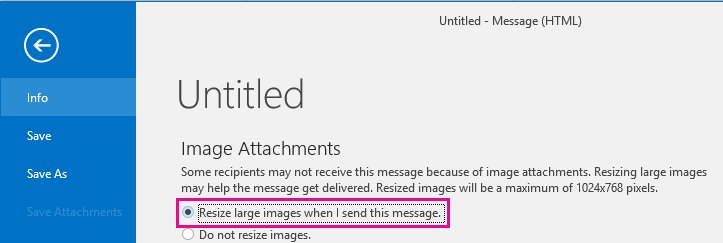
| Resize photos in classic Outlook | Select File > Info, then Resize large images when I send this message under Image Attachments |
| Compress pictures in the message body | In classic Outlook use Compress Pictures on the picture Format tab; detail is reduced |
| Group many files into one zip | One link or attachment is easier for the recipient than dozens |
| Use confidential mode for sensitive mail in Gmail | You can set an expiration date and passcode that also covers attachments |
Check the recipient can open your large file link
- Open your Sent folder and open the message you sent.
- Copy the Drive or OneDrive link from the message.
- Open a private browser window and paste the link.
- Confirm the file preview or download page loads; if it asks for access, change the file's sharing setting.
- Ask the recipient to confirm the download finished.
Still not working? Try this
Email says the message is too large
The attachment and message together pass the service limit.
- Remove the attachment.
- Upload the file to Google Drive or OneDrive.
- Paste the share link into the message and send again.
Zip file is still too large to send
The contents are photos or video that are already compressed.
- Stop trying to shrink the zip.
- Upload the zip to cloud storage.
- Send the link instead of the file.
Recipient cannot open the shared link
The file is still private to your account.
- Open the file's sharing settings in Drive or OneDrive.
- Give the recipient's address access, or allow anyone with the link to view.
- Send the link again.
Large file will not send from a work Outlook account
Exchange accounts default to a 10 MB limit set by the administrator.
- Save the file to OneDrive or a SharePoint library.
- Share a link from there.
- Ask your IT administrator if the limit blocks routine work.
Frequently asked questions
What is the largest file you can send through email?
Personal Gmail and Outlook.com attachments top out at 25 MB, and Microsoft quotes 20 MB for internet accounts in classic Outlook. Larger files go as a cloud link; OneDrive links from Outlook.com cover files up to 2 GB.
Can I send a 1 GB file through Gmail?
Not as a normal attachment, because Gmail caps attachments at 25 MB. Upload the file to Google Drive and insert it as a Drive link, which Gmail also does automatically for oversized attachments.
How do I send a large file on Outlook?
Upload the file to OneDrive, copy its share link and paste the link into your Outlook message. Outlook.com users can share files up to 2 GB this way.
How can I send a large video file to someone?
Upload the video to Google Drive or OneDrive and email the share link. Zipping a video rarely makes it small enough to attach, because video is already compressed.
Why does my email say message too large?
The attachment and the email text together are over your service's size limit. Remove the attachment and send a cloud storage link instead.
Why is my zip file too large to send?
Zipping only shrinks files that compress well, such as documents. Photos and videos barely shrink, so the zip stays over the limit; send it as a Drive or OneDrive link.
How do I send a large file of photos by email?
Put the photos in one folder, upload it to Google Drive or OneDrive and email the link. In classic Outlook you can also turn on Resize large images when I send this message for a few images.
Can I send large files for free?
Yes. Google Drive and OneDrive both come with free storage for personal accounts, and sharing a link from either costs nothing.
Quick summary
Send a cloud link for anything over about 20 MB: a Google Drive link in Gmail or a OneDrive link in Outlook. Attachment limits sit at 10 to 25 MB depending on the account, while links handle files in the gigabytes and let you control who can open them. Zipping is worth it only for documents that are slightly over the limit.