iCloud Drive takes up space on your MacBook because, unless Mac storage runs low, macOS keeps the full contents of iCloud Drive downloaded on the Mac as well as in iCloud.
This guide shows how to turn on Optimize Mac Storage, remove local copies with Remove Download, and tell Mac storage apart from a full iCloud plan.
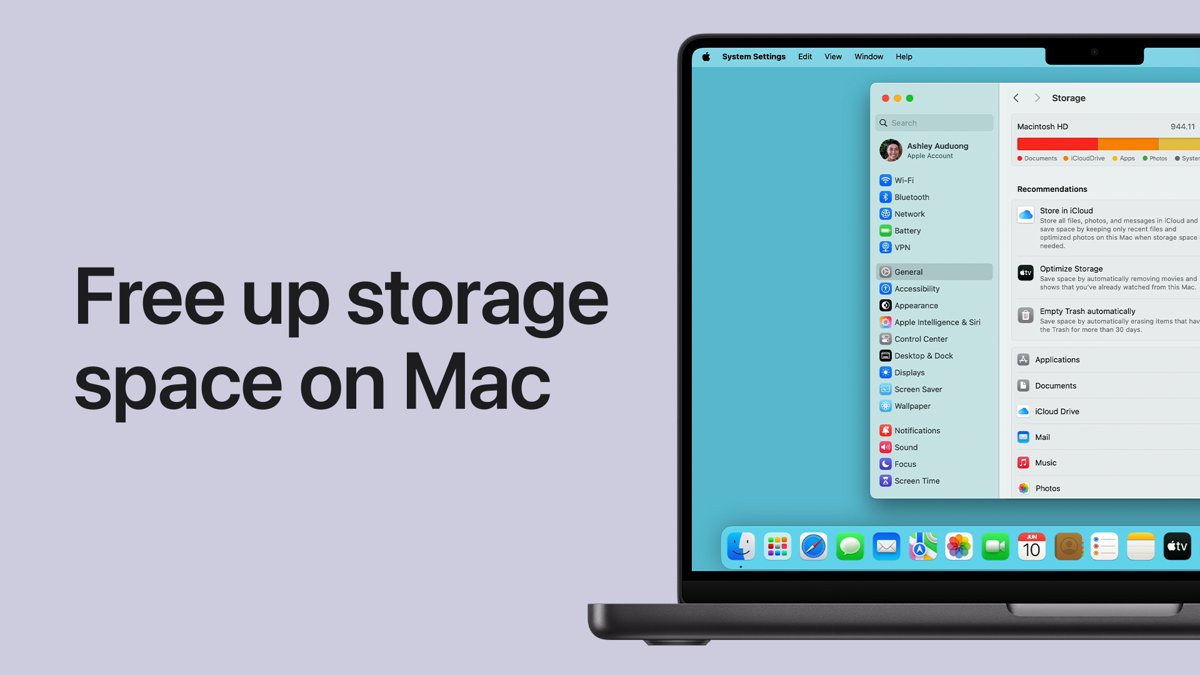
Stop iCloud Drive taking up space on a MacBook with Optimize Mac Storage
With Optimize Mac Storage on, the Mac can store documents only in iCloud when more space is needed. If space is not needed, the full contents of iCloud Drive stay on the Mac.
- Choose the Apple menu > System Settings.
- Click your name at the top of the sidebar.
- Click iCloud, then click Drive.
- Turn on Optimize Mac Storage.
Does iCloud Drive use local storage on Mac?
| Situation | What happens on your Mac |
|---|---|
| Optimize Mac Storage off | Every iCloud Drive file is kept downloaded on the Mac. |
| Optimize Mac Storage on, plenty of free space | Files still stay downloaded; macOS only offloads them when space is needed. |
| Optimize Mac Storage on, space runs low | Some documents are kept only in iCloud and show the In iCloud status icon. |
| Desktop & Documents Folders on | Your Desktop and Documents folders move into iCloud Drive, so their size counts as iCloud Drive. |
| iCloud storage is full | New documents stay on the Mac and upload when iCloud space becomes available. |
| File set to Keep Downloaded | The file always stays on the Mac, even when space is low. |
Remove download from iCloud Drive on Mac
Remove Download deletes only the local copy. The file stays in iCloud Drive and on your other devices, where you can still find your files on iPhone in the Files app.
- Open a Finder window.
- Click iCloud Drive in the sidebar.
- Select the large files or folders you want off the Mac.
- Control-click the selection.
- Choose Remove Download.
To bring a file back, Control-click it and choose Download Now. To pin a file to the Mac, choose Keep Downloaded; choose it again to clear it.
Check what is taking up storage on Mac
- Choose the Apple menu > System Settings.
- Click General in the sidebar. You may need to scroll down.
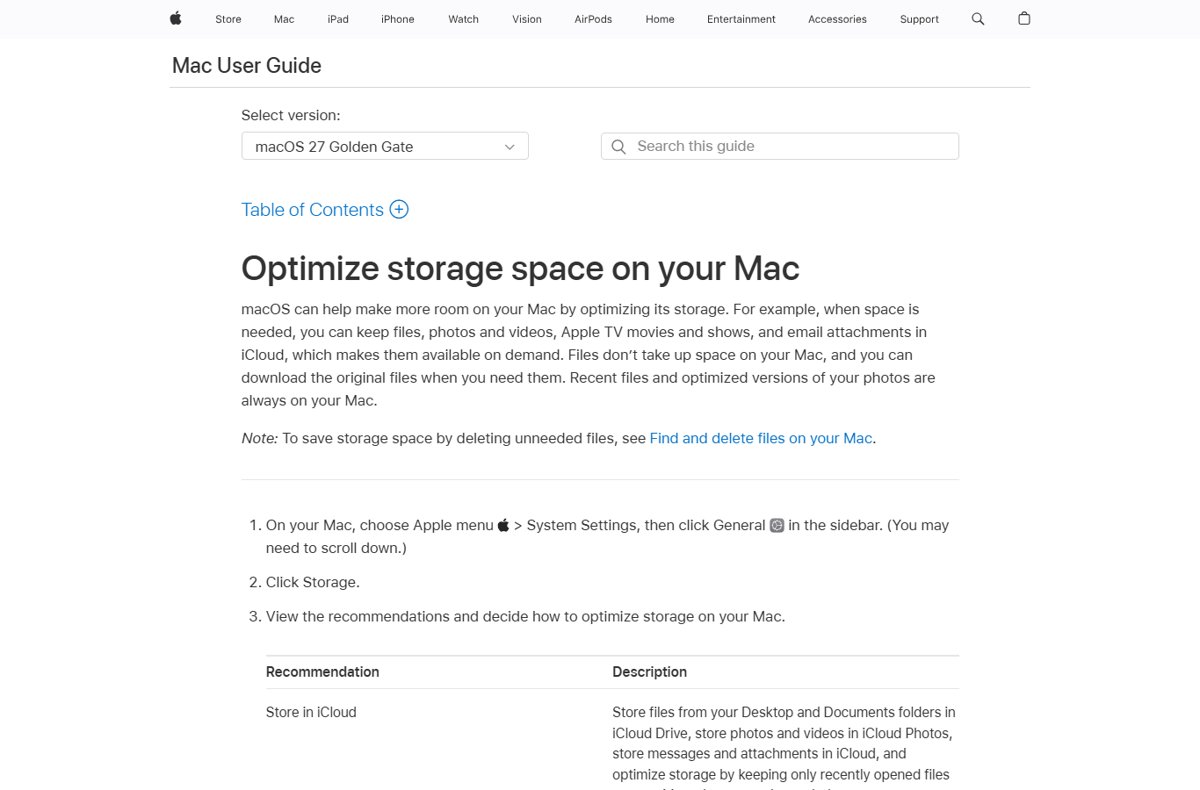
- Click Storage.
- Review the recommendations, including storing Desktop and Documents files in iCloud Drive and keeping only recently opened files on the Mac.
If iCloud Drive is not the biggest category, you can free up space on your Mac by reducing System Data and large files, or clear the cache on your Mac.
Why is my iCloud storage full?
iCloud storage and Mac storage are separate. Every Apple Account gets 5 GB of free iCloud storage, shared by iCloud Photos, iCloud Drive files and iPhone or iPad backups.
- Open System Settings and click your name.
- Click iCloud, then click Manage.
- Read the storage bar for the breakdown by category.
- Click an app or feature to see what it stores.
- Under Backups, select an old device and click Remove to delete a backup you no longer need.
Removing the backup of a device you still use stops iCloud from backing up that device automatically.
Check iCloud Drive files are stored only in iCloud
- Open Finder and click iCloud Drive.
- Confirm the files you removed show the In iCloud status icon.
- Open System Settings > General > Storage and compare the free space with the figure before.
iCloud Drive taking up space on Mac troubleshooting
Why is iCloud Drive taking up space after Optimize Mac Storage is on?
macOS only offloads files when space is needed, so with free space the files stay local.
- Select large items in iCloud Drive in Finder.
- Control-click and choose Remove Download to free space now.
Why is my iCloud suddenly full?
Desktop & Documents Folders, iCloud Photos or a new device backup started adding data.
- Open System Settings > your name > iCloud > Manage.
- Find the category that grew.
- Remove old backups or move files you do not need out of iCloud Drive.
Files will not upload to iCloud Drive
iCloud storage is full, so documents stay on the Mac until space is available.
- Free iCloud space in Manage, or upgrade your plan.
- Leave the Mac online so the waiting documents upload.
iCloud Drive storage on MacBook FAQ
What is iCloud Drive?
iCloud Drive stores your files and folders in iCloud so they are available on every device signed in to your Apple Account. On a Mac it is built in and appears in the Finder sidebar (Windows PCs need the iCloud app for Windows), and you turn it on with Sync this Mac in System Settings > your name > iCloud > Drive.
Does iCloud Drive use local storage?
Yes. Files are kept on the Mac as well as in iCloud. With Optimize Mac Storage on, macOS keeps some documents only in iCloud when more space is needed, and you can remove local copies yourself with Remove Download.
Where is iCloud Drive located on my computer?
Open a Finder window and click iCloud Drive in the sidebar. If Desktop & Documents Folders is on, your Desktop and Documents folders also live inside iCloud Drive.
How does iCloud storage work?
Each Apple Account gets 5 GB of free iCloud storage. iCloud Photos, iCloud Drive files and device backups all count toward it. See the breakdown in System Settings > your name > iCloud > Manage.
What causes iCloud storage to be full?
Photos, iCloud Drive files and iPhone or iPad backups usually fill it. Turning on Desktop & Documents Folders can add a lot at once. Check the storage bar under iCloud > Manage to see which one is largest.
Why is my iCloud backup so big?
Each device backup is stored separately, and old devices keep their backups until you remove them. In iCloud > Manage, open Backups, select a device you no longer use and click Remove.
How do I turn on iCloud Drive?
Open System Settings, click your name, click iCloud, click Drive, then turn on Sync this Mac. You can also turn on Optimize Mac Storage and Desktop & Documents Folders on the same screen.
Does deleting a downloaded iCloud Drive file free space?
Use Remove Download instead of deleting. It frees Mac space while keeping the file in iCloud. Moving a file to the Trash removes it from iCloud Drive on all your devices.