To transfer Apple Cash to Apple Savings, open Wallet, tap Apple Card > Savings account > Add Money, then set Transfer From to your Apple Cash card.
This guide covers the steps, how long the money takes, the limits that apply, moving funds back out, and what to check when a transfer fails.
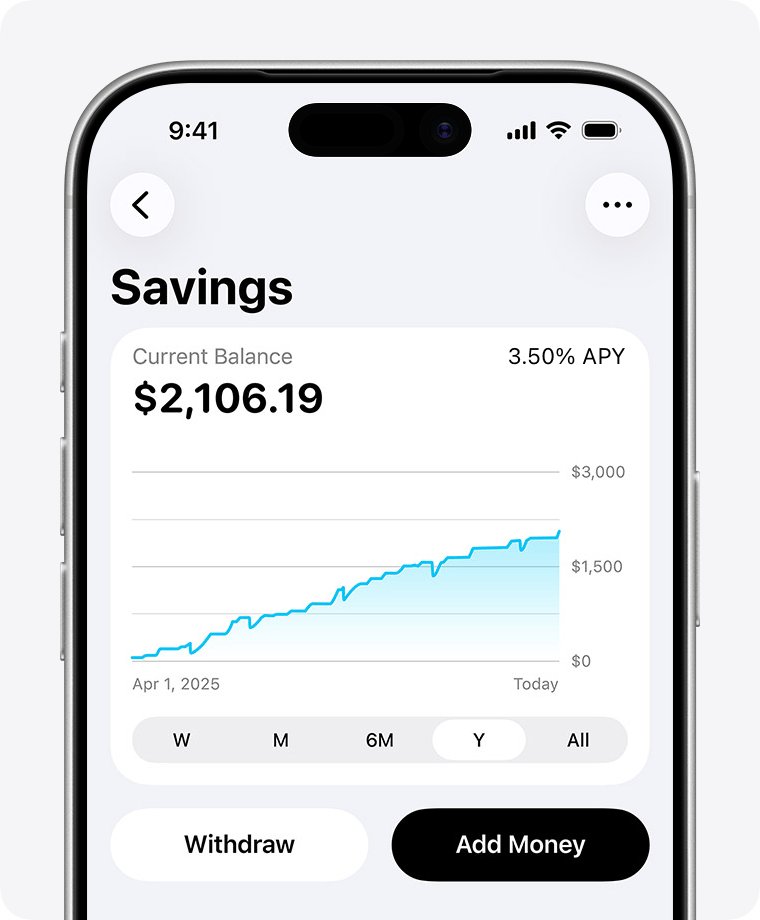
Transfer Apple Cash to Apple Savings in the Wallet app
You need an open Savings account and Apple Cash set up on the same iPhone.
- On your iPhone, open the Wallet app and tap Apple Card.
- Tap Savings account, then tap Add Money.
- Enter the amount you want to add, then tap Next.
- Tap Transfer From, then tap your Apple Cash card.
- Double-click the side button to transfer, then confirm with Face ID, Touch ID or your passcode.
Money moved from Apple Cash is typically available in Savings instantly, and it starts earning interest when the transfer is initiated.
Apple Savings account requirements
| Requirement | Detail |
|---|---|
| Apple Card | Active Apple Card owner or co-owner, with Apple Card added to iPhone |
| Software | Latest version of iOS |
| Age | 18 or older |
| Tax ID | Social security number or individual taxpayer identification number |
| Residency | U.S. resident with a valid, physical U.S. address |
| Security | Two-factor authentication on your Apple Account |
| Apple Cash | Set up, with identity verified for transfers between Savings and Apple Cash |
Move your Apple Cash balance when you open Apple Savings
If you do not have Savings yet, the setup flow offers to move your whole Apple Cash balance in one go.
- Open the Wallet app and tap Apple Card.
- Tap the More button, then tap Rewards & Offers.
- Next to Savings, tap Set Up and follow the onscreen instructions.
- When asked about your Apple Cash balance, tap Transfer Your Apple Cash.
- Follow the onscreen instructions to finish the transfer.
Tap the Close button at that prompt to open Savings without moving your balance. Any Daily Cash waiting to be redeemed as a statement credit moves to Savings automatically.
Apple Cash vs Apple Savings: where should Daily Cash go?
Opening Savings sends all future Daily Cash there automatically. Daily Cash cannot be split between the two accounts, but you can switch the destination back to Apple Cash at any time.
| You want to | Keep the money in | Why |
|---|---|---|
| Earn interest on idle money | Apple Savings | Interest compounds daily and is credited monthly |
| Spend with Apple Pay | Apple Cash | Savings funds cannot be used directly with Apple Pay |
| Send money in Messages | Apple Cash | Person-to-person payments run on Apple Cash |
| Pay your Apple Card bill | Either | Savings can pay the Apple Card balance directly |
Transfer money from Apple Savings back to Apple Cash
- Open the Wallet app and tap Apple Card.
- Tap Savings account, then tap Withdraw.
- Enter the amount, tap the Done button, then tap Continue.
- If Apple Cash is not shown in Transfer To, tap Transfer To and tap Apple Cash.
- Tap Next, then double-click the side button and confirm with Face ID, Touch ID or your passcode.
Withdrawals to Apple Cash are typically available instantly. Picking a linked bank account in Transfer To instead takes 1 to 3 business days.
Apple Cash transfer limits and fees
Transfer limits apply to Savings transfers to and from Apple Cash, and the Deposit Account Agreement sets further balance limits.
| Item | Limit or fee |
|---|---|
| Maximum Apple Cash balance (verified identity) | $20,000 |
| Apple Cash to bank or debit card, per transfer | $1 minimum, $10,000 maximum |
| Apple Cash to bank or debit card, per 7 days | $20,000 |
| Bank transfer fee (1 to 3 business days) | None |
| Instant Transfer to debit card | 1.7% fee, minimum $0.25, maximum $25 |
| Savings fees or minimum balance | None |
Check your Apple Savings balance after a transfer
- Open the Wallet app and tap Apple Card.
- Tap Savings Account and read the Current Balance.
- Tap the More button, then tap Account Details to see the Available Balance.
- Confirm the transfer appears; pending amounts count in Current Balance before they are available to withdraw.
You can also view the balance and interest earned at card.apple.com/savings.
Apple Cash to Savings transfer not working
Apple Cash is not listed under Transfer From
Apple Cash is not set up, or your identity is not verified for Apple Cash.
- Set up Apple Cash in the Wallet app on the same iPhone.
- Verify your identity for Apple Cash when Wallet asks.
- Return to Savings account > Add Money and tap Transfer From again.
Savings option is missing in Wallet
Savings has not been opened, or the Apple Card account is restricted or locked.
- Update the iPhone to the latest version of iOS.
- Open Apple Card > More > Rewards & Offers and tap Set Up next to Savings.
- If the account is restricted or locked, contact Apple Card support before trying again.
Transfer is pending or held for review
Transfers are subject to review and security checks that can delay funds.
- Check Current Balance against Available Balance in Account Details.
- Wait for the review to clear before moving the money again.
- Contact Apple Card support if the amount never appears.
Apple Cash and Apple Savings transfer FAQ
How do I transfer Apple Cash to my bank account?
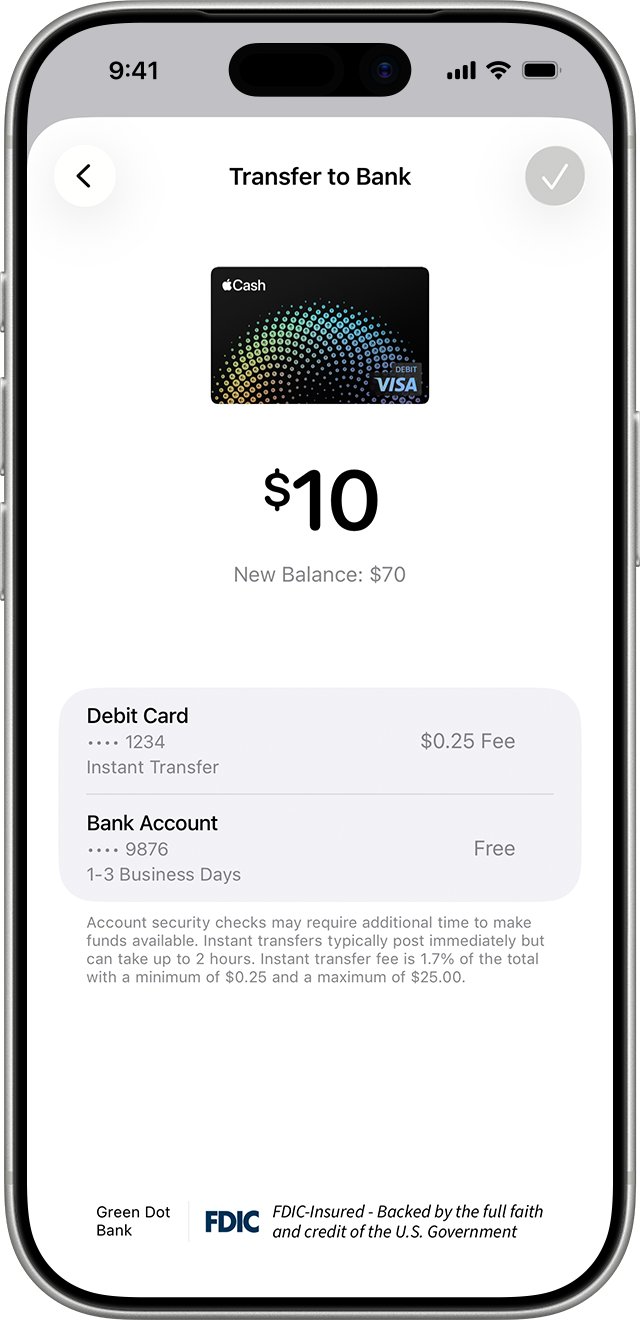
Open Wallet, tap your Apple Cash card, tap More, then tap Transfer to Bank. Enter an amount, choose 1-3 Business Days, add your routing and account numbers if asked, and confirm with the side button.
Can I transfer Apple Cash to my bank account for free?
Yes. Standard bank transfers from Apple Cash have no fee and usually complete within 1 to 3 business days. Only Instant Transfer to a debit card charges 1.7 percent, with a $0.25 minimum and $25 maximum.
How do I transfer Apple Cash to a debit card?
In Wallet, tap your Apple Cash card, tap More, then Transfer to Bank. Enter the amount, choose Instant Transfer, and confirm. You need an eligible debit card in Wallet, and the funds usually arrive within 30 minutes.
Can I transfer Apple Cash to Venmo, PayPal, Cash App or Chime?
Apple's own transfer options are a U.S. bank account or an eligible debit card. To reach another service, transfer to a bank account or debit card linked to it, then move the money from there.
How long does Apple Cash take to reach Apple Savings?
Transfers from Apple Cash to Savings are typically available instantly. The money starts earning interest when you start the transfer in Wallet, though transfers remain subject to review.
How do I transfer money to Apple Cash?
You can add money to Apple Cash from a supported U.S. debit or prepaid card in Wallet, with a $10 minimum per transaction. You can also withdraw from Savings straight to Apple Cash.
Can I use Apple Savings to pay my Apple Card?
Yes. Savings can pay your Apple Card balance directly. Savings funds cannot be spent with Apple Pay, so move them to Apple Cash first for purchases.
Does Apple Savings charge fees?
No. Apple Savings has no fees and no minimum balance requirement. Interest is compounded daily and credited to the account monthly.
Should you keep money in Apple Cash or Apple Savings?
Move idle Apple Cash into Savings with Add Money and Transfer From, and keep only spending money in Apple Cash. Savings earns interest with no fees, while transfers back to Apple Cash are typically instant when you need to spend.