A printer shows offline when your computer cannot reach it, usually because of a lost Wi-Fi or USB connection, a stuck print queue, a stalled Print Spooler service or a wrong default printer.
This guide explains each cause, gives the fixes in the order that solves most cases on Windows 11, Windows 10 and Mac, and covers printers that keep dropping offline again. A printer that is online but still misbehaving is a different problem, and the guide to Windows printer problems picks up from there.
Fastest fix for a printer showing offline in Windows
These three steps clear most offline errors in a couple of minutes without touching drivers.
- Turn the printer off and unplug it, wait 30 seconds, plug it back in and turn it on.
- Open Start > Settings > Bluetooth & devices > Printers & scanners, select the printer and select Open print queue.
- Select the … (ellipsis) and choose Cancel all to clear any stuck jobs.
- Close the queue and print a test document.
If the printer still reads offline, work through the basic checks and the fixes below in order.
What does it mean when a printer is offline?
Offline is a status your computer reports, not a fault inside the printer. It means the PC sent a request and got no answer back, so it holds jobs instead of sending them.
| Status you see | What it means | Where to look first |
|---|---|---|
| Offline | Windows or macOS cannot communicate with the printer | Power, cable, Wi-Fi network, print queue |
| Printer in error state | The printer is reachable but reports a problem of its own | Paper, ink or toner, open cover, paper jam |
| Paused (Mac) | The queue was paused in Print Center | The resume button in the printer's queue window |
| Jobs stuck in queue | One failed job blocks every job behind it | Cancel all jobs, then restart Print Spooler |
Why is my printer offline?
Each cause below matches one of the fixes later in this guide.
| Cause | Typical sign | Fix |
|---|---|---|
| Printer on a different Wi-Fi network or SSID than the PC | Printer worked before a router, extender or network change | Reconnect both to the same network |
| Loose or faulty USB cable | Printer disappears from the device list | Reseat or swap the cable |
| Stuck job in the print queue | Several documents waiting, none printing | Cancel all jobs in the queue |
| Print Spooler service stalled | Queue will not clear or new jobs never start | Restart Print Spooler and clear the spool folder |
| Wrong default printer | Jobs go to an old or duplicate printer entry | Set the correct printer as default |
| Outdated or corrupt driver | Offline after a Windows update or driver change | Reinstall the printer and its latest driver |
| Shared printer host asleep | Printer shared from another computer goes offline | Wake the host and confirm sharing is on |
Basic checks for an offline printer
Run these at the printer itself before changing anything on the computer.
| Check | What to confirm | Why it matters |
|---|---|---|
| Power and status lights | Printer is on and shows normal lights, not an error | A printer in an error state cannot accept jobs |
| Paper, ink and cover | Paper loaded, no jam, enough ink or toner, covers closed | These trigger an error state that looks like a failure |
| USB cable (wired printers) | Cable firmly connected at both ends | A loose cable drops the connection |
| Wireless option (Wi-Fi printers) | Wireless is turned on; many printers show a blue wireless light | The printer must be on the network to be found |
| Wireless connectivity test | Run the test from the printer's own menu | Shows whether the printer, not the PC, lost the network |
| Same network | PC and printer use the same Wi-Fi network, not separate SSIDs or an extender | Devices on different SSIDs often cannot see each other |
If you need to rejoin the printer to Wi-Fi, the steps to connect a wireless printer to Windows walk through it.
How to fix a printer that is offline with the Get Help troubleshooter
On Windows 11, the automated printer troubleshooter in Get Help runs diagnostics and attempts to fix most printer problems on its own.
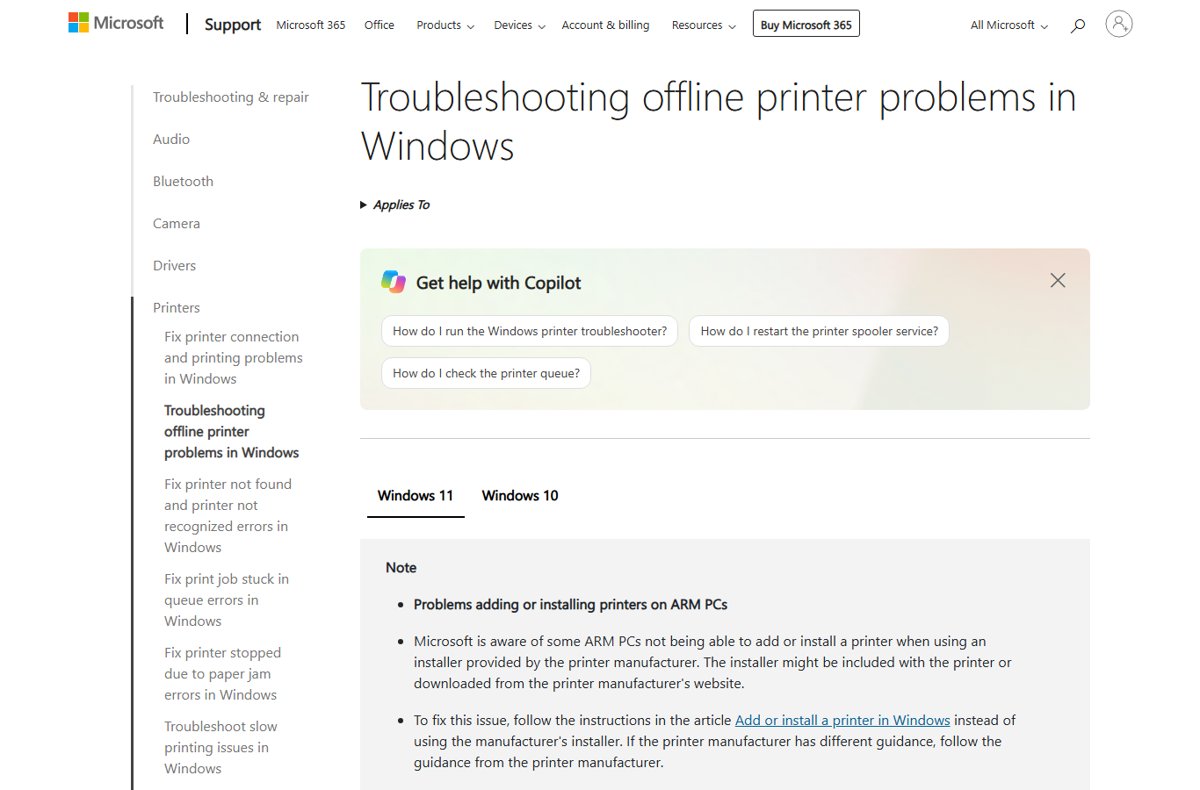
- Open Microsoft's Troubleshooting offline printer problems in Windows support page on the affected PC.
- Select Run the troubleshooter in Get Help to open the printer troubleshooter in the Get Help app.
- Let the diagnostics finish and apply any fix it offers.
- Print a test page to confirm the printer responds.
If the troubleshooter cannot fix it, continue with the manual fixes below.
Set the right default printer in Windows 11
Windows can send jobs to an old or duplicate printer entry that is offline while the real printer sits idle.
- Select Start > Settings > Bluetooth & devices > Printers & scanners.
- If Let Windows manage my default printer is on, turn it off.
- Select the printer you actually use.
- Select Set as default.
Restart and clear the Print Spooler service
The Print Spooler service manages the print queue. When it hangs, the printer can stay offline even after the queue looks empty.
- Press Windows key + R, type
services.mscand press Enter. - Scroll to Print Spooler, right-click it and select Stop.
- Open File Explorer and go to
C:\Windows\System32\spool\PRINTERS. - Delete all files in that folder.
- Back in Services, right-click Print Spooler and select Start.
- Double-click Print Spooler and confirm Startup type is Automatic, then select OK.
If the queue only needs a quick reset, right-click Print Spooler and select Restart instead of clearing the folder.
Remove and reinstall the printer in Windows 11
Reinstalling creates a fresh printer entry and driver, which clears offline states caused by a corrupt setup.
- Select Start > Settings > Bluetooth & devices > Printers & scanners.
- Select the printer, select Remove, then select Yes.
- Make sure the printer is on and connected to the same network or cable.
- Next to Add a printer or scanner, select Add device and wait for Windows to list printers.
- Select Add device next to your printer, or Add manually if it does not appear.
- Print a test page to confirm it works.
If Windows cannot see it on the network, find the printer on your network first. On ARM PCs such as Copilot+ PCs, Microsoft advises adding the printer through Settings rather than the manufacturer's installer.
Check the printer port and install a better driver
A printer added to the wrong port, or running an outdated driver, can report offline even when it is connected.
- In Printers & scanners, select Add device, then Add manually.
- Choose Add a local printer or network printer with manual settings and select Next.
- Select Use an existing port, pick the port the printer is actually on (for example its USB port) and select Next.
- Select Windows Update to refresh the driver list, or Have Disk if you have the maker's driver.
- Pick the manufacturer and model, select Next and choose Replace the current driver if asked.
- Name the printer, choose sharing, then select Print a test page and Finish.
If it still fails after a fresh driver, check the printer maker's website for troubleshooting tools or newer drivers for your model.
Fix an offline printer on Mac
macOS shows an offline icon next to the printer name in the Printer pop-up menu. Work through these steps in order; the last one removes every printer.
- Confirm the Mac and printer are on the same network, or that the USB cable is firmly connected.
- Click the Print Center icon in the Dock and click the resume button if the printer is paused.
- Open Apple menu > System Settings > Printers & Scanners and check the Driver version against the maker's latest.
- Click Add Printer, Scanner, or Fax to add the printer again, then delete the old queue if the new one prints.
- As a last resort, Control-click the Printers list, choose Reset Printing System and add your printers again.
Check the printer is back online
- Open Settings > Bluetooth & devices > Printers & scanners and select the printer.
- Confirm its status no longer reads Offline.
- Select Open print queue and confirm it is empty.
- Print a test page or a short document and confirm it comes out.
Why is my printer offline again and again?
Printer goes offline after a router or network change
The printer stayed on the old network or SSID while the PC moved to the new one.
- Run the printer's wireless connectivity test from its own menu.
- Reconnect the printer to the current Wi-Fi network using its menu or manual.
- Make sure the PC is not on an extender or second SSID, then remove and re-add the printer.
Wi-Fi printer drops offline every few days
A weak Wi-Fi signal or a changed IP address breaks the saved connection.
- Move the printer closer to the router and run the wireless test again.
- Note the printer's current IP address from its network report or menu.
- Remove the printer in Windows and add it again so the entry points at the current address.
Shared printer offline when another computer is off
A shared printer is only reachable while the computer sharing it is awake.
- Wake the computer the printer is connected to.
- Confirm printer sharing is still turned on there.
- Print again from your computer.
Printer offline after a Windows update
The update changed or broke the driver in use.
- Remove the printer in Printers & scanners.
- Add it again with Add device so Windows reinstalls the driver.
- If that fails, install the latest driver from the printer maker and check for printer firmware updates on the maker's website.
Printer offline FAQ
How do I get my printer back online?
Power-cycle the printer for 30 seconds, make sure it is on the same Wi-Fi network as your PC, then cancel all jobs in the print queue. If it is still offline, restart the Print Spooler service and reinstall the printer in Printers & scanners.
Why does my printer say offline when it is connected to Wi-Fi?
The printer and PC are often on different networks, such as a main router SSID and an extender. Both must be on the same network. A stuck print queue or stalled Print Spooler service can also keep a connected printer showing offline.
Does restarting the Print Spooler fix an offline printer?
Often, yes. The Print Spooler service manages the print queue, and when it hangs Windows stops talking to the printer. Restart it in services.msc, and clear the spool PRINTERS folder if jobs stay stuck.
Can the wrong default printer make a printer look offline?
Yes. Windows may send jobs to an old or duplicate printer entry that no longer exists. Turn off Let Windows manage my default printer, then set the printer you use as default in Printers & scanners.
How do I fix an offline printer on a Mac?
Check the network or cable, resume the queue in Print Center, update the printer software, and add the printer again in System Settings > Printers & Scanners. Reset Printing System is the last resort because it deletes every printer.
Should I reinstall my printer if it keeps going offline?
Yes, once the basic checks pass. Removing and re-adding the printer creates a fresh entry, port and driver, which clears offline states caused by a changed IP address or a corrupt driver after an update.
Bottom line on an offline printer
Start with a 30-second power cycle, the same-network check and a cleared print queue, then restart Print Spooler and reinstall the printer only if those fail. Connection and queue problems cause most offline errors, and those first steps fix them without touching drivers or settings.