Pages has no built-in Avery label templates, so you use Avery labels in Pages by building a table whose rows, columns and cell sizes match your Avery 5392 sheet, then typing one name per cell.
This guide covers measuring the badge sheet, setting up the table, opening an Avery Word template in Pages, the Word and Contacts alternatives, and a test print that saves your badge stock.
How to use Avery labels in Pages on Mac
Read the badge size and the number of badges per sheet from the Avery 5392 package before you start.
- Open Pages, choose File > New and pick the Blank template.
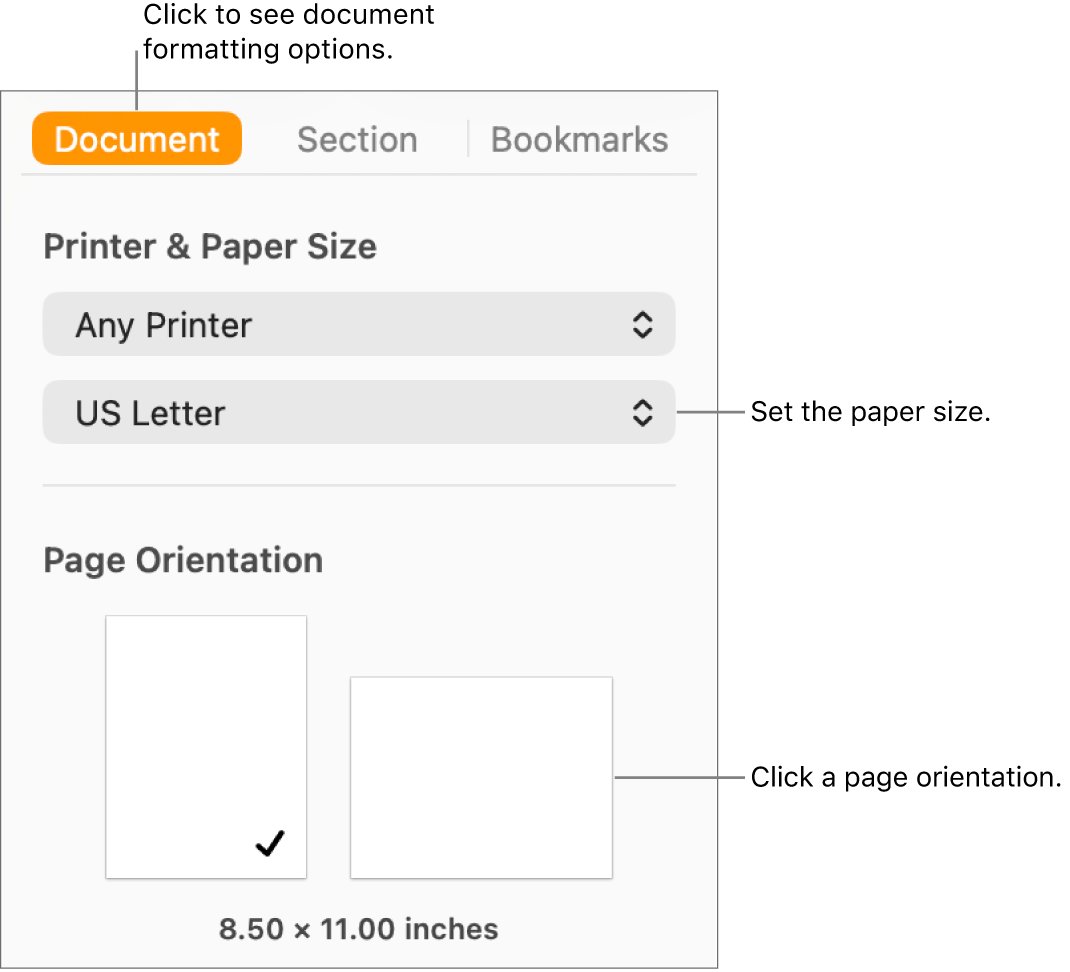
- Click Document in the toolbar, open the Document tab and set the paper size printed on the Avery package.
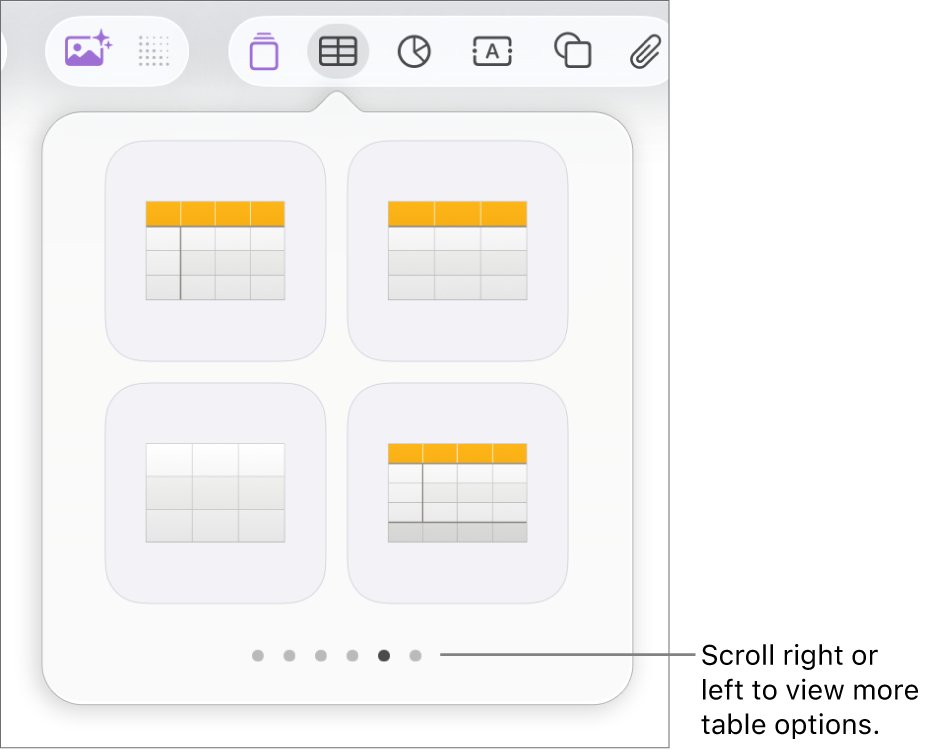
- Click the table icon in the toolbar, click Tables and add a plain table.
- Set the table's rows and columns to match the badges across and down the sheet.
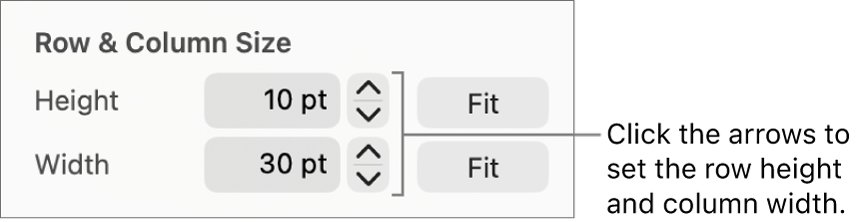
- In the Format sidebar, open the Table tab and enter the badge height and width under Row & Column Size.
- Type one name in each cell, then choose File > Print and print one test sheet on plain paper.
- Hold the test sheet over an Avery sheet, adjust if needed, then load the badge sheet and print.
Pages, Word or Contacts for Avery labels: which to use
| Your situation | Use this | Why |
|---|---|---|
| You only have Pages and a few dozen names | A table built to the Avery sheet's measurements | Works with any Avery product once you know its dimensions |
| You downloaded an Avery template in Word format | Open the .docx file in Pages | Pages opens .doc and .docx files and keeps the table you can type into |
| You have Microsoft Word for Mac | Mailings > Labels in Word | Word builds a table that matches the label product you select |
| You need address labels, not name badges | File > Print > Mailing Labels in Contacts | Contacts has Avery Standard page layouts, but prints only contacts with addresses |
| You want one badge per page from a list | Pages mail merge | Each record becomes its own copy of the document |
Avery 5392 sheet measurements to read before you start
Every number in the Pages table comes from the badge sheet. Take them from the Avery package or measure one sheet with a ruler.
| Measurement | Where it goes in Pages | Why it matters |
|---|---|---|
| Paper size of the sheet | Document sidebar > Document tab > paper size menu | A wrong paper size shifts every badge |
| Badges across and down | Number of table columns and rows | One cell must equal one badge |
| Badge width | Format > Table > Row & Column Size > Width | Keeps text inside the left and right perforations |
| Badge height | Format > Table > Row & Column Size > Height | Keeps text inside the top and bottom perforations |
| Distance from the top and left edge to the first badge | Document Margins in the Document tab | Positions the table over the first badge |
| Total names to print | Number of table rows you add | Tells you how many sheets to load |
Set up an Avery 5392 name badge sheet in Pages
- In a new Blank document, click Document in the toolbar and open the Document tab.
- Choose your printer from the printer pop-up menu, then choose the sheet's paper size.
- In Document Margins, set Top and Left to the distance from the sheet edge to the first badge.
- Click in the body text, click the table icon in the toolbar, click Tables and choose a plain style.
- Click the table, click the row control in its bottom-left corner and use the arrows to match the badges down the sheet.
- Match the badges across the sheet the same way; to remove a spare column, Control-click it and choose Delete Columns.
- Click a cell, open the Format sidebar > Table tab and set Height and Width under Row & Column Size to the badge size.
- Select the whole table and choose Format > Table > Distribute Rows Evenly and Distribute Columns Evenly.
- In the Table tab, turn off Alternating Row Color and any table outline so no lines print on the badges.
Pages can't size individual cells, only whole rows and columns, which suits a badge sheet where every badge is the same size.
Type and format names on Avery name badges in Pages
- Click the first cell and type the name, then click the next cell for the next badge.
- Select all the cells and set the font, size and centered alignment in the Format sidebar.
- Add a second line for a title or company if the badge has room.
- To fill more sheets, click the table and add rows in multiples of the rows on one sheet.
- If the table is cut off at the end of a page, select it and choose Move with Text in the Arrange tab so it flows onto the next page.
- Choose File > Save so you can reuse the layout for the next event.
To keep the layout as a starting point, save it as a custom template; it then appears under My Templates in the template chooser.
Open an Avery Word label template in Pages
If you already have the badge template as a Word file, Pages can open it and keep the table.
- Find the .doc or .docx template file in Finder.
- Drag the file onto the Pages icon in the Dock or in the Applications folder.
- If Pages reports missing fonts, click the notification and choose replacement fonts.
- Click into each table cell and type the names.
- Print one test sheet on plain paper before you print on the badge stock.
Double-clicking a Word file opens Microsoft Word if it is installed, which is why dragging the file onto the Pages icon is the reliable route.
Make Avery labels in Word with Mailings > Labels
Word for Mac builds the label table for you when your product is in its list.
- In Word, go to Mailings > Labels.
- Select Options and choose the type of printer you use.
- Select your label brand in Label products.
- Select the label in Product number; if it is not listed, select New Label and enter the measurements.
- Select OK, then OK in the Labels dialog box to open a document with a matching table.
- Turn on gridlines with Layout > Align > View Gridlines if you can't see the cells.
- Type the names, then go to File > Print.
Print Avery address labels from Contacts on Mac
Contacts prints address labels, not name badges, but it is the quickest Avery route when you need mailing labels for the same event.
- Open Contacts and select the contacts or the list you want to print.
- Choose File > Print.
- Click the Style pop-up menu and choose Mailing Labels.
- Click Layout and choose a page type such as Avery Standard, or choose Define Custom.
- Click Label to set the sort order, font and other details, then click Print.
Only contact cards with an address print, so this method can't produce badges with names alone.
Test print Avery labels on plain paper first
- Choose File > Print in Pages and select your printer.
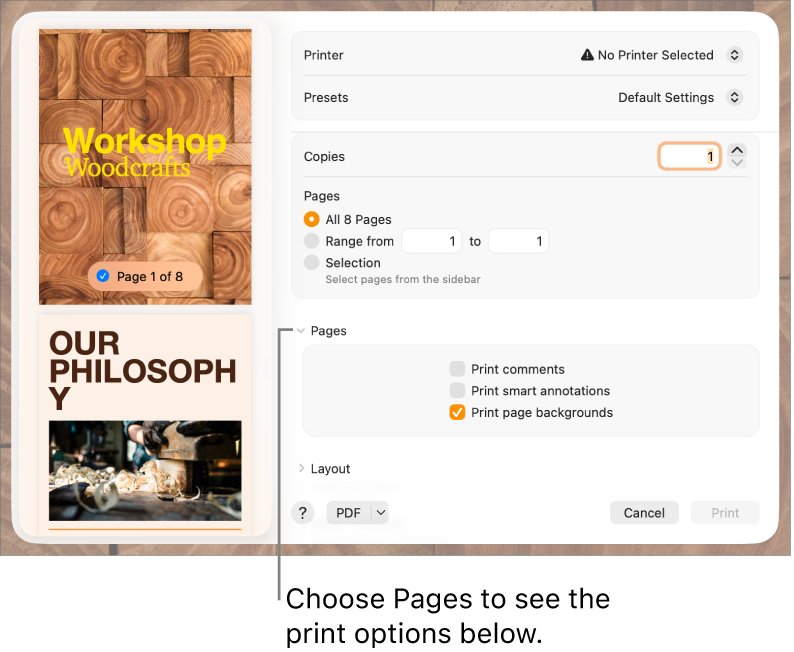
- Under Pages, select Range and print only the first page on plain paper.
- Place the printed page on top of an Avery 5392 sheet and hold both up to a window or lamp.
- Check that every name sits inside its badge with space on all sides.
- If the text sits low or to one side, change Top or Left in Document Margins by the same amount and print another test.
- Once the test lines up, load the Avery sheet and print the full range.
Microsoft gives the same advice for Word labels: print to a plain sheet before loading labels. The Mac must already print documents to your printer before the test sheet will come out.
Can Pages mail merge fill Avery name badges?
| What you want | Does Pages mail merge do it? | What to do instead |
|---|---|---|
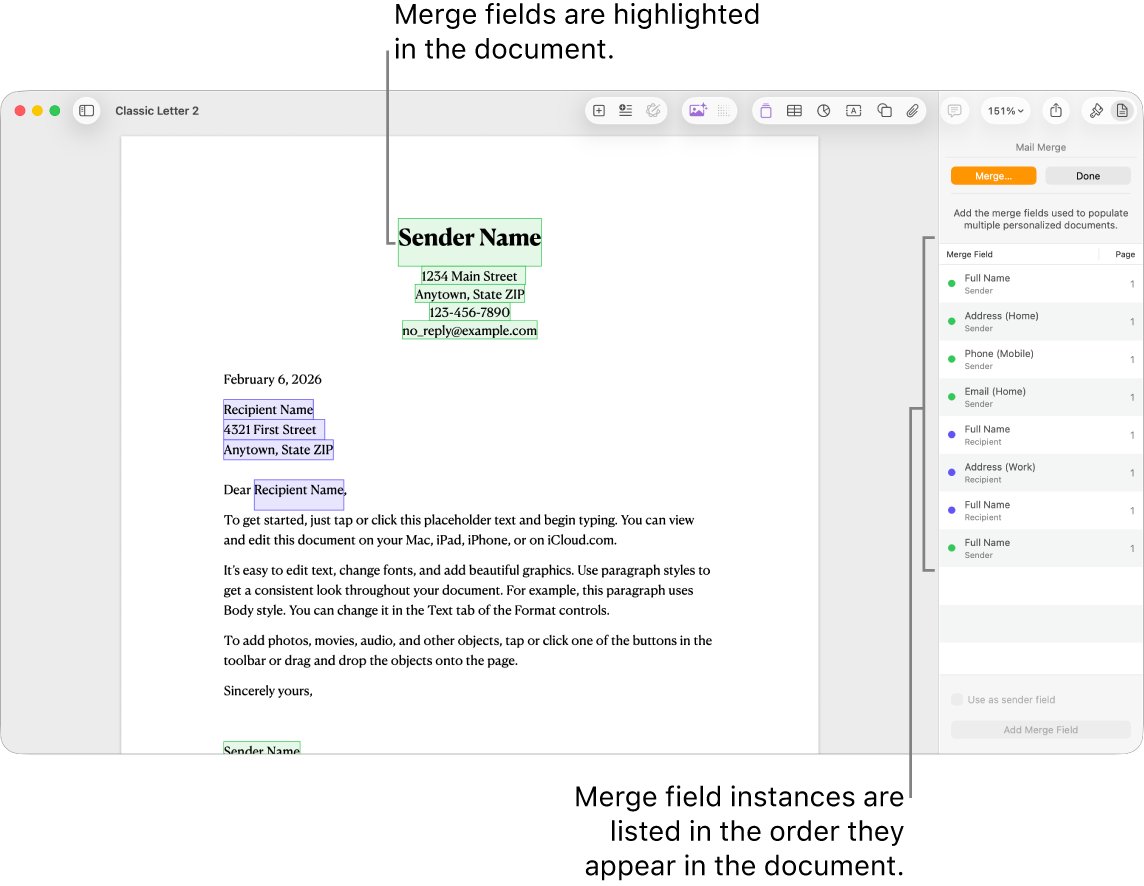
| One badge per page, many names | Yes | Add a merge field, add a Numbers spreadsheet as the source, then click Merge |
| Six or more different names on one Avery sheet | No, each record becomes its own copy of the document | Type or paste the names into the table cells |
| Names that come from Contacts | Yes, Contacts is the default merge source | Use Add Merge Field and pick a Contacts field |
| Names from a spreadsheet | Yes, from a Numbers spreadsheet | Document > Mail Merge > Add Merge Field > Add from Spreadsheet |
Avery labels in Pages problems and fixes
The table is cut off at the bottom of the page
The table is a floating object, so it can't flow to the next page.
- Select the table.
- In the Format sidebar, open the Arrange tab.
- Choose Move with Text.
The table won't move where you drag it
The table is set to move with the text.
- Click the table and click Format in the toolbar.
- Open the Arrange tab and click Stay on Page.
Text lands on the perforations
The margins or cell sizes don't match the sheet.
- Re-measure the badge size and the distance to the first badge.
- Re-enter Height and Width under Row & Column Size.
- Adjust Document Margins, then print another plain-paper test.
Your Avery product number is missing in Word
Word's list doesn't include every label product.
- In Label Options, select New Label.
- Enter the label measurements from the package and save the custom label.
Avery name badges in Pages FAQ
How do I use Avery labels in Pages?
Create a blank document, set the paper size, and add a table with one cell per label. Set the row height and column width to the label size in the Table tab, type the text, and test print on plain paper before printing on the Avery sheet.
Does Pages have Avery label templates?
No. The Pages template chooser does not include Avery label templates. Build a table that matches the sheet, or open an Avery template saved in Word format, because Pages can open and edit .doc and .docx files.
How do I use Avery labels in Word?
Go to Mailings > Labels, select Options, choose your label brand in Label products and the label in Product number. Select OK twice and Word opens a document with a table that matches the labels, ready for you to type and print.
How do I use Avery labels in Excel?
Keep the names or addresses in an Excel list, then use Word's mail merge for labels to pull each row into its own label. Excel holds the data; Word lays it out on the Avery sheet.
How do I put Avery labels in the printer?
Load one sheet at a time in the paper tray, with the label side facing the way your printer's manual says it prints. Print a plain-paper test first and compare it against an Avery sheet to confirm the orientation and alignment.
How do I use Avery label templates on a Mac?
Drag a Word-format Avery template onto the Pages icon to open it in Pages, or open it in Word for Mac. Type into the table cells, test print on plain paper, then print on the label sheet.
How do I design Avery labels in Pages?
Design inside the table cells: set the font, size and alignment in the Format sidebar, and add a second line for a title or company. Turn off table outlines and alternating row colors so no lines print on the labels.
How do I make Avery labels with different names on each label?
Type a different name into each table cell in Pages or Word. Pages mail merge creates a separate copy of the whole document for each record, so it suits one badge per page rather than a full sheet of different names.
Bottom line: the best way to print Avery 5392 badges from a Mac
Build one Pages table to the Avery 5392 measurements, save it as a custom template, and test print on plain paper every time. Pages has no Avery templates, but a correctly sized table reuses cleanly for every event, and the plain-paper test catches alignment errors before they waste badge stock.

![How do I find saved passwords on my computer [Windows 11/10]](https://techdows.com/wp-content/uploads/2026/10/How-Do-I-Find-Saved-Passwords-on-My-Computer-Windows-1110.jpg)