Run tasklist /svc /fi "imagename eq svchost.exe" in Command Prompt to list every svchost.exe process with the services it hosts, or expand a Service Host entry on the Task Manager Processes tab.
This guide covers both routes, a PID lookup for one busy instance, a PowerShell query, why Windows runs so many copies, how to tell a genuine svchost.exe from a fake, and what to do when one eats CPU or disk.

The fastest way to see services inside svchost.exe
The built-in tasklist command prints every svchost.exe instance, its process ID (PID) and the service names it carries, in one table. It works the same on Windows 11 and Windows 10.
- Press Win + R, type
cmdand press Enter. - Type
tasklist /svc /fi "imagename eq svchost.exe"and press Enter. - Read the Services column: each row is one svchost.exe process, and the names beside it are the services running inside it.
- Note the PID of any instance you want to investigate further.
The Services column shows short service names such as Winmgmt or BFE, not the friendly display names you see in the Services management console.
Which method should you use?
| Your situation | Use this | Why |
|---|---|---|
| You want a quick look without typing commands | Task Manager Processes tab, expand Service Host entries | Each entry shows the service name and its own CPU, memory and disk use |
| One svchost.exe is busy and you only know its PID | Task Manager Details tab, then tasklist /svc /fi "PID eq <PID>" |
Turns a single process ID into the exact services it hosts |
| You want the full list for every instance | tasklist /svc in Command Prompt |
Prints all services per process without truncation |
| You want to filter, sort or save the result | PowerShell Get-CimInstance Win32_Service |
Returns objects you can group by ProcessId or export |
| You need thread and stack detail for a process | Sysinternals Process Explorer | Microsoft's advanced process viewer; the current release lists Windows 11 as its supported client |
Method 1: Expand Service Host entries in the Task Manager Processes tab
Once you open Task Manager, it lists each svchost.exe instance on the Processes tab as a Service Host entry named after the service or group it runs. On PCs with more than 3.5 GB of RAM, most entries hold a single service, so the name alone often answers the question.
- Press Ctrl + Shift + Esc to open Task Manager.
- Select More details if Task Manager opens in its condensed view.
- Open the Processes tab and scroll to the Windows processes group.
- Find the entries that start with Service Host:.
- Select the arrow beside a Service Host entry to expand it and see the services it contains.
- Select the CPU, Memory or Disk column header to sort and bring the busiest host to the top.
Right-click a service listed under an expanded host to stop it, restart it or open the Services console from there.
Method 2: Match a svchost.exe PID from the Details tab to its services
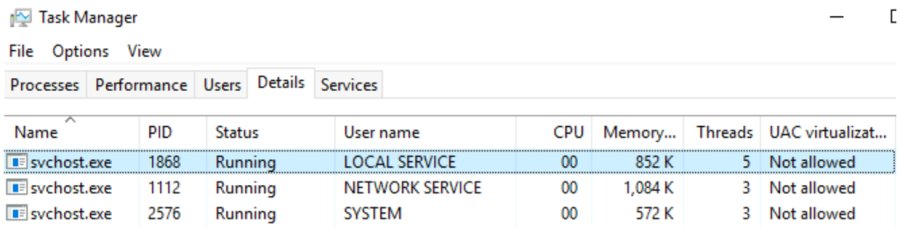
The Details tab shows the raw process name and its PID, which is what you need when a monitoring tool, an event log or a crash report names only a process ID.
- Open Task Manager and select the Details tab.
- Select the Name column header so every svchost.exe row sits together.
- Sort by CPU or Memory and note the PID of the instance you care about.
- Open Command Prompt and run
tasklist /svc /fi "PID eq 1234", replacing1234with that PID. - Read the service names in the Services column of the single row returned.
Method 3: Use tasklist /svc in Command Prompt
Of the Tasklist.exe switches, /svc lists the service information for each process without truncation, and /fi filters the output by image name, PID or service name. The Microsoft documentation notes that /svc is valid only with table output.
tasklist /svc /fi "imagename eq svchost.exe"/svc adds a Services column to each row; /fi "imagename eq svchost.exe" keeps only Service Host processes. Swap the filter for "PID eq 1234" to check one process, or "SERVICES eq wuauserv" to find which svchost.exe hosts a named service.
You should see: A table with Image Name, PID and Services columns, one row per svchost.exe instance.
To keep a copy for later comparison, run tasklist /v /fo csv and redirect it to a file, the same capture Microsoft uses when it records the PID of a busy process.
Method 4: List svchost services with PowerShell Get-CimInstance
The WMI class Win32_Service stores a ProcessId for every running service, so PowerShell can group services by the svchost.exe process that hosts them.
Get-CimInstance -ClassName Win32_Service -Filter "ProcessId = 1234" | Select-Object Name, DisplayName, StateGet-CimInstance queries the Win32_Service class, and -Filter takes a WQL where clause without the WHERE keyword. Replace 1234 with the PID from Task Manager or tasklist. Leave out -Filter and pipe to Sort-Object ProcessId to see every service next to its host PID.
You should see: The short name, friendly display name and state of each service running inside that svchost.exe process.
The same class lists stopped services too, so you can get a list of running services by filtering on State = 'Running' instead of a PID.
Check which svchost.exe hosts a specific service
Run this check after you change a service or isolate it, to confirm which process it now lives in.
- Open Command Prompt.
- Run
tasklist /svc /fi "SERVICES eq Winmgmt", replacingWinmgmtwith the short name of your service. - Confirm one svchost.exe row is returned and note its PID.
- Run
tasklist /svc /fi "PID eq <that PID>"and confirm whether the service is alone in that process or shares it with others.
Why are there so many svchost.exe processes?
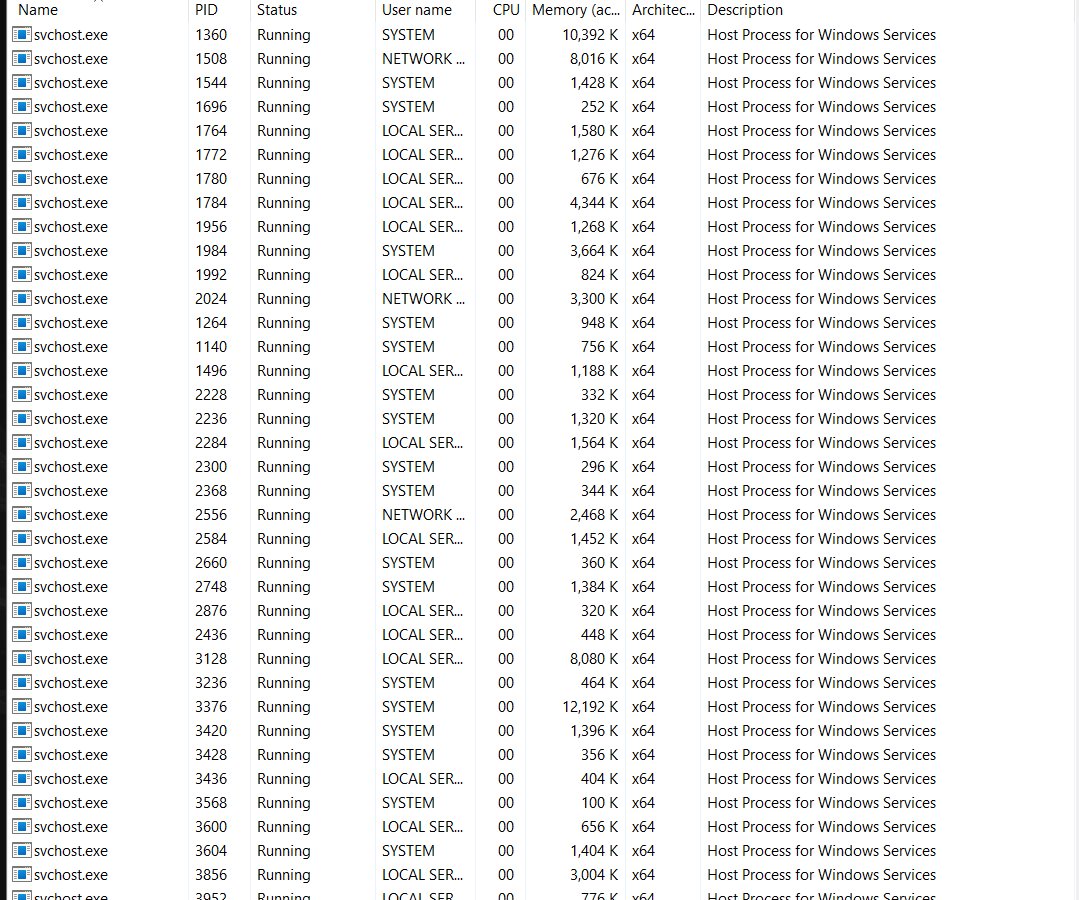
Svchost.exe is a shared-service shell that loads services from DLL files. Since Windows 10 version 1703, Windows splits most services into their own svchost.exe process on PCs with more than 3.5 GB of RAM, which is why Task Manager can show dozens of copies.
| Situation | What Windows does | Typical svchost.exe count |
|---|---|---|
| 3.5 GB of RAM or less | Groups related services into shared hosts by security context, such as Local Service, Local System and Network Service | About 17 to 21 instances |
| More than 3.5 GB of RAM | Runs most services in their own svchost.exe process | About 67 to 74 instances |
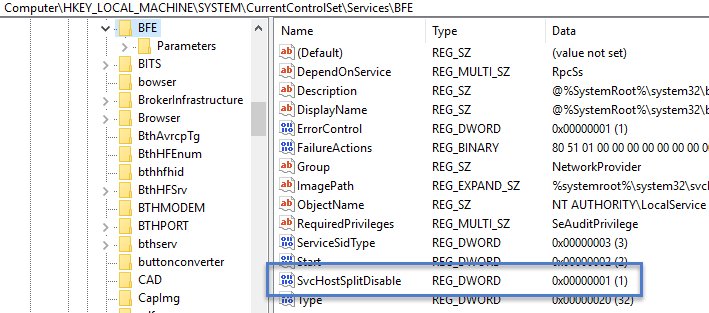
| Services marked as exceptions | Keeps them grouped even on high-RAM PCs, for example Base Filtering Engine (BFE) with Windows Firewall (MpsSvc), and RPC Endpoint Mapper with Remote Procedure Call | Shared host regardless of RAM |
| Checking whether a service stays grouped | Look for the SvcHostSplitDisable value set to 1 in that service's key under HKEY_LOCAL_MACHINE\SYSTEM\CurrentControlSet\Services |
A value of 1 prevents the split |
Splitting costs some memory, but it isolates failures: a crash in one service no longer takes its neighbours down, and Task Manager can report CPU, disk and memory per service.
Is svchost.exe safe?
The genuine svchost.exe is a core Windows process started by services.exe, and ending it stops every service it hosts. Malware sometimes borrows the name, so check the parent process and the file location of any instance that looks wrong.
| Check | How to run it | What a genuine instance shows |
|---|---|---|
| Parent process and file path | In PowerShell: Get-CimInstance Win32_Process -Filter "Name = 'svchost.exe'" | Select-Object ProcessId, ParentProcessId, ExecutablePath |
Every instance has the PID of services.exe as its parent and the same Windows system path |
| Hosted services | tasklist /svc /fi "PID eq <PID>" |
At least one Windows service name in the Services column |
| Account | Task Manager Details tab, User name column | A system account such as SYSTEM, LOCAL SERVICE or NETWORK SERVICE |
An svchost.exe that runs from a user folder such as Downloads or AppData, has no hosted service, or has a parent other than services.exe is not the Windows Service Host. Run a full scan in Windows Security before you do anything else with it.
What to do when a Service Host is consuming too much CPU or disk
First identify the service, then deal with that service. Ending the svchost.exe process itself stops everything inside it and rarely fixes the cause.
Service Host uses high CPU and holds a single service
The named service itself is busy, for example during updates or indexing.
- Open Task Manager, select the Processes tab and sort by CPU.
- Expand the top Service Host entry and note the service name.
- Wait a few minutes if the service is doing scheduled work, such as Windows Update.
- If the load never drops, right-click the service and select Restart.
- Search for that service name on Microsoft Support or Microsoft Learn for a service-specific fix.
Service Host uses high CPU and holds several services
A shared host hides which of its services is driving the load.
- Open Command Prompt as administrator.
- Run
tasklist /svc /fi "PID eq <PID>"to list the services in the busy host. - Run
sc config <service name> type= ownfor one of them to move it into its own process. - Restart that service from the Task Manager Services tab or the Services console.
- Run
tasklist /svcto confirm it now sits in its own svchost.exe, then watch which PID keeps the CPU load. - When finished, run
sc config <service name> type= shareand restart the service to undo the change.
Service Host uses high disk
One hosted service is reading or writing heavily, often an update or maintenance task.
- Open Task Manager, select the Processes tab and sort by Disk.
- Expand the top Service Host entry to see which service is responsible.
- Let the service finish if it is installing updates or running maintenance.
- If the disk use stays high, restart that service from the Services tab and check again.
Service Host memory keeps growing over hours
A hosted service is leaking memory or handles; Microsoft documents this pattern for the WMI service (Winmgmt).
- Run
tasklist /svc /fi "SERVICES eq Winmgmt"to find the host that runs WMI. - If it shares the host, run
sc config Winmgmt type= ownfrom an elevated prompt and restart the service. - Watch the memory of the new svchost.exe over time in Task Manager.
- If that instance keeps growing, the leak is in WMI; if another host grows instead, repeat the check for its services.
When the WMI host is the busy one, the cause is often a program querying it through its WMI provider host process, so check which app is running when the spike starts.

svchost.exe services FAQ
What command shows the services running in svchost.exe?
Run tasklist /svc /fi "imagename eq svchost.exe" in Command Prompt. It lists every svchost.exe process with its PID and the short names of the services it hosts, without truncating the list.
Why does Task Manager show so many Service Host processes?
Since Windows 10 version 1703, PCs with more than 3.5 GB of RAM run most services in their own svchost.exe process. That raises the count to roughly 67 to 74 instances, compared with about 17 to 21 when services are grouped.
Can I end a svchost.exe process in Task Manager?
You can, but every service inside that process stops with it, which can cut networking, audio or updates until you restart. Identify the service first and restart only that service from the Task Manager Services tab.
How do I find which svchost.exe runs a specific service?
Run tasklist /svc /fi "SERVICES eq <name>" with the service's short name, such as wuauserv for Windows Update. The single row returned shows the PID of the svchost.exe that hosts it.
Is svchost.exe a virus?
No. The genuine svchost.exe is the Windows Service Host, started by services.exe. A copy running from a user folder, with no hosted services or a different parent process, is suspicious and should be scanned with Windows Security.
Why are some services still grouped on a PC with plenty of RAM?
Some services carry a SvcHostSplitDisable value of 1 in their registry key, which keeps them grouped. Microsoft names Base Filtering Engine with Windows Firewall, and RPC Endpoint Mapper with Remote Procedure Call, as examples.
How do I see svchost.exe services with PowerShell?
Run Get-CimInstance -ClassName Win32_Service -Filter "ProcessId = 1234" with the PID you want. The Win32_Service class records the process ID of each running service, so the result lists every service in that host.