Most iOS updates fail for one of five reasons: the iPhone does not support the new version, storage is too full, it cannot reach Apple's update server, the download is slow, or the install does not complete, and each has a specific fix.
This guide covers the standard wireless update, each common failure with its fix, updating with a Mac or PC, recovery mode, and the error codes a computer shows.
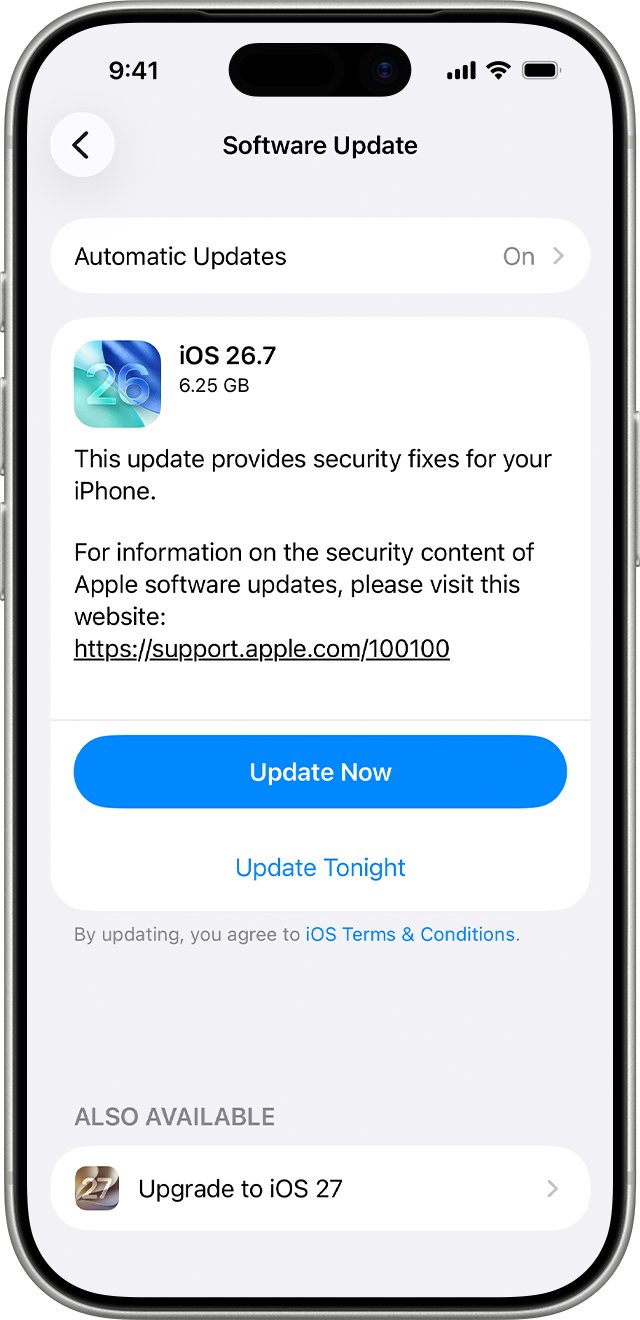
How to update iOS on iPhone wirelessly
Start with Apple's standard route; many failures disappear once the iPhone is on Wi-Fi and plugged in.
- Back up the iPhone to iCloud or your computer.
- Plug the iPhone into power and connect to a Wi-Fi network.
- Open Settings and tap General.
- Tap Software Update to see the installed iOS version and whether an update is available.
- Tap Download and Install, then follow the onscreen instructions.
- Enter your passcode if asked and keep the iPhone on power until it restarts.
VPN or proxy connections can stop the iPhone from contacting Apple's update servers, so turn them off before you try again. Some updates are not offered wirelessly at all; use a computer for those.
Why is my iOS update failing? Common causes and fixes
Match what you see to a row, then go to that fix below.
| What you see | Likely cause | Fix |
|---|---|---|
| No update appears in Software Update | The model does not support the latest iOS, or the update is not offered wirelessly | Check compatibility, then update with a computer |
| A message about needing more space | Not enough free storage for the download | Let iOS remove apps temporarily, or free up storage |
| Unable to Check for Update or Unable to Download | The iPhone cannot reach the update server | Retry on the same network, then another network or a computer |
| The download crawls for a long time | A large update on a slow connection | Use Wi-Fi and stop other downloads |
| The install stops or the Apple logo and progress bar sit still | Power ran out or the install is still running | Plug in, wait, then force restart if it never finishes |
| The same failure repeats | A damaged downloaded update file | Delete the update and download it again |
| An error number on your Mac or PC | Computer software, connection, USB or hardware problem | Match the number in the error code table |
Check if your iPhone supports the latest iOS update
Apple lists which models each iOS version supports. An older iPhone that is not on that list will never show the newest update, whatever you try.
- Open Settings > General > About and note the Model Name.
- Open the compatible devices list for the latest iOS on apple.com.
- Find your model on that list.
- If it is listed, carry on with the fixes below.
- If it is not listed, the newest iOS will not install on that iPhone, wirelessly or through a computer.
Not enough storage to update iOS: how to free up space
If a message offers to remove apps temporarily to make space, tap Continue. iOS deletes the apps for the install and reinstalls them automatically afterwards.
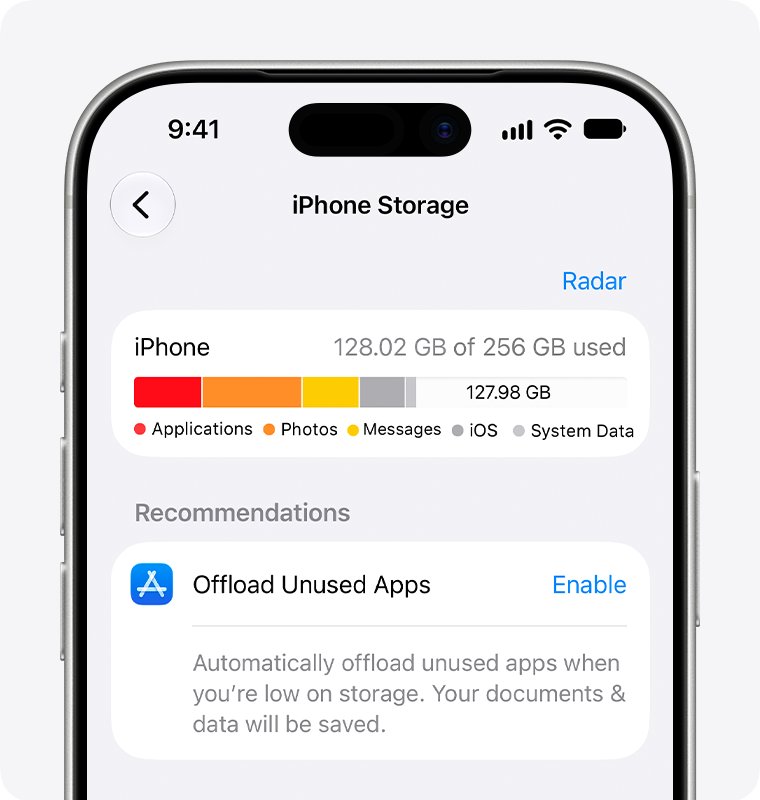
- Open Settings > General > iPhone Storage.
- Tap Enable next to Offload Unused Apps to clear app data without deleting your personal information.
- Scroll to Recommendations and enable the ones that suit you, or tap one to review what it would delete.
- In the app list, tap a large app and choose Offload App to keep its documents, or Delete App to remove it completely.
- Return to Settings > General > Software Update and tap Download and Install.
You do not need to buy more iCloud storage to update; device storage is what matters. A large Other or System Data bar needs no action; delete apps and content instead.
Fix Unable to Check for Update and Unable to Download alerts
These alerts mean the iPhone could not reach Apple's update server or could not verify the update. The wording varies, such as “An error occurred while checking for a software update” or “This update requires a Wi-Fi network connection to download.”
- Turn off any VPN or proxy on the iPhone.
- Try the update again on the same Wi-Fi network.
- If the alert comes back, join a different Wi-Fi network and try again.
- Avoid downloading other content while the update downloads.
- If it still fails on several networks, delete the update and download it again, or update with a computer.
Delete and re-download a failed iOS update
A partly downloaded or damaged update file can make every install attempt fail. Removing it forces a clean download.
- Open Settings > General > iPhone Storage.
- Find the iOS update in the list of apps.
- Tap the update, then tap Delete Update.
- Go to Settings > General > Software Update.
- Download the latest update again and install it.
If the update is not in the storage list, or the failure repeats, update with a Mac or PC instead.
Update iOS using a Mac or Windows PC
A computer downloads the full update itself, which gets around server, storage and network problems on the iPhone.
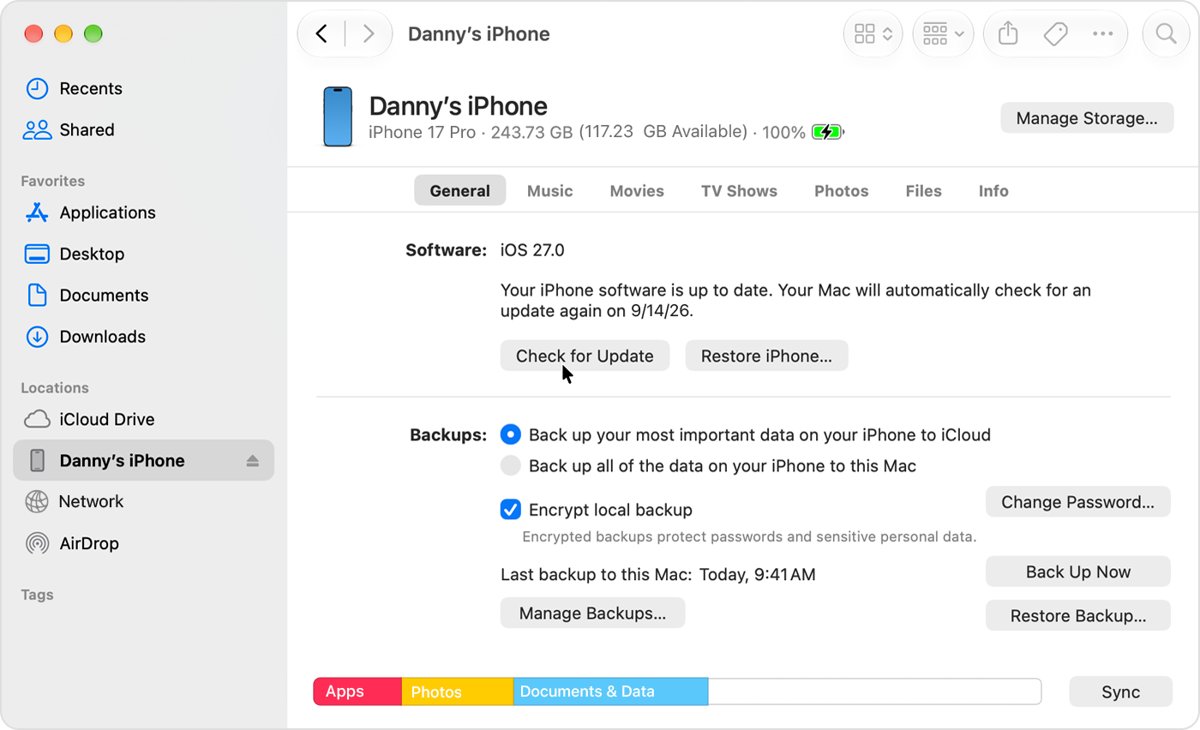
Use Finder on macOS Catalina or later, the Apple Devices app on Windows, or iTunes on macOS Mojave or earlier or a PC without the Apple Devices app.
- Back up the iPhone first.
- Open Finder on a Mac or the Apple Devices app on a Windows PC.
- Connect the iPhone with a USB cable.
- If Trust This Computer appears, unlock the iPhone and tap Trust.
- Select the iPhone, then click General (or Summary in iTunes).
- Click Check for Update, then Download and Update.
- Enter your passcode on the iPhone if asked, and keep it connected until the update finishes.
If the computer uses Personal Hotspot from the same iPhone, switch the computer to another Wi-Fi or Ethernet network before you update.
iPhone stuck on the Apple logo or progress bar during an iOS update
The progress bar moves very slowly or looks frozen
The install is still running; the time depends on the update size and the number of files.
- Keep the iPhone connected to power.
- Press a button; if an updating message appears, the update is still in progress.
- Leave it alone and let it finish, even if the bar completes and starts again.
The update never completes or the iPhone stops responding
The install has hung.
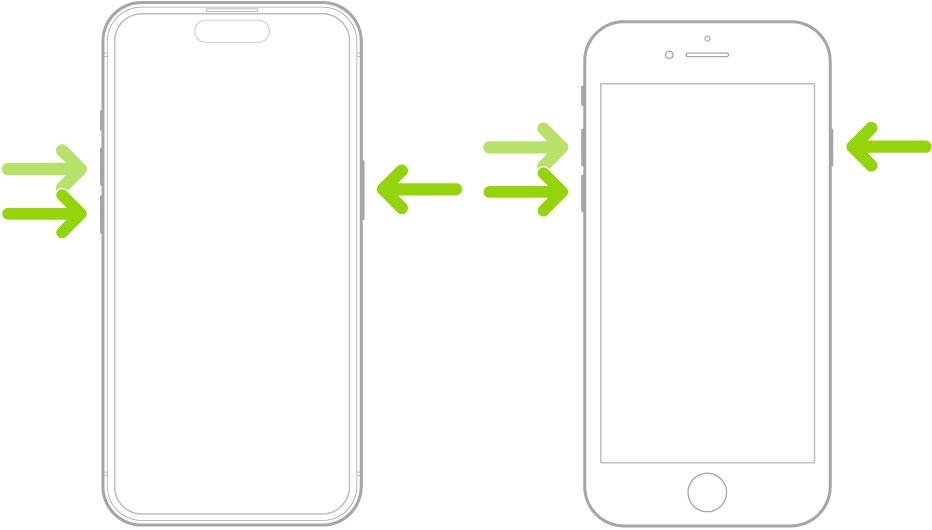
- Press and quickly release the volume up button.
- Press and quickly release the volume down button.
- Press and hold the side button, and release it when the Apple logo appears.
The iPhone ran out of battery mid-update
A wireless install needs power to finish.
- Connect the iPhone to a power source.
- Turn it on and let the update or restore complete.
Use recovery mode when an iOS update fails and the iPhone won't start
Use recovery mode when the Apple logo shows for several minutes with no progress bar, the computer does not recognise the iPhone, or you see the “Connect to computer” screen. Choose Update first; Restore erases all your data.
- Update your Mac, or install the latest Apple Devices app on your PC.
- Connect the iPhone with a USB cable and open Finder or the Apple Devices app.
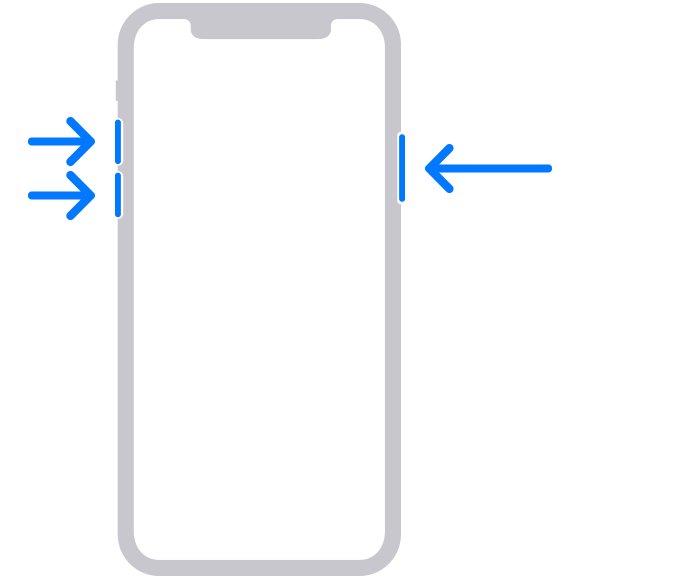
- On iPhone 8 or later, press and quickly release Volume Up, then Volume Down, then hold the side button until the “Connect to computer” screen appears.
- On iPhone 7 or 7 Plus, hold the side and Volume Down buttons together; on iPhone 6s or earlier, hold the Home and side or top buttons together.
- Locate the iPhone on the computer and choose Update when the Update or Restore options appear.
- If the download takes more than 15 minutes and the iPhone leaves recovery mode, let the download finish, then enter recovery mode again.
- Choose Restore only if Update fails, then set the iPhone up from your backup.
iOS update and restore error codes on a Mac or PC
When an update through a computer fails with “An unknown error occurred” and a number, the number points to the area to check. Update the computer's software before anything else.
| Error numbers or message | What it points to | What to do |
|---|---|---|
| 10 | The iPhone's software is newer than the computer's | Update macOS, iTunes or the Apple Devices app, reconnect and click Install if prompted |
| 17, 1638, 3014, 3194, 3000-3015, 3200, “There was a problem downloading the software” | The computer cannot reach Apple's servers | Check the connection to Apple's update servers and that third-party security software is not blocking it |
| 1671 | The computer is still downloading software | Wait for the download to finish, then try again |
| 4037 | The iPhone is locked | Unlock the iPhone and try again |
| 2, 4, 6, 1611 | Security software or the USB connection | Check third-party security software, then the cable and port |
| 13, 1600-1604, 1643-1650, 2000-2009, “invalid response” | USB cable, port or computer | Use the original or an Apple-certified cable, another port not on the keyboard, or another computer |
| 1, 3, 11, 12, 16, 20-40, 56, 1002-1014, 1667, 1669 | A possible hardware issue | Retry with a reliable cable, computer and network; get service if it repeats |
| 1015, “The required resource can't be found” | Modified software or an attempted downgrade | Restore to the latest iOS with recovery mode |
| “Cellular Update Failed” or Apple Pay update alert | The update did not finish on the iPhone | Back up, connect to a computer and hold Command (Mac) or Control (PC) while clicking Check for Update |
Turn on automatic iOS updates to avoid missed updates
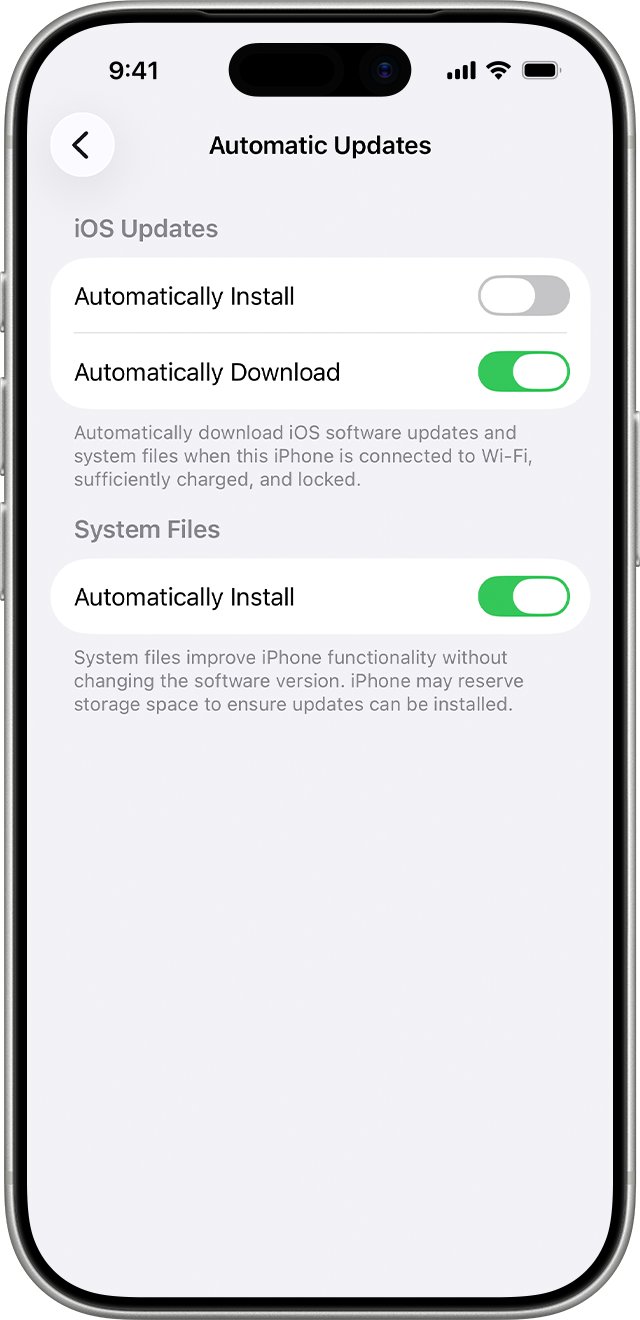
Automatic updates install overnight while the iPhone charges on Wi-Fi, which avoids the low-battery and slow-download failures above.
- Open Settings > General > Software Update.
- Tap Automatic Updates.
- Turn on Automatically Install to have updates installed overnight; you are notified before it installs.
- Or turn off Automatically Install and turn on Automatically Download to install updates yourself later.
Check the iOS update installed correctly
- Open Settings > General > Software Update.
- Confirm the screen shows the iOS version you installed and says it is up to date.
- Open Settings > General > iPhone Storage and check no pending update remains in the app list.
- Make a call and open your main apps to confirm they work.
iOS update problems FAQ
These answers cover what people most often ask when an iOS update goes wrong.
Why is my iOS update failing?
The usual causes are an unsupported iPhone model, too little free storage, no connection to Apple's update server, a slow download, or an install interrupted by low battery. Check the alert you see, then apply the matching fix, or update with a computer.
Why doesn't the latest iOS update show up on my iPhone?
Your model may not support that version, or the update is not offered wirelessly. Check Apple's compatible devices list for the release, then try updating with Finder on a Mac or the Apple Devices app on a PC.
How much storage do I need to update iOS?
Apple does not give one fixed figure because each update is a different size. If space is short, iOS offers to remove apps temporarily and reinstall them afterwards; tap Continue, or free space in iPhone Storage.
Can I use my iPhone while an iOS update downloads?
Yes. You can keep using the iPhone during the download, and it notifies you when the update is ready to install. You cannot use it during the installation itself, which ends with a restart.
Is it safe to force restart an iPhone stuck on an update?
Apple recommends letting a slow progress bar finish first. If the update never completes or the iPhone stops responding, Apple's advice is to force restart it; if the Apple logo and progress bar still return, the iPhone may need service.
Will updating iOS with recovery mode delete my data?
Not if you choose Update, which reinstalls iOS and keeps your data. Restore erases everything and reinstalls iOS, so use it only when Update fails and you have a backup to restore from.
Can I update iOS over cellular data?
Some updates need Wi-Fi; the iPhone then shows “This update requires a Wi-Fi network connection to download.” Join a Wi-Fi network, or connect the iPhone to a computer and update it there.