The “NVIDIA Installer cannot continue” error almost always means the driver package does not match your graphics card or your Windows version, so the fix is to download the exact driver for your GPU and Windows build from NVIDIA, or from your laptop maker.
This guide covers matching the driver, closing NVIDIA processes, updating Windows, installing through Device Manager, reinstalling from scratch, and repairing Windows system files.
Re-download the NVIDIA driver software for your exact GPU
Most failures come from a driver built for a different product series, a different Windows version, or a corrupted download. A fresh, matched package fixes all three.
- Right-click Start, select Device Manager and expand Display adapters to read the exact name of your NVIDIA GPU.
- Press Windows key + R, type
winverand press Enter to confirm your Windows version. - Go to the official NVIDIA drivers page at nvidia.com and open Manual Driver Search.
- Pick the product type, series and model that match Device Manager, and your Windows version.
- Download the driver again, saving it to a new location so it does not reuse the old file.
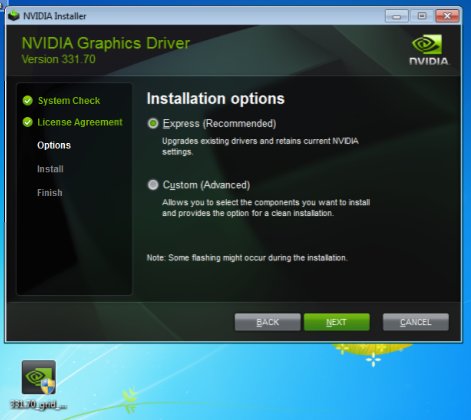
- Run the new package and choose Express Installation when the installer offers it.
- Select Restart Now if the installer prompts you to restart.
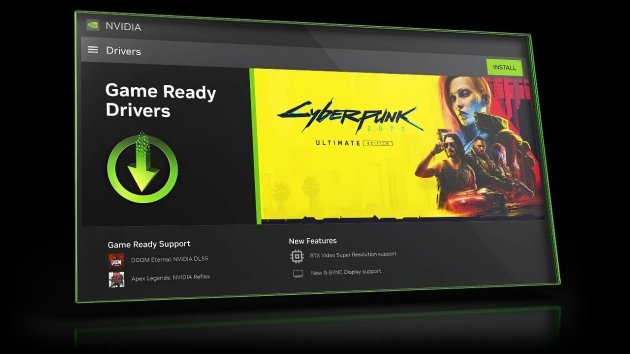
NVIDIA recommends the NVIDIA app for downloading drivers. The app supports Windows 10 and Windows 11 and picks the matching driver for the detected GPU automatically.
NVIDIA installer cannot continue: match the message to the fix
The line under “NVIDIA Installer cannot continue” tells you which fix to try first.
| Message or situation | Likely cause | Fix to try first |
|---|---|---|
| This graphics driver could not find compatible graphics hardware | Wrong driver for the GPU, or Windows sees the GPU under a generic driver | Re-download for your exact GPU, or install through Device Manager |
| This NVIDIA graphics driver is not compatible with this version of Windows | Driver built for another Windows version, or Windows is out of date | Update Windows, then download the driver for your Windows version |
| Laptop with NVIDIA graphics | The laptop maker supplies a customised driver | Update laptop drivers through the manufacturer |
| Installer fails part-way or freezes | NVIDIA processes or old files are in use | Quit NVIDIA processes, then rename the extraction folder |
| Every NVIDIA driver fails, even matched ones | A damaged previous driver or Windows files | Remove and clean install, then run SFC and DISM |
Quit all NVIDIA background processes
Running NVIDIA services and apps can hold driver files open, so the installer cannot replace them. End them before you run the package again.
- Close the NVIDIA app and any game or creative app that uses the GPU.
- Press Ctrl + Shift + Esc to open Task Manager.
- Select Processes and sort by Name.
- Right-click each process whose name begins with NVIDIA and select End task.
- Run the NVIDIA driver package again straight away.
Some NVIDIA processes restart on their own. If the installer still fails, restart the PC and run the package before opening any other app.
Check whether anti-malware software blocked the NVIDIA installer
Security software sometimes quarantines a file the installer needs, which stops the setup part-way. Keep your protection on and check what it reported instead.
Only use driver packages from nvidia.com or your PC manufacturer, so any block you see is worth reading.
- Open Windows Security and select Virus & threat protection.
- Select Protection history and look for entries created when you ran the installer.
- If an entry names the NVIDIA package you downloaded from nvidia.com, delete that file and download it again from nvidia.com.
- Run the fresh package once more.
- If you use a third-party antivirus that keeps blocking the official file, report it to that vendor as a false positive through its support site.
If the Windows Security app is turned off or missing, turn Windows Security back on before you go further.
Update to the latest version of Windows
New NVIDIA drivers target current Windows builds. An outdated build triggers the “not compatible with this version of Windows” message even with the right GPU driver.
- Select Start > Settings > Windows Update.
- Select Check for updates and install everything listed.
- Select Advanced options > Optional updates and install any display driver offered there.
- Restart the PC, even if no update asked for it.
- Run the NVIDIA driver package again.
Windows Update can install a recommended NVIDIA driver by itself. Optional driver updates are not installed automatically, so check that page.
Update laptop drivers through the manufacturer
Many laptops ship a graphics driver customised by the manufacturer, and a generic NVIDIA package may refuse to install on them. Use the laptop maker's support site instead.
- Find the exact model or serial number on the sticker under the laptop or in its support app.
- Open the support section of the manufacturer's official website.
- Enter the model or serial number and select your Windows version.
- Download the graphics or video driver listed for NVIDIA.
- Install it, then restart the laptop.
Microsoft advises against downloading drivers from any site other than the manufacturer's official one. That rules out driver-download portals and driver updater tools.
Install NVIDIA drivers via Device Manager
Device Manager can update the graphics driver from the driver files directly, which can work when the NVIDIA setup program refuses. Run the NVIDIA package once first so it unpacks its files, then close the installer when the error appears.
- Right-click Start and select Device Manager.
- Expand Display adapters.
- Right-click your NVIDIA GPU, or Microsoft Basic Display Adapter if no NVIDIA entry appears, and select Update driver.
- Select Search automatically for drivers to let Windows look first.
- If nothing is found, select Update driver again, then Browse my computer for drivers.
- Select Browse…, choose the folder the NVIDIA package unpacked to, and select OK.
- Select Next and wait for Windows to install the driver, then select Close and restart.
If Windows reports that the best drivers for your device are already installed, the unpacked driver is not newer than the current one.
Fix NVIDIA installer incompatibilities
An incompatibility means the package and the PC disagree on one of the items below. Check each before trying another download.
| Check | Where to see it | What must match |
|---|---|---|
| GPU model | Device Manager > Display adapters | The product series and model chosen on the NVIDIA download page |
| Windows version | winver in the Run box |
The operating system chosen on the download page |
| Driver type | NVIDIA download page | Game Ready or Studio for GeForce cards; a workstation driver for NVIDIA RTX and Quadro cards |
| Laptop or desktop | Model sticker or system information | Laptop drivers from the laptop maker when the generic package fails |
| NVIDIA app | nvidia.com NVIDIA app page | Windows 10 or Windows 11 and a GeForce 551.52 driver or later |
GeForce, NVIDIA RTX and Quadro are separate product lines with separate drivers. Picking the wrong line on the download page is a common cause of the “could not find compatible graphics hardware” message.
Rename the NVIDIA folder
The driver package unpacks its files to a folder before the installer runs. Leftover files from an earlier failed attempt in that folder can break the next install.
- Run the NVIDIA package and note the extraction folder path it shows before unpacking.
- Cancel the installer if it is still open.
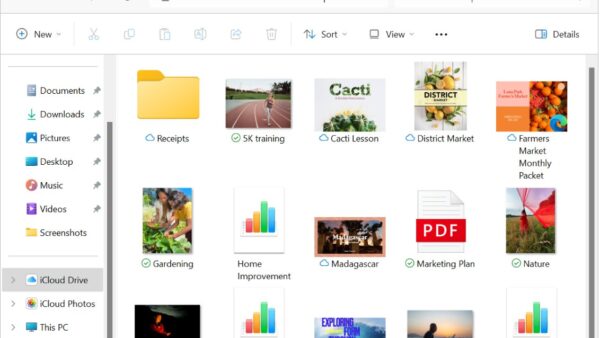
- Open File Explorer and go to that folder's parent location.
- Right-click the NVIDIA extraction folder, select Rename and add
.oldto its name. - Run the package again and let it unpack to the original, now empty, location.
- Delete the renamed folder once the driver installs.
Remove and clean install NVIDIA drivers
A damaged earlier driver can make every new package fail. Remove it completely, restart, and install the matched driver on a clean slate.
Download the new driver before you start, because the screen resolution drops once the old driver is gone.
- Save your work and close all apps.
- Select Start > Settings > Apps > Installed apps, find the NVIDIA graphics driver, select … and then Uninstall.
- Uninstall the other NVIDIA components listed the same way.
- Right-click Start, select Device Manager, expand Display adapters, right-click the NVIDIA GPU and select Uninstall device.
- Select Uninstall to confirm.
- Restart the PC via Start > Power > Restart.
- Run the matched NVIDIA driver package you downloaded earlier and restart when prompted.
After the restart Windows may install a basic driver by itself. That is fine; the NVIDIA package replaces it.
Run the SFC and DISM tools
Damaged Windows system files can stop any driver installer. Microsoft says to run DISM first, because it supplies the files SFC uses for repairs.
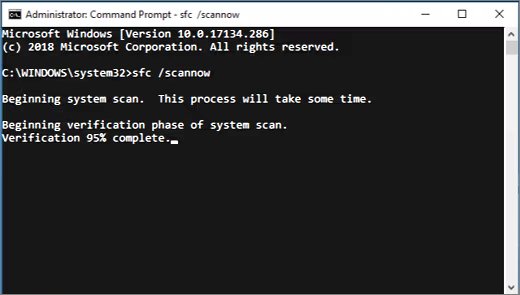
Type cmd in the Search box, right-click Command Prompt and select Run as administrator, then run the two commands in order.
DISM.exe /Online /Cleanup-image /Restorehealth
sfc /scannow
DISM repairs the Windows image using Windows Update as its source, which can take several minutes. sfc /scannow then scans all protected system files and replaces damaged ones with a cached copy. Do not close the window until verification reaches 100%.
You should see: SFC reports “Windows Resource Protection did not find any integrity violations” or “Windows Resource Protection found corrupt files and successfully repaired them.” Restart, then run the NVIDIA package again.
If SFC says it could not perform the requested operation, run it again in safe mode.
Check the NVIDIA driver installed correctly
- Right-click Start and select Device Manager.
- Expand Display adapters and confirm your NVIDIA GPU is listed by name, not as Microsoft Basic Display Adapter.
- Check there is no yellow warning icon on the entry.
- Right-click the GPU, select Properties, open the Driver tab and confirm the driver date and version match the package you installed.
- Check that Settings > System > Display now offers your monitor's full resolution.
NVIDIA installer still fails: other symptoms
The display or games misbehave after a new driver installs
The new driver version has a problem with your hardware or apps.
- Open Device Manager, right-click the NVIDIA GPU and select Properties.
- Open the Driver tab and select Roll Back Driver.
- Choose a reason, select Yes and restart if prompted.
No NVIDIA GPU appears in Device Manager at all
Windows does not detect the card, so no NVIDIA driver can install.
- Shut down and check the card is seated and its power cables are connected on a desktop.
- On a laptop, install the chipset and graphics drivers from the laptop maker's support site.
- Contact the PC or card manufacturer if the GPU still does not show.
Windows Update keeps replacing the driver you installed
Windows Update installs recommended drivers automatically.
- Install the newest matched driver from NVIDIA so Windows Update has nothing newer to offer.
- Check Windows Update > Advanced options > Optional updates and skip older display drivers listed there.
NVIDIA installer cannot continue FAQ
Readers fixing this error usually ask the questions below.
What does “NVIDIA Installer cannot continue” mean?
It means the setup program found something it cannot work with, usually a driver package that does not match your graphics card or Windows version. The second line of the message, such as “could not find compatible graphics hardware”, names the exact problem.
Why does the NVIDIA installer say it could not find compatible graphics hardware?
The driver you downloaded is not built for the GPU Windows detects. Check the GPU name in Device Manager > Display adapters, then download the driver for that exact series and model, or the laptop maker's driver on a laptop.
Why is the NVIDIA driver not compatible with my version of Windows?
The package targets a different Windows version, or your Windows build is out of date. Install all updates from Settings > Windows Update, then download the driver that lists your Windows version on nvidia.com.
Can I install an NVIDIA driver without the NVIDIA installer?
Yes. Run the package once so it unpacks, then use Device Manager > Update driver > Browse my computer for drivers and point it at the unpacked folder. Windows installs the driver files directly.
Should I use the NVIDIA app or the manual download?
NVIDIA recommends the NVIDIA app, which detects your GPU and offers the matching driver on Windows 10 and Windows 11. Use the manual driver search when the app is not installed or you need a specific version.
Why does a generic NVIDIA driver fail on my laptop?
Many laptops use a graphics driver customised by the manufacturer. Download the NVIDIA graphics driver from your laptop maker's support site for your model and Windows version instead of the generic package.
Do I need to restart after fixing the NVIDIA installer error?
Yes, in most cases. Restart after uninstalling the old driver, after Windows updates, and after SFC and DISM repairs. The NVIDIA installer may also ask you to select Restart Now when it finishes.
NVIDIA installer cannot continue error fixed
Start by downloading the driver that matches your exact GPU and Windows version, or your laptop maker's driver, and only move on to a clean reinstall and SFC and DISM if that fails. A mismatched package causes most of these errors, and the matched download fixes them in one step without touching the rest of the system.
With a working driver in place, RTX extras such as NVIDIA Broadcast on Windows 11 will install normally.