To remove a weather alert notification on iPhone 15, swipe left on it and tap Clear, then stop it returning by turning off Severe Weather in the Weather app under More > Notifications.
This guide covers where a stuck weather alert comes from, how to clear, mute or turn off each type, how to remove a weather Live Activity or widget from the Lock Screen, and what to do when the alert keeps coming back.
Clear a weather alert notification on iPhone 15
Clearing removes the alert from the Lock Screen and Notification Center straight away. It does not stop the next alert for the same area.
- Wake the iPhone and find the weather alert on the Lock Screen, or swipe up from the middle of the Lock Screen to open Notification Center.
- Swipe left on the weather alert, or on the stack of Weather notifications.
- Tap Clear, or Clear All for a stack.
- To wipe every notification at once, open Notification Center, tap the clear button at the top of the list, then tap Clear.
If the alert is back within minutes, it is still active for one of your locations, or it is not a notification at all. Use the table below to find which one you have.
Which weather alert fix to use on iPhone 15
| What you see | What it is | Fix |
|---|---|---|
| A Weather app notification that returns after you clear it | A severe weather alert for one of your saved or suggested locations | Turn off Severe Weather for that location in the Weather app |
| Weather notifications you want gone for a few hours only | Normal Weather app notifications | Mute Weather for an hour or for today |
| You never want any Weather app notification | Weather app notifications in general | Turn off Allow Notifications for Weather in Settings |
| A loud full-screen alert from your carrier or government | A Government Alert (Emergency Alert) | Turn off Emergency Alerts under Government Alerts |
| A weather panel that sits on the Lock Screen or in the Dynamic Island | A Live Activity from a weather app | Turn off Live Activities for that app |
| Weather conditions shown on the Lock Screen at all times | A Weather widget or Weather wallpaper | Edit the Lock Screen and remove the widget |
| Alerts for a city you no longer care about | A saved location in the Weather list | Remove the location from your list |
Why a weather alert keeps showing on iPhone
| Source | Why it persists | Where to control it |
|---|---|---|
| Weather app severe weather notifications | Government-issued alerts stay active for your region until the issuing agency ends them, and each saved location can send its own | Weather app > More > Notifications |
| Suggested Locations in Weather | With location access set to Always and Significant Locations on, Weather can alert you for places it predicts you will travel to | Weather app > More > Notifications |
| Government Alerts | Emergency Alerts are on by default in the United States and can play a sound even in Silent mode | Settings > Notifications > Government Alerts |
| Live Activities | Some apps keep an ongoing activity on the Lock Screen and in the Dynamic Island | Settings > Apps > the app > Live Activities |
| Weather widget or wallpaper | A widget is part of the Lock Screen design, so it cannot be cleared like a notification | Lock Screen > Customize |
Apple delivers severe weather notifications by region. In the United States and Canada a region can be an area of at least 500,000 people, so an alert can cover a wide area around your saved city.
Turn off severe weather notifications in the iPhone Weather app
This is the fix for most persistent weather alerts. It keeps the Apple Weather app working and stops the severe weather notifications only.
- Open the Weather app.
- Tap the list button to show your saved locations.
- Tap the More button, then tap Notifications.
- Turn off Severe Weather for each location that keeps sending the alert, including My Location.
- Turn off severe weather for Suggested Locations if you get alerts for places you have not saved.
- Leave Next-Hour Precipitation on or off as you prefer; it covers rain or snow starting and stopping, not warnings.
Severe weather alerts are not available in every country or region, so the options on this screen depend on where your locations are.
Turn off Weather notifications in iPhone Settings
Use this when you want no notifications from the Weather app at all, including precipitation alerts.
- Open the Settings app.
- Tap Notifications.
- Scroll to the app list below Notification Style and tap Weather.
- Turn off Allow Notifications.
- To keep Weather notifications but stop them breaking through a Focus, turn off Time Sensitive Notifications instead.
The same screen lets you keep notifications but remove them from the Lock Screen: under Alerts, deselect Lock Screen and leave Notification Center selected.
Mute weather notifications on iPhone for an hour or a day
Muting is the temporary option. Muted notifications go straight to Notification Center without a sound, banner or Lock Screen alert.
- Swipe left on the weather notification on the Lock Screen or in Notification Center.
- Tap Options.
- Choose to mute the Weather app's notifications for an hour or for today.
- To undo it early, swipe left on a Weather notification in Notification Center, tap Options, then tap Unmute.
The same Options menu has Turn Off, which stops Weather notifications without opening Settings.
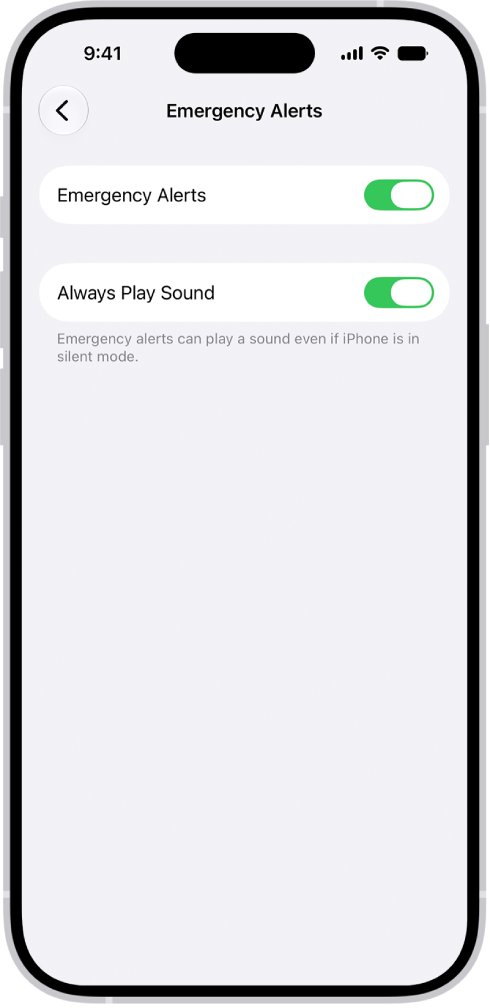
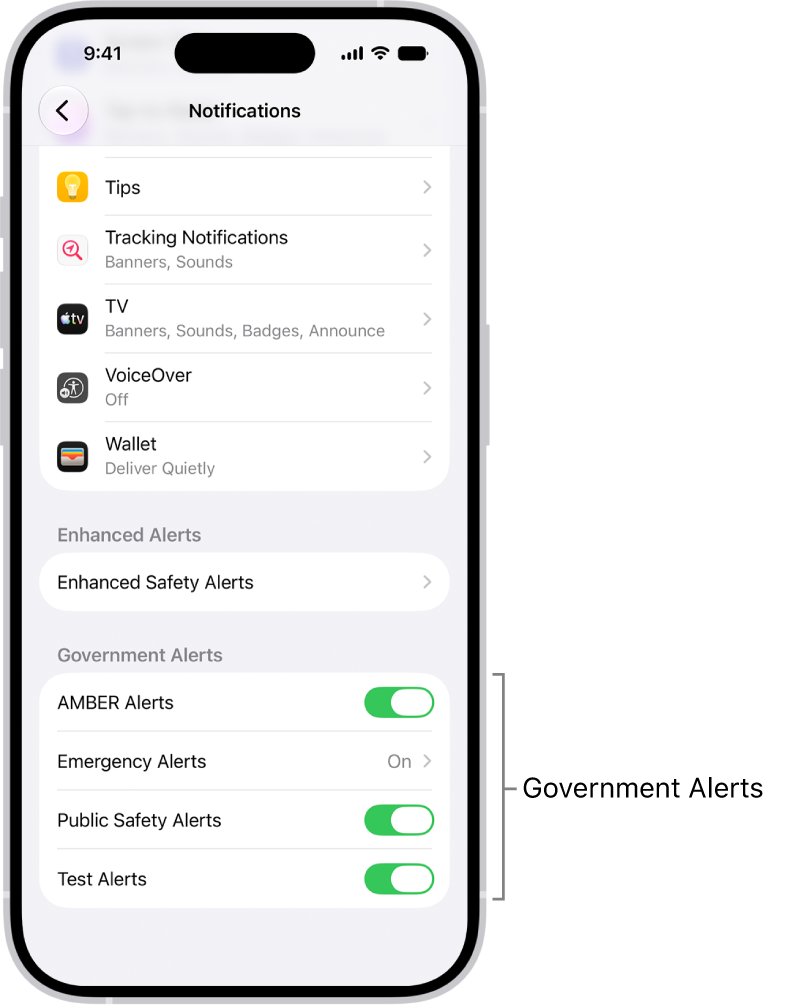
Turn off Emergency Alerts for severe weather on iPhone 15
A loud alert that fills the screen and names your carrier or a government agency is a Government Alert, not a Weather app notification. In the United States, Emergency Alerts cover both Severe and Extreme Imminent Threat Alerts and are on by default.
- Open the Settings app.
- Tap Notifications.
- Scroll to the bottom to the Government Alerts section.
- Turn off Emergency Alerts, or tap Emergency Alerts to change Always Play Sound and Local Awareness instead.
- Leave AMBER Alerts and Public Safety Alerts as they are unless you want those off too.
National Alerts in the United States cannot be turned off. Government alerts vary by carrier and iPhone model, so the list on your phone may differ. Turning off Always Play Sound alone stops Emergency Alerts sounding while the ring switch or Silent mode is on, which keeps the warning itself.
Remove a weather Live Activity or widget from the iPhone Lock Screen
A weather panel that cannot be swiped away is usually a Live Activity from a third-party weather app, or a Weather widget that is part of your Lock Screen. Neither is a notification, so Clear does nothing.
- For a Live Activity, open Settings, tap Apps, tap the weather app, then tap Live Activities and turn it off. Not every app has this setting.
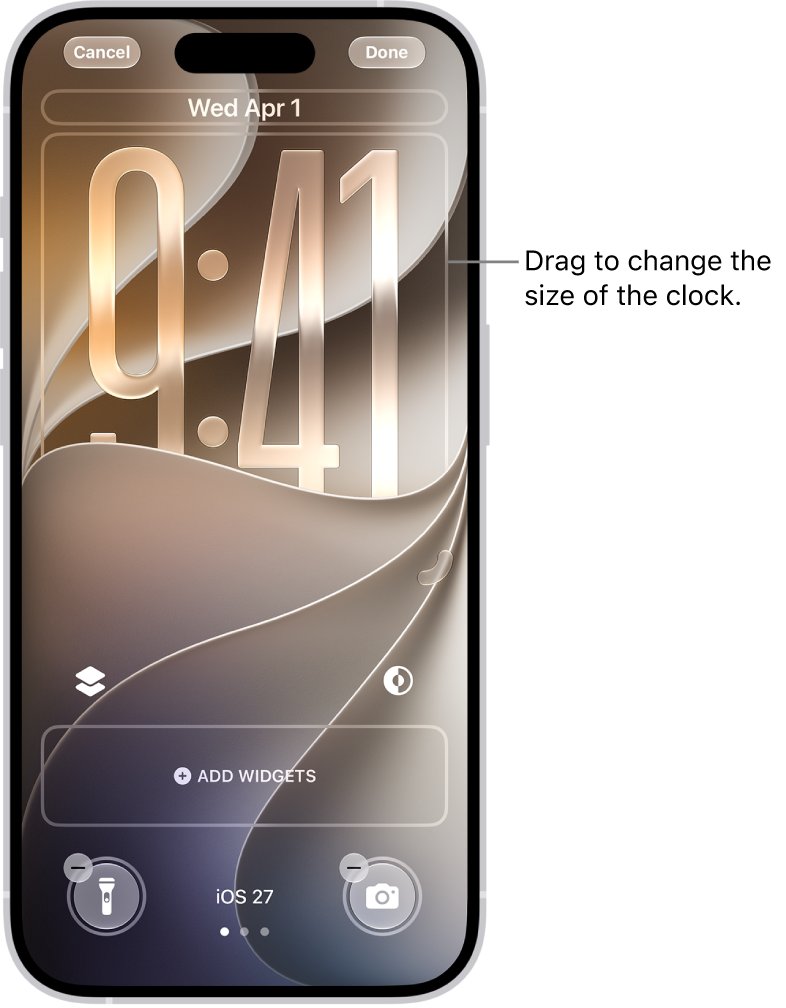
- For a widget, press the side button, then touch and hold the Lock Screen until Customize appears.
- Tap Customize, then tap the Lock Screen to edit it.
- Tap your existing widgets and remove the Weather widget.
- Tap Done.
- If the whole wallpaper is the Weather wallpaper, swipe to another Lock Screen and tap it to switch, or create a new Lock Screen with a different wallpaper.
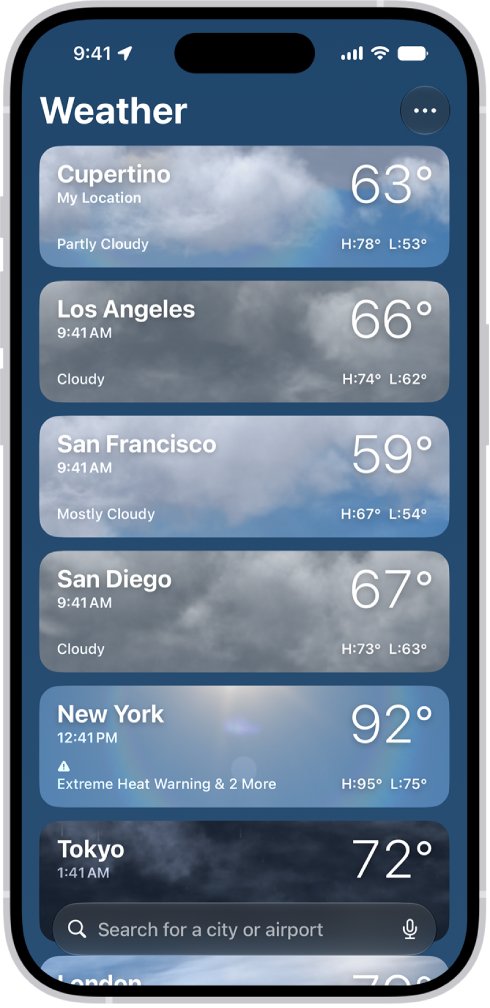
Remove a saved location from the iPhone Weather app
Every location in your Weather list can carry its own alerts. Deleting an old location, such as a past holiday spot, stops its alerts for good.
- Open the Weather app.
- Tap the list button to display your list.
- Swipe left on the location you no longer need.
- Tap the delete button that appears.
Your location list syncs across devices signed in to the same Apple Account, so the location also disappears from your iPad and Mac.
How to check the weather alert is gone from your iPhone
- Lock the iPhone, wake it, and confirm the alert no longer appears on the Lock Screen.
- Swipe up from the middle of the Lock Screen and confirm Notification Center has no Weather alert.
- Open Weather > More > Notifications and confirm Severe Weather is off for the locations you changed.
- Open Settings > Notifications > Weather and confirm the setting you chose is still in place.
- Wait until the next weather event in your area; a fixed iPhone shows no new severe weather notification for the locations you turned off.
Turn weather alerts back on on iPhone
- Open Settings > Notifications > Weather and turn on Allow Notifications.
- Open the Weather app, tap the list button, tap More, then tap Notifications.
- Turn on Severe Weather for the locations you want warnings for.
- Open Settings > Notifications, scroll to Government Alerts, and turn Emergency Alerts back on.
Weather alert notification still showing on iPhone: fixes by symptom
The weather alert comes back after you clear it
The alert is still active, or another saved location in the same region is sending it.
- Open Weather > More > Notifications.
- Turn off Severe Weather for every location in that area, not only the one you are in.
- Turn off severe weather for Suggested Locations.
Weather alerts for a place you are not in
A saved location, or a predicted travel destination from Suggested Locations, is still set to receive alerts.
- Remove the old location from your Weather list.
- Turn off severe weather for Suggested Locations in Weather > More > Notifications.
- If you do not want predicted destinations used, set Weather's location access to While Using the App in Settings > Privacy & Security > Location Services > Weather.
A weather alert sounds even in Silent mode
Emergency Alerts have Always Play Sound turned on.
- Open Settings > Notifications.
- Scroll to Government Alerts and tap Emergency Alerts.
- Turn off Always Play Sound.
The weather alert cannot be swiped away at all
It is a Live Activity, a Lock Screen widget, or the Weather wallpaper, not a notification.
- Turn off Live Activities for the weather app in Settings > Apps.
- Edit the Lock Screen and remove the Weather widget.
- Switch to a Lock Screen that does not use the Weather wallpaper.
An expired alert is stuck on screen
The display has not refreshed, or an iOS bug is holding the notification.
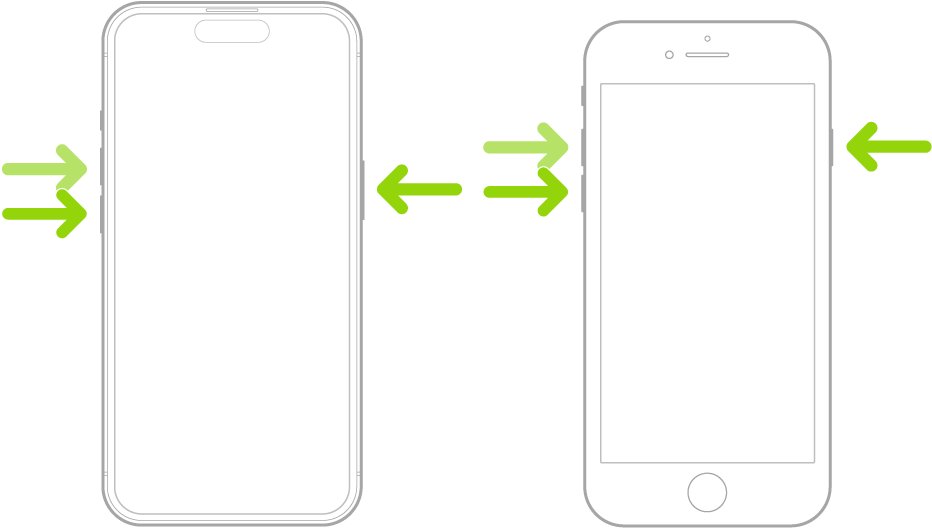
- Force restart the iPhone: press and release volume up, press and release volume down, then hold the side button until the Apple logo appears.
- Open Settings > General > Software Update and tap Download and Install if an update is listed.
- Clear the notification again from Notification Center.
iPhone 15 weather alert notification FAQ
How do I stop weather alerts on my iPhone 15?
Open the Weather app, tap the list button, tap More, then Notifications, and turn off Severe Weather for each location. For no Weather notifications at all, go to Settings > Notifications > Weather and turn off Allow Notifications.
Why does a weather alert stay on my iPhone Lock Screen?
The alert is either still active for one of your locations, or it is not a notification. A Live Activity, a Weather widget or the Weather wallpaper sits on the Lock Screen permanently until you turn it off or edit the Lock Screen.
Can I turn off severe weather alerts but keep rain alerts?
Yes. In Weather > More > Notifications, turn off Severe Weather and leave Next-Hour Precipitation on. Precipitation notifications only tell you when rain or snow is about to start or stop, and they are not available in every region.
Are Emergency Alerts the same as Weather app alerts?
No. Emergency Alerts are Government Alerts sent through your carrier and controlled in Settings > Notifications > Government Alerts. Weather app alerts are controlled inside the Weather app and in Settings > Notifications > Weather.
Can I turn off National Alerts on iPhone?
No. In the United States, National Alerts always arrive. You can turn off AMBER, Public Safety and Emergency Alerts, which include Severe and Extreme Imminent Threat Alerts, in Settings > Notifications > Government Alerts.
How do I mute weather notifications without turning them off?
Swipe left on a Weather notification, tap Options, and mute it for an hour or for today. Muted notifications go to Notification Center silently and stop appearing on the Lock Screen. Tap Options > Unmute to end it early.
Why do I get weather alerts for another city?
Each saved location in Weather can send severe weather alerts, and Suggested Locations can alert you about places iPhone predicts you will visit. Remove old locations and turn off Suggested Locations in Weather > More > Notifications.
Does turning off weather alerts affect other iPhone notifications?
No. The Weather app setting and the Settings > Notifications > Weather switch only change Weather notifications. Government Alerts and other apps keep their own settings.