When you cannot change screen brightness in Windows 10 on a Mac with Boot Camp, the Apple Windows support software (drivers) is missing or out of date, and reinstalling it brings the brightness control back.
This guide covers the brightness controls Windows 10 gives a Mac's built-in display, how to download and repair the Boot Camp drivers, how to confirm the fix, and what to do on Macs with external displays.
How to change screen brightness in Boot Camp Windows 10
Try the Windows 10 display controls first. If the slider is missing or does nothing, the driver fix in the next sections is the answer.
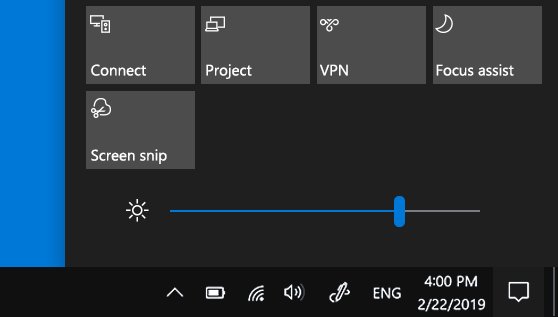
- Select the action center icon on the right side of the Windows taskbar.
- Drag the Brightness slider left to dim the built-in display or right to brighten it.
- If there is no slider in action center, open Settings from the Start menu.
- Select System, then Display.
- Under Brightness and color, move the Change brightness for the built-in display slider.
The action center slider arrived in Windows 10 version 1903. Earlier builds, including the old Windows 10 previews, only had the Change brightness slider in Settings. Windows 10 and 11 also have several other ways to adjust screen brightness once the drivers are in place.
Which Boot Camp brightness fix do you need?
| What you see | Do this | Why |
|---|---|---|
| Slider present and working | Use action center or Settings > System > Display | Drivers are already installed |
| No brightness slider, or slider does nothing on a MacBook or iMac screen | Download and repair the Windows support software | Apple lists unadjustable built-in brightness as a missing-driver symptom |
| Boot Camp installer never opened after installing Windows | Run Setup from the BootCamp folder on the OSXRESERVED partition | The drivers were copied but never installed |
| Drivers installed long ago | Run Apple Software Update in Windows | Installs the latest Apple updates for Windows |
| Mac mini or Mac Pro with an external monitor | Use the monitor's own buttons | Windows shows the built-in display slider only for built-in screens |
| AMD graphics and display glitches | Update the AMD graphics driver | Apple points AMD graphics issues to AMD's drivers |
What you need for the Boot Camp brightness driver fix
| Requirement | Detail |
|---|---|
| Intel-based Mac | Boot Camp runs only on Intel Macs, such as MacBook Pro and MacBook Air models up to 2020 (excluding the M1 models) |
| Supported Windows | A full 64-bit Windows 10 Home or Windows 10 Pro, not a preview or upgrade-only copy |
| USB flash drive | 16GB or larger, formatted as MS-DOS (FAT) with the Master Boot Record scheme |
| macOS up to date | Install the latest macOS updates first, because they can include Boot Camp updates |
| Internet connection | Boot Camp Assistant downloads the drivers from Apple |
| USB mouse or keyboard (optional) | Helps if Bluetooth input stops working before the drivers are installed |
Download Boot Camp Windows support software in macOS
- Start your Mac in macOS and plug in the USB flash drive.
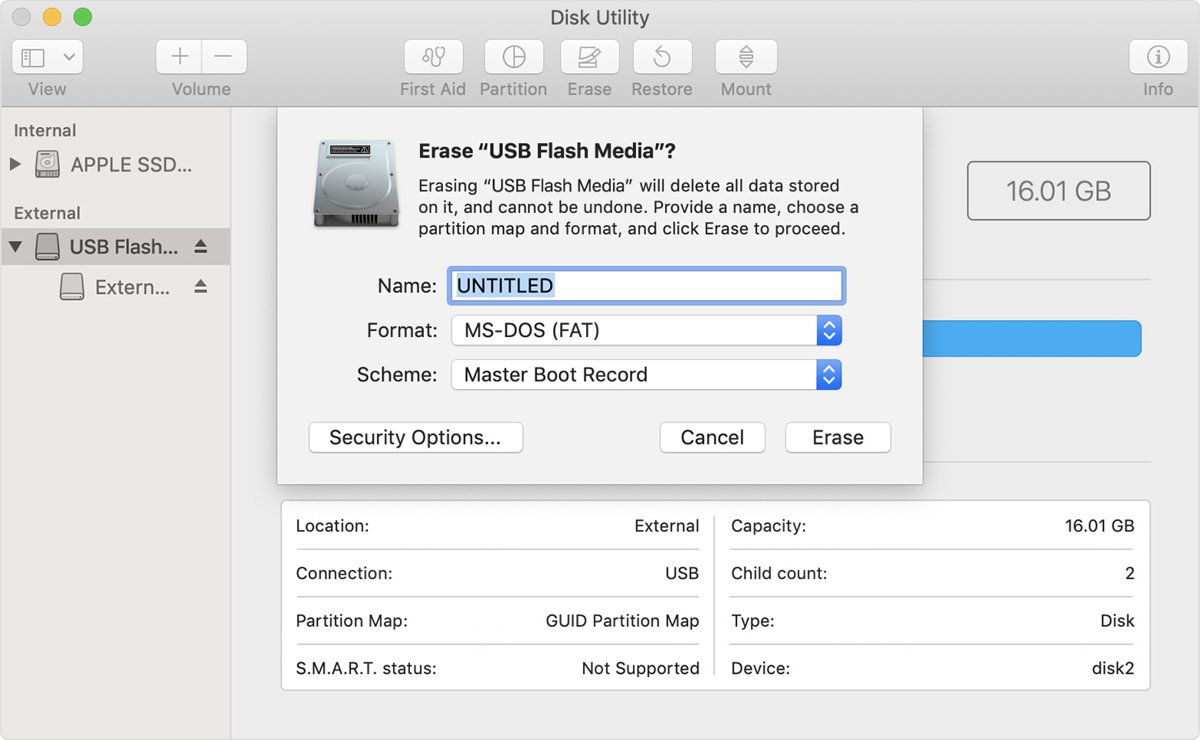
- Open Disk Utility from the Utilities folder in Applications.
- Choose View > Show All Devices, then select the flash drive's name in the sidebar.
- Click Erase, choose MS-DOS (FAT) as the format and Master Boot Record as the scheme, then click Erase.
- Quit Disk Utility and open Boot Camp Assistant from the Utilities folder.
- Choose Action > Download Windows Support Software from the menu bar.
- Select the USB flash drive as the destination and wait for the download to finish.
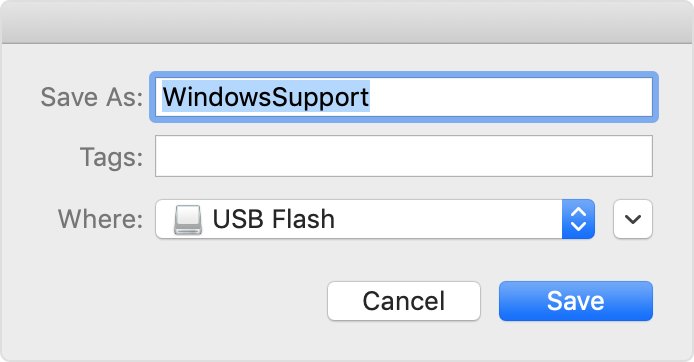
Install Boot Camp drivers in Windows 10 to restore brightness control
- Leave the USB flash drive plugged in and restart your Mac in Windows.
- Open File Explorer and open the USB flash drive.
- Open the WindowsSupport or BootCamp folder and run Setup.
- Click Yes when Windows asks to allow Boot Camp to make changes to your device.
- Click Repair to start the installation.
- Click Continue Anyway if an alert says the software has not passed Windows Logo testing.
- Click Finish, then click Yes to restart your Mac.
To switch between operating systems, hold the Option key during startup and pick the Boot Camp volume.
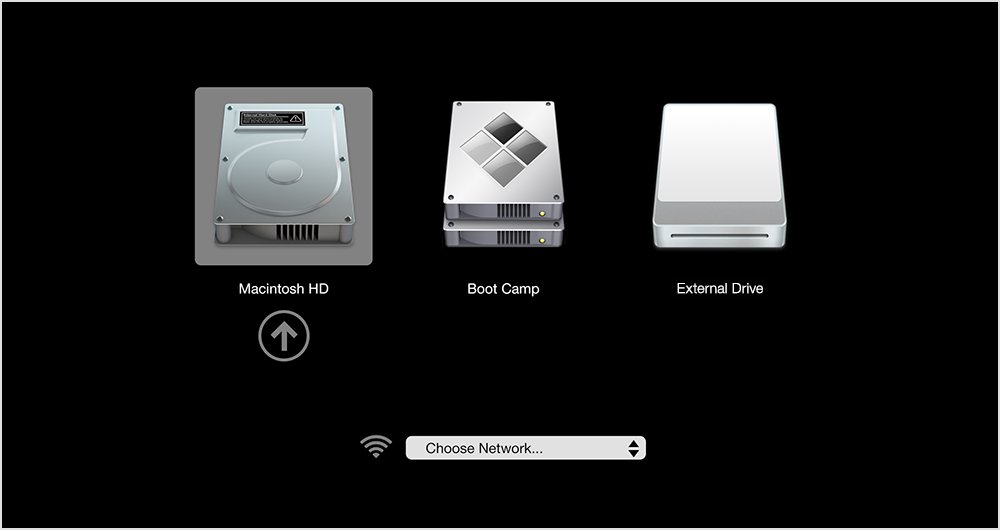
Run the Boot Camp installer from the OSXRESERVED partition
If the Boot Camp installer never opened after Windows finished installing, the drivers may already be on your disk.
- Open File Explorer in Windows.
- Open the OSXRESERVED partition, which is usually the D drive.
- Open the BootCamp folder and run Setup from that folder only.
- Click Yes to allow Boot Camp to make changes, then click Repair.
- Click Finish and then Yes to restart.
If there is no OSXRESERVED partition, download the Windows support software from macOS as shown above instead.
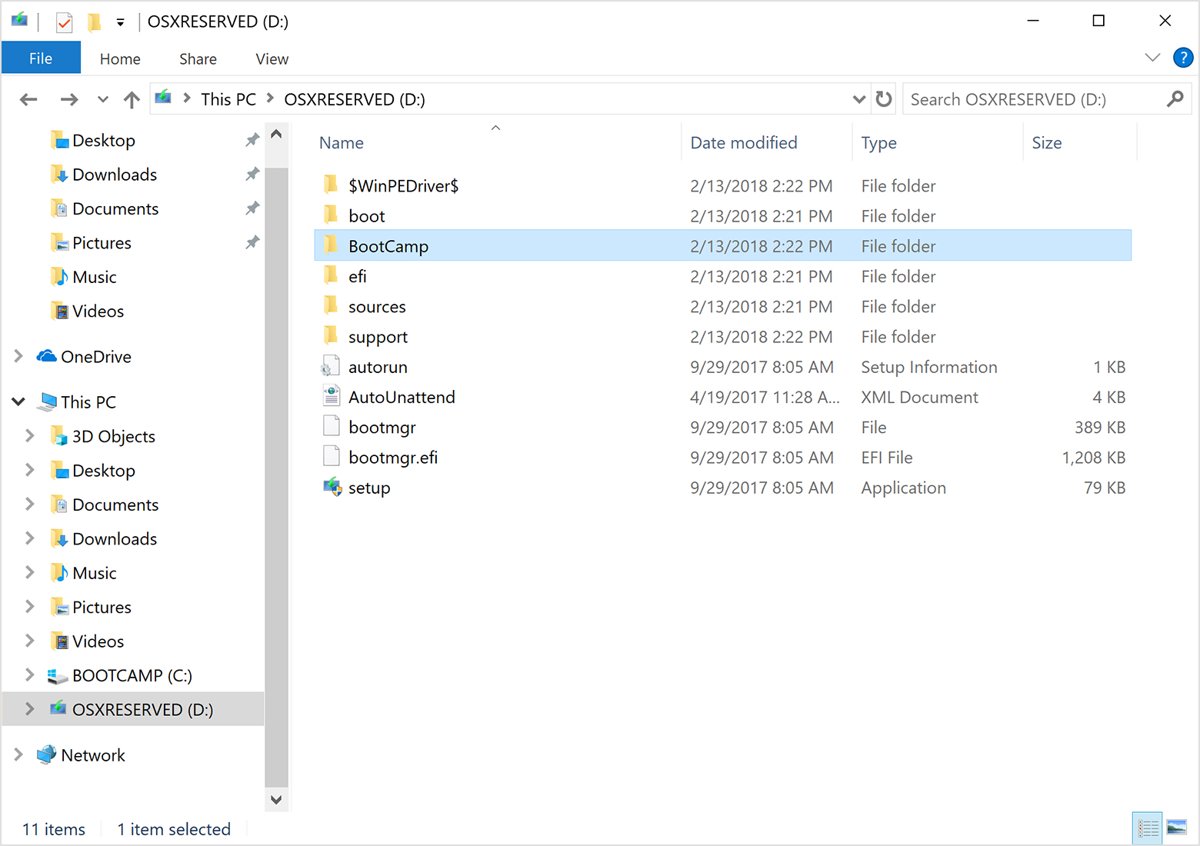
Start Boot Camp Setup from Command Prompt
D:\BootCamp\setup.exeOpens the Boot Camp installer from the OSXRESERVED partition when it is mounted as the D drive. Change the letter if File Explorer shows the partition under another one.
You should see: The Boot Camp installer window opens and offers Repair.
Update Apple drivers and display driver in Boot Camp Windows 10
- Start your Mac in Windows and connect to the internet.
- Open Apple Software Update from the Start menu and install the Apple updates it lists.
- Restart when the updates finish.
- If the brightness slider still does not work, right-click Start and open Device Manager.
- Expand Display adapters, right-click the display adapter and select Update driver.
Turn on Change brightness automatically when lighting changes under Settings > System > Display if you want Windows 10 to adjust brightness on its own and the option appears on your Mac.
How to check brightness works in Boot Camp Windows 10
- Open Settings > System > Display and confirm the Change brightness for the built-in display slider is visible.
- Drag the slider to both ends and watch the screen dim and brighten.
- Open action center and confirm the Brightness slider moves the same way.
- Click the Boot Camp icon in the taskbar notification area and confirm Boot Camp Control Panel opens, which shows the Boot Camp software is installed.
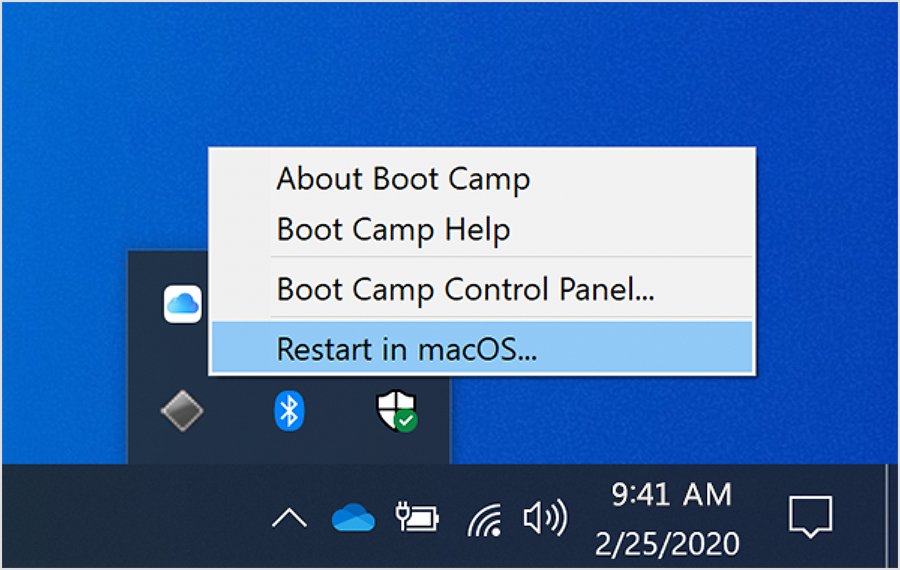
Boot Camp Windows 10 screen brightness not working: fixes by symptom
Brightness slider missing in Windows 10 on a MacBook or iMac
Apple's Windows support software is not installed.
- Download the Windows support software to a 16GB FAT-formatted flash drive from Boot Camp Assistant.
- Run Setup from the drive in Windows and click Repair.
- Restart and check Settings > System > Display again.
Brightness not working on a desktop Mac with an external monitor
Windows shows the built-in display slider only for built-in screens.
- Use the brightness buttons or menu on the monitor itself.
- For an Apple Studio Display or Pro Display XDR, install the latest macOS updates and then run Apple Software Update in Windows.
Screen too bright in Windows 10 and the slider does nothing
An outdated or generic display driver is in use.
- Run Apple Software Update in Windows and install every listed update.
- In Device Manager, expand Display adapters, right-click the adapter and select Update driver.
- If your Mac has AMD graphics, install AMD's current graphics driver for it.
Boot Camp Assistant cannot save the Windows support software
The flash drive is too small, formatted wrongly or connected through a hub.
- Use a flash drive of at least 16GB formatted as MS-DOS (FAT) with Master Boot Record.
- Plug it directly into a USB port on the Mac, not a display, hub or keyboard.
- Check the Mac is online if the assistant reports a network problem.
Boot Camp support for Windows 10 Preview builds
Windows 10 preview builds are long gone, and Apple's current Boot Camp requirements name only full releases of Windows 10.
| Item | What Apple supports |
|---|---|
| Windows version | 64-bit Windows 10 Home or Windows 10 Pro |
| Installation media | A disk image (ISO) or other installation media of a full version, not an upgrade |
| Mac processor | Intel only; Apple silicon Macs cannot use Boot Camp |
| Drivers | Installed by the Boot Camp installer after Windows setup, or repaired later from a flash drive |
| Free space | 64GB minimum, 128GB recommended for automatic Windows updates |
Boot Camp Windows 10 brightness FAQ
How do I increase laptop brightness in Windows 10 on a MacBook?
Open action center from the taskbar and drag the Brightness slider right, or go to Settings, System, Display and move the Change brightness for the built-in display slider. If neither slider appears, install Apple's Windows support software with Boot Camp Assistant.
Why is screen brightness not working in Windows 10 on my Mac?
Apple lists an unadjustable built-in display as a sign that the Windows support software is missing. Download it with Boot Camp Assistant in macOS, run Setup in Windows, click Repair and restart.
Why is there no brightness setting in Windows 10 on my Mac mini or Mac Pro?
Those Macs use external monitors, and Windows 10 shows the built-in display slider only for built-in screens. Change brightness with the monitor's own buttons or on-screen menu instead.
How do I fix a screen that is too bright in Windows 10 on Boot Camp?
Install the Boot Camp drivers first, then lower the slider in Settings, System, Display. If the slider still has no effect, run Apple Software Update and update the display adapter driver in Device Manager.
Can Windows 10 change brightness automatically on a Mac?
Windows 10 offers a Change brightness automatically when lighting changes check box under Settings, System, Display on devices that report a light sensor. If the option is not shown on your Mac, use the manual slider.
Does Boot Camp work on a Windows 10 Preview or Insider build?
Apple supports full 64-bit Windows 10 Home and Windows 10 Pro releases with Boot Camp. Install a released version from Microsoft's disk image, then let the Boot Camp installer add the Apple drivers.
Can I use Boot Camp brightness controls on an M1 or newer Mac?
No. Boot Camp works only on Intel-based Macs, and Apple's requirements exclude the M1 MacBook Air and M1 13-inch MacBook Pro. Apple silicon Macs cannot install Windows with Boot Camp Assistant.