To boost your PC sound with Realtek HD Audio Manager, open Realtek Audio Console, select Playback Devices, raise Main Volume and set a louder Equalizer preset, then add Windows Loudness Equalization if your speakers offer it.
This guide covers opening the app on Windows 11 and Windows 10, the speaker and microphone settings that matter, the Windows-side volume controls, and fixes for the No speakers or headphones are plugged in message.
How to boost PC sound with Realtek HD Audio Manager
On current Windows 11 and Windows 10 PCs, the Realtek control app is called Realtek Audio Console. Older PCs with the classic driver call it Realtek HD Audio Manager, and its speaker controls do the same jobs.
- Select Start, type
Realtek Audio Consoleand open the app. - On the main page, select the Playback Devices icon.
- On the Main Volume tab, raise the volume for your speakers or headphones and make sure they are not muted.
- Open the Equalizer tab and pick a preset, or create a custom setting that raises the bands you want louder.
- Play the same audio again and compare the result.
- If you still need more volume, turn on Loudness Equalization from the Windows Sound control panel, covered below.
Raise Windows and app volume to the top first. Realtek settings only shape the signal that Windows sends them.
Realtek HD Audio Manager
Realtek HD Audio Manager is the control app that ships with Realtek's onboard audio driver. Under Microsoft's modern DCH driver model, the driver's control panel must be a Hardware Support App from the Microsoft Store or preinstalled by the PC maker, which is why newer PCs show the Realtek Audio Console app instead.
| Part of the app | Where it is | What it does |
|---|---|---|
| Main Volume | Playback Devices and Recording Devices | Sets the level and mute state of the selected speaker, headphone or microphone |
| Sound effects | Playback Devices | Applies the driver's sound effects to output |
| Equalizer | Playback Devices | Preset or custom frequency settings you can save and delete |
| Environment | Playback Devices | Simulated rooms: Padded Cell, Room, Bathroom, Living Room, Stone Room, Auditorium, Concert Hall, Cave, Arena |
| Default Format | Playback Devices | Sample rate and bit depth used for output |
| Speaker Configuration | Playback Devices | Settings for multi-channel speaker sets |
| Microphone Effects | Recording Devices | Processing applied to the microphone input |
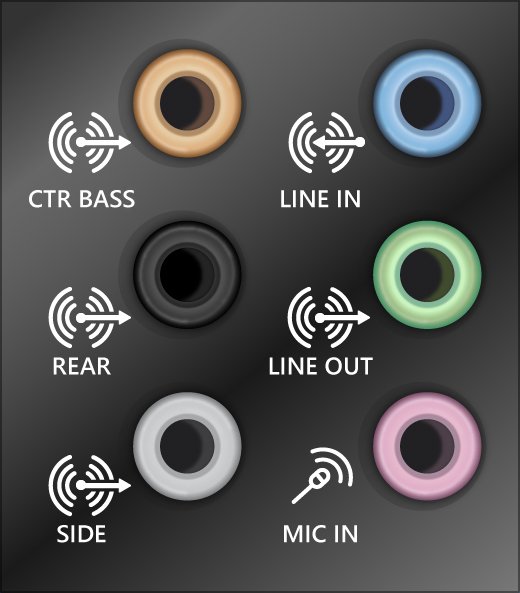
| Device advanced settings | Main page | Connector settings and connector re-tasking for the audio jacks |
| Information | Main page | The audio driver version and the app's UI version |
Tab names and layout differ by PC maker and driver version, so your copy may show fewer options than this table.
How to open Realtek HD Audio Manager on Windows 11 and Windows 10
The app is part of the audio driver package, so it only appears when the Realtek driver is installed. Search for both names because the PC maker decides which version you get.
- Select Start and type
Realtek. - Open Realtek Audio Console, or Realtek HD Audio Manager on older PCs.
- If neither appears, open Microsoft Store and search for Realtek Audio Control.
- If the Store app will not open or reports no supported device, install the audio driver from your PC maker's support page first.
When the app is missing entirely, reinstall Realtek HD Audio Manager with the matching driver before you change any settings.
Speakers tab: Main Volume, Equalizer and Speaker Configuration
The speaker settings sit under Playback Devices in Realtek Audio Console and under the speaker tab in the classic manager. Change one setting at a time so you can hear which one helps.
- Open Realtek Audio Console and select Playback Devices.
- Select the output you use if more than one is listed, such as speakers or headphones.
- On Main Volume, raise the slider and check the mute control is off.
- On Equalizer, select a preset, or type a new preset name to save your own band settings.
- On Environment, leave the effect off for plain listening, or pick a preset such as Living Room or Concert Hall for a wider sound.
- Open Speaker Configuration if you use a multi-channel set, and match the layout to the speakers you have.
- On Default Format, choose the sample rate and bit depth your speakers or headset support.
What are the best settings for Realtek HD Audio Manager?
There is no single best preset. Match the setting to the problem you hear.
| What you hear | Change this | Why |
|---|---|---|
| Everything is too quiet | Windows volume and app volume to maximum, then Realtek Main Volume | Realtek can only work with the level Windows passes to it |
| Voices are hard to follow in films | Windows Loudness Equalization | It lifts quiet parts and limits loud peaks |
| Music sounds thin on laptop speakers | A custom Equalizer preset with mid and low bands raised slightly | Small speakers lose low and mid frequencies first |
| Sound crackles or distorts after boosting | Lower the raised Equalizer bands, or turn Sound effects off | Too much gain clips the signal |
| Surround set plays from the wrong speakers | Speaker Configuration | The channel layout has to match the speakers connected |
| Front or rear jack is not detected | Device advanced settings connector settings | Connector settings control how the jacks are assigned |
Microphones tab: Main Volume and Microphone Effects
Recording settings live under Recording Devices in Realtek Audio Console. Windows has its own microphone level and boost controls, which work alongside the Realtek ones.
- Open Realtek Audio Console and select Recording Devices.
- On Main Volume, raise the microphone level and check it is not muted.
- On Microphone Effects, turn on the processing options your driver offers for calls or recording.
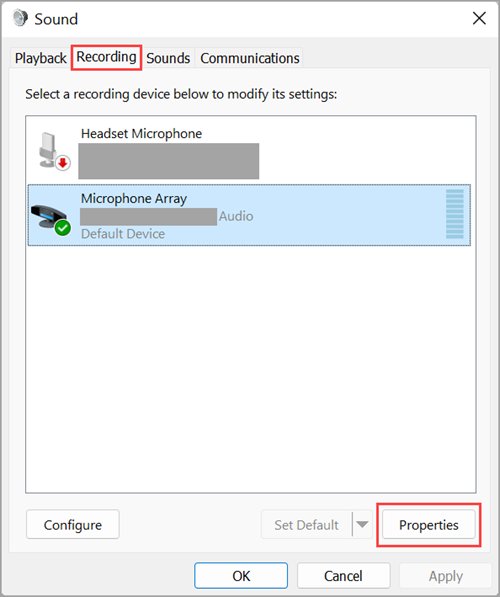
- For more gain, open Control Panel > Hardware and Sound > Sound, select the Recording tab, select your microphone and choose Properties.
- On the Levels tab, raise Microphone, and raise Microphone Boost if your device shows it, then select OK.
Microphone Boost is not available on every device. Raise it in small steps, because too much boost adds background noise.
Turn on Loudness Equalization to make Realtek audio louder
Loudness Equalization is a Windows audio effect that measures perceived loudness and uses dynamic gain to keep sources at a steadier level. It makes quiet passages easier to hear while capping the loudest peaks.
PC makers can replace the Windows effects with their own, so on some Realtek PCs the Enhancements tab is missing and the equivalent control lives in Realtek Audio Console or the maker's audio app.
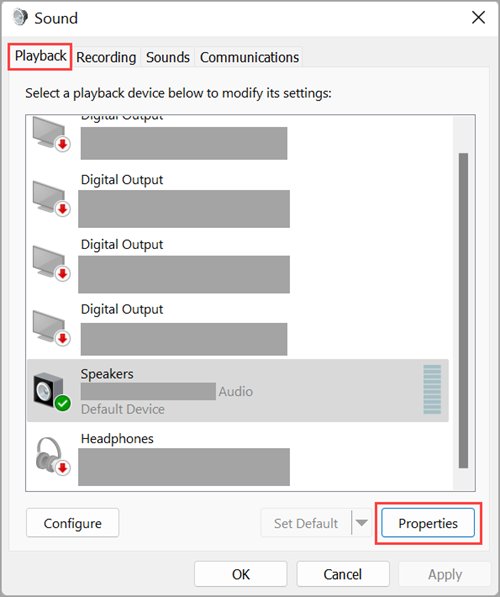
- Open Control Panel > Hardware and Sound > Sound.
- On the Playback tab, select your Realtek speakers or headphones and choose Properties.
- Open the Enhancements tab.
- Select Loudness Equalization and choose Apply.
- Play audio and compare quiet and loud passages, then select OK to keep it.
On Windows 11 you reach the same dialog from Settings > System > Sound > More sound settings. For the rest of the Windows audio options, manage sound settings on Windows 11 from the same page.
How do I increase the volume of my Realtek audio?
Low Realtek volume is often a Windows or app setting rather than a driver one, and you can boost volume beyond 100% once those are maxed out. Apps and accessories keep their own volume controls, and each one caps the next.
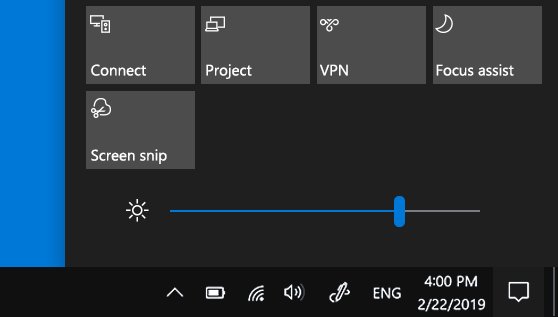
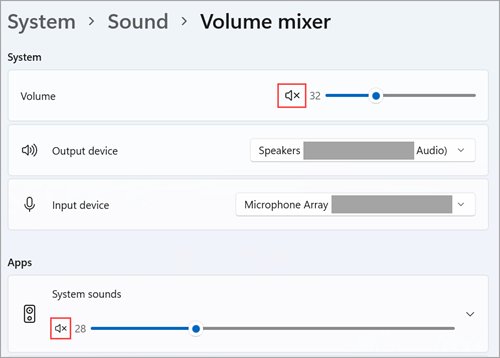
- Select the Speakers icon on the taskbar, select the arrow next to the volume slider and confirm your Realtek output is selected.
- Open Settings > System > Sound > Volume mixer.
- Raise System and the app you are listening to, and make sure neither is muted.
- Raise the volume control inside the app or player itself.
- On external speakers, turn up the PC and app volume first, then the speakers' own volume knob.
- Return to Realtek Audio Console and raise Main Volume if it is below maximum.
How to check the Realtek sound boost worked
- Play the same track or video you used before the changes, at the same Windows volume.
- Confirm the audio is louder and still clean, with no crackle at the top of the volume range.
- Open Realtek Audio Console > Information and note the audio driver version in case you need to reinstall later.
- Open Control Panel > Hardware and Sound > Sound > Playback and confirm your Realtek device is the default device.
- Restart the PC once and check the Equalizer preset and Loudness Equalization are still selected.
No speakers or headphones are plugged in on Windows 11: Realtek fixes
Work through the symptom that matches what you see. Each fix uses Windows' own tools, so it applies whether you have Realtek Audio Console or the classic manager.
Windows says No speakers or headphones are plugged in
The jack is not detected, the device is disabled, or the Realtek driver has failed.
- Check the cable is fully seated in the correct jack, then try the other jack on the front or back of the PC.
- In Realtek Audio Console, open Device advanced settings and check the connector settings for the jack you use.
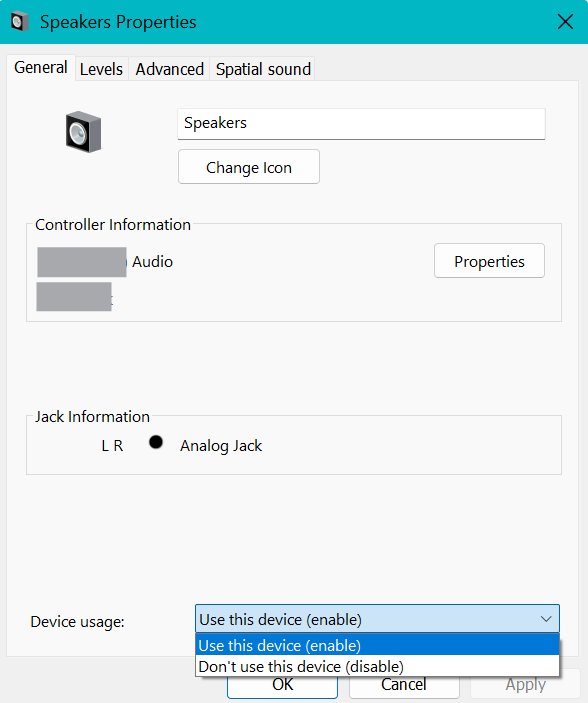
- Open Settings > System > Sound > More sound settings, select your device on the Playback tab, choose Properties and set Device usage to Use this device (enable).
- Open the Get Help app and run the Audio troubleshooter.
- In Device Manager, expand Sound, video and game controllers, right-click the Realtek device, select Uninstall device, tick Attempt to remove the driver for this device, and restart.
Realtek audio is not working at all
A damaged or mismatched driver, or a stopped audio service.
- In Device Manager, right-click the Realtek device and select Update driver > Search automatically for drivers.
- If that fails, select Update driver > Browse my computer for drivers > Let me pick from a list of available drivers on my computer, choose High Definition Audio Device and select Next.
- Search for
services, then restart Windows Audio, Windows Audio Endpoint Builder and Remote Procedure Call (RPC). - Install the latest audio driver from your PC maker's support page if Windows Update has none.
Sound is distorted or quieter after you boost it
Stacked effects or too much equalizer gain clip the signal.
- In Realtek Audio Console, lower the bands you raised in Equalizer or select a flat preset.
- Turn off Sound effects and Environment.
- In Settings > System > Sound, select your output device, go to Advanced settings and set Audio enhancements to Off to test without effects.
- Change Default Format on the Advanced tab of the device's Properties to a different sample rate and test again.
Realtek HD Audio Manager FAQ
How do I use Realtek HD Audio Manager?
Open Realtek Audio Console from Start, choose Playback Devices or Recording Devices, and change one setting at a time: Main Volume for level, Equalizer for tone, Speaker Configuration for multi-channel sets and Microphone Effects for recording.
How do I open Realtek HD Audio Manager on Windows 11?
Select Start, type Realtek and open Realtek Audio Console. Older PCs with the classic driver list Realtek HD Audio Manager instead. If neither appears, the Realtek driver or its companion app is not installed.
What is Realtek HD Audio?
Realtek HD Audio is the onboard audio hardware and driver used on many Windows PCs and motherboards. Realtek HD Audio Manager, now Realtek Audio Console, is the app that controls its speaker, microphone and jack settings.
How do I install or download Realtek High Definition Audio?
Get the audio driver from your PC or motherboard maker's support page, or through Windows Update. On modern DCH drivers, the control app is Realtek Audio Control from the Microsoft Store or a version preinstalled by the PC maker.
How do I turn Realtek audio on?
Open Settings, then System, Sound, More sound settings. Select the Realtek device on the Playback tab, choose Properties and set Device usage to Use this device (enable). In Device Manager, an Enable device option appears if the hardware itself is disabled.
How do I get Realtek audio to work again?
Run the Audio troubleshooter in Get Help, then uninstall the Realtek device in Device Manager with Attempt to remove the driver ticked and restart. Windows reinstalls the driver on reboot. The generic High Definition Audio Device driver is a fallback.
Why is there no Enhancements tab for my Realtek speakers?
PC makers can replace the Windows audio effects with their own, which removes the Enhancements tab. On those PCs, the equivalent loudness and equalizer controls are in Realtek Audio Console or the maker's own audio app.
How do I set up Realtek audio for surround speakers?
Open Realtek Audio Console, select Playback Devices and open Speaker Configuration. Choose the layout that matches the speakers you have connected, then play multi-channel audio to confirm each channel comes from the right speaker.
Bottom line: the Realtek setting that boosts sound most
Max out Windows and app volume, raise Realtek Main Volume, then turn on Loudness Equalization or a gentle custom Equalizer preset. Volume is capped at every stage before the driver, so those controls come first, and Loudness Equalization raises quiet passages without pushing peaks into distortion.