No, MightyText does not work with an iPhone, because its phone app runs on Android and syncs texts from your Android phone number.
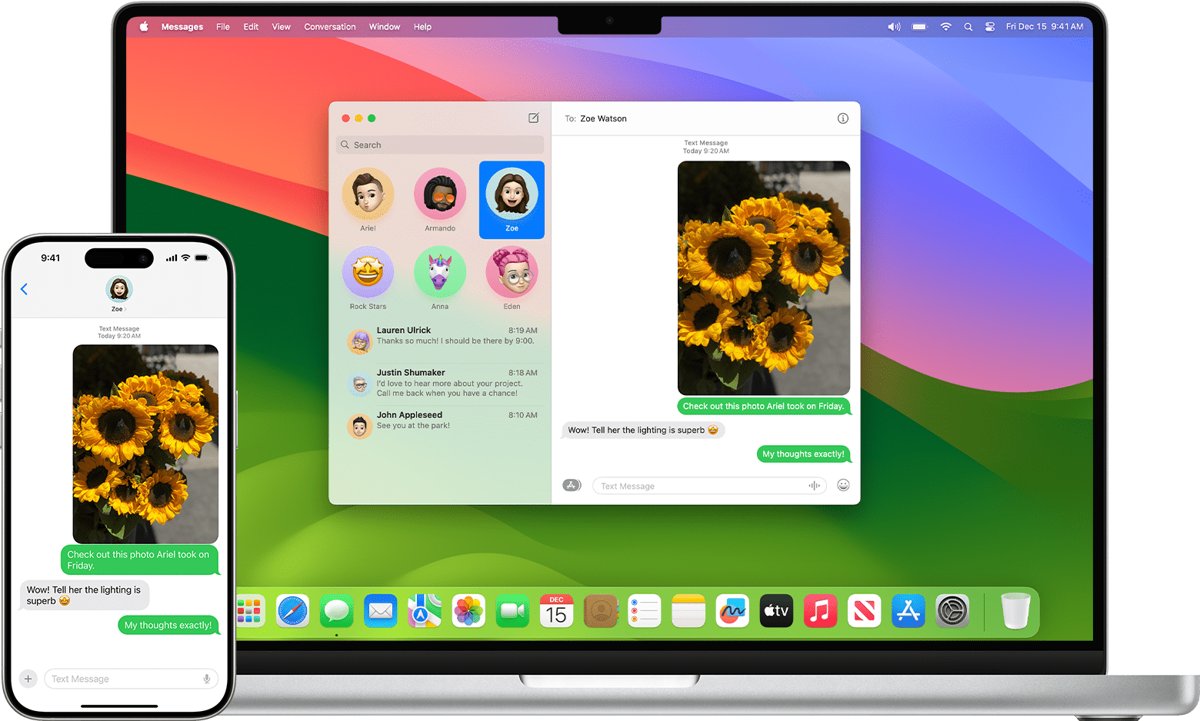
iPhone owners get the same result from Microsoft Phone Link on a Windows PC or from Apple's Text Message Forwarding on a Mac or iPad, and this guide sets up both.
Fastest MightyText alternative for iPhone on a Windows PC
Microsoft Phone Link is built into Windows 11 and pairs with an iPhone over Bluetooth. It reads and replies to texts, handles calls and shows iPhone notifications.
- Turn on Bluetooth on both the PC and the iPhone, and keep them near each other.
- Open Phone Link on the PC from Start.
- Under Pick your phone, select iPhone.
- Scan the QR code on the PC with the iPhone's Camera app to start Bluetooth pairing.
- On the iPhone, turn on Show Notifications, Sync Contacts and Share System Notifications when asked.
- On the PC, open the Messages tab in Phone Link and start a new conversation.
What does MightyText do and why it needs Android
| MightyText feature | How it works | iPhone equivalent |
|---|---|---|
| Send and receive SMS and MMS from a PC or tablet | Phone app on Android relays texts from your number | Phone Link (PC) or Text Message Forwarding (Mac, iPad) |
| Use from any web browser | Web app in Chrome, Firefox or Edge after the Android app is installed | No browser option for iPhone SMS |
| Windows and Android tablet apps | Desktop or tablet client signed in to the same account | Phone Link on Windows; Messages on Mac and iPad |
| PC notifications for other apps | Mirrors Android app notifications | Phone Link shows iPhone notifications |
| Call logs on the computer | Synced from the Android phone | Phone Link calls and call history |
| Scheduled texts, group sends up to 25 people | Part of MightyText | Not available in Phone Link for iPhone |
| Photo and video backup | Uploads from the Android phone | iCloud Photos |
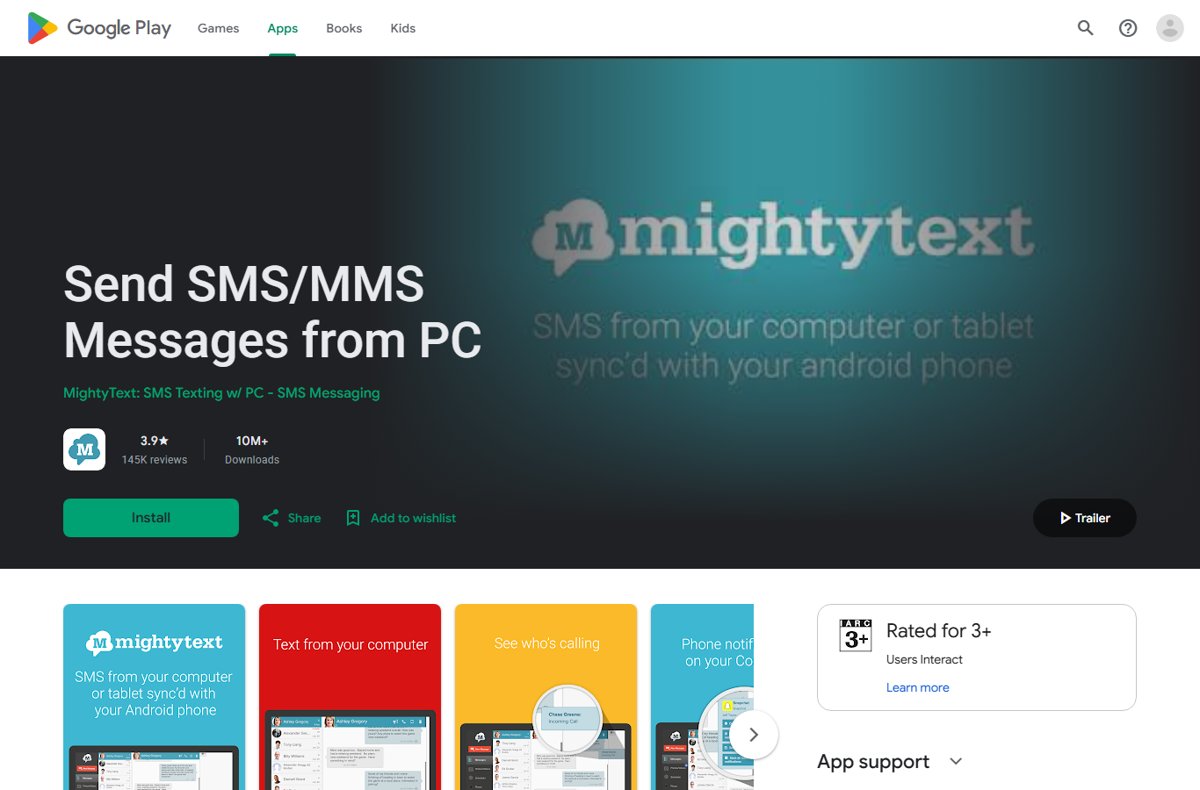
MightyText's Google Play listing describes the setup as installing the app on your Android phone, then opening MightyText in a PC browser. The listing mentions only Android phones, so an iPhone cannot act as the phone side.
Which iPhone texting app replaces MightyText on your computer?
| Your computer | Use this | What you get |
|---|---|---|
| Windows 11 or Windows 10 PC with Bluetooth | Microsoft Phone Link | Text replies, calls and notifications; no pictures or group texts |
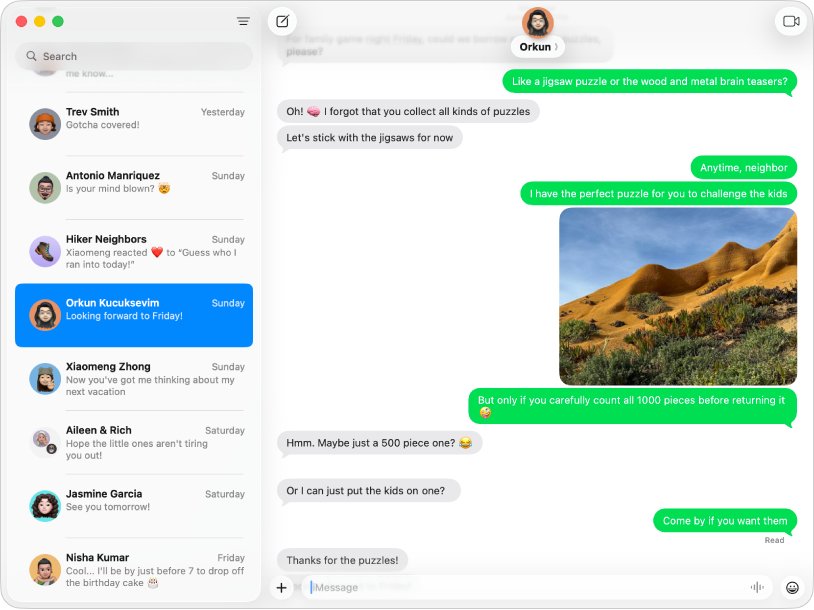
| Mac | Text Message Forwarding in Messages | Full SMS and MMS plus iMessage from your iPhone number |
| iPad | Text Message Forwarding in Messages | SMS and MMS on the iPad using your iPhone number |
| Android phone owner, not iPhone | MightyText | Texting from a browser, Windows app or tablet |
Phone Link requirements for iPhone
| Item | Requirement |
|---|---|
| PC operating system | Windows 11, or Windows 10 with the May 2019 Update or later |
| PC hardware | Bluetooth Low Energy support |
| iPhone | iOS 16 or later |
| Link to Windows app on iPhone | Optional; version 1.23031.2 or later recommended if installed |
| Account | Personal Microsoft account; work or school accounts are not supported |
How to text from a Mac or iPad with Text Message Forwarding
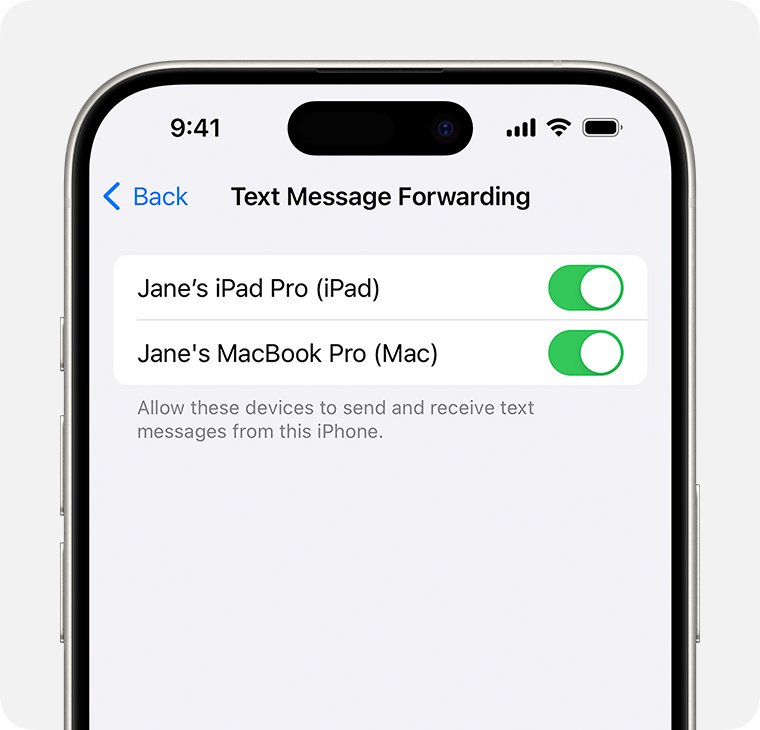
Text Message Forwarding lets a Mac, iPad or Apple Vision Pro send and receive the SMS and MMS messages that arrive on your iPhone.
- Sign in to iCloud with the same Apple Account on the iPhone and the Mac or iPad.
- Make sure iMessage is on in each device.
- On the iPhone, open Settings, tap Apps, then tap Messages.
- Tap Text Message Forwarding.
- Turn on each device that should send and receive your texts.
- If a device does not use two-factor authentication, type the code it shows into the iPhone.
- Open Messages on the Mac or iPad and send a text to a non-iPhone number to test it.
If you use Messages in iCloud, Text Message Forwarding is already on for those devices. The iPhone must stay on and connected to Wi-Fi or cellular for forwarded texts to go through.
How to send a text from Phone Link with an iPhone
- Open Phone Link on the PC and confirm the iPhone shows as connected.
- Select the Messages tab.
- Start a new conversation and enter a contact name or number.
- Type the message; select Emojis to add an emoji.
- Press Enter to send it through the iPhone.
Phone Link only shows messages sent or received while the iPhone is connected over Bluetooth. Ending the Bluetooth connection clears that message history from the PC.
How to check iPhone texts are syncing to your computer
- Ask someone to send a text to your iPhone number.
- Confirm it appears in Phone Link's Messages tab or in Messages on the Mac or iPad.
- Reply from the computer and check the reply also shows on the iPhone.
- In Phone Link, open the Features tab and make sure Messages is turned on.
iPhone texting from PC problems and fixes
iPhone option is greyed out in Phone Link
The PC has no Bluetooth available, or Bluetooth is off.
- Turn on Bluetooth in Settings > Bluetooth & devices on the PC.
- Reopen Phone Link and select iPhone again.
Messages do not appear in Phone Link
The message permissions were not granted on the iPhone.
- Check that Show Notifications, Sync Contacts and Share System Notifications were allowed on the iPhone during pairing.
- If you skipped them, remove the iPhone in Phone Link and pair it again, allowing all three.
- Restart Phone Link on the PC.
Can't send pictures or group texts from Phone Link
Phone Link for iOS does not support images, GIFs, Memojis, media messages or creating group conversations.
- Reply to group messages and send photos from the iPhone itself.
- Use a Mac or iPad with Text Message Forwarding if you need full MMS on a bigger screen.
Text Message Forwarding option is missing on iPhone
iMessage sign-in is incomplete or devices use different Apple Accounts.
- Go to Settings > Apps > Messages, turn iMessage off, then on again.
- Tap Send & Receive and sign in with the same Apple Account as the Mac or iPad.
- Return to Messages and tap Text Message Forwarding.
MightyText for iPhone FAQ
Does MightyText work with iPhone?
No. MightyText needs its phone app installed on an Android phone, which relays texts from your Android number to your computer. iPhone owners can use Phone Link on Windows or Text Message Forwarding on a Mac or iPad instead.
What does MightyText do?
MightyText lets you send and receive SMS and MMS from a PC browser, Windows app or Android tablet using your Android phone number. It also syncs call logs, shows phone notifications and can schedule texts.
How to use MightyText?
Install MightyText on your Android phone, sign in, then open MightyText in a web browser on your PC or install its Windows or Android tablet app. Once both sides are connected, your texts appear on the computer.
Is MightyText a free app?
MightyText is free to install on Google Play, with a paid MightyText Pro upgrade. Pro adds features such as automatic message backup and restore, message templates, themes and replying to texts from email.
Is there a MightyText app for Windows 11?
MightyText offers a Windows app and a browser version, but both need an Android phone on the other end. With an iPhone, use Microsoft Phone Link, which is built into Windows 11.
Can I send texts from my PC using my iPhone?
Yes. Pair the iPhone with Phone Link on a Windows 11 or Windows 10 PC over Bluetooth, then use the Messages tab. Pictures and group texts are not supported from the PC.
Can iPhone texts show up on a Mac?
Yes. Turn on Text Message Forwarding in Settings > Apps > Messages on the iPhone and select the Mac. Both devices must use the same Apple Account with iMessage turned on.
Best MightyText replacement for iPhone users
Use Text Message Forwarding if you have a Mac or iPad, and Phone Link if you only have a Windows PC. Text Message Forwarding handles full SMS, MMS and iMessage from your iPhone number, while Phone Link covers basic text replies and calls on Windows without any extra app.
Windows users who want iMessage itself on the PC can look at iMessage on Windows, which has its own limits.