To delete a spreadsheet in Microsoft Excel, right-click its sheet tab at the bottom of the workbook and select Delete, then confirm.
This guide covers all seven ways to remove a worksheet, including several sheets at once, keyboard routes and VBA, plus how to get a deleted sheet back.
1. The right-click menu method
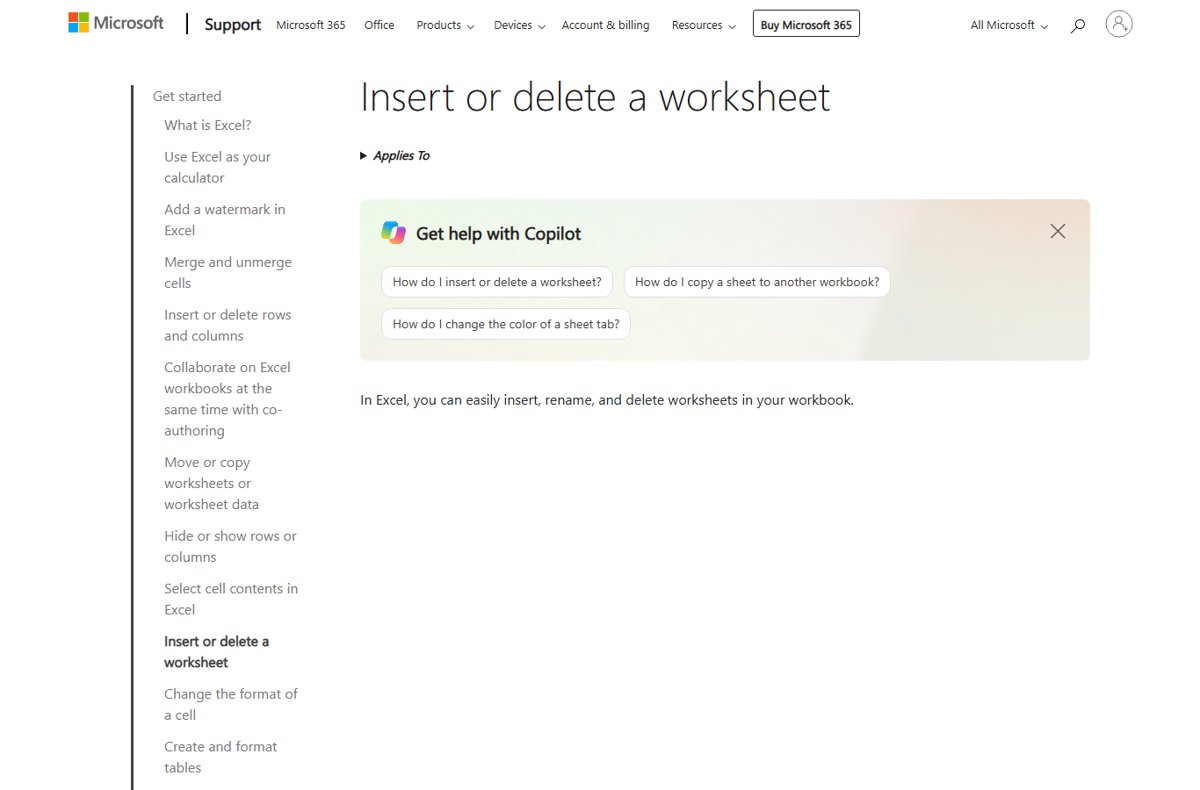
This works in Excel for Microsoft 365, Excel 2024, 2021, 2019 and 2016. It deletes one worksheet, the tab you right-click. If Excel is not on your PC yet, get Microsoft Excel for Windows first.
- Open the workbook and find the sheet tabs along the bottom of the window.
- Right-click the tab of the sheet you want to remove.
- Select Delete in the shortcut menu.
- If Excel asks you to confirm because the sheet holds data, select Delete again.
The tab disappears and Excel opens the neighbouring sheet. Save the workbook only when you are sure, because saving makes the deletion permanent in the file.
Which way to delete an Excel sheet should you use?
| Your situation | Use this method | Why |
|---|---|---|
| One sheet, mouse in hand | Right-click the tab > Delete | Two clicks, nothing to remember |
| Several sheets in one go | Select tabs with Shift or Ctrl, then delete | One confirmation for the whole group |
| Tab hidden off-screen or many sheets | Navigation pane, then delete | Lists every sheet so you jump straight to it |
| You prefer the ribbon | Home > Delete > Delete Sheet | Same result as the right-click menu |
| Hands on the keyboard | Key Tips after Alt+H, or F6 then Shift+F10 | No mouse needed |
| Dozens of sheets or a repeat job | VBA macro | Deletes a named list without prompts |
2. Delete multiple sheets at once
Excel groups the sheets you select, so one Delete removes all of them. Group appears in the title bar while sheets are grouped.
- For sheets side by side, select the first tab, hold Shift and select the last tab.
- For sheets that are not next to each other, select one tab, hold Ctrl and select each of the others.
- Check that Group shows in the title bar and only the sheets you want are highlighted.
- Right-click any highlighted tab and select Delete.
- Confirm with Delete when Excel asks.
To cancel a selection before deleting, select any tab that is not highlighted, or right-click a highlighted tab and select Ungroup Sheets. Avoid Select All Sheets here, because it puts every sheet in the group.
3. Use the Home tab to delete a spreadsheet
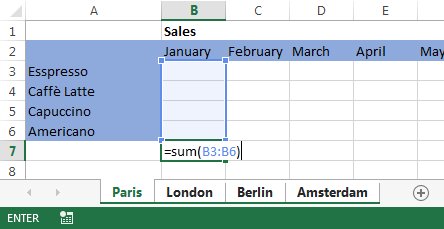
- Select the tab of the sheet you want to remove, or group several tabs as above.
- Go to the Home tab on the ribbon.
- In the Cells group, select the arrow under Delete.
- Select Delete Sheet.
- Confirm with Delete if Excel asks.
Delete on its own removes cells, rows or columns. Use the arrow and pick Delete Sheet, or you may delete the selected cells instead.
4. Use the Navigation pane to find and delete a sheet
The Navigation pane in Excel for Microsoft 365 lists every sheet with its tables, charts and images. It is the quickest way to reach one sheet in a workbook with dozens of tabs.
- Go to View > Navigation. The pane opens on the right side of the window.
- Find the sheet name in the list; each sheet has its own section.
- Select the sheet's section or any item in it. Excel switches to that sheet and highlights its tab.
- Right-click the highlighted sheet tab at the bottom and select Delete.
- Confirm with Delete, then close the pane.
Microsoft documents right-click delete inside the pane for charts and images only, so remove the sheet itself from its tab. You can also right-click the status bar, turn on Sheet Number, and select the count to open the pane.
5. Delete an Excel sheet with a keyboard shortcut
Excel has no single key that deletes a sheet. Two keyboard routes reach the same Delete Sheet command without a mouse.
- Press Ctrl+Page down or Ctrl+Page up until the sheet you want is active.
- Press Alt+H to open the Home tab and show its Key Tips.
- Press the Key Tip letter shown on Delete, then the letter shown on Delete Sheet.
- Or press F6 until the sheet tabs are active, then press Shift+F10 to open the tab's shortcut menu.
- Use the arrow keys to reach Delete and press Enter.
- Press Enter again if Excel asks you to confirm.
To include the next or previous sheet, press Ctrl+Shift+Page down or Ctrl+Shift+Page up before you delete. The same keys let you cycle through Excel tabs to reach the right sheet. If the menu ignores your keys, fix arrow keys not working in Excel, which is usually Scroll Lock.
6. Legacy keyboard shortcut still works
Microsoft confirms that most old Alt-menu sequences from pre-ribbon Excel still work, as long as you know the full sequence. The old Edit menu, opened with Alt then E, held Delete Sheet.
- Select the sheet tab you want to delete.
- Press and release Alt, then press E for the old Edit menu.
- Read the notification that says you are using an access key from an earlier version.
- Type the rest of the old Delete Sheet sequence if you know it.
- If you do not, press Esc and use the Key Tips route in method 5 instead.
7. Use the VBA code editor to delete multiple worksheets
A macro deletes a list of sheets by name in one run. Application.DisplayAlerts = False skips the confirmation box, so Excel removes them without asking.
- Save a copy of the workbook first; macro deletions skip the safety prompt.
- Press Alt+F11 to open the Microsoft Visual Basic for Applications editor.
- Select Insert > Module.
- Paste this code, replacing the names with your own sheet names:
Sub DeleteSheets()/Application.DisplayAlerts = False/Sheets(Array("Sheet2", "Sheet3")).Delete/Application.DisplayAlerts = True/End Sub. - Place the cursor inside the code and press F5 to run it.
- Close the editor and check that the named tabs are gone.
To delete one sheet, use Sheets("Sheet2").Delete instead. Leave DisplayAlerts at its default if you want Excel to ask before each deletion; the method then returns False when you select Cancel.
How to check the Excel sheet is deleted
- Look along the sheet tabs and confirm the deleted name is gone.
- Open View > Navigation and check that the sheet has no section in the list.
- Check that Group no longer shows in the title bar, so later edits do not hit several sheets.
- Search for formulas that pointed at the deleted sheet; they now show a #REF! error and need fixing.
How to recover a deleted sheet in Excel
Do not rely on Undo after deleting a sheet. The safe routes depend on whether the workbook has been saved.
- If you have not saved, close the workbook and select Don't Save, then reopen it with the sheet intact.
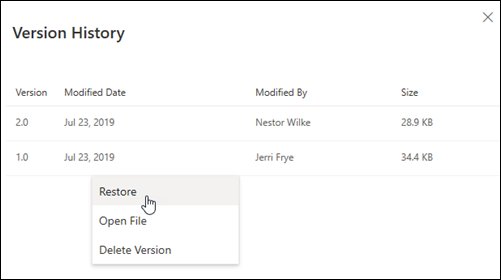
- If AutoSave is on or you already saved, select the file title at the top of the window and choose Version history.
- Select a version from before the deletion; it opens in a separate window.
- Select Restore to replace the current file, or copy the sheet out of the old version instead.
Version history works only for files stored in OneDrive or SharePoint in Microsoft 365. Personal Microsoft accounts keep the last 25 versions, and restoring loses changes made after that version.
Excel delete sheet not working: fixes
Delete is greyed out on the sheet tab menu
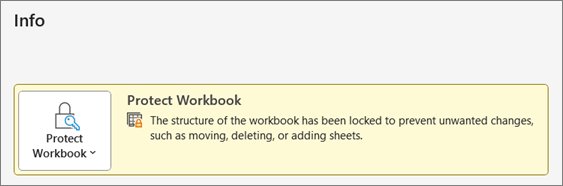
The workbook structure is protected, so sheets cannot be added or removed.
- Go to the Review tab and check whether Protect Workbook is highlighted.
- Select Protect Workbook, enter the password and select OK to unprotect the workbook.
- Right-click the tab and select Delete again.
More sheets disappeared than intended
Several tabs were grouped when you selected Delete.
- Close without saving if you can, or restore a version from Version history.
- Before deleting next time, check the title bar for Group.
- Right-click a tab and select Ungroup Sheets to clear the selection.
A sheet you need is not in the tab bar
It is hidden, not deleted.
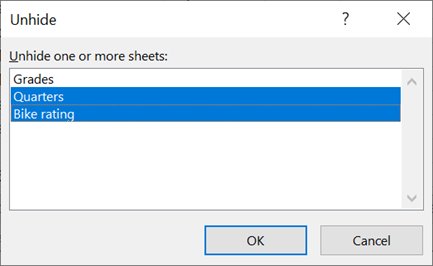
- Go to Home > Format > Visibility > Hide & Unhide > Unhide.
- Select the sheet in the Unhide dialog and select OK.
- If it is not listed, it may be set to very hidden by VBA; ask the workbook owner.
Formulas show #REF! after deleting a sheet
Other sheets referenced cells on the deleted sheet.
- Recover the sheet from Version history if the data is still needed.
- Otherwise edit each formula to point at the new source range.
- Consider hiding a sheet next time when other sheets depend on it.
Delete Excel spreadsheet FAQ
How do I delete a sheet in Excel?
Right-click the sheet tab at the bottom of the workbook and select Delete, then confirm. You can also select the tab and go to Home, Delete, Delete Sheet on the ribbon.
How do I delete multiple sheets in Excel at once?
Hold Shift and select the first and last tabs for adjacent sheets, or hold Ctrl and select each tab for separate sheets. Right-click a highlighted tab, select Delete and confirm once for the whole group.
Is there a keyboard shortcut to delete a sheet in Excel?
There is no single key. Press Alt+H, then the Key Tip letters shown on Delete and Delete Sheet. Or press F6 to reach the sheet tabs, Shift+F10 for the menu, and choose Delete.
Can I get a deleted sheet back in Excel?
Yes, if you have not saved: close the workbook without saving and reopen it. For files on OneDrive or SharePoint, open Version history from the file title and restore a version from before the deletion.
What is the difference between deleting and hiding a sheet?
Deleting removes the sheet and its data from the workbook. Hiding keeps the sheet and its data, so other sheets can still reference it, and Unhide brings it back at any time.
Why can't I delete a sheet in Excel?
The usual cause is workbook structure protection, which greys out Delete on the tab menu. Turn it off from Review, Protect Workbook, entering the password if one was set, then delete the sheet.
How do I delete a sheet with VBA without the confirmation message?
Set Application.DisplayAlerts to False, run Sheets("SheetName").Delete, then set DisplayAlerts back to True. Microsoft documents that DisplayAlerts False suppresses the delete prompt and Excel takes the default response.
Bottom line: the best way to delete a spreadsheet in Excel
Right-click the sheet tab and select Delete for everyday use, and switch to grouped tabs or a VBA macro only when you remove many sheets at once. The right-click route always shows the confirmation, works in every current Excel version, and leaves the least room for deleting the wrong sheet. Bulk methods are faster but remove the safety prompt or widen the selection.