iCloud Drive shows sync pending on a Windows PC when a file is queued but iCloud for Windows has not finished moving it, and right-clicking it and choosing Always keep on this device usually forces the transfer.
This guide explains what the status means, how to force iCloud Drive to sync, the fixes for files that stay stuck, and how to stop iCloud Drive from syncing on a PC.
Force iCloud Drive to sync a pending file on Windows
Apple notes that you must download an iCloud Drive file before you can open it. Pinning a file tells iCloud for Windows to fetch it now instead of waiting.
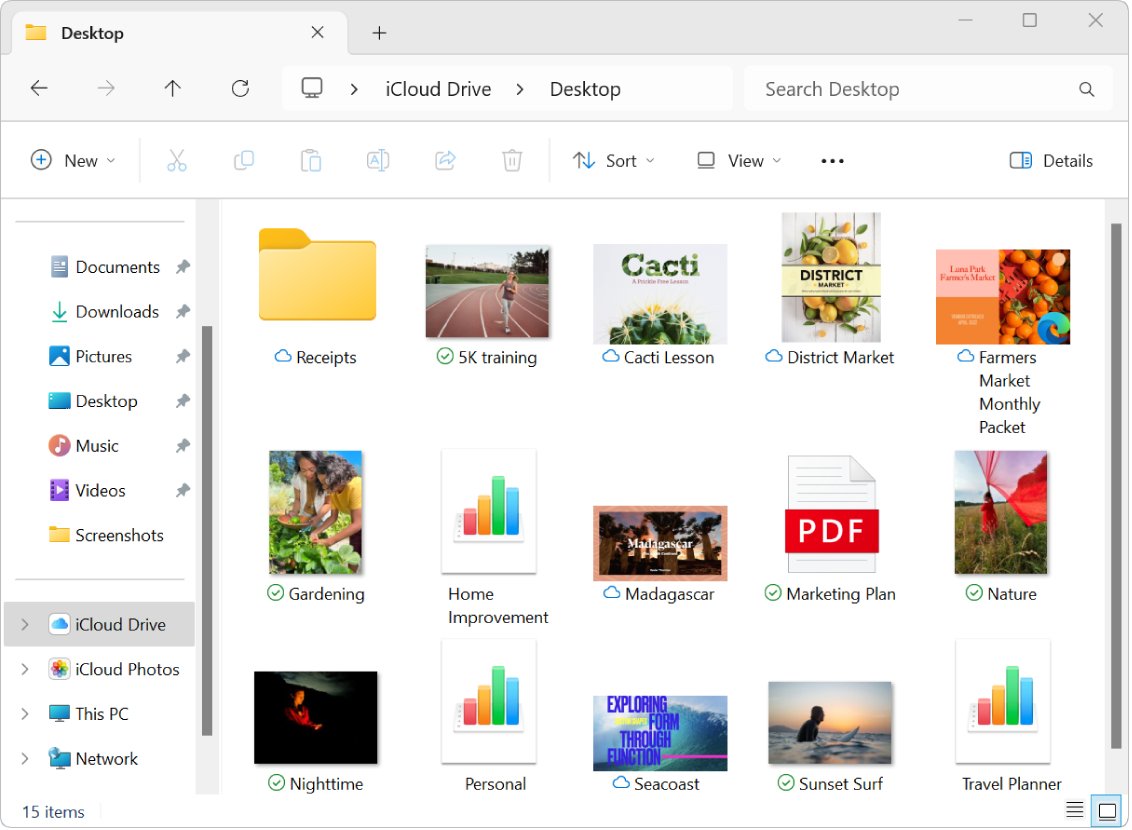
- Open File Explorer and select iCloud Drive in the navigation pane.
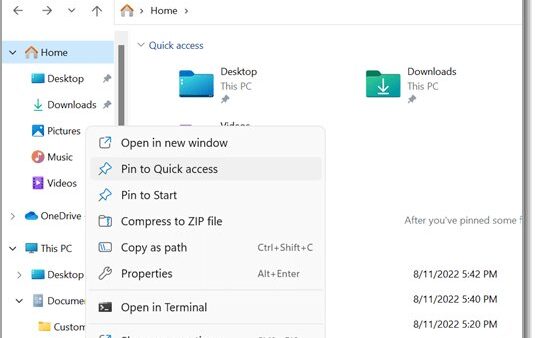
- Right-click the file or folder that shows the pending status.
- Select Always keep on this device in the shortcut menu.
- Leave the PC online and watch the status icon change from waiting to downloading.
- Confirm the icon changes to the downloaded or pinned mark, then open the file.
If nothing moves after a few minutes, check your iCloud storage and the iCloud for Windows version next. Those two causes account for most files that never leave the queue.
What does sync pending mean on iCloud Drive?
Sync pending means iCloud Drive has accepted the change but has not transferred it yet. The status icon next to each item in File Explorer tells you which direction is stuck.
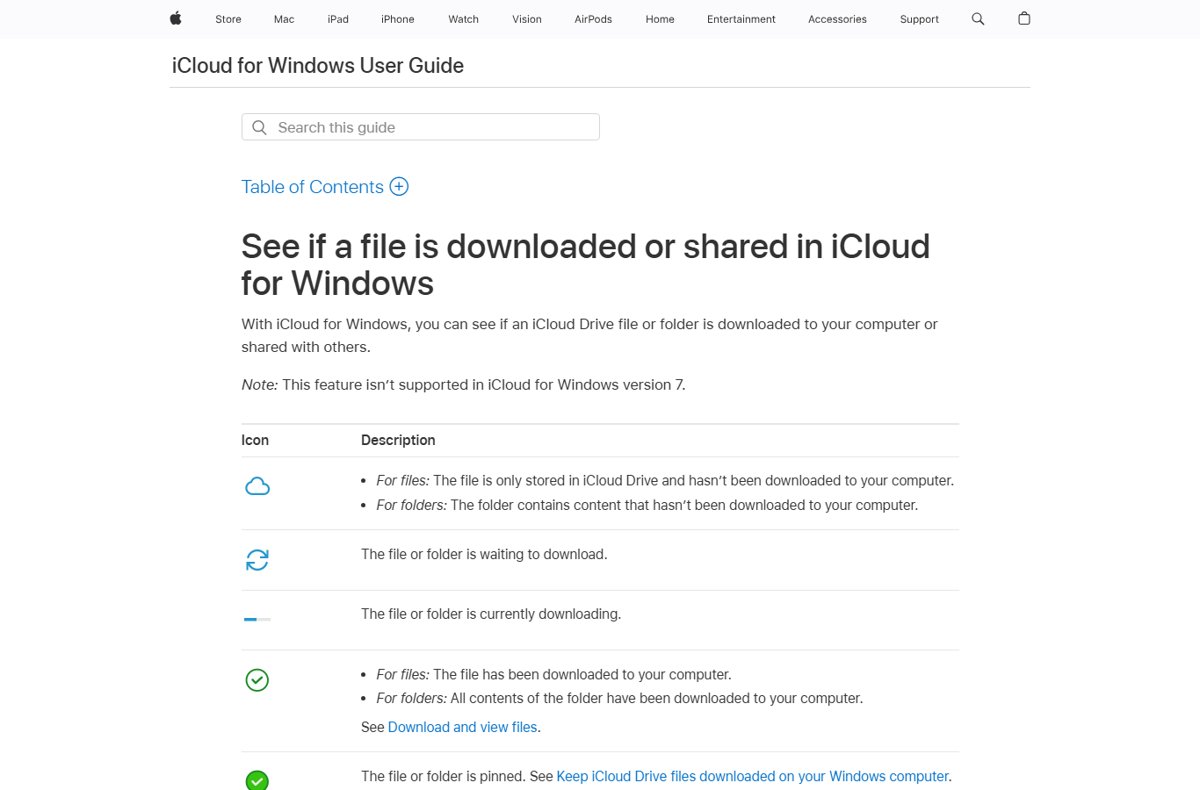
| Status shown in File Explorer | What it means | What to do |
|---|---|---|
| Cloud icon (online only) | The file is stored in iCloud Drive and is not on this PC | Double-click it or pin it to download |
| Waiting to download | The file is queued; this is the pending state | Pin it, keep the PC online, or restart iCloud for Windows |
| Currently downloading | The transfer is running | Wait; large files take longer |
| Downloaded | A full copy is on this PC | Nothing; the file is in sync |
| Pinned | The file stays downloaded at all times | Unpin to save disk space |
| Shared by you or with you | The item is part of a shared folder | Ask the owner if a shared file never arrives |
Files under 1 MB download automatically when iCloud Drive is on. Larger files stay online-only until you open or pin them. These status icons are not supported in iCloud for Windows version 7.
Why is sync pending on iCloud? Causes and fixes
| What you notice | Likely cause | Fix to try |
|---|---|---|
| Every file is stuck, new ones too | iCloud storage is full | Free space or upgrade the plan |
| Only large files stay pending | They are online-only and not yet requested | Pin them with Always keep on this device |
| Pending after a Windows or app update | iCloud for Windows needs an update or repair | Update from Microsoft Store, then Repair |
| Pending on Windows 10 only | The latest iCloud for Windows requires Windows 11 | Upgrade Windows or use icloud.com |
| Files from your iPhone never reach the PC | Different Apple Account or iCloud Drive off on the iPhone | Match the Apple Account and turn sync on |
| Everything stopped at once on all devices | An Apple service outage | Check Apple System Status and wait |
iCloud Drive for Windows requirements
| Requirement | Detail from Apple |
|---|---|
| Windows version | iCloud Drive works on Windows 10 with iCloud for Windows 10 or later; the latest iCloud for Windows needs Windows 11 |
| Where to get the app | Microsoft Store only |
| Apple Account | The same Apple Account you use on your iPhone, iPad or Mac; Managed Apple Accounts are not supported |
| Advanced Data Protection | iCloud for Windows 14.1 or later; with 14.2 or later, your trusted Apple device must be in Bluetooth range or on the same Wi-Fi router, with any VPN turned off |
| Security keys | iCloud for Windows 15 or later |
| Custom iCloud Drive folder | iCloud for Windows 14 or later, on a drive formatted as NTFS |
If iCloud for Windows is missing, get iCloud for Windows from the Microsoft Store before you work through the fixes.
Check iCloud storage when iCloud Drive is not syncing
Apple states that when you run out of iCloud storage, iCloud Drive stops staying up to date across your devices. Every new file then sits in the queue.
- Open iCloud for Windows: on Windows 11 choose Start > All > iCloud; on Windows 10 choose Start > iCloud.
- Scroll down to the bar graph and read your overall storage use.
- Click Manage to see which apps and features use the most space.
- Delete files you no longer need from iCloud, or click Add Storage or Change Storage Plan.
- Return to File Explorer and check whether the pending files start moving.
Update or repair iCloud for Windows to fix sync pending
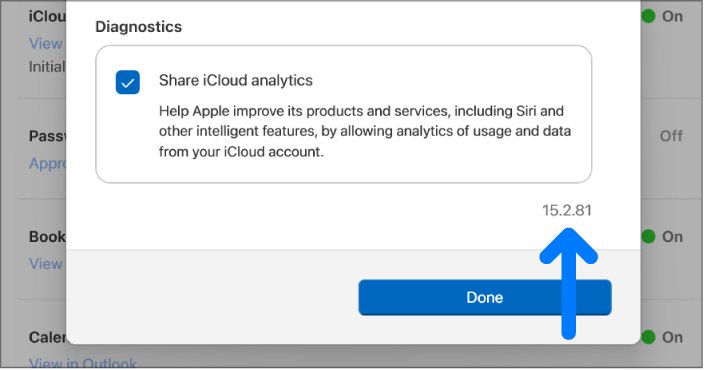
- Open iCloud for Windows, click Account Details at the top right and note the version in the bottom-right corner.
- Open Microsoft Store and select Check for Updates to install the latest iCloud for Windows.
- If files still stay pending, select Start > Settings > Apps > Installed apps.
- Select the More icon next to iCloud, then select Advanced options.
- Select Repair. If that does not help, select Reset and sign in to iCloud again.
- Restart the PC and check the iCloud Drive folder.
On Windows 10 the newest iCloud for Windows will not install, because Apple now requires Windows 11 for the latest version. Upgrading Windows removes that limit.
Turn iCloud Drive off and on again in iCloud for Windows
Restarting iCloud Drive makes the app rebuild its queue. Copy any file that has never reached iCloud to another folder first, so a pending upload cannot be lost.
- Copy files that show a pending upload from the iCloud Drive folder to your Desktop.
- Open iCloud for Windows.
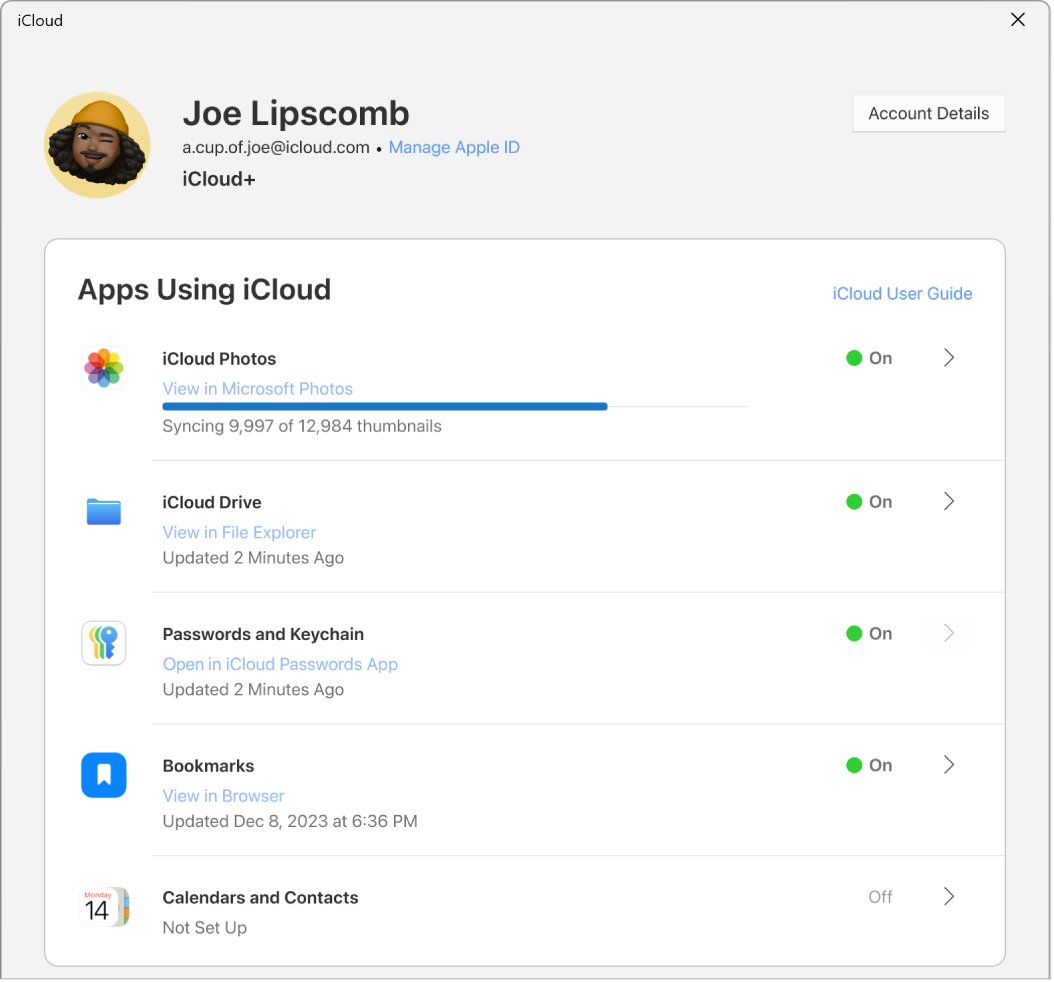
- Click the button to the right of iCloud Drive, turn iCloud Drive off and click Done.
- Restart the PC.
- Open iCloud for Windows again, turn iCloud Drive on and click Done.
- Drag the copied files back into iCloud Drive in File Explorer.
Sign out of iCloud for Windows and sign back in
Signing out removes the iCloud data stored on this PC; your files remain in iCloud and on your other devices. Back up any local-only copies before you start.
- Open iCloud for Windows and click Account Details.
- Click Sign Out and follow the onscreen instructions.
- Restart the PC and open iCloud for Windows again.
- Sign in with the same Apple Account used on your iPhone, iPad or Mac.
- Enter the verification code sent to your trusted device or phone number if asked.
- Click Sync next to iCloud Drive and click Finish Setup.
How to check iCloud Drive is syncing again
- Open File Explorer > iCloud Drive and confirm the pending icon has changed to downloaded or pinned.
- Sign in at
icloud.com/iclouddrivein your browser. - Confirm the file you added on the PC now appears there.
- Add a small test file on icloud.com or your iPhone and wait for it to appear in File Explorer.
If the test file reaches iCloud.com but not the PC, the problem sits with iCloud for Windows. If it reaches neither, check storage and Apple's service status.
How to stop iCloud Drive from syncing on a PC
| What you want | Do this | What happens |
|---|---|---|
| Keep a file in iCloud but off this PC | Right-click it > Free up space | The local copy goes; the file stays in iCloud and is unpinned |
| Stop one pinned file downloading | Right-click > Always keep on this device to clear the checkmark | The file can go back to online-only |
| Stop iCloud Drive syncing entirely | In iCloud for Windows, turn iCloud Drive off and click Done | iCloud Drive stops updating on this PC |
| Stop all iCloud features on this PC | Account Details > Sign Out | iCloud data is removed from the PC, not from iCloud |
| Move a file out of iCloud for good | Drag it from iCloud Drive to a local folder | It is removed from iCloud Drive on all your devices |
iCloud Drive stuck on sync pending: fixes by symptom
iCloud Drive on PC says sync pending for every file
iCloud storage is full, so nothing new can sync.
- Open iCloud for Windows and read the storage bar graph.
- Click Manage and remove large items you no longer need, or upgrade the plan.
- Wait for the queue to start moving in File Explorer.
Files from iPhone are not syncing to the PC
The iPhone uses a different Apple Account or has iCloud Drive turned off.
- On the iPhone, go to Settings > [your name] > iCloud.
- Tap Drive (or iCloud Drive) and turn on Sync this iPhone.
- Confirm the Apple Account matches the one in iCloud for Windows.
Sync pending on Windows 10 after it worked before
The latest iCloud for Windows requires Windows 11.
- Check your iCloud for Windows version under Account Details.
- Upgrade the PC to Windows 11 if it is eligible, then update iCloud for Windows.
- Until then, upload and download files at
icloud.com/iclouddrive.
iCloud for Windows will not sign in, so nothing syncs
Advanced Data Protection, a VPN or security keys block the sign-in.
- Turn off any VPN temporarily.
- Keep your trusted iPhone in Bluetooth range or on the same Wi-Fi router.
- Update to iCloud for Windows 15 or later if your Apple Account uses security keys.
iCloud Drive not syncing on any device
An Apple iCloud service is down.
- Open Apple's System Status page at
apple.com/support/systemstatus. - Check the iCloud Drive entry for a reported issue.
- Wait until it shows available, then check File Explorer again.
iCloud Drive sync pending FAQ
What does sync pending mean on iCloud?
It means a file is queued but iCloud for Windows has not finished uploading or downloading it. Pinning the file, freeing iCloud storage or updating iCloud for Windows normally clears the status.
How do I force iCloud Drive to sync on Windows?
Open File Explorer, select iCloud Drive, right-click the file and choose Always keep on this device. That makes iCloud for Windows download it now and keep it on the PC.
Why is iCloud Drive not syncing on my PC?
The common causes are full iCloud storage, an outdated iCloud for Windows, a different Apple Account on your other devices, or iCloud Drive turned off on the iPhone. Check storage first, then the app version.
How do I get iCloud Drive to sync between my iPhone and PC?
Sign in to the same Apple Account on both. On the iPhone, turn on Sync this iPhone under Settings, your name, iCloud, Drive. On the PC, turn on iCloud Drive in iCloud for Windows.
How do I make iCloud Drive sync faster?
Keep the PC online and awake, pin only the folders you need, and leave enough free iCloud storage. Files under 1 MB download automatically; larger ones wait until you open or pin them.
How do I stop iCloud Drive from syncing?
Open iCloud for Windows, click the button next to iCloud Drive, turn it off and click Done. To keep one file online-only instead, right-click it in File Explorer and choose Free up space.
Does iCloud Drive work on Windows 10?
Yes, with iCloud for Windows 10 or later. The latest iCloud for Windows, however, needs Windows 11, so Windows 10 PCs miss newer fixes. icloud.com works in Edge, Chrome or Firefox on either version.
Where are iCloud Drive files stored on Windows?
By default in C:\Users\[user name]\iCloud Drive. With iCloud for Windows 14 or later, you can move the folder to another NTFS drive from the iCloud Drive options in iCloud for Windows.
Bottom line on iCloud Drive sync pending in Windows
Pin the stuck file first, then check iCloud storage and update iCloud for Windows; sign out and back in only if those fail. Most pending files are simply online-only or blocked by full storage, and both clear without touching your data. Signing out removes local iCloud data, so it belongs at the end of the list.