To turn on network discovery in Windows 11, open Settings > Network & internet > Advanced network settings > Advanced sharing settings and switch Network discovery to On under Private networks.
This guide covers the Settings route, the Control Panel and File Explorer routes, the network profile change that makes discovery stick, and fixes for when the setting will not save.
Step-by-step tutorial on how to turn on network discovery Windows 11
Network discovery lets your PC see other computers, printers and media devices on the same network, and lets them see your PC.
The setting lives in the Settings app on current Windows 11 builds, in the same Network & internet section that holds the rest of your Wi-Fi and network settings.
- Select Start, then select Settings.
- Select Network & internet in the left pane.
- Scroll down and select Advanced network settings.
- Select Advanced sharing settings.
- Expand the Private networks section.
- Switch Network discovery to On.
- Switch File and printer sharing to On if you also want to share folders or a printer.
If your current connection is set to Public, discovery stays off for it until you change the network profile, which is the next section.
Set your Wi-Fi or Ethernet network to private before enabling discovery
Windows 11 sets every new network to Public network (Recommended) by default, and a public profile hides your PC from other devices.
Network discovery only works on a network marked private, so change the profile on your trusted home or office network first.
- Open Settings > Network & internet.
- Select Wi-Fi and then the Wi-Fi network you are connected to, or select Ethernet for a wired connection.
- Under Network profile type, select Private network.
- Go back to Advanced sharing settings and confirm Network discovery is On under Private networks.
Only mark a network private when you know and trust the people and devices on it, such as your own router at home.
Which way to turn on network discovery should you use?
| Your situation | Use this route | Why |
|---|---|---|
| Windows 11 with the current Settings app | Settings > Network & internet > Advanced network settings > Advanced sharing settings | Toggles save instantly and show both private and public profiles |
| File Explorer shows a yellow "Network discovery is turned off" banner | Select the banner in File Explorer | One click from the place you were already trying to browse |
| Windows 10, or you prefer the classic dialog | Control Panel > Network and Sharing Center > Change advanced sharing settings | Same setting with radio buttons and a Save changes button |
| You manage several PCs or work remotely | PowerShell for the network profile | Changes the profile without opening Settings |
Turn on network discovery from the File Explorer banner
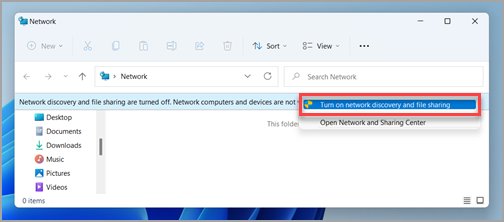
When you open Network in File Explorer with discovery off, Windows shows a message that network discovery is turned off.
- Press Windows logo key + E to open File Explorer.
- Select Network in the left pane.
- Select the Network discovery is turned off banner at the top of the window.
- Select Turn on network discovery and file sharing.
- Wait a few seconds for computers and devices to appear in the Network folder.
Turn on network discovery in Control Panel's Network and Sharing Center
This is the older route that still works in Windows 11 and is the main route in Windows 10.
You can also open the Network and Sharing Center from Control Panel if you prefer the classic dialogs.
- Open Control Panel.
- Select Network and Internet > Network and Sharing Center.
- Select Change advanced sharing settings in the left pane.
- Under Network discovery, select Turn on network discovery.
- Under File and printer sharing, select Turn on file and printer sharing.
- Select Save changes.
Set the network profile to private with PowerShell
Discovery depends on the network profile, so switching a connection to private from PowerShell is the scripted half of the job.
Run PowerShell as administrator, replace Ethernet with your adapter name (for example Wi-Fi), and run the command.
Set-NetConnectionProfile -InterfaceAlias Ethernet -NetworkCategory PrivateSet-NetConnectionProfile changes the network category of a connection. -InterfaceAlias picks the adapter, and -NetworkCategory Private marks that network as trusted so the private sharing settings apply.
You should see: The command returns no output on success. Open Settings > Network & internet and the connection now shows Private network under Network profile type.
How to check network discovery is working in Windows 11
- Press Windows logo key + E and select Network in the left pane.
- Confirm the Network discovery is turned off banner is gone.
- Look for other PCs, network printers and media devices listed in the Network folder.
- Type \\localhost in the File Explorer address bar to list the folders this PC is sharing.
- Repeat the check from a second PC on the same network to confirm your PC appears there too.
Devices can take a minute to appear after you enable discovery, so wait briefly before you start troubleshooting.
What network discovery does on private and public networks
| Network profile | Is your PC visible? | File and printer sharing | Use it for |
|---|---|---|---|
| Public network (Recommended) | No, hidden from other devices | Not available | Cafes, hotels, airports, and any network you do not control |
| Private network | Yes, discoverable | Available when turned on | Your home network or a small office you trust |
Leaving discovery off on public networks is deliberate: it stops strangers on shared Wi-Fi from seeing your PC.
Tips on how to turn on network discovery Windows 11
These settings decide whether discovery actually lets you share files and folders once it is on.
| Tip | Where to set it | Why it matters |
|---|---|---|
| Turn on discovery on every PC, not just one | Advanced sharing settings on each computer | A PC with discovery off stays invisible to the others |
| Keep all PCs on the same router | Wi-Fi or Ethernet settings | Devices on a guest network or a different router do not see each other |
| Turn on File and printer sharing too | Advanced sharing settings > Private networks | Discovery shows devices; sharing lets you open their folders and printers |
| Decide on password protected sharing | Advanced sharing settings > All networks | With it on, others need an account and password on your PC to open shares |
| Update Windows on every PC | Settings > Windows Update | Missing updates and drivers are a common cause of sharing failures |
| Do not enable discovery on public networks | Advanced sharing settings > Public networks | Your PC would be visible to everyone on that network |
Turn off network discovery in Windows 11
- Open Settings > Network & internet > Advanced network settings.
- Select Advanced sharing settings.
- Expand Private networks and switch Network discovery to Off.
- Switch File and printer sharing to Off if you no longer share folders or printers.
Setting the network profile back to Public network (Recommended) also hides your PC without touching the sharing toggles.
Network discovery not turning on in Windows 11: fixes
Network discovery turns itself back off after you save
One or more services that discovery depends on are stopped or set to manual.
- Press Windows logo key + R, type services.msc and select OK.
- Right-click Function Discovery Resource Publication and select Properties.
- Set Startup type to Automatic, select Start if the service is stopped, then select OK.
- Repeat for Function Discovery Provider Host, SSDP Discovery and UPnP Device Host.
- Confirm the DNS Client service shows Running.
- Restart the PC and turn on network discovery again.
Why can't I turn on network discovery even with the services running?
Windows Firewall or another firewall is blocking the Network Discovery rules.
- Open Control Panel, select System and Security, and then select Windows Firewall.
- Select Allow an app or feature through Windows Firewall in the left pane.
- Select Change settings and approve the administrator prompt.
- Select Network discovery, then select OK.
- Allow network discovery in any other firewall product you use, then turn discovery on again.
Discovery is on but other devices still do not appear
The PCs are on different networks, the connection is still public, or the other PC has discovery off.
- Confirm every device connects through the same router.
- Set the connection to Private network under Network profile type.
- Turn on network discovery and File and printer sharing on the other PCs too.
- Install pending updates on each PC from Settings > Windows Update.
- If the network itself misbehaves, reset network settings as a last resort.
Network printer is missing after turning on discovery
The printer is on a different network segment or its sharing is off on the host PC.
- Turn on File and printer sharing under Private networks on the PC that hosts the printer.
- Check the printer is connected to the same router as your PC.
- Restart the printer and the host PC, then check the Network folder in File Explorer again.
Once discovery works, you can find the printer on your network and add it from Settings.
Frequently asked questions about network discovery in Windows 11
How do I turn on network discovery in Windows 11?
Open Settings > Network & internet > Advanced network settings > Advanced sharing settings, expand Private networks and switch Network discovery to On. Your connection must also be set to Private network for the setting to apply to it.
How do I turn on network discovery in Windows 10?
In Windows 10, open Settings > Network & Internet, select Network and Sharing Center, then Change advanced sharing settings. Select Turn on network discovery, select Turn on file and printer sharing, and select Save changes.
Why can't I turn on network discovery?
The usual causes are stopped dependency services or a firewall blocking the Network Discovery rules. Start DNS Client, Function Discovery Resource Publication, SSDP Discovery and UPnP Device Host, then allow Network discovery through Windows Firewall.
How do I turn on network discovery and file sharing together?
In Advanced sharing settings, switch both Network discovery and File and printer sharing to On under Private networks. From File Explorer, select the Network discovery is turned off banner and choose Turn on network discovery and file sharing.
Why turn off network discovery?
Turning it off hides your PC from other devices on the network. That matters on public Wi-Fi in cafes, hotels and airports, which is why Windows 11 keeps discovery off on networks set to Public network (Recommended).
Why is my network discovery turned on?
Windows turns discovery on for networks you mark as Private network, and you may have accepted it from the File Explorer banner. If you do not share files or printers, switch it off in Advanced sharing settings or set the network to public.
How does network discovery work?
Network discovery lets Windows find other computers, printers and media devices on the same local network and advertise your PC to them. It relies on services such as Function Discovery Resource Publication, SSDP Discovery and UPnP Device Host, plus firewall rules that allow the traffic.
How do I turn on network discovery on Windows Server 2022?
Use Network and Sharing Center > Change advanced sharing settings, as on Windows 10. If the setting will not save, start the DNS Client, Function Discovery Resource Publication, SSDP Discovery and UPnP Device Host services and allow Network discovery in the firewall.
How do I turn on network discovery on a Mac?
macOS has no setting called network discovery. To let other computers see shared folders, open Apple menu > System Settings > General > Sharing, select the Info button next to File Sharing and turn on File Sharing.
Does turning on network discovery slow down my internet?
No. Network discovery only controls whether devices on your local network can find each other and your PC. It does not change the connection between your router and the internet, so web browsing and downloads are unaffected.