System settings in Windows 11 sit on the System page of the Settings app, which opens with Windows + I and holds display, sound, notifications, power, storage, recovery and device information.
This guide explains what every System page controls, gives the direct shortcut for each one, and shows what to do when the Settings app freezes or will not open.
How to access system settings in Windows 11
System is the first category in Settings, so it is usually the page you land on when Settings opens.
- Press Windows + I to open Settings.
- Select System in the left pane.
- Select the page you need, such as Display, Sound, Notifications or Power & battery.
- Type a keyword such as
displayornotificationsin the search box at the top of Settings if you are not sure which page holds an option.
You can also right-click the Start button and select Settings, then select System.
System Settings in Windows 11
The System category groups the settings that control the PC itself rather than accounts, apps or networks.
Each page below has its own ms-settings: address, so you can open it directly from the Run box (Windows + R). Some pages only appear on hardware or editions that support them.
| System page | What it controls | Direct shortcut |
|---|---|---|
| Display | Brightness, scale, display resolution, orientation, multiple monitors, night light and the Advanced display options such as refresh rate | ms-settings:display |
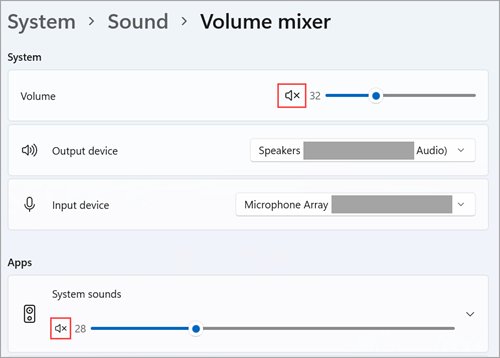
| Sound | Output and input devices, volume and per-device audio properties | ms-settings:sound |
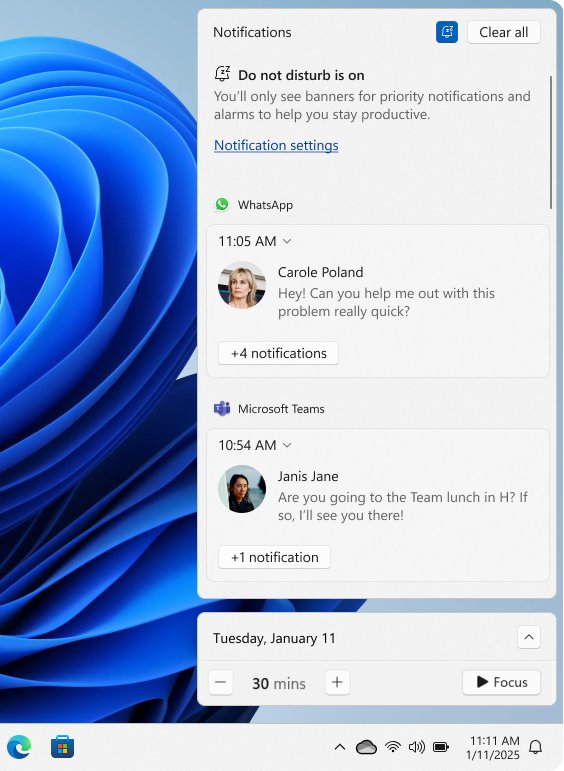
| Notifications | App notifications, banners and Do not disturb, including automatic rules for set times, games and full-screen apps | ms-settings:notifications |
| Focus | Focus sessions that turn on Do not disturb and hide taskbar badges and flashing for a set time; replaces the old Focus assist page | ms-settings:quiethours |
| Power & battery | Power Mode, Energy saver and Screen, sleep & hibernate timeouts | ms-settings:powersleep |
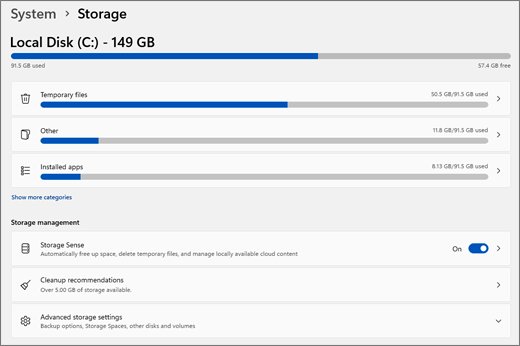
| Storage | Space used by category, Storage Sense, Cleanup recommendations, Disks & volumes and where new content is saved | ms-settings:storagesense |
| Nearby sharing | Send files and links to nearby Windows PCs over Bluetooth or Wi-Fi, and choose where received files are saved | ms-settings:crossdevice |
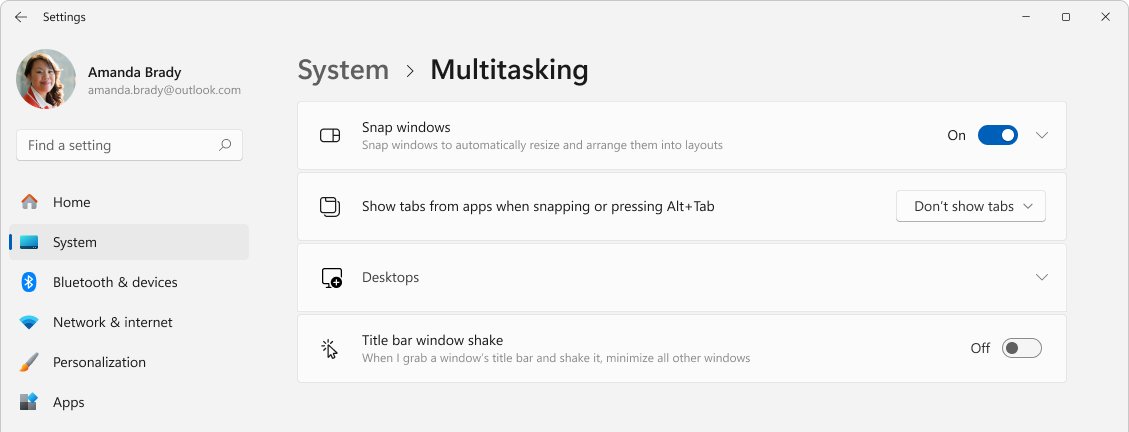
| Multitasking | Snap windows, Snap layouts, Snap groups and related window behavior | ms-settings:multitasking |
| Activation | Windows edition, activation status, product key and the link between your license and Microsoft account | ms-settings:activation |
| Troubleshoot | Entry point for the built-in troubleshooters, which now run in the Get Help app | ms-settings:troubleshoot |
| Recovery | Reset PC and advanced startup into the Windows Recovery Environment | ms-settings:recovery |
| Projecting to this PC | Lets other Windows devices project their screen to this PC | ms-settings:project |
| Remote Desktop | Turns on incoming Remote Desktop connections and shows the PC name to connect to (Pro edition and above) | ms-settings:remotedesktop |
| Clipboard | Clipboard history, sync across devices and Clear clipboard data | ms-settings:clipboard |
| About | Device specifications, Windows specifications, edition and version | ms-settings:about |
Battery-only pages such as Battery Saver appear only on devices with a battery, and Graphics settings appear only on devices that support advanced graphics options.
Ways to open the System settings menu in Windows 11
Every route ends in the same Settings app. Pick the one that matches what your hands are already doing.
| Your situation | Use this | Why |
|---|---|---|
| Keyboard ready, any page | Press Windows + I, then select System | Two steps, works everywhere |
| Mouse only | Right-click Start and select Settings | No key combination needed |
| You know the exact page | Press Windows + R and enter its ms-settings: address, such as ms-settings:sound |
Skips every menu |
| You only know the option name | Type it in the search box at the top of Settings | Search finds pages by keyword |
| You are in Command Prompt or PowerShell | Run start ms-settings:display (or any other address) |
Opens the page from a script or terminal |
Common system settings changes in Windows 11
These are the System page changes people look for most often, with the exact path for each.
| What you want to change | Where to go | What to select |
|---|---|---|
| Screen resolution | System > Display | Pick the value marked (Recommended) in Display resolution |
| Text and app size | System > Display > Scale & layout | Choose a value in Scale |
| System sound output device | System > Sound | Choose a device under Output |
| Silence notifications | System > Notifications | Turn on Do not disturb or set Turn on do not disturb automatically |
| Sleep and screen-off timers | System > Power & battery > Screen, sleep & hibernate timeouts | Set Turn my screen off after and Make my device sleep after |
| System performance versus battery | System > Power & battery > Power Mode | Choose a mode; Best Power Efficiency limits background activity |
| Free up disk space | System > Storage | Open Cleanup recommendations or turn on Storage Sense |
| Snap windows side by side | System > Multitasking | Turn on Snap windows and pick the options under it |
| Clipboard history | System > Clipboard | Turn on Clipboard history, or press Windows + V and select Turn on |
| Allow remote connections | System > Remote Desktop | Turn on Remote Desktop and select Confirm |
For audio-specific options beyond the device picker, manage sound settings on Windows 11 page by page.
What are Windows system settings?
Windows system settings are the controls for the hardware and core behavior of the PC: what the screen shows, how it sounds, when it sleeps and how storage is used.
Windows 11 still keeps some older controls in the classic System Properties window, which the modern Settings app links to rather than replaces.
| Tool | What it holds | How to open it |
|---|---|---|
| Settings > System | Display, sound, notifications, power, storage, recovery, activation, device info | Windows + I > System |
| Classic System Properties | Performance options, user profiles, startup and recovery, environment variables | Through the Advanced system settings link |
| Settings > Apps | Installed apps, default apps, startup apps, optional features | Windows + I > Apps |
| Settings > Windows Update | Updates, update history, active hours and advanced options | Windows + I > Windows Update |
If you need the classic dialog for performance options or environment variables, find advanced system settings in Windows 11 from the About page.
Check your Windows 11 edition and activation in System settings
The About and Activation pages confirm what you are running, which decides which System pages you see. Remote Desktop hosting, for example, needs Pro edition.
- Press Windows + I and select System > About.
- Under Windows specifications, read the Edition row and the version details.
- Go back to System and select Activation.
- Read the message next to Activation status to confirm Windows is activated.
- Select Add an account on the same page if you want to link your digital license to a Microsoft account.
SystemSettings.exe suspended; stopped interacting with Windows 11
SystemSettings.exe is the process name of the Settings app. These fixes cover the Settings app freezing, refusing to open, or a System page being missing.
Settings stopped interacting or shows as suspended
The Settings app hung in the background, often after an update or a stuck page.
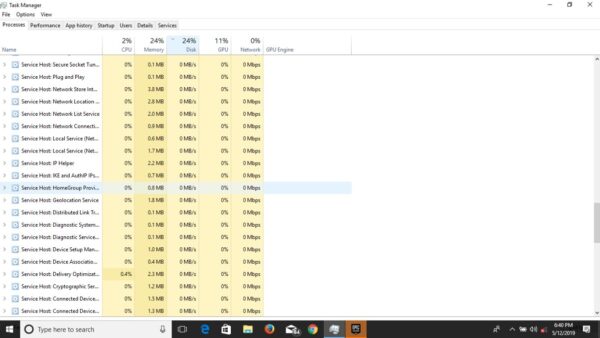
- Press Ctrl + Shift + Esc to open Task Manager.
- Select Settings in the process list and select End task.
- Press Windows + I to open Settings again.
- Restart the PC if Settings freezes again on the same page.
Windows 11 system settings not working or not opening
Damaged system files or a pending update can stop the Settings app from launching.
- Install the latest updates and restart the PC.
- Type
command promptin the taskbar search box, right-click Command Prompt and select Run as administrator. - Run
DISM.exe /Online /Cleanup-image /Restorehealthand wait for The operation completed successfully. - Run
sfc /scannowand wait for Verification 100% complete. - Restart the PC and press Windows + I again.
A System page such as Remote Desktop or Battery is missing
Some pages appear only on supported hardware or editions.
- Open System > About and check Edition; Remote Desktop hosting needs Windows 11 Pro.
- Check whether the device has a battery; battery pages do not appear on desktops without one.
- Type the setting name in the Settings search box to see where Windows lists it on your build.
Reset Windows 11 from System > Recovery
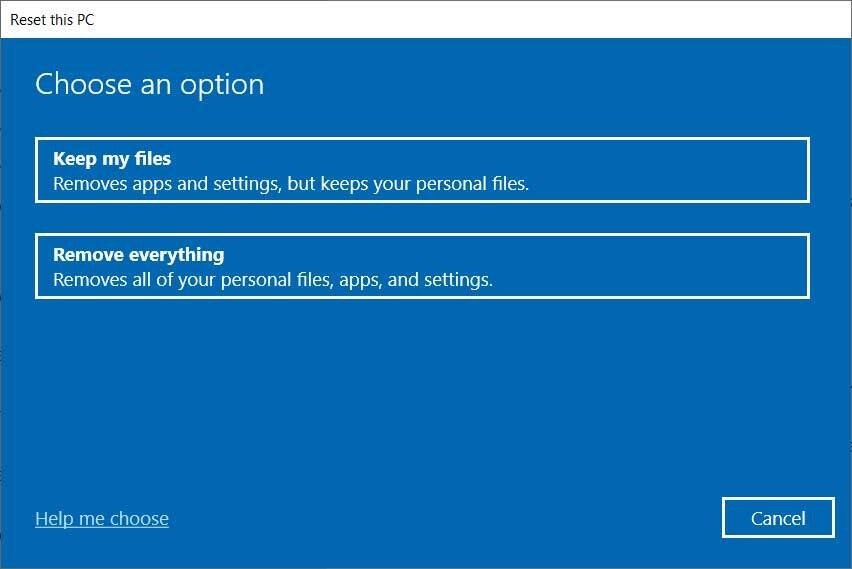
When individual fixes fail, the Recovery page reinstalls Windows. Keep my files keeps documents but removes apps and settings; Remove everything wipes the PC.
Back up important files first, and keep your BitLocker recovery key ready if the drive is encrypted.
- Press Windows + I and select System > Recovery.
- Under Recovery options, select Reset PC.
- Choose Keep my files or Remove everything.
- Choose Cloud download for a fresh copy of Windows or Local reinstall to use the files already on the PC.
- Follow the on-screen prompts and do not restart the PC manually, even if the screen stays black for a while.
If you only want default options back rather than a reinstall, reset all settings in Windows 11 by area instead.
System settings in Windows 11 FAQ
How do I access system settings in Windows 11?
Press Windows + I to open Settings, then select System in the left pane. You can also right-click the Start button and select Settings, or press Windows + R and enter an ms-settings address such as ms-settings:display to open one page directly.
Where are the system display settings in Windows 11?
Display settings are at Settings > System > Display. That page holds brightness, scale, display resolution, orientation and multiple-monitor layout. The Advanced display section on the same page holds the refresh rate and dynamic refresh rate options.
Where are the system sound settings in Windows 11?
Sound settings are at Settings > System > Sound, or you can open them directly with ms-settings:sound in the Run box. The page lets you choose output and input devices, set volume and open each device's properties.
Where are notification settings in Windows 11?
Notification settings are at Settings > System > Notifications. The page turns notifications on or off, sets per-app rules and controls Do not disturb, including automatic rules for set hours, games, full-screen apps and when you duplicate your display.
Where are the system performance settings in Windows 11?
The main performance control in Settings is Power Mode under System > Power & battery. Visual effects and virtual memory live in the classic System Properties window, which opens from the Advanced system settings link.
What happened to Focus assist in Windows 11?
Focus assist was split into Do not disturb and Focus. Do not disturb lives on the System > Notifications page, while System > Focus starts timed focus sessions that also hide taskbar badges and flashing.
How do I check my Windows 11 version in System settings?
Open Settings > System > About and read the Windows specifications section. It lists the edition and version details. The Activation page under System shows whether that copy of Windows is activated.
Why do I not see Remote Desktop in System settings?
Hosting Remote Desktop connections needs Windows 11 Pro or a higher edition. Check System > About for your edition. Windows 11 Home can still connect out to other PCs with the Remote Desktop Connection app.
Wrapping things up
Use Windows + I and the System page for everyday PC changes, and save the ms-settings shortcuts for the pages you open often. System holds display, sound, notifications, power, storage and recovery in one place, and each page has a direct address that skips the menus.