Press Windows + R, type eventvwr.msc and press Enter to open Event Viewer in Windows 11 and Windows 10.
Below are all six ways to open it, from the Run box to PowerShell, plus how to read the window and find error logs once it is open.
How to open Event Viewer in Windows 11 & 10
Method 1 is the Run dialog box. It is the fastest route because it skips every menu and works the same on both versions of Windows.
- Press Windows + R to open the Run dialog box.
- Type
eventvwr.mscin the Open box. - Press Enter or select OK.
- Wait a moment while Event Viewer loads its log list on the left.
Which way to open Event Viewer suits you
| Your situation | Method | Why |
|---|---|---|
| Keyboard handy, want it now | 1. Run dialog box | One shortcut and one command |
| Prefer the mouse and typing a name | 2. Windows Search | No command to remember |
| Mouse only | 3. Power User menu | Right-click Start and pick it from the list |
| Already managing disks, services or users | 4. Computer Management | Event Viewer sits inside the same console |
| Already working in a terminal | 5. Command Prompt | Type one word at the prompt |
| Scripting or opening a remote PC's logs | 6. Windows PowerShell | Show-EventLog can target another computer |
Method 2: Open Event Viewer using Windows Search
- Select Start or the search box on the taskbar.
- Type
Event Viewer. - Select Event Viewer in the results to open it.
- To open it elevated, select Run as administrator in the right-hand pane of the results instead.
Method 3: Open Event Viewer from the Power User menu
- Right-click the Start button, or press Windows + X.
- Select Event Viewer in the menu that appears.
- Event Viewer opens on the Event Viewer (Local) overview page.
Method 4: Open Event Viewer through Computer Management
The Computer Management console is an MMC console that groups several admin tools, Event Viewer among them. Use this route when you also need Disk Management, Services or Device Manager.
- Press Windows + R, type
compmgmt.mscand press Enter, or right-click Start and select Computer Management. - In the left pane, expand System Tools.
- Expand Event Viewer to see Custom Views, Windows Logs and Applications and Services Logs.
- Select a log to view its events in the middle pane.
Method 5: Open Event Viewer using Command Prompt
eventvwrOpen Command Prompt from Start search, type the command and press Enter. eventvwr.msc works the same way. Start Command Prompt with Run as administrator first if you need Event Viewer elevated.
You should see: The Event Viewer window opens and the prompt returns, ready for the next command.
Method 6: Open Event Viewer using Windows PowerShell
The same eventvwr command works in PowerShell and Windows Terminal. Windows PowerShell 5.1 also has a dedicated cmdlet that opens Event Viewer and shows the classic logs.
Show-EventLogRun it in Windows PowerShell to open Event Viewer on the local computer. Add -ComputerName "Server01" to show a remote computer's classic event logs instead. Microsoft documents the cmdlet for Windows PowerShell 5.1; if your shell does not recognise it, type eventvwr instead.
You should see: Event Viewer opens with the classic logs, such as Application and System, listed in the console tree.
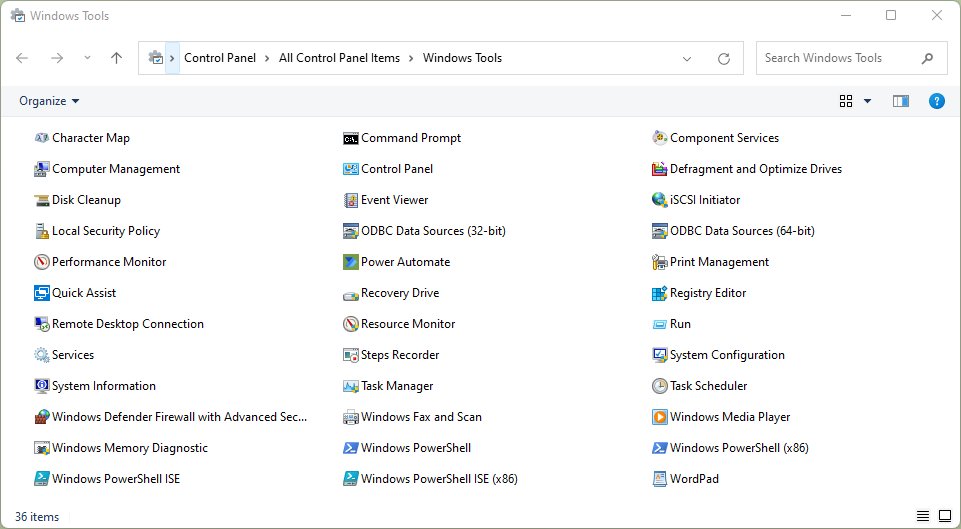
Other routes not counted above: Start > Windows Tools (Windows 11) or Administrative Tools (Windows 10) also lists Event Viewer.
How to tell Event Viewer opened correctly
- Check the window title reads Event Viewer.
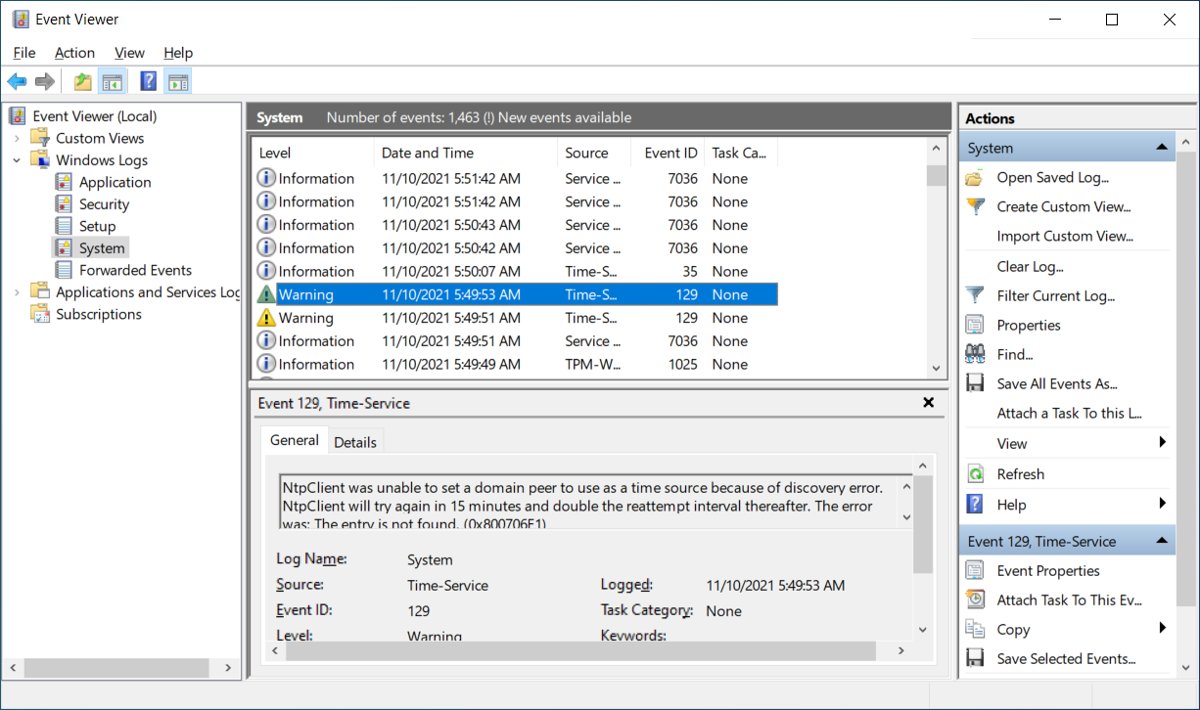
- Confirm the left pane shows Event Viewer (Local) with Custom Views, Windows Logs and Applications and Services Logs beneath it.
- Expand Windows Logs and select System; the middle pane should fill with dated events.
- If the window opens but stays blank, wait a few seconds while large logs load before trying again.
Understanding Event Viewer
Event Viewer is a Microsoft Management Console snap-in that records system, security and application events. Each event stores enough detail to tell you what failed, when, and which component reported it.
| Event field | What it tells you |
|---|---|
| Level | Error, Warning or Information status |
| Date and Time | When the event happened |
| Source | The app, driver or Windows component that logged it |
| Event ID | A number you can search for on Microsoft Learn |
| User and Computer | The account and device the event happened on |
| General tab | A plain description of the event |
| Event Log Online Help | A link to Microsoft help for that event type |
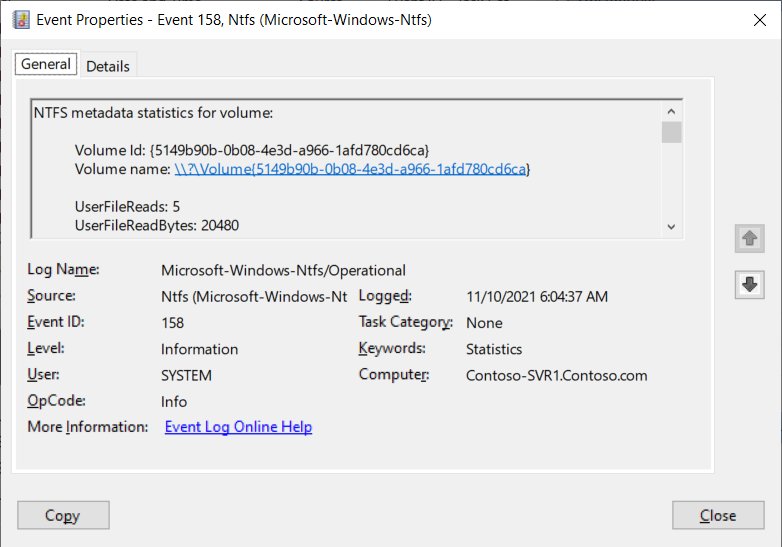
Understanding the Event Viewer interface
| Area | Position | What you do there |
|---|---|---|
| Console tree | Left pane | Pick a log, custom view or subscription |
| Details pane | Middle, top | Scan the list of events in the selected log |
| Preview pane | Middle, bottom | Read the General and Details tabs of the selected event |
| Actions pane | Right pane | Filter, find, save, clear or create a custom view |
Once you know the layout, filters and custom views in Event Viewer help you cut a long log down to the events that matter.
Common Event Viewer logs explained
| Log | Location in the tree | What it records |
|---|---|---|
| Application | Windows Logs | Errors, warnings and information from installed apps |
| Security | Windows Logs | Audit results, such as successful or failed sign-ins, when auditing is on |
| Setup | Windows Logs | Events about application and Windows setup |
| System | Windows Logs | Events from Windows components, services and drivers |
| Forwarded Events | Windows Logs | Events collected from other computers through a subscription |
| Admin and Operational | Applications and Services Logs | Per-component logs for a single app or Windows feature |
| Analytic and Debug | Applications and Services Logs | High-volume tracing logs, hidden and disabled by default |
How to check error logs in Event Viewer
- Open Event Viewer with any of the six methods.
- Expand Windows Logs and select System or Application.
- In the Actions pane, select Filter Current Log.
- Tick Critical and Error under Event level, then select OK.
- Sort by Date and Time and find the error that matches when the problem happened.
- Double-click the event and read the General tab, noting the Source and Event ID.
- Select Clear Filter in the Actions pane to see every event again.
Why you might need Event Viewer
| Situation | Where to look |
|---|---|
| App crashes or closes on its own | Windows Logs > Application, events with source Application Error |
| PC restarted without warning | Windows Logs > System, around the time of the restart |
| Service fails to start at boot | Windows Logs > System, Error events at startup |
| Checking who signed in or failed to | Windows Logs > Security, Audit events |
| One Windows feature misbehaves | Applications and Services Logs > Microsoft > Windows > that feature |
A list full of red errors is common on a healthy PC. Focus on the events whose time matches your problem.
Open Event Viewer in Windows FAQs
What is Event Viewer in Windows?
Event Viewer is a built-in Microsoft Management Console snap-in that shows the event logs Windows keeps. It lists errors, warnings and information events from Windows, drivers and apps, with the source, time and event ID of each.
Is Event Viewer available in Windows 11 and Windows 10?
Yes. Event Viewer is built into both Windows 11 and Windows 10, in every edition. Nothing needs installing; it opens with eventvwr.msc, from Start search, or from the menu you get by right-clicking Start.
What is the quickest way to open Event Viewer?
The quickest way to open Event Viewer is to press Windows + R, type eventvwr.msc and press Enter. Right-clicking Start and selecting Event Viewer is just as fast if you prefer the mouse.
What command opens Event Viewer?
The command eventvwr.msc, or simply eventvwr, opens Event Viewer from the Run box, Command Prompt or PowerShell. In Windows PowerShell 5.1, the Show-EventLog cmdlet also opens it.
Can I open Event Viewer without administrator rights?
Event Viewer opens from Start search or the Run box without choosing Run as administrator. Some actions need more rights; Microsoft states clearing a log manually requires signing in as a local administrator. Select Run as administrator in Start search when you need elevated access.
Is it safe to use Event Viewer?
Yes. Reading logs in Event Viewer changes nothing on your PC. Only actions such as Clear Log remove data. Be wary of anyone who calls you and uses Event Viewer errors as proof of an infection; normal PCs log many errors.
Can Event Viewer help troubleshoot crashes?
Yes. After an app crash, look in Windows Logs > Application for Error events with the source Application Error. After an unexpected restart, check Windows Logs > System around that time. The event ID and source point to the component involved.