To force quit a program on Windows 11 or Windows 10, press Ctrl + Shift + Esc, right-click the frozen app on the Processes tab and select End task.
Below are all nine ways to do it, from Alt + F4 and the Windows 11 taskbar to taskkill and PowerShell, plus what to do when Task Manager itself will not open.
1. Force quit a program using Task Manager
Task Manager, which opens with several keyboard shortcuts, is the most reliable route because it works even when the frozen window ignores every click.
- Press Ctrl + Shift + Esc to open Task Manager, or right-click the taskbar and select Task Manager.
- Select Processes (in the left pane on Windows 11, or the first tab on Windows 10).
- Find the frozen program under Apps; a hung app is usually marked as not responding.
- Right-click the program and select End task.
- Confirm the window has closed, then reopen the program.
If you cannot find the program under Apps, look under Background processes for the same name.
Which force quit method should you use on Windows?
| Your situation | Use this | Why |
|---|---|---|
| One app is frozen, the rest of Windows works | 1. Task Manager | Shows status and ends the app in two clicks |
| The frozen window still has focus | 2. Alt + F4 | Fastest; no other window needed |
| You are on Windows 11 and the app is on the taskbar | 3. Taskbar End task | Right-click on the taskbar icon, no Task Manager |
| You know the program's file name | 4. taskkill /im | One command, ends every copy of that program |
| Several copies run and only one is stuck | 5. taskkill /pid | Targets a single process by its ID |
| You work in PowerShell or scripts | 6. Stop-Process | Native cmdlet, accepts names, IDs and pipelines |
| Several apps hang at once | 7. Not responding filter | Ends every hung app in one pass |
| Apps freeze often and you want one click | 8. Desktop shortcut | Runs the not-responding command on demand |
| The taskbar, Start or desktop is frozen | 9. Restart Windows Explorer | Reloads the shell without a reboot |
2. Close a frozen program with Alt + F4
Alt + F4 asks the active window to close, the same as clicking its X. A badly hung app may ignore it, and then Task Manager is the next step.
- Click the frozen program's window once to give it focus.
- Press Alt + F4.
- If the program asks to save, choose Save or Don't Save.
- Wait about 10 seconds; if nothing happens, use Task Manager instead.
- Do not press Alt + F4 on the empty desktop unless you mean it: with no window open, Windows offers to shut down.
3. Force quit from the Windows 11 taskbar
Windows 11 can add End task to the taskbar right-click menu. It is off by default and does not exist on Windows 10.
- Press Windows key + I to open Settings.
- Go to System > Advanced (called For developers before Windows 11, version 25H2).
- Turn on End Task.
- Right-click the frozen program's icon on the taskbar.
- Select End task.
Devices managed by an organization can lock this toggle through policy, so it may appear greyed out on a work PC.
4. Force close a program with Command Prompt
taskkill ends a program by its image name, the .exe file name shown by the tasklist command-line tool. Add /f to force it.
- Press Windows key + R, type
cmdand press Enter. - Type
tasklistand press Enter to list running programs and their image names. - Find the frozen program, for example
notepad.exe. - Type
taskkill /im notepad.exe /fand press Enter. - Add
/tto also end any child processes the program started:taskkill /im notepad.exe /f /t.
To end a program running as administrator or as another user, open Command Prompt with Run as administrator first.
5. Force quit a program by process ID (PID)
Every running copy of a program has its own process ID. Ending by PID closes just the stuck copy and leaves the others open.
- Open Command Prompt.
- Type
tasklist /fi "IMAGENAME eq chrome.exe"and press Enter to list every copy with its PID. - Or type
tasklist /fi "STATUS eq NOT RESPONDING"to list only hung processes. - Note the number in the PID column for the stuck copy.
- Type
taskkill /pid 1234 /f, replacing 1234 with that PID, and press Enter.
You can end several at once by repeating the switch: taskkill /pid 1230 /pid 1241 /f.
6. Force quit an app using PowerShell
Stop-Process -Name "notepad" -ForceStop-Process ends every running instance with that process name; leave off the .exe. Run Get-Process first to see the exact names and their Id values, and use Stop-Process -Id 3952 to end one instance. -Force skips the confirmation prompt for processes owned by another user, which also needs PowerShell opened with Run as administrator.
You should see: No output means it worked. Add -PassThru to print the stopped process, or run Get-Process -Name notepad again and expect an error saying no process was found.
7. Force quit all “not responding” programs at once
Both Command Prompt and PowerShell can filter on a hung status, so one command clears every frozen window.
- Open Command Prompt.
- Type
taskkill /f /fi "STATUS eq NOT RESPONDING"and press Enter. - In PowerShell, the equivalent is
Get-Process | Where-Object { -not $_.Responding } | Stop-Process -Force. - Reopen the programs you still need.
The PowerShell Responding check only applies to processes with a main window. Background processes without a window always report as responding, so they are left alone.
8. Create a desktop shortcut to force quit frozen apps
- Right-click an empty area of the desktop and select New > Shortcut.
- In the location box, type
taskkill /f /fi "STATUS eq NOT RESPONDING". - Select Next, name the shortcut, for example Kill frozen apps, and select Finish.
- Double-click the shortcut whenever an app hangs.
- Pin it somewhere easy to reach, because a frozen window can cover the desktop.
A Command Prompt window flashes briefly as the command runs. It only ends programs that Windows already marks as not responding.
9. Restart Windows Explorer if the taskbar or desktop is frozen
When the taskbar, Start or desktop stops responding, the stuck program is Windows Explorer itself. Save open work first.
- Press Ctrl + Shift + Esc to open Task Manager.
- On the Processes tab, find Windows Explorer.
- Right-click Windows Explorer and select End task; the taskbar and desktop disappear.
- In Task Manager, select File > Run new task.
- Type
explorer.exeand press Enter to bring the taskbar and desktop back.
Check that the frozen program really closed
- Look at the taskbar: the program's icon should no longer show as open.
- Open Task Manager and confirm the program is gone from Apps and Background processes.
- In Command Prompt, run
tasklist /fi "IMAGENAME eq notepad.exe"with your program's name; an empty result means no copy is left. - Reopen the program and check whether it offers to recover unsaved files.
What happens when you force quit a program?
| What is affected | What happens | What to do |
|---|---|---|
| Unsaved work | Lost, unless the app keeps its own autosave or recovery copy | Reopen the app and look for a recovery prompt |
| Open files | Released, so other programs can use them again | Nothing, unless a file was mid-save |
| Child processes | Left running unless you use taskkill /t or end the parent tree | Check Task Manager for leftovers |
| Dependent services | Can stop with the process; ending a core Windows process can stop Windows | Never end processes you do not recognise |
| Settings changed in the session | May not be written to disk | Re-apply them after reopening |
Force quit vs. close window: what's the difference?
| Close window (X or Alt + F4) | Force quit (End task, taskkill /f, Stop-Process) | |
|---|---|---|
| How it works | Asks the program to shut down | Windows terminates the process |
| Save prompt | Yes, the app can ask to save | No, the app gets no chance to save |
| Works on a hung app | Often not | Yes |
| Background processes | May keep running after the window closes | Ended if you target the process |
| When to use | Always try first | When the app stops responding |
Should you wait before force quitting?
Wait a minute or two if the program is saving, exporting, installing or opening a large file, then force quit if the Not responding status does not clear. A busy app can show Not responding while it finishes heavy work, and ending it mid-save can corrupt the file. A program that stays hung with no disk or CPU activity in Task Manager will not recover, so waiting longer only costs time.
Why do programs keep freezing on Windows?
| Likely cause | Sign | Fix |
|---|---|---|
| Not enough memory | Memory near 100% in Task Manager | Close other apps, especially browser tabs |
| Outdated app or Windows build | Freezes started after an update elsewhere | Update the app and install Windows updates |
| Conflicting startup program or add-in | Freezes only with certain software running | Run a clean boot or disable add-ins |
| Corrupted system files | Several programs and Windows tools hang | Run DISM and sfc /scannow |
| Damaged program install | Only one program freezes | Repair, reset or reinstall that program |
How to stop programs from freezing on Windows
- Install pending updates: on Windows 11 open Settings > Windows Update and select Check for updates; on Windows 10 it is under Update & Security.
- Repair the program: open Settings > Apps, select the program, choose Advanced options and select Repair, then Reset if needed.
- Run
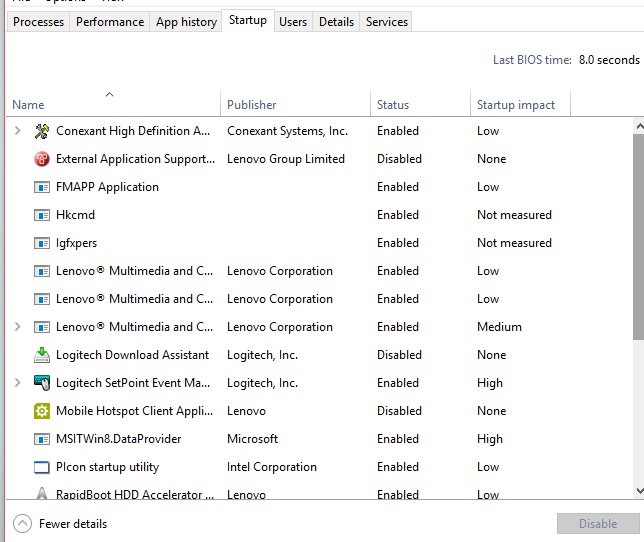
DISM.exe /Online /Cleanup-image /Restorehealthand thensfc /scannowin an administrator Command Prompt. - Trim the programs that launch at sign-in so fewer compete for memory.
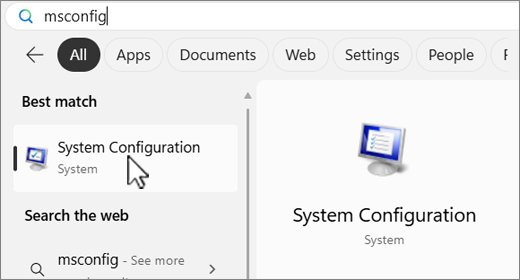
- Run a clean boot to test whether a third-party service or startup app is causing the hangs.
- Uninstall and reinstall a program that keeps freezing after all of the above.
If an update is waiting and will not install, you can force a Windows 11 update from Settings. Reviewing startup programs in Windows shows what loads at sign-in, and a stubborn app may need you to completely remove the program before reinstalling.
What if Task Manager won't open?
Ctrl + Shift + Esc does nothing
The frozen app or the shell is swallowing keyboard input.
- Press Ctrl + Alt + Delete to reach the security screen.
- Select Task Manager.
- If the screen appears but Task Manager does not, select Sign out to close all apps instead.
Task Manager opens behind the frozen full-screen app
A full-screen game or video window stays on top.
- Press Alt + Tab to switch to Task Manager.
- Or press Windows key + R, type
cmd, press Enter and runtaskkill /im program.exe /fwith the program's name.
Task Manager will not end the program
The process belongs to another user or runs with administrator rights.
- Search for cmd, right-click Command Prompt and select Run as administrator.
- Run
taskkill /im program.exe /f /tto end the process and its children. - If it still survives, restart the PC.
The taskbar is frozen, so you cannot right-click it
Windows Explorer has hung.
- Press Ctrl + Shift + Esc and restart Windows Explorer as described in method 9.
- If no keys work, hold the power button to shut down, then start the PC again.
Force quit on Windows: frequently asked questions
What is the shortcut to force quit on Windows?
Press Ctrl + Shift + Esc to open Task Manager, then right-click the frozen app and select End task. Alt + F4 closes the active window, but a fully hung program may ignore it, so Task Manager is the dependable shortcut.
How do I force quit without Task Manager?
Open Command Prompt and run taskkill /im program.exe /f with the program's file name, or use Stop-Process -Name program -Force in PowerShell. On Windows 11 you can also turn on End Task in Settings and end the app from its taskbar icon.
How do I force quit a program on Windows 11?
Press Ctrl + Shift + Esc, right-click the program on the Processes tab and select End task. Windows 11 also offers End task on the taskbar right-click menu once you turn on End Task under Settings > System > Advanced.
How do I force quit a program on Windows 10?
Press Ctrl + Shift + Esc, find the program under Apps on the Processes tab, right-click it and select End task. Windows 10 has no taskbar End task option, so use Task Manager, Alt + F4, taskkill or PowerShell.
Can I force quit with Alt + F4?
Partly. Alt + F4 sends a normal close request to the active window, which works when the app is slow but still responding. A program that has stopped responding often ignores it, and then End task in Task Manager or taskkill /f is needed.
How do I kill all programs that are not responding?
Run taskkill /f /fi "STATUS eq NOT RESPONDING" in Command Prompt. It ends every process Windows marks as not responding in one pass. You can save the same command as a desktop shortcut to run it with a double-click.
Is it safe to force quit a program?
Yes, for ordinary apps. You lose unsaved work in that program, and a file being saved at that moment can be damaged. Do not end Windows processes you do not recognise, because stopping a core process can stop Windows itself.
Why won't Task Manager end a program?
The process usually runs as administrator or under another account, or it is waiting on a driver. Run taskkill /im program.exe /f /t from an administrator Command Prompt. If the process still survives, restarting the PC is the only remaining fix.
Bottom line: the best way to force quit a program on Windows
Use Ctrl + Shift + Esc and End task for a single frozen app, and keep taskkill /f /fi "STATUS eq NOT RESPONDING" for when several hang at once. Task Manager works on both Windows 11 and Windows 10 and shows you which app is hung before you end it, while the taskkill filter clears every stuck window without hunting for names.