When Start menu or taskbar search stops working in Windows 11 or 10, end the SearchHost.exe (Windows 11) or SearchUI.exe (Windows 10) process in Task Manager, and Windows Search restarts the next time you search.
If that does not help, this guide walks through the Windows Search service, the search index, the troubleshooter, a full reset with PowerShell, and fixes for blank results and Settings search.
Start menu search not working in Windows
Ending the search process forces Windows to load a fresh copy. Your files and settings are not affected.
- Press Ctrl + Alt + Delete and select Task Manager.
- Select Details.
- In the Name column, right-click SearchHost.exe on Windows 11 or SearchUI.exe on Windows 10.
- Select End task, then confirm with End process.
- Open Start or select the search box on the taskbar and type a query.
If search is still blank or frozen, restart the PC. A restart also installs any pending updates that may carry a search fix.
Which Windows search fix should you try?
| What you see | Try this | Why |
|---|---|---|
| Search box opens but nothing happens when you type | End SearchHost.exe or SearchUI.exe | The search process is hung |
| Results are missing files you know exist | Check indexing status and rebuild the index | The index is incomplete or damaged |
| Search fails everywhere, including File Explorer | Restart the Windows Search service | The indexer service stopped or is disabled |
| Search panel is blank or grey | Install updates, then restart Windows Font Cache Service | A display or service glitch blocks results |
| Nothing above works | Reset Windows Search with the PowerShell script | It returns search to its default state |
| Search still broken after a reset | Regenerate the search package folder | The user's search data is corrupted |
Restart the Windows Search service
The Windows Search service (wsearch) builds and serves the index behind Start, taskbar and File Explorer search. Restarting it clears a stalled indexer.
- Press Win + R, type services.msc and press Enter.
- Scroll to Windows Search in the list.
- Right-click Windows Search and select Restart, or Start if it is stopped.
- Right-click Windows Search again and select Properties.
- Check that Startup type is Automatic (Delayed Start) and the status is Running, then select OK.
After a Windows upgrade, wait five minutes before checking. The service pauses during an upgrade and starts on its own.
Restart Windows Font Cache Service to fix a blank search panel
Microsoft lists this as a first fix when Windows Search is unresponsive or results do not appear as expected.
- Open services.msc.
- Right-click Windows Font Cache Service and select Stop.
- Try searching from Start or the taskbar again.
- Return to services.msc, right-click Windows Font Cache Service and select Start.
Check the search service and indexing settings in Windows
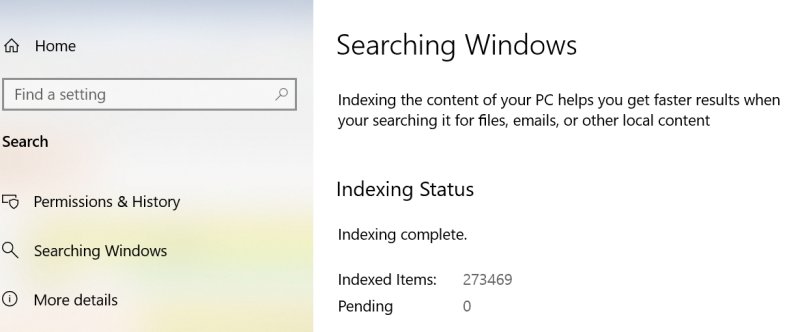
Searches return incomplete results while the index is still building, paused or stopped. The status message on the Searching Windows page tells you which.
| Task | Windows 11 | Windows 10 |
|---|---|---|
| See indexing status and item count | Settings > Privacy & security > Searching Windows, check Indexed | Settings > Search > Searching Windows, check Indexed Items |
| Choose indexed locations | Advanced indexing options > Modify | Advanced Search Indexer Settings > Modify |
| Exclude a folder | Add an excluded folder | Add an excluded folder |
| Rebuild the index | Advanced indexing options > Advanced > Rebuild | Advanced Search Indexer Settings > Advanced > Rebuild |
A rebuild can take up to 24 hours, and results stay incomplete until it finishes. Keep a laptop plugged in, because indexing pauses on battery to save power.
Rebuild the Windows search index
Rebuild the index when Indexing complete shows but files are still missing from results.
- On Windows 11, select Start > Settings > Privacy & security > Searching Windows. On Windows 10, select Start > Settings > Search > Searching Windows.
- Select Advanced indexing options on Windows 11, or Advanced Search Indexer Settings on Windows 10.
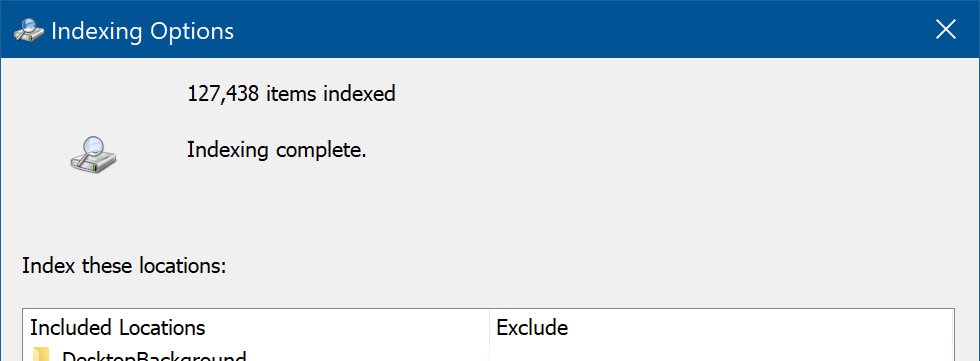
- In Indexing Options, select Modify and tick every location you want searchable, then select OK.
- Select Advanced, then select Rebuild.
- Confirm with OK and leave the PC on and connected to power while indexing runs.
Using built-in search and indexing troubleshooter in Windows
The Search and Indexing troubleshooter resets Windows Search to the default experience. On Windows 10, version 1903 and later, Windows runs it automatically when it detects a search problem.
msdt.exe -ep WindowsHelp id SearchDiagnosticRun this in a Command Prompt window to open the Search and Indexing troubleshooter, then select every problem that applies so Windows can detect and fix it.
You should see: The troubleshooter reports the problems it found and fixed. If it does not open on your build, move to the reset steps below.
To see whether Windows already ran it, open Settings > Update & Security > Troubleshoot > View troubleshooting history on Windows 10. The same section explains how to run any built-in troubleshooter on both versions.
Reset Windows Search with PowerShell script
On Windows 11 and Windows 10, version 1903 or later, Microsoft's ResetWindowsSearchBox.ps1 script resets Windows Search. Resetting does not affect your files, though result relevance may dip for a while.
You need administrator rights. If your organisation blocks scripts, ask your administrator.
- Open PowerShell as administrator and run
Get-ExecutionPolicy. Write down the value it returns. - If the value is not Unrestricted, run
Set-ExecutionPolicy -Scope CurrentUser -ExecutionPolicy Unrestricted, type Y and press Enter, then close the window. - Get ResetWindowsSearchBox.ps1 from the Reset Windows Search PowerShell script link on Microsoft Learn's Fix problems in Windows Search page and save it to a local folder.
- Right-click the saved file and select Run with PowerShell.
- Select Yes when asked whether to allow the app to make changes to your device.
- When Done appears, press any key if you changed the policy, then run
Set-ExecutionPolicy -Scope CurrentUser -ExecutionPolicy <PreviousValue>with the value you wrote down. - Close PowerShell and try searching from Start.
The message "cannot be loaded because running scripts is disabled on this system" means the execution policy step was skipped. Repeat step 2 and run the script again.
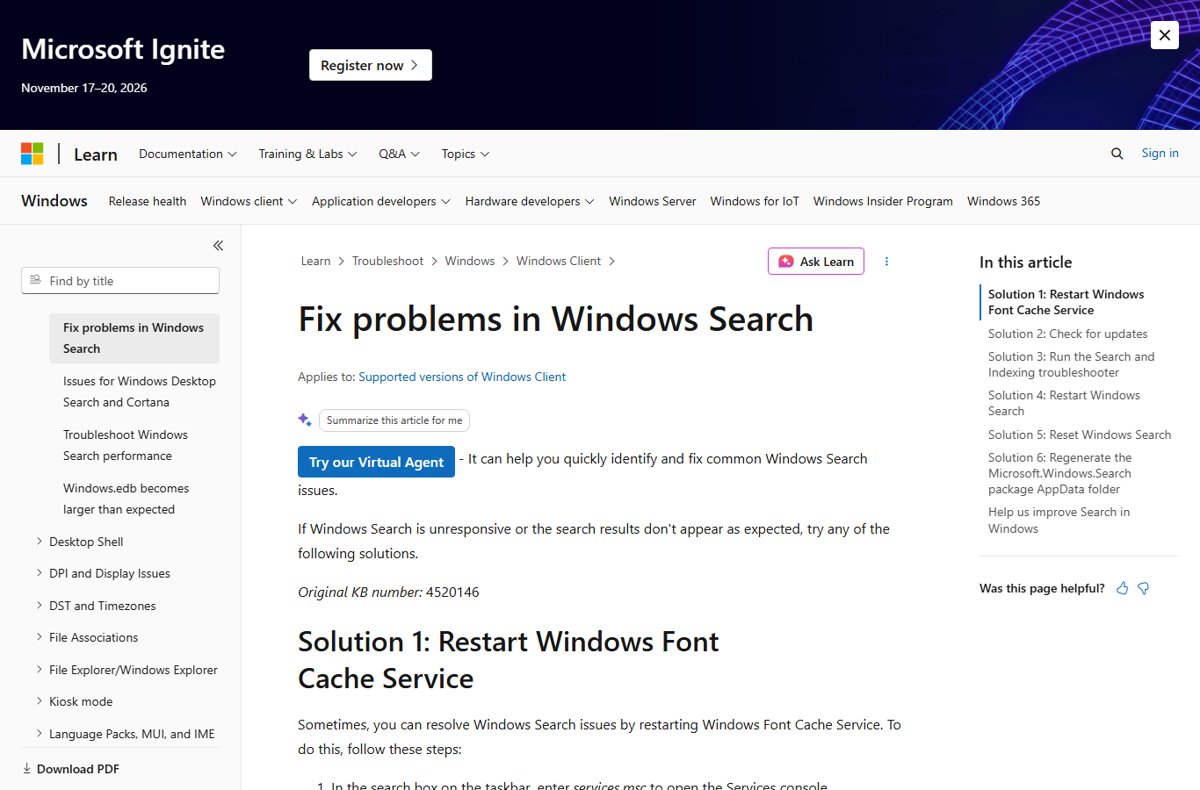
Reset the Microsoft Store search app in Windows
Windows Search ships as a system app package. When a reset does not help, delete its per-user data and register the package again so Windows rebuilds it.
This method edits the registry, so back up the registry first. Microsoft recommends working from another user account or the Windows Recovery Environment for the folder deletion.
- Create a new local account and confirm that search works in it. If it does, the problem is in your profile.
- Delete
%USERPROFILE%\AppData\Local\Packages\MicrosoftWindows.Client.CBS_cw5n1h2txyewyon Windows 11, or%USERPROFILE%\AppData\Local\Packages\Microsoft.Windows.Search_cw5n1h2txyewyon Windows 10. - Sign in to the affected account, open Registry Editor and go to
HKEY_CURRENT_USER\SOFTWARE\Microsoft\Windows\CurrentVersion\Search. - Delete the Search key.
- Open PowerShell as administrator and run the re-register command for your version, shown below.
- Restart the PC and search again; Windows recreates the folder and registry key.
Windows 11: Add-AppxPackage -Path "C:\Windows\SystemApps\MicrosoftWindows.Client.CBS_cw5n1h2txyewy\Appxmanifest.xml" -DisableDevelopmentMode -Register
Windows 10: Add-AppxPackage -Path "C:\Windows\SystemApps\Microsoft.Windows.Search_cw5n1h2txyewy\Appxmanifest.xml" -DisableDevelopmentMode -Register
On some earlier Windows 10 builds the folder is named Microsoft.Windows.Cortana_cw5n1h2txyewy instead.
Blank search results on Windows when Bing search enabled
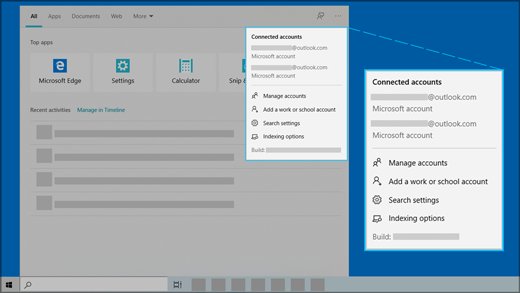
Web results in the taskbar search box come from Bing and are personalised with your Microsoft account. When the panel opens but stays blank, the local search process or a pending update is usually at fault.
- Select Start > Settings > Windows Update and select Check for updates, then install everything offered and restart.
- End SearchHost.exe or SearchUI.exe in Task Manager's Details tab.
- On Windows 11, open Settings > Privacy & security > Search permissions; on Windows 10, open Settings > Search > Permissions & History.
- Under Cloud content search, check the Microsoft account toggle matches what you want, and select Clear device search history under History.
- Stop and start Windows Font Cache Service in services.msc, then search again.
Search not working in Windows Settings app
The search box inside the Settings app relies on the same Windows Search components as Start. When it returns nothing, repair Windows Search itself rather than the Settings app.
- End SearchHost.exe or SearchUI.exe in Task Manager and try the Settings search again.
- Restart the Windows Search service in services.msc.
- Install pending updates from Settings > Windows Update and restart.
- Run ResetWindowsSearchBox.ps1 as described in the PowerShell section.
- Browse to the page directly from the Settings sidebar in the meantime, for example System > Sound or Privacy & security.
How to check Windows search works again
- Open Start and type the name of an installed app, such as Notepad; it should appear as the best match.
- Type the name of a file in your Documents folder and confirm it appears in results.
- Open Searching Windows in Settings and check the status reads Indexing complete.
- Type a setting name such as sound in the Settings app search box and confirm suggestions appear.
Fix Windows search errors and indexing messages
"Indexing is not running"
The Windows Search service has not started or is disabled.
- Wait five minutes if you just upgraded Windows.
- Open services.msc, open Windows Search properties and set Startup type to Automatic (Delayed Start).
- Select Start, then OK. Optimiser apps and some security suites can switch this service off again.
"Indexing is paused"
Indexing was paused from the Windows Search settings page.
- Wait 15 minutes; indexing resumes on its own.
- To resume sooner, restart the Windows Search service from Task Manager's Services tab or services.msc.
"Indexing is paused to conserve battery power"
The indexer stops on low battery.
- Connect the laptop to power.
- Leave it charging; indexing resumes once the battery has charged.
"Insufficient disk space to continue indexing"
The disk is too full; the index is roughly 10 percent of the indexed content.
- Free more than 1 GB on the system drive.
- Exclude large folders you never search from Searching Windows > Add an excluded folder.
"Cannot be loaded because running scripts is disabled on this system"
The PowerShell execution policy blocks the reset script.
- Run
Set-ExecutionPolicy -Scope CurrentUser -ExecutionPolicy Unrestrictedin an elevated PowerShell window. - Run ResetWindowsSearchBox.ps1 again.
- Set the policy back to its previous value afterwards.
If the whole Start menu, not just search, broke after moving from Windows 10, the problem may be the old taskbar left behind by the upgrade.
Windows 11/10 taskbar search not working FAQ
Why is my Start menu search not working?
Start menu search usually stops when the SearchHost.exe or SearchUI.exe process hangs, the Windows Search service stops, or the search index is damaged. Ending the process in Task Manager, restarting the service, or rebuilding the index fixes most cases.
How do I restart Windows Search in Windows 11?
Open Task Manager, select Details, right-click SearchHost.exe and select End task. Windows Search starts again automatically the next time you search. To restart the indexer as well, restart the Windows Search service in services.msc.
Does resetting Windows Search delete my files?
No. Resetting Windows Search does not affect your files. It returns search to its default state, and search result relevance may be lower for a while as Windows learns again.
How long does it take to rebuild the search index?
Rebuilding the Windows search index can take up to 24 hours, depending on how many items are indexed. Search results stay incomplete until the Searching Windows page shows Indexing complete.
What startup type should the Windows Search service use?
The Windows Search service should be set to Automatic (Delayed Start) with a status of Running. Check it in services.msc by right-clicking Windows Search and selecting Properties.
Why does taskbar search show a blank panel?
A blank search panel is usually a hung search process or a pending update. Install updates, end SearchHost.exe or SearchUI.exe in Task Manager, and stop and restart Windows Font Cache Service in services.msc.
Why does search work in a new user account but not mine?
If search works in a fresh account, your profile's search data is corrupted. Delete the search package folder in your AppData Packages directory and the Search registry key, then re-register the package with Add-AppxPackage and restart.
Why is Windows search missing some of my files?
Windows only finds files in indexed locations. Open Searching Windows in Settings, select the advanced indexing options, choose Modify, and add the folders you want included, then let indexing finish.
Bottom line: fixing Start menu and taskbar search
End SearchHost.exe or SearchUI.exe first, then restart the Windows Search service and rebuild the index before reaching for the PowerShell reset. The first two fixes take under a minute and solve hung search, while the reset script and package re-registration are for corruption that survives a restart.



![Rockstar Games Launcher not working on Windows PC [Fix]](https://techdows.com/wp-content/uploads/2026/10/Rockstar-Games-Launcher-not-working-on-Windows-PC-Fix-600x338.jpg)