To fix printer alignment, load plain paper, open your printer's maintenance tools in its app, computer utility or control panel, run Print Head Alignment, and follow the pattern prompts until the test page prints straight and sharp.
This guide covers how to tell an alignment fault from a paper or margin problem, the exact routes for HP, Epson and Canon printers, how to check the result, and what to do when alignment fails.
How to fix printer alignment on any inkjet printer
Every major inkjet brand includes a print head alignment routine. The menu names differ, but the sequence is the same.
- Clear any error on the printer screen and extend the output tray.
- Load a few sheets of plain letter or A4 paper.
- Open the printer's maintenance tools: the printer app on your computer or phone, the printer software on Windows or Mac, or the Maintenance or Tools menu on the control panel.
- Select Print Head Alignment or the align option your model lists.
- Print the alignment pattern and do not cancel it while it prints.
- Follow the prompts; on manual alignments, enter the number of the most solid or even pattern in each set.
- Print a test page or your original document to confirm the fix.
If the pattern itself prints with gaps or faint lines, run a nozzle check and clean the print head first, then align again.
First identify the type of alignment problem
Not every crooked or shifted printout is a print head problem. Match what you see to the right fix before you spend ink on alignment patterns.
| What the printout shows | Likely cause | Fix |
|---|---|---|
| Vertical lines are jagged or misaligned, text looks doubled | Print head out of alignment | Run print head alignment |
| Grainy or blurry print | Print head alignment or clogged nozzles | Nozzle check, cleaning if needed, then alignment |
| Horizontal white or dark bands | Clogged nozzles, wrong paper setting or high-speed printing | Nozzle check and cleaning, match the paper type, then align |
| Whole page slanted | Paper loaded crooked or printer tilted | Slide the edge guides against the paper and place the printer on a flat surface |
| Text too far left, right or off the edge | Margins, paper size or app scaling | Check paper size and margins in the app and printer preferences |
| Streaks, faded colors or missing colors | Low ink or dirty print head | Check ink levels and clean the print head |
Print a test page from the printer's own control panel to separate a hardware fault from a Windows or app setting. If the control panel page also looks wrong, the printer needs attention.
Prepare the printer before alignment
| Check | Why it matters |
|---|---|
| No errors on the printer screen | Epson and other brands refuse to run maintenance while an error is showing |
| Output tray extended | The alignment sheet needs somewhere to land |
| Plain paper loaded, edge guides snug | Alignment patterns are designed for plain paper; crooked paper skews the result |
| Ink or toner not empty or expired | Low ink prints faint patterns that are hard to read |
| Nozzle check passed | Gaps in the nozzle pattern make alignment patterns unreliable |
| Printer on a flat, stable surface | A tilted printer does not operate properly and can print slanted pages |
| Paper type setting matches the loaded paper | A mismatched setting causes banding and poor quality on its own |
Clean the print head only when the nozzle check shows gaps. Each cleaning cycle uses ink, so repeating it without need wastes supplies.
Printer alignment tools by brand
| Brand | From a computer or phone | From the printer |
|---|---|---|
| HP | HP app (formerly HP Smart) or the HP printer software on Windows | Maintenance or print quality tools menu on touchscreen models |
| Epson | Right-click the Epson printer icon in the Windows taskbar; on Mac, Open Printer Utility | Maintenance > Print Head Alignment |
| Canon PIXMA | Printer driver setup screen > Maintenance tab > Print Head Alignment; Canon's macOS utility | Automatic alignment from the operation panel on models with a screen |
| Any brand on Windows | Settings > Bluetooth & devices > Printers & scanners > your printer > Printing preferences | Brand maintenance menu on the control panel |
Windows itself has no alignment tool. The maintenance options come from the printer maker's driver or app, so install the full software package from the maker's site if they are missing.
Align an HP printer with the current HP app
HP Smart is now called the HP app and runs on Windows 10 and 11, macOS, iOS and Android. Its settings and tools vary by printer model and region.
- Load plain paper and turn on the printer.
- Open the HP app and select your printer.
- Open the printer's settings or tools area.
- Select the print quality or maintenance tools.
- Choose the align option and print the alignment page.
- Follow the on-screen prompts until the app reports the alignment is complete.
If the HP app shows no align option for your model, use the printer control panel instead. For other HP faults, such as streaks or offline errors, work through these common HP printing problems.
Align HP from the printer control panel
Touchscreen HP models run alignment without a computer. The exact menu names change between DeskJet, ENVY, OfficeJet and Smart Tank lines.
- Load plain paper in the main tray.
- On the printer touchscreen, open the setup, tools or printer maintenance menu.
- Select the print quality tools.
- Choose the align printhead option.
- Wait for the alignment page to print.
- Follow any remaining prompts on the touchscreen.
Models without a screen run alignment from the HP app or computer software only.
Align HP from Windows Printer Assistant
HP printer software on Windows groups its maintenance tasks, including cleaning and alignment, in a Maintenance or Tools area.
- Open the Start menu and launch the HP printer software named after your printer.
- Select the option to maintain your printer, or the Maintenance or Tools area.
- Choose Align Print Heads or the align printhead option.
- Print the alignment page and follow the prompts.
- Print a test page to confirm straight lines and sharp text.
If the HP printer software is missing, Windows is using a basic driver without maintenance tools. Reinstall the full HP software from HP's site, or remove the printer and add the printer again after installing it.
Align an Epson printer in Windows
Epson's Windows utilities open from the printer icon in the taskbar. Some models, such as the ET-2800, offer alignment from the control panel only.
- Make sure the printer screen shows no errors and the output tray is extended.
- Load a few sheets of plain paper.
- Right-click the Epson printer icon on the right side of the Windows taskbar, clicking the up arrow first if it is hidden.
- Select Nozzle Check and print the pattern; clean the print head if it shows gaps.
- Select the print head alignment utility if your model lists one, then print the alignment sheet.
- Choose the pattern number with the most solid print in each set and finish.
The same utilities are on the Maintenance tab of Epson's Printer Settings, opened from the taskbar icon.
Align an Epson printer from its control panel
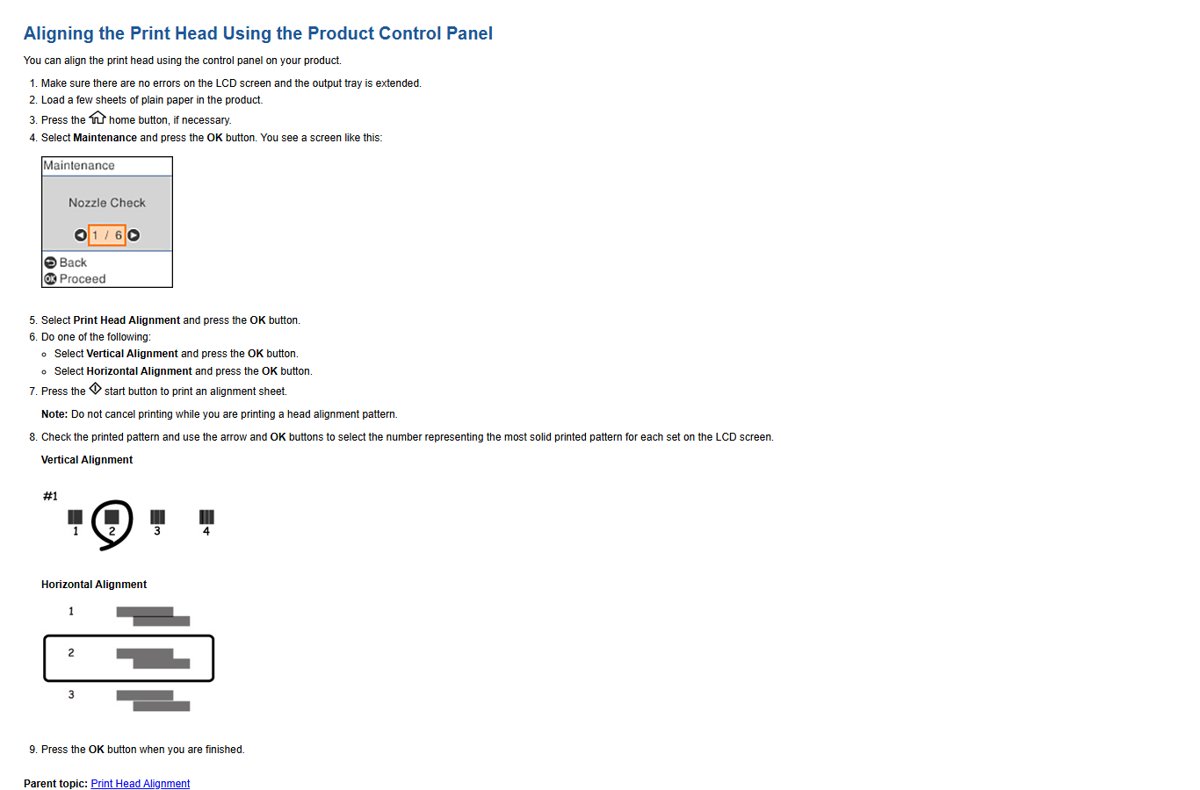
- Make sure the LCD shows no errors and the output tray is extended.
- Load a few sheets of plain paper.
- Press the home button if necessary.
- Select Maintenance and press OK.
- Select Print Head Alignment and press OK.
- Select Vertical Alignment or Horizontal Alignment and press OK.
- Press the start button to print the alignment sheet, and do not cancel it.
- Use the arrow and OK buttons to select the number of the most solid pattern in each set, then press OK when finished.
Use Vertical Alignment for misaligned vertical lines and grainy or blurry print. Use Horizontal Alignment when you see horizontal bands.
Align an Epson printer on a Mac
- Load a few sheets of plain paper and clear any LCD error.
- In the Apple menu, open System Settings (or System Preferences on older macOS).
- Select Printers & Scanners and choose your Epson printer.
- Select Options & Supplies, then Utility, then Open Printer Utility.
- Run Nozzle Check first and clean the print head if the pattern has gaps.
- Select the print head alignment option if your model lists one and follow the prompts.
If Epson Printer Utility has no alignment option, align from the printer's control panel instead.
How to fix Canon PIXMA printer alignment
Canon PIXMA printers support automatic alignment from Windows, macOS and the operation panel, and manual alignment from a computer when the automatic result is not good enough.
- Load plain paper in the printer.
- On Windows, open the setup screen of the Canon printer driver.
- Select the Maintenance tab, then Print Head Alignment.
- Start the alignment and let the pattern print.
- For a manual alignment, check the Align heads manually box and enter the best pattern values when prompted.
- On models with a screen, run the automatic alignment from the operation panel instead.
Support code 2500 means automatic print head alignment failed. Check the nozzle pattern, clean the print head if needed, and try a manual alignment from the computer.
How to check printer alignment worked
- Print a test page from the printer's control panel.
- Check that vertical lines are straight and text edges are sharp, with no doubling.
- Print the original document that showed the problem.
- On Windows, open Settings > Bluetooth & devices > Printers & scanners, select the printer, open Printing preferences, and confirm the quality is Normal or Best with draft or economy modes off.
- Compare the new print with the earlier one under good light.
What to do if alignment fails
Printer alignment keeps failing or will not align
Clogged nozzles or low ink print a faint pattern the printer cannot read.
- Print a nozzle check pattern.
- Clean the print head if there are gaps or faint lines.
- Refill or replace low ink, then check the nozzles again.
- Load fresh plain paper and run the alignment again.
Printer is not aligning properly after several cleanings
Dried ink still blocks nozzles after the normal cleaning cycle.
- Stop after three cleanings.
- Turn the printer off and leave it for at least 12 hours.
- Run a nozzle check and clean once more.
- On Epson ink tank printers, run Power Cleaning only if normal cleaning fails, because it uses a lot of ink.
Lines or banding remain after alignment
Bidirectional or high-speed printing, the wrong paper setting or paper loaded the wrong way.
- Turn off the high speed or bidirectional setting in the printer software.
- Match the paper type setting to the loaded paper.
- Load the printable side correctly and slide the edge guides to the paper.
- Raise the print quality setting and print again.
Printouts still slanted
Paper feeds at an angle or the printer is not level.
- Slide the edge guides against the edges of the paper.
- Place the printer on a flat, stable surface larger than its base.
- Turn off high-speed settings and select a higher quality setting.
No print head alignment option in the software
A basic Windows driver is installed, or the model aligns only from its control panel.
- Check the printer's control panel Maintenance or Tools menu.
- Install the full driver and utility package from the printer maker's site.
- Update or reinstall the driver in Device Manager under Printers.
When professional service is justified
| Sign | What it suggests | Next step |
|---|---|---|
| Nozzle pattern still has gaps after cleaning, a 12-hour rest and another cleaning | Print head fault | Contact the printer maker's support |
| Alignment fails every time with good ink and a clean nozzle pattern | Sensor or print head hardware problem | Contact support with the error or support code |
| Printer reports an ink pad at end of life | Printing stops until the part is serviced | Contact the printer maker |
| Paper jams or grinding noises during alignment | Mechanical feed problem | Stop using the printer and arrange service |
| Printer is out of warranty and repair costs approach a new printer | Repair may not be worth it | Compare repair quotes with replacement |
Printer alignment sources and model limitations
Menu names and available tools differ by model, even within one brand. Your printer's own user guide is the final word on its labels.
| Limitation | Example | What to do |
|---|---|---|
| Alignment only on the control panel | Epson ET-2800 lists alignment under the control panel, not the computer utility | Use Maintenance > Print Head Alignment on the printer |
| App tools vary by model and region | HP app settings and features differ by device and country | Use the HP control panel or HP printer software |
| Automatic versus manual alignment | Canon offers both; manual is for when automatic alignment is not enough | Try automatic first, then manual from the computer |
| Laser printers | No inkjet print head to align | Check toner, paper path and margins instead |
| Basic Windows drivers | No maintenance tab in printing preferences | Install the maker's full software package |
Printer alignment FAQ
How do you do a printer alignment?
Load plain paper, open the printer's maintenance tools in its app, computer software or control panel, and select print head alignment. Print the pattern, follow the prompts, then print a test page to confirm straight lines.
How do I fix printer head alignment on an Epson printer?
On the control panel, select Maintenance, then Print Head Alignment, and choose vertical or horizontal alignment. Print the sheet and select the most solid pattern number in each set. Some models also offer alignment from the computer utility.
How do I fix printer alignment on an HP printer?
Use the HP app, the HP printer software on Windows, or the printer's touchscreen menu and choose the align printhead option. Follow the prompts, then print a test page to check the result.
How do I fix Canon PIXMA printer alignment?
Open the Canon printer driver's setup screen, select the Maintenance tab and choose Print Head Alignment. If the automatic result is poor, check Align heads manually and enter the best pattern values.
Why won't my printer align?
Clogged nozzles, low ink or the wrong paper usually stop alignment. Run a nozzle check, clean the print head if the pattern has gaps, refill low ink and load plain paper before trying again.
Why is my printer not aligning properly after alignment?
High-speed or bidirectional printing, a wrong paper type setting or crooked paper can keep lines uneven. Turn off high-speed printing, match the paper type, and slide the edge guides against the paper.
Does printer alignment fix text that is too far left or right?
No. Print head alignment fixes jagged lines and blurry text, not page position. Check the paper size, margins and scaling in your app and printing preferences, and reload the paper with the edge guides snug.
How do I change printer alignment settings in Windows?
Windows has no alignment control of its own. Open Settings, Bluetooth & devices, Printers & scanners, select the printer and open Printing preferences; alignment appears there only if the maker's full driver adds a maintenance tab.
Can I use photo paper for print head alignment?
Use plain paper. Epson and Canon alignment routines call for plain paper, and the pattern is easier for both you and the printer's sensor to read on it.
Should I cancel the alignment page if the pattern looks bad?
No. Epson warns not to cancel printing while a head alignment pattern prints. Let it finish, then clean the print head if the nozzle check shows gaps and align again.
The bottom line on fixing printer alignment
Run a nozzle check first, clean only if it shows gaps, then run print head alignment from the printer's control panel or the maker's own software, and confirm with a test page. Alignment patterns are only reliable when every nozzle fires, and the control panel route works even when the computer has a basic driver without maintenance tools.