"Program" in the Task Manager Startup tab is a startup entry that Windows cannot put a name to, most often a leftover that points at a file which was moved, renamed or uninstalled.
It is usually harmless and does nothing at sign-in, but you should still check where it points. This guide shows how to find its target, disable or delete it, and scan it if the file turns out to be unknown.
How to find out what Program in startup apps points to
The Settings app shows the path behind a startup entry, which is the quickest way to unmask the generic name.
- Select Start > Settings > Apps > Startup.
- Find the entry named Program in the list.
- Select the open-in-new-window icon next to its On/Off toggle to see the registry or file path behind it.
- If the path leads to a file that no longer exists, switch the toggle to Off.
- If the path leads to a file you do not recognise, leave it off and scan that file with Microsoft Defender (steps further down).
A disabled entry stays in the list but no longer runs at sign-in. You can remove it completely with Autoruns or by deleting its Run value, both covered below.
What is Program in Startup tab in Task Manager?
Task Manager reads the name it shows from the file a startup entry launches. When that file is missing, or carries no readable name, the entry falls back to the generic label "Program" with no publisher and no icon.
| What you see | What it usually means | Is it safe? |
|---|---|---|
| Program, blank publisher, Startup impact Not Measured or None | The entry points at a file that is gone, often from an app you uninstalled | Harmless: nothing runs, so disabling or deleting it changes nothing |
| Program, entry path ends in a real file inside Program Files | A legitimate app whose file has no description field | Safe if you recognise the app; keep it or disable it as you like |
| Program, path points into a Temp or AppData folder you did not expect | An unknown file set to run at every sign-in | Treat as suspicious until a Microsoft Defender scan clears it |
| Program, path on a USB or network drive | The app lives on a drive that is not connected at sign-in | Harmless; reconnect the drive or disable the entry |
Windows stores most of these entries as Run values in the registry or as shortcuts in a startup folder. Each Run value is written as a description string equal to a command line, so a typo in that command line also produces an unnamed entry.
Program startup entry: disable it, delete it or scan it?
| Your situation | What to do | Why |
|---|---|---|
| Target file no longer exists | Disable it in Task Manager, or delete it with Autoruns | A dead entry runs nothing; deleting it only tidies the list |
| Target is an app you installed | Leave it on, or disable it if you do not need it at sign-in | Disabling stops the app starting automatically, not the app itself |
| Target is a file you do not recognise | Disable it, then scan the file with Microsoft Defender | Unknown files that run at every sign-in are a common malware foothold |
| Entry returns after you remove it | Run a Microsoft Defender offline scan | Something is re-creating the entry each time Windows starts |
How can I figure out what this unknown program is?
Task Manager itself only lets you enable or disable the entry. To trace it, open the two places Windows uses for most startup items: the startup folders and the registry Run keys.
- Press Ctrl + Shift + Esc, select Startup apps, and note the entry's Startup impact value.
- Press Win + R, type
shell:startupand press Enter to open your personal startup folder. - Press Win + R again, type
shell:common startupand press Enter to open the startup folder for all users. - Look for a shortcut with a blank name or one that points at a missing file.
- Press Win + R, type
regeditand press Enter, then select Yes at the User Account Control prompt. - Open
HKEY_CURRENT_USER\Software\Microsoft\Windows\CurrentVersion\Runand read the Data column of each value. - Repeat for
HKEY_LOCAL_MACHINE\Software\Microsoft\Windows\CurrentVersion\RunandHKEY_LOCAL_MACHINE\Software\Wow6432Node\Microsoft\Windows\CurrentVersion\Run.
The value whose command line points at a missing path, or at an odd file name, is your Program entry. Back up the registry before you change anything there. For a full inventory of everything that launches at sign-in, you can view all startup programs in Windows the same way.
What if the program’s not in the folder?
Following the path often ends at an empty folder. These are the three common outcomes and what to do with each.
The folder exists but the file in the path is gone
The app was uninstalled or updated and left its startup entry behind, which is why it pays to completely remove a program rather than only delete its folder.
- Open Task Manager > Startup apps.
- Select the Program entry and choose Disable.
- Delete the entry with Autoruns if you want it out of the list.
Settings says "We couldn't find this app"
The app sits on a removable or network drive, its path no longer exists, or it was uninstalled.
- Reconnect the USB or network drive if the path starts with its drive letter.
- Reinstall the app if you still use it, which rewrites a valid path.
- Otherwise switch the entry Off in Settings > Apps > Startup.
The path looks broken or cut off
The command line in the Run value has a missing quote or an unquoted path with spaces, so Windows cannot resolve the file.
- Copy the full Data value from Registry Editor into Notepad to read it in one line.
- Check whether the first part of the path matches a real folder on your drive.
- If it matches an app you use, reinstall that app; if not, delete the value.
Using Autoruns to remove the unknown program startup entry
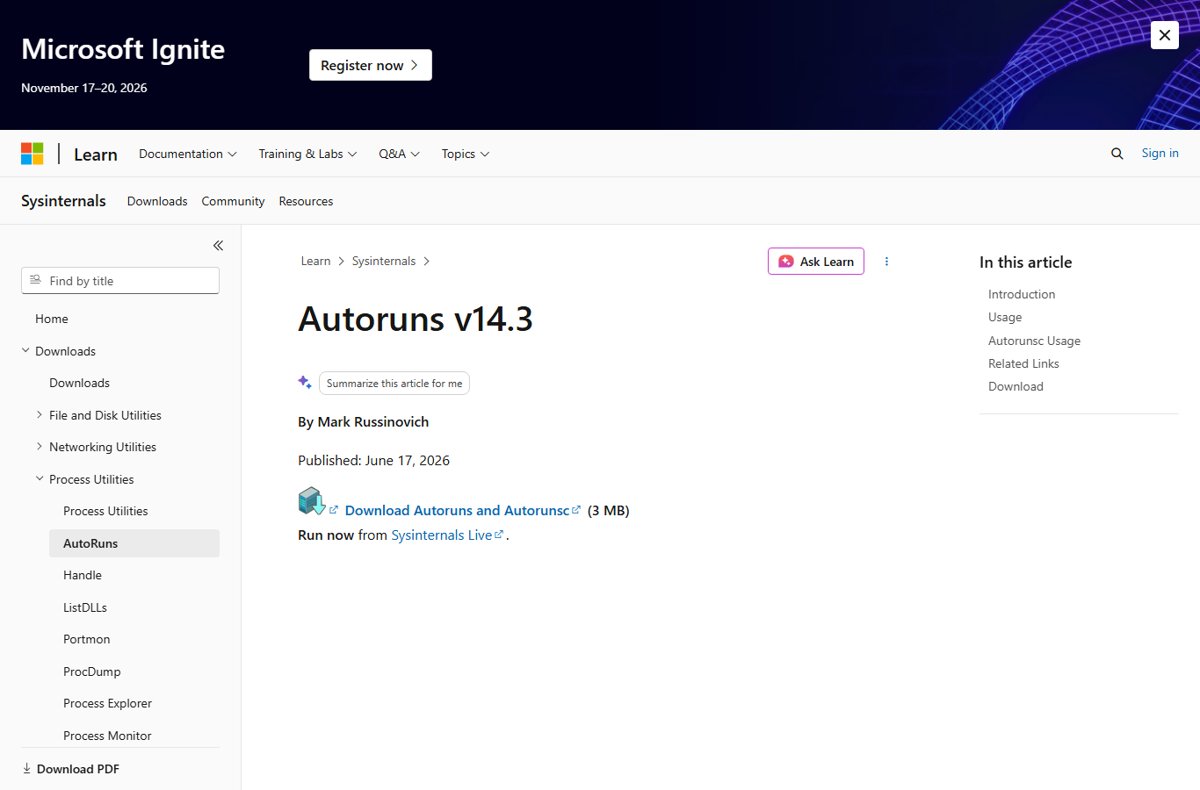
Autoruns is Microsoft's Sysinternals startup monitor. It lists startup folder items, Run and RunOnce keys and many other auto-start locations, and it can delete an entry that Task Manager can only disable.
- Open Autoruns from the Microsoft Learn Sysinternals page, either from the download or with Run now from Sysinternals Live.
- Right-click Autoruns and run it as administrator so it can change machine-wide entries.
- Switch to the tab for logon entries, which holds the Run keys and startup folders.
- Turn on Hide Signed Microsoft Entries from the Options menu to shorten the list to third-party items.
- Find the entry whose image path matches the one you traced, and use Jump to Entry to confirm its registry or folder location.
- Uncheck its check box to disable it, or select it and use Delete to remove it completely.
- Restart the PC and reopen Task Manager > Startup apps to confirm it is gone.
Autoruns' scan options can also verify digital signatures and check file hashes against VirusTotal. An unsigned file in an unexpected folder is worth a closer look before you delete anything.
What if the program’s a total stranger?
When the path leads to a real file you have never heard of, treat that stranger as untrusted. Disable the entry first, then scan the file before deciding to delete it.
- Disable the Program entry in Task Manager > Startup apps.
- Open File Explorer and go to the folder from the entry's path.
- Right-click the file, select Show more options, then select Scan with Microsoft Defender.
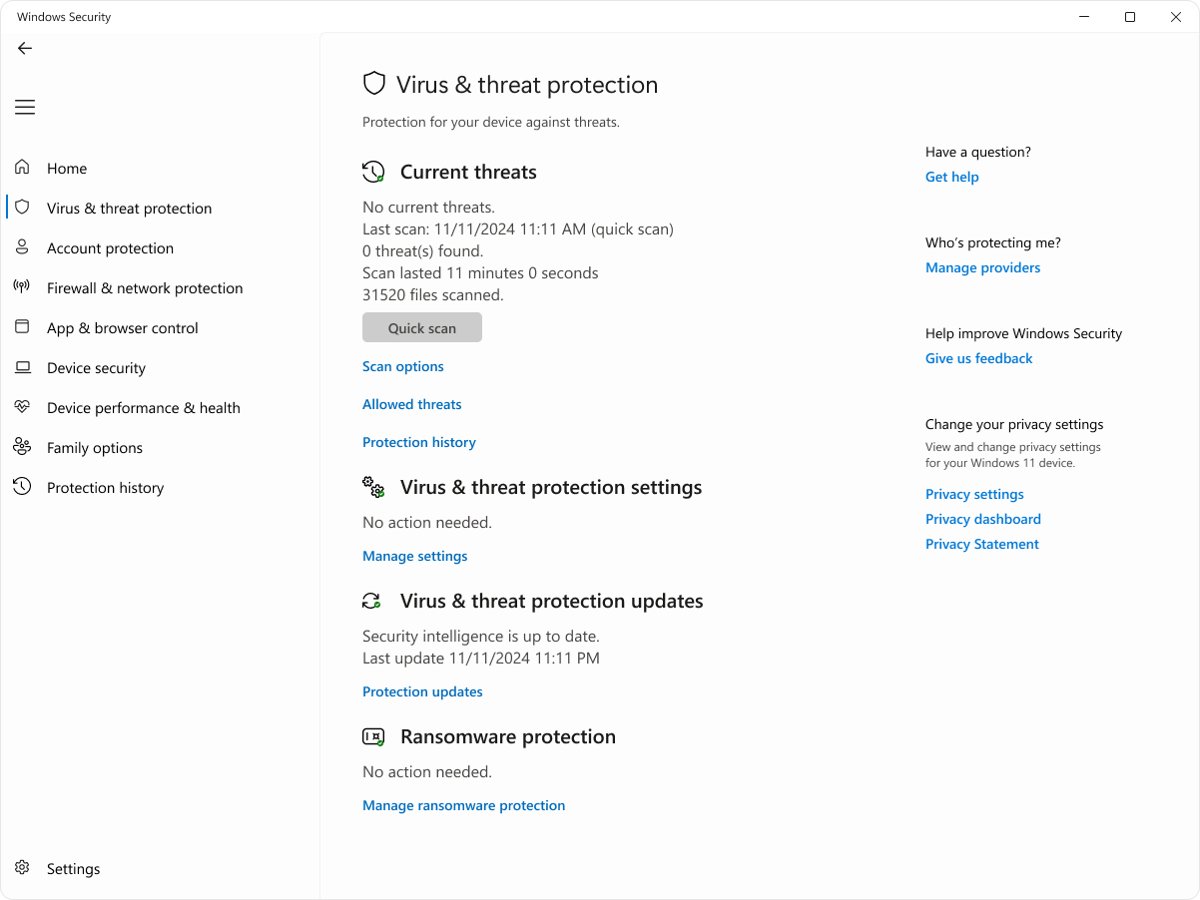
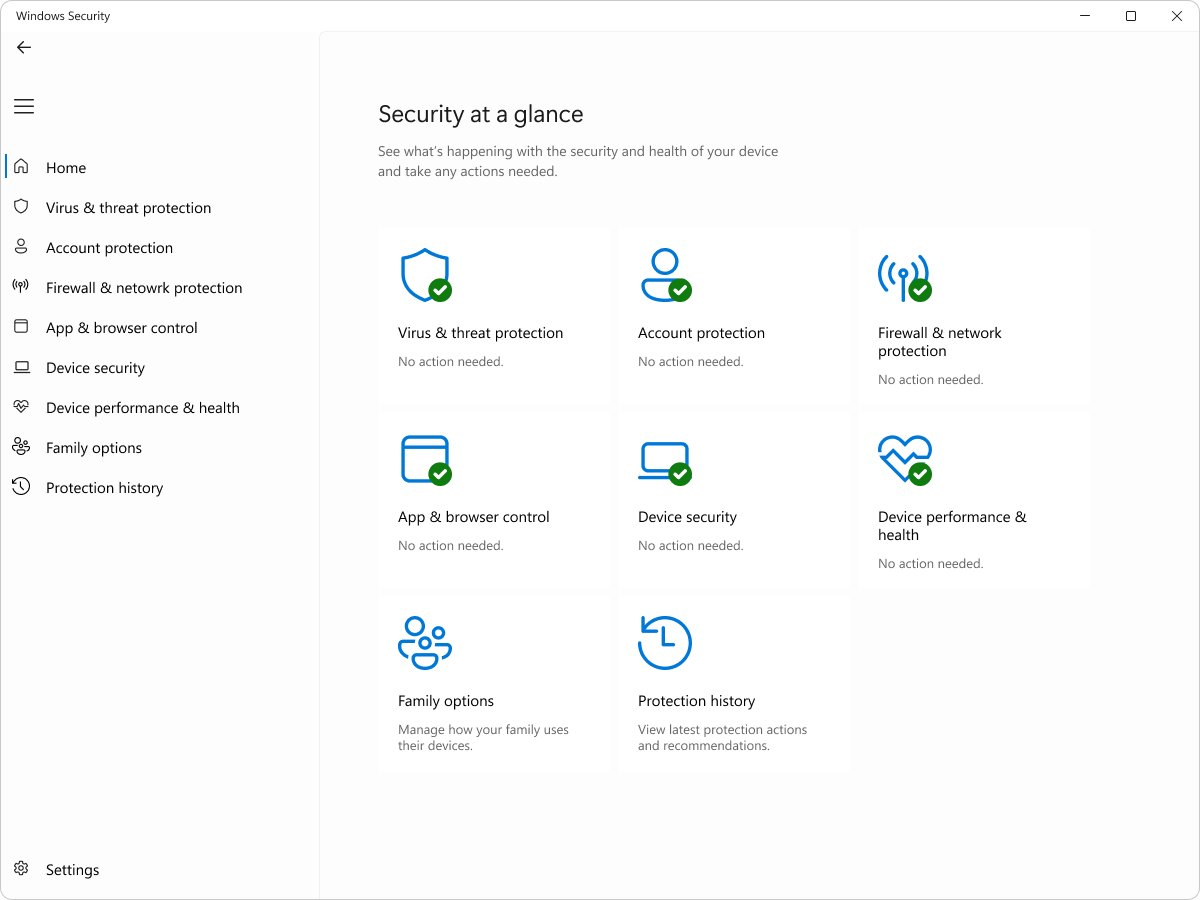
- Open Windows Security > Virus & threat protection and select Scan options.
- Select Full scan and start it to check every file and program on the PC.
- If anything is found, or the entry keeps coming back, select Microsoft Defender Antivirus (offline scan) and save your work before the PC restarts.
- After the restart, open Protection history to read the results.
The offline scan runs from the Windows Recovery Environment, outside normal Windows, so it can remove threats that hide while Windows is running. Never disable your antivirus to get rid of a startup entry.
Running a System File Check
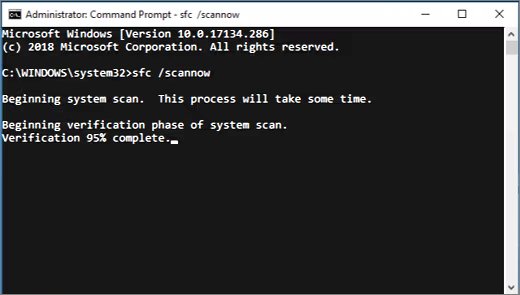
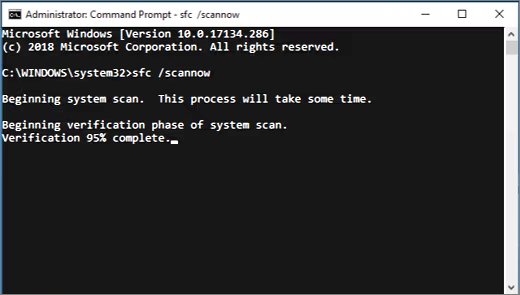
If the entry pointed at something malicious, check that Windows system files were not damaged. Run DISM first, then System File Checker, from an elevated Command Prompt.
DISM.exe /Online /Cleanup-image /Restorehealth
sfc /scannow
DISM repairs the Windows component store from Windows Update, then sfc /scannow checks every protected system file and replaces damaged copies from that store. Open Command Prompt with Run as administrator and keep the window open until verification reaches 100%.
You should see: "Windows Resource Protection did not find any integrity violations" means system files are intact. "Found corrupt files and successfully repaired them" means the repair worked; restart the PC.
If SFC reports "could not perform the requested operation", run it again in Safe Mode. If it found files it could not fix, its log entries are in %windir%\Logs\CBS\CBS.log.
How to check the Program startup entry is gone
- Restart the PC and sign in.
- Press Ctrl + Shift + Esc and select Startup apps.
- Confirm Program is missing from the list, or shows Disabled if you only disabled it.
- Open Settings > Apps > Startup and confirm the entry is gone or switched Off there too.
- Open Windows Security > Protection history and confirm there are no active threats.
If the entry reappears after a restart, something is recreating it. Run the offline scan, then check Autoruns for a scheduled task or service with the same image path.
Program in Task Manager startup FAQ
Where is the Startup tab in Task Manager?
Press Ctrl + Shift + Esc, or right-click Start and select Task Manager. On Windows 11, select Startup apps in the left-hand menu. That page lists every app set to run at sign-in, with an Enable or Disable option and a startup impact rating for each.
What is Program in my startup apps?
It is a startup entry whose file Windows cannot name, so Task Manager shows the generic label Program. Most often the file was moved or uninstalled and the entry was left behind. Check its path in Settings > Apps > Startup to find out what it is.
What is Program in startup on Windows 10?
It means the same as on Windows 11: a startup entry that points at a missing or nameless file. On Windows 10 it appears on the Startup tab of Task Manager. The same Settings, registry and Autoruns checks identify and remove it.
What is a startup program?
A startup program is an app set to launch automatically when you sign in to Windows. It is registered either as a Run value in the registry or as a shortcut in a startup folder, and you can turn each one on or off in Task Manager or Settings.
Where are Windows startup programs located?
Most live in two places. Shortcuts sit in the startup folders opened with shell:startup (your account) and shell:common startup (all users). Registry entries sit under the Run keys in HKEY_CURRENT_USER and HKEY_LOCAL_MACHINE at Software\Microsoft\Windows\CurrentVersion\Run.
How do I add a program to startup in Windows?
Press Win + R, type shell:appsfolder and press Enter to list installed apps. Open a second Run box, type shell:startup and press Enter. Drag the app from the first window into the second, and it will launch the next time you sign in.
What programs should start on startup?
Keep security software, drivers' companion apps and anything you need the moment you sign in, such as a cloud sync client. Disable apps you open only occasionally. Task Manager's startup impact rating shows which entries slow sign-in the most, from Low to High.
Is it safe to disable Program in startup?
Yes. Disabling a startup entry only stops it launching at sign-in; it does not delete files or uninstall anything. If the entry points at a missing file, disabling it changes nothing at all. You can re-enable it in Task Manager at any time.
Some final notes on the Program startup entry
Trace the entry's path before you act: disable it if the file is gone, keep it if it belongs to an app you use, and scan it with Microsoft Defender if the file is unknown. A nameless entry is almost always a harmless leftover, but the same label can hide an unknown file that runs at every sign-in, and only its path tells the two apart.
If Task Manager itself will not open, any of these shortcuts to open Task Manager gets you to the Startup apps page.