To mass delete iCloud email, open Mail on a Mac, select the iCloud mailbox, press Command-A to select every message, press Delete, then erase the Trash; on iCloud.com or an iPhone you select several messages at once and move them to the Trash.
This guide covers each device, deleting by sender or date, automatic cleanup, emptying the Trash for good, and getting messages back if you delete too many.
Delete all iCloud emails at once in Mail on Mac
Mail on a Mac is the quickest way to clear a whole iCloud mailbox, because it supports selecting every message in one keystroke.
- Open the Mail app on your Mac.
- In the sidebar, click the iCloud mailbox you want to clear, such as the iCloud Inbox.
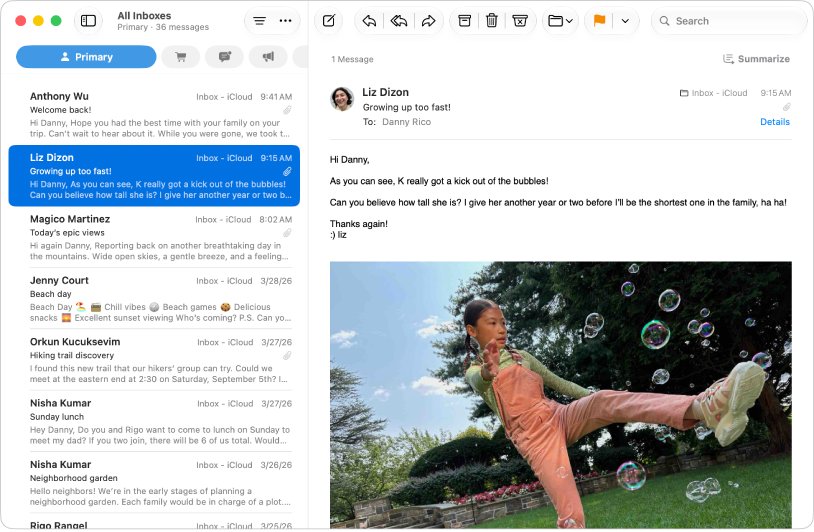
- Click any message in the list, then press Command-A to select all messages.
- Click the Delete button in the Mail toolbar or press the Delete key.
- Choose Mailbox > Erase Deleted Items, then choose your iCloud account.
- Click Erase to confirm and remove the messages permanently.
Deleting a conversation deletes every message in it. A deletion in one place applies on all devices that use iCloud Mail.
Mass delete iCloud email on Mac, iPhone or iCloud.com: which to use
| Your situation | Use this | Why |
|---|---|---|
| You want to empty a whole mailbox | Mail on Mac with Command-A | Selects every message in one step |
| You only have a Windows PC | iCloud.com with Control-click | Works in any browser without the Mail app |
| You only have an iPhone or iPad | Mail app: Select, tick messages, delete | Fast for dozens of messages at a time |
| You want one sender or date range gone | Search first, then select the results | Deletes only the matching messages |
| Old promotions keep piling up | iCloud Mail Cleanup | Deletes that type of mail automatically |
| You need the space back right away | Empty the Trash after deleting | Trash keeps messages for up to 30 days |
Delete multiple emails at once on iCloud.com
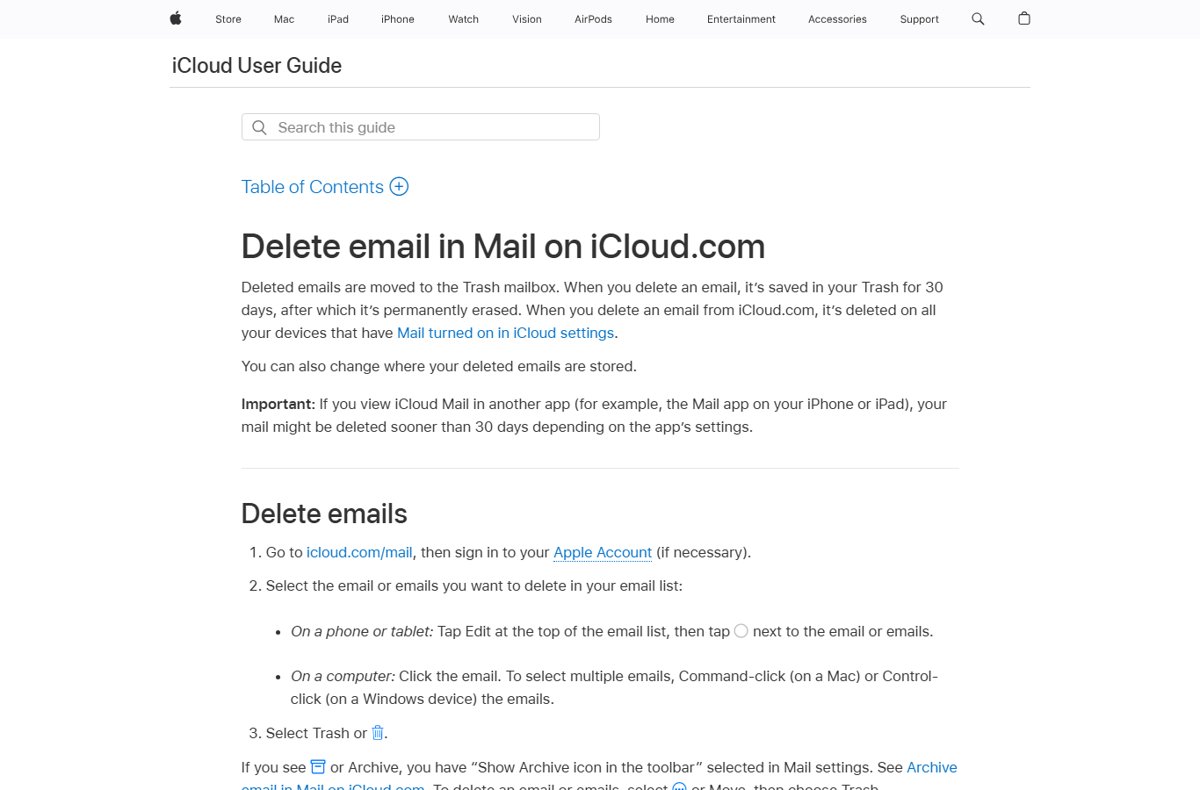
iCloud.com works on a Mac, a Windows PC, a phone or a tablet, and the deletion syncs to every device with iCloud Mail turned on.
- Go to icloud.com/mail and sign in to your Apple Account.
- On a computer, click the first email, then Command-click on a Mac or Control-click on Windows to add more emails.
- On a phone or tablet, tap Edit at the top of the email list, then tap the selection circle next to each email.
- Select Trash or the Trash icon.
- If you see Archive instead, select Move, then choose Trash.
Deleted emails stay in the Trash for 30 days before iCloud erases them permanently.
Bulk delete iCloud emails in Mail on iPhone or iPad
- Open the Mail app and go to your iCloud inbox.
- Tap Select at the top of the message list.
- Tap the checkbox next to each message you want to delete.
- Tap the Trash button at the bottom of the message list.
- Repeat for the next batch until the mailbox is clear.
Selecting a message in the Transactions, Updates or Promotions category selects every message in that category from that sender, which speeds up clearing newsletters.
To skip the confirmation each time, go to Settings > Apps > Mail and turn off Ask Before Deleting.
Mass delete iCloud emails from one sender or date range
Searching first narrows the list to exactly the messages you want gone, so a select-all removes nothing else.
- On iCloud.com, select the mailbox, click the search field above the email list and type a name or word.
- Choose a suggestion such as Sender contains or Subject contains, or type a period like 2022 or last week and pick the date suggestion.
- In Mail on Mac, type a sender's name in the search field, or a date range such as
date:8/01/21-9/05/21. - Select the matching messages: Command-A on a Mac, or Command-click and Control-click on iCloud.com.
- Delete the selected messages and clear the search to see the rest of the mailbox.
Clean up old iCloud promotions automatically with iCloud Mail Cleanup
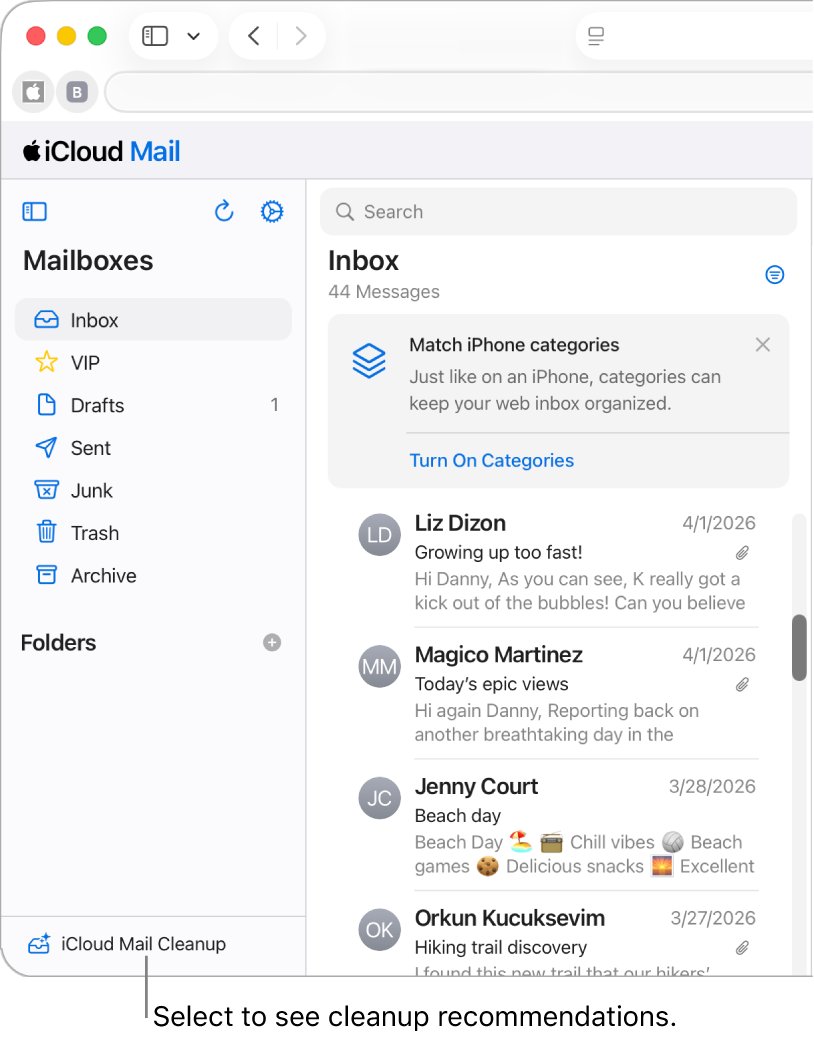
iCloud Mail Cleanup can delete old promotions and unsubscribe from mailing lists in bulk. Once a recommendation is on, it keeps working on every device with iCloud Mail.
- Go to icloud.com/mail and sign in.
- Select Cleanup Recommendations at the bottom of the Mailboxes list.
- Select Get Recommendations, then select Done.
- Open iCloud Mail Cleanup and choose a recommendation such as Clean Up Old Promotions.
- Adjust the Action, Status and Age pop-up menus if needed.
- Select Turn On.
On iPhone or iPad, open your iCloud inbox in Mail, tap the More button, then tap Cleanup Recommendations to set up the same feature.
Empty the iCloud Mail Trash permanently
Emails in the Trash still count against iCloud storage until they are erased. Emptying the Trash cannot be undone.
- On iCloud.com, go to icloud.com/mail and select the More button at the top of the Mailboxes list.
- Choose Empty Trash, then select Empty Trash again.
- In Mail on Mac, choose Mailbox > Erase Deleted Items, then pick your iCloud account.
- Or Control-click the iCloud Trash mailbox in the sidebar and choose Erase Deleted Items.
To skip the Trash entirely, open iCloud.com Mail Settings, select Mailbox Behavior and deselect Move deleted messages to. Deleted emails are then erased immediately.
Check that deleting iCloud email freed up storage
- Open the iCloud Trash mailbox and confirm it is empty.
- In Mail on Mac, Control-click the iCloud inbox in the sidebar and choose Get Account Info to see how much space the account uses.
- Check your iCloud storage on your device and confirm the Mail figure has dropped.
- Send a test email to your iCloud address to confirm mail is arriving again if storage was full.
When iCloud storage is full, you cannot send or receive email with your iCloud address, so a successful test message proves the cleanup worked.
Set up iCloud Mail rules so unwanted email does not pile up again
- Go to icloud.com/mail, select the More button at the top of the Mailboxes list, then choose Settings.
- Select Rules in the sidebar, then select the add button in the top-right corner.
- Enter a name for the rule.
- Below Message, choose the condition, such as a sender's address.
- Below Action, choose what happens to matching messages, such as moving them to a cleanup folder you can empty in one go.
- Select Add.
You can have up to 500 rules, and new rules can take up to 15 minutes to apply to incoming email.
Recover iCloud emails you mass deleted by mistake
Deleted iCloud emails can be recovered from the Trash for up to 30 days, unless the Trash has been emptied.
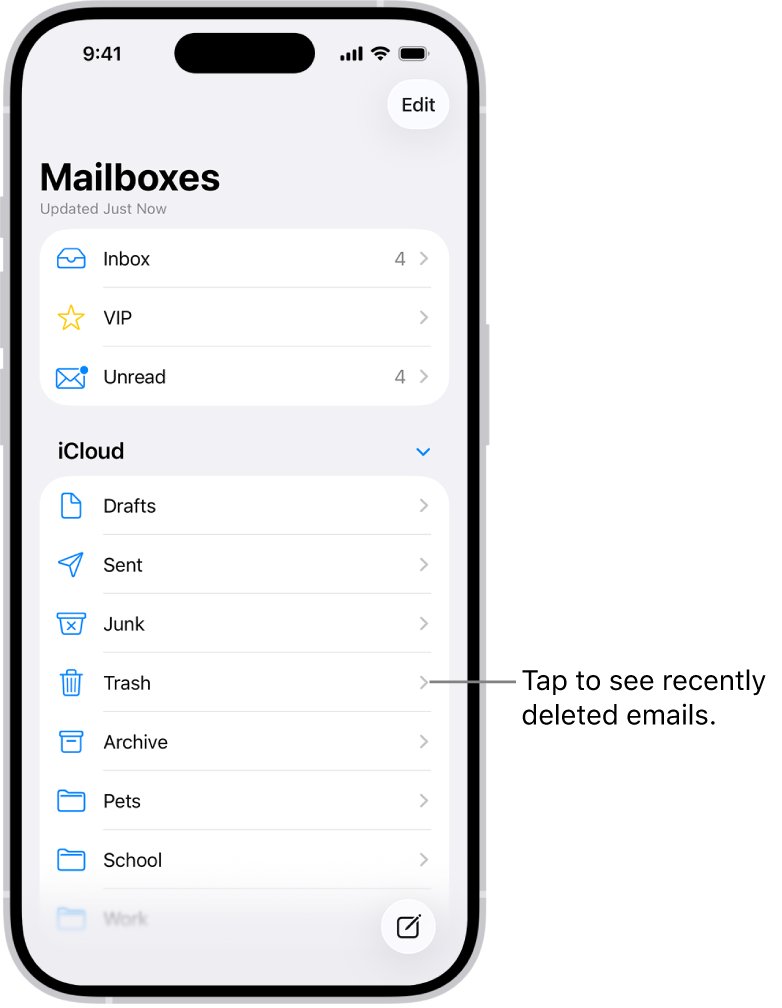
- On iPhone, open Mail, tap back until you see Mailboxes, then tap Trash.
- Tap the message, tap the move button, then choose another mailbox.
- On a Mac, drag messages from the Trash mailbox to another mailbox.
- Or select them in Trash and choose Message > Move to > a mailbox.
Messages removed with Empty Trash or Erase Deleted Items cannot be recovered.
Fix iCloud email mass delete problems
Deleted iCloud emails still take up storage
Deleted messages sit in the Trash for up to 30 days and still count toward storage.
- Empty the Trash on iCloud.com with Empty Trash.
- Or use Mailbox > Erase Deleted Items in Mail on Mac.
- Delete messages with large attachments first, since they use the most space.
Emails deleted on one device disappeared everywhere
iCloud Mail syncs deletions to every device with Mail turned on in iCloud settings.
- Open the Trash mailbox on any device.
- Move the messages you want back to the inbox within 30 days.
Deleted emails vanish from Trash sooner than 30 days
Another mail app, such as Mail on iPhone or Mac, can erase deleted messages on its own schedule.
- On iPhone, go to Settings > Apps > Mail > Mail Accounts > iCloud > Mailbox Behaviors.
- Tap Remove and choose a longer interval.
- On Mac, choose Mail > Settings > Accounts, select iCloud, click Mailbox Behaviors and change Erase deleted messages.
Deleted messages go to Archive instead of Trash
Mail is set to move discarded messages into the Archive mailbox.
- On iPhone, touch and hold the Archive button, then tap Trash Message.
- On iCloud.com, select Move, then choose Trash.
- To change it on iPhone, open the iCloud Mailbox Behaviors setting and, below Move Discarded Messages Into, select the option other than Archive Mailbox.
iCloud email stopped arriving before the cleanup
iCloud storage is full, which blocks sending and receiving iCloud email.
- Mass delete large or old emails with one of the methods above.
- Empty the Trash so the space is released.
- Send a test email to confirm delivery is working.
iCloud Mail mass delete FAQ
How do I mass delete emails in iCloud?
Open Mail on a Mac, select the iCloud mailbox, press Command-A and press Delete. On iCloud.com, Command-click or Control-click several emails and select Trash. On iPhone, tap Select, tick the messages and tap the Trash button.
How do I mass delete emails at once?
Select many messages in one action, then delete them together. In Mail on Mac, Command-A selects every message in a mailbox. In Gmail, the Select box at the top selects a page, and a link selects every conversation in the folder.
How do I delete mass amounts of emails?
Narrow the list with a search by sender or date, select all results and delete them, then empty the Trash. For promotions that keep arriving, iCloud Mail Cleanup can delete old ones automatically.
How do I mass delete emails in Gmail?
Open a category such as Inbox, check the Select box above your messages, click the link that selects all conversations in that folder, then click Delete. Messages go to Trash and are erased after 30 days.
Can I select all emails on iCloud.com?
iCloud.com lets you add emails to a selection with Command-click on a Mac or Control-click on Windows. To select a whole mailbox in one step, use Mail on a Mac and press Command-A.
Does deleting iCloud email free up storage?
Yes, once the messages leave the Trash. Messages with attachments use the most space. Empty the Trash on iCloud.com or use Erase Deleted Items in Mail on Mac to release the space right away.
How long do deleted iCloud emails stay in Trash?
Deleted iCloud emails stay in the Trash for 30 days, then iCloud erases them permanently. Another mail app can erase them sooner, depending on its settings.
Can I get back iCloud emails after emptying the Trash?
No. Emails removed with Empty Trash or Erase Deleted Items are permanently deleted and cannot be recovered. Only messages still in the Trash can be moved back.
Bottom line: the fastest way to mass delete iCloud email
Use Mail on a Mac with Command-A to clear a whole iCloud mailbox, then erase the Trash; use iCloud.com or the iPhone Mail app when no Mac is available. Mac Mail is the only route Apple documents with a one-step select-all, and deletions sync to every device, so one cleanup clears the account everywhere.