To change the lid close action on Windows 11, open Control Panel > System and Security > Power Options > Choose what closing the lid does, then pick Do nothing, Sleep, Hibernate or Shut down for each power source.
This guide covers the Control Panel route, the newer Settings page, the powercfg command, how to add Hibernate to the list, and fixes for lids that ignore the setting.
Change lid close action on Windows 11 (Control Panel)
Control Panel works on every Windows 11 release and lets you set a different action for battery and mains power. If Start search will not find it, there are other ways to open Control Panel from Run or File Explorer.
- Select Start, type control panel and open Control Panel.
- Select System and Security, then Power Options.
- In the left pane, select Choose what closing the lid does.
- If the drop-down menus are greyed out, select Change settings that are currently unavailable.
- Next to When I close the lid, pick an action under On battery.
- Pick an action under Plugged in as well; the two columns are independent.
- Select Save changes.
The same page holds When I press the power button, so you can set both actions in one visit alongside the other Windows 11 power button settings.
Which lid close setting fits your laptop setup?
| Your situation | On battery | Plugged in | Why |
|---|---|---|---|
| Laptop docked to an external monitor, keyboard and mouse | Sleep | Do nothing | The laptop keeps running on the desk with the lid shut, but still sleeps in a bag |
| You carry the laptop between rooms or meetings | Sleep | Sleep | Sleep resumes in seconds and keeps your open apps |
| The laptop sits closed for days between uses | Hibernate | Sleep | Hibernate saves the session to disk and draws almost no battery |
| Shared or kiosk laptop that should start fresh | Shut down | Shut down | Closing the lid ends the session completely |
| Music or a download must keep going with the lid shut | Do nothing | Do nothing | The system keeps running as if the lid were open |
Change lid close action on Windows 11 (Settings)
Recent Windows 11 builds show the lid, power button and sleep button controls inside the Settings app, under Power & battery. Older builds only have the Control Panel page, so use the first method if the section is missing.
- Press Windows + I to open Settings.
- Select System, then Power & battery.
- Expand the section that holds the lid, power button and sleep button controls.
- Open the drop-down for closing the lid while on battery and choose an action.
- Open the drop-down for closing the lid while plugged in and choose an action.
- Close Settings; the change applies at once with no save button.
Microsoft's July 28, 2026 preview update (KB5101684) changed how this page saves: lid-close, power button, sleep button, sleep and hibernate choices made in Settings now apply to all power plans instead of only the active one. The same page also holds the screen and sleep timeouts if you want to adjust other power management settings in one place.
Add Hibernate to the lid close options on Windows 11
Hibernate only appears in the When I close the lid list when hibernation is turned on. Many Windows 11 laptops ship with it hidden.
- Open Control Panel > System and Security > Power Options.
- Select Choose what the power buttons do.
- Select Change settings that are currently unavailable.
- Under Shutdown settings, tick Hibernate if the checkbox is listed.
- Select Save changes, then return to Choose what closing the lid does and pick Hibernate.
- If no Hibernate checkbox exists, open Command Prompt as administrator, run
powercfg /hibernate on, and repeat the steps above.
Once enabled, Hibernate also appears under Start > Power, so you can hibernate manually as well as on lid close.
Change lid close action with powercfg on Windows 11
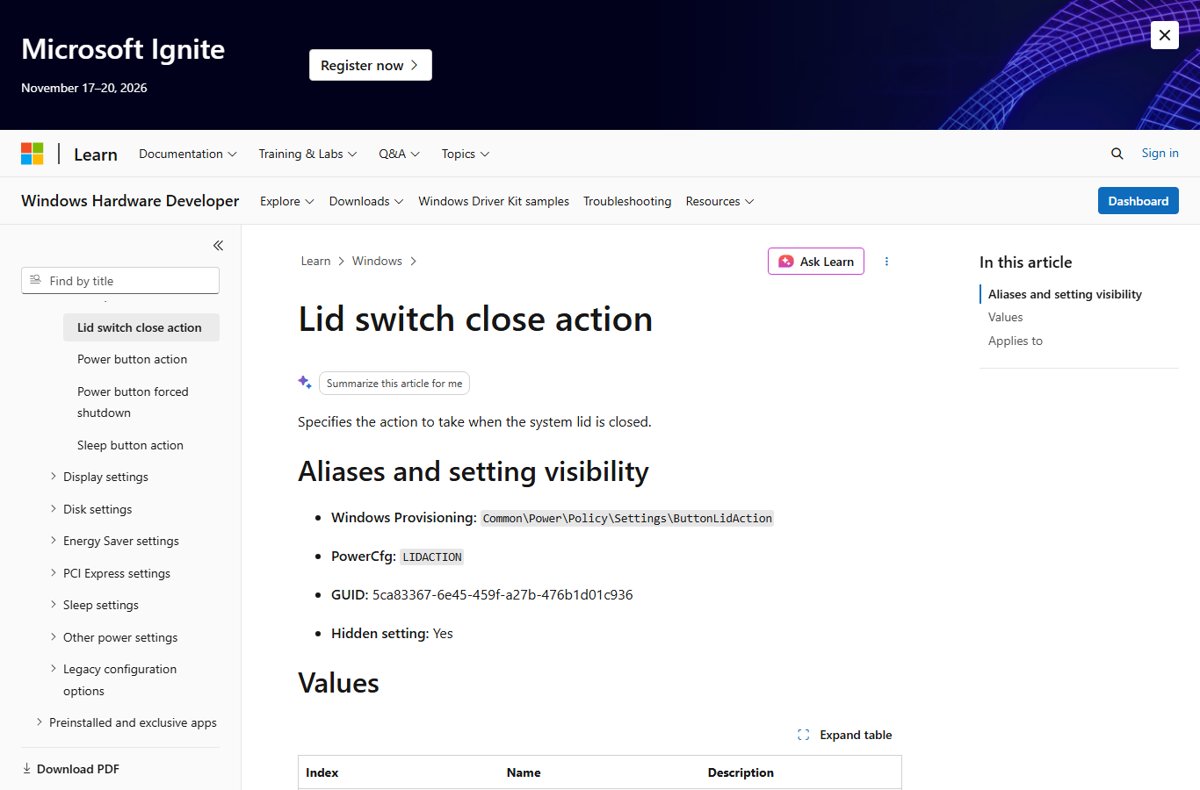
The powercfg tool sets the lid action from an elevated Command Prompt, PowerShell or a script. It uses the alias SUB_BUTTONS for the power button and lid subgroup and LIDACTION for the lid close setting.
The value is a number: 0 = Do nothing, 1 = Sleep, 2 = Hibernate, 3 = Shut down.
- Select Start, type cmd, right-click Command Prompt and choose Run as administrator.
- Run
powercfg /getactiveschemeand copy the GUID it prints for the active power plan. - Set the plugged-in action with
powercfg /setacvalueindex <GUID> SUB_BUTTONS LIDACTION 0, replacing<GUID>and using the number you want. - Set the battery action with
powercfg /setdcvalueindex <GUID> SUB_BUTTONS LIDACTION 1. - Run
powercfg /setactive <GUID>so Windows reloads the plan with the new values. - Repeat steps 3 to 5 for any other plan listed by
powercfg /listif you switch plans often.
/setacvalueindex writes the value used on mains power and /setdcvalueindex writes the value used on battery, so a laptop needs both commands to match the two Control Panel columns.
Windows 11 lid close options explained: Do nothing, Sleep, Hibernate, Shut down
| Option | powercfg value | What happens when you close the lid | Wake by opening the lid? |
|---|---|---|---|
| Do nothing | 0 | Windows keeps running; apps, downloads and external displays stay active | Not needed, the system never stopped |
| Sleep | 1 | The session stays in memory in a low-power state | Usually yes; press the power button if not |
| Hibernate | 2 | The session is written to disk and the laptop powers off | Press the power button to resume |
| Shut down | 3 | Windows closes all apps and turns the laptop off | Press the power button for a fresh start |
Windows also has a separate lid open wake action setting that decides what happens when the lid is opened. It is hidden by default and is usually configured by the laptop maker.
Check the lid close action took effect on Windows 11
- Reopen Control Panel > Power Options > Choose what closing the lid does and confirm both columns show the actions you chose.
- In Command Prompt, run
powercfg /query <GUID> SUB_BUTTONSwith your plan's GUID and find the lid close entry; its AC and DC index values should match the numbers you set. - Unplug the charger, close the lid for about 30 seconds, then open it and press a key.
- For Do nothing, the screen should return with apps and audio still running; for Sleep, the laptop should wake to the lock screen; for Hibernate or Shut down, it should need the power button.
- Plug the charger back in and repeat the test to check the Plugged in action.
Restore the previous lid close action on Windows 11
- Open Control Panel > System and Security > Power Options.
- Select Choose what closing the lid does.
- Set When I close the lid back to Sleep, or to whatever you had before, under On battery and Plugged in.
- Select Save changes.
If you changed the value with powercfg, run the same /setacvalueindex and /setdcvalueindex commands with value 1 to return to Sleep.
Fix Windows 11 laptop ignoring the lid close setting
Laptop does not go to sleep when the lid is closed
The action is set to Do nothing for the current power source, or a different power plan is active than the one you edited.
- Open Choose what closing the lid does and check the column for the power source you were on, On battery or Plugged in.
- Run
powercfg /getactiveschemeto see which plan is active, then set LIDACTION on that plan. - Install the latest Windows updates from Settings > Windows Update so Settings changes apply to every plan.
Laptop shuts down every time the lid is closed
One of the two columns is set to Shut down.
- Open Choose what closing the lid does.
- Change Shut down to Sleep or Hibernate in both columns.
- Select Save changes and test with the charger connected and disconnected.
Set to Hibernate but the laptop goes to sleep instead
The other power source column still says Sleep, or hibernation is turned off.
- Confirm Hibernate is selected under both On battery and Plugged in.
- Run
powercfg /hibernate onin an administrator Command Prompt if Hibernate is missing from the list. - Re-run the verification test from the previous section.
"Some settings are managed by your system administrator" on the lid option
A work or school management policy controls the power settings on this device.
- Ask that organisation's IT team to change the lid policy; local edits are overwritten by the policy.
- On a personal laptop with no work account, select Change settings that are currently unavailable first, which unlocks the menus for administrator accounts.
Screen stays on or wakes after closing the lid with a monitor attached
With an external display connected and Do nothing selected, Windows keeps running and moves the desktop to the monitor.
- Pick Sleep under Plugged in if you want the laptop to stop when you close it at the desk.
- If the external screen stays blank after closing the lid, work through the fixes for a second monitor not detected in Windows.
Windows 11 lid close action FAQ
How do I keep my laptop on when the lid is closed in Windows 11?
Set When I close the lid to Do nothing in Control Panel > Power Options > Choose what closing the lid does. Choose it under Plugged in, On battery or both, then select Save changes. Windows then keeps running with the lid shut.
Can I use an external monitor with the laptop lid closed?
Yes. Set the Plugged in lid action to Do nothing, connect the monitor, keyboard and mouse, then close the lid. Windows moves the desktop to the external display and keeps working. Leave On battery on Sleep so it still sleeps when unplugged.
Why is Hibernate not listed under When I close the lid?
Hibernation is turned off on that laptop. Open Choose what the power buttons do, select Change settings that are currently unavailable and tick Hibernate under Shutdown settings, or run powercfg /hibernate on as administrator. The option then appears in the lid list.
Why can't I change the lid close option in Windows 11?
The menus are locked until you select Change settings that are currently unavailable, which needs an administrator account. On a work or school laptop, a management policy can also lock the setting and show a message saying it is managed by your administrator.
Does the lid close setting apply to every power plan?
In Control Panel the setting belongs to the active power plan. Since Microsoft's July 2026 preview update, lid-close changes made in the Settings app apply to all power plans, so switching plans no longer resets your choice.
What is the powercfg command to set the lid to do nothing?
Run powercfg /setacvalueindex <GUID> SUB_BUTTONS LIDACTION 0 for plugged in and powercfg /setdcvalueindex <GUID> SUB_BUTTONS LIDACTION 0 for battery, using the GUID from powercfg /getactivescheme. Then run powercfg /setactive <GUID> to apply it.
Is it better to sleep or hibernate when closing the lid?
Sleep is better when you reopen the laptop within hours, because it resumes in seconds. Hibernate is better for longer breaks on battery, because it saves the session to disk and powers off, so the battery barely drains.
Does closing the lid on Do nothing keep downloads and music running?
Yes. With Do nothing selected, closing the lid only turns off the built-in screen. Downloads, music, remote sessions and other apps keep running until you open the lid, sleep the laptop or shut it down.



![How to change your user account picture in Windows 11? [Easy steps]](https://techdows.com/wp-content/uploads/2026/10/How-to-Change-Your-User-Account-Picture-in-Windows-11-Easy-Steps-600x338.jpg)