The Excel camera tool takes a picture of a cell range that stays linked to those cells, so the image changes the moment the data changes.
The Camera command is hidden by default, so this guide shows how to add it to the Quick Access Toolbar or ribbon, how to use it, the Linked Picture shortcut that does the same job, practical examples and fixes when it does not behave.
How to use the camera tool in Excel in four steps
These steps work in the Excel desktop app for Windows, including Microsoft 365.
- Click the arrow next to the Quick Access Toolbar and select More Commands.
- Under Choose commands from, select All Commands, select Camera, click Add and then OK.
- Select the range of cells you want to capture.
- Click Camera on the Quick Access Toolbar, then click the spot on any worksheet or chart where the picture should go.
The picture shows the contents of the range and redraws itself whenever any of those cells change.
What is the Excel camera tool and what does it do?
The camera tool is the Camera command in Excel. It links a cell range to a picture, so any change to the data in that range appears in the picture automatically.
| Question | Answer |
|---|---|
| What it captures | Any cell range, shown with its values and its cell formatting |
| When the picture changes | Every time data or formatting in the source range changes |
| Where the picture can go | On the same worksheet, another worksheet in the workbook, or inside a chart |
| What Excel saves | A picture object that stores a reference to its source range, such as Data!A1:D10 |
| Where it works | The Excel desktop app for Windows, including Microsoft 365; Excel for the web has no Camera or Linked Picture option |
Excel camera tool vs Linked Picture vs Copy as Picture
Excel has three ways to turn cells into a picture, and only two of them stay live.
| Your situation | Use this | Why |
|---|---|---|
| You capture ranges often and want one click | Camera command | Lives on the Quick Access Toolbar or ribbon once added; the picture updates with the cells |
| You need a live picture once and do not want to change the toolbar | Home > Paste > Linked Picture | Same live result from the Paste menu, no setup |
| You need a fixed snapshot that must not change | Home > Copy arrow > Copy as Picture | Creates a static picture; later edits to the cells do not affect it |
| You want a live view of a sheet inside PowerPoint | PowerPoint Insert > Object > Link | A camera picture lives in Excel; PowerPoint needs a linked object to update |
Getting access to the Excel camera tool
Camera is not on any default ribbon tab, which is why most people cannot find it. Add it to the Quick Access Toolbar first; it takes under a minute.
- If the Quick Access Toolbar is hidden, right-click the ribbon and select Show Quick Access Toolbar.
- Click the Customize Quick Access Toolbar arrow and select More Commands.
- In Choose commands from, select Commands Not in the Ribbon (or All Commands if you do not see it).
- Scroll the alphabetical list and select Camera.
- Click Add, then click OK.
The camera icon now sits on the Quick Access Toolbar in every workbook. To move the toolbar, click its arrow and choose Show Below the Ribbon or Show Above the Ribbon.
How to add the camera tool to the Excel ribbon
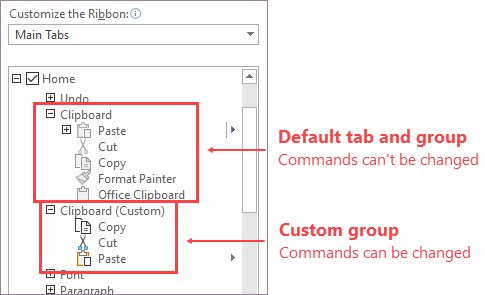
Office only lets you add commands to a custom group, so create one on the tab where you want Camera to appear.
- Right-click an empty area of the ribbon and select Customize the Ribbon.
- In the right-hand list, select the tab that should hold the button, such as Home or Insert.
- Click New Group, then click Rename, type a name such as Snapshot and click OK.
- With the new group selected, set Choose commands from to All Commands.
- Select Camera in the left-hand list and click Add.
- Click OK to close the dialog.
Using the Excel camera tool
The picture can go on the same sheet, another sheet in the workbook or a chart. Make the source range look right before you capture it, because the picture shows the cells as they are formatted, for example after you wrap text automatically in Excel.
- Select the cells you want in the picture, for example a summary table on a data sheet.
- Click Camera on the Quick Access Toolbar or your custom ribbon group.
- Switch to the sheet where the picture belongs, such as a Dashboard sheet.
- Click once where the top-left corner of the picture should sit; Excel drops the picture there.
- Drag the picture to place it, and drag a corner handle to resize it.
- Change a value in the source range and watch the picture redraw.
The camera picture is an ordinary picture object, so you can move, crop, group and align it with charts and shapes.
Paste a linked picture in Excel without the camera button
The Linked Picture paste option creates the same live image and needs no toolbar changes.
- Select the source cells and press Ctrl + C.
- Click the cell where the picture should go.
- On the Home tab, click the arrow under Paste.
- Select Linked Picture.
- Edit a source cell to confirm the pasted image follows the change.
Choose Picture instead of Linked Picture when you want a frozen image that keeps today's values.
When to use the Excel camera tool: some examples
Camera pictures are useful whenever data lives in one place but needs to be seen somewhere else.
| Example | What the camera picture does | Why it beats copying cells |
|---|---|---|
| While creating Excel dashboards | Shows KPI tables from several data sheets side by side on one dashboard sheet | Pictures ignore the dashboard's column widths and row heights, so tables of different shapes line up freely |
| When working with large datasets | Keeps a totals block from row 5,000 visible next to the top of the sheet | No scrolling, splitting or freezing panes to watch a distant summary, and no need to move rows in Excel just to keep totals in view |
| Creating linked images that update based on user selection | Displays a detail range driven by a drop-down choice | One picture shows whichever record the user picks, with all its formatting |
| Charts with notes | Places a small live table on top of a chart, even after you hide the chart data on its source sheet | Chart and figures sit together and move as one when grouped |
| Printing a one-page report | Collects ranges from different sheets onto one print sheet | Each range keeps its own layout on the page |
Advantages and limitations of the Excel camera tool
| Advantages | Limitations |
|---|---|
| Updates on its own when the source cells change, so dashboards and reports never show stale copies | Hidden by default; you have to add Camera to the Quick Access Toolbar or a custom ribbon group |
| Keeps fonts, fills and borders from the source range | You cannot type into the picture; edit the source cells instead |
| Ignores the column widths of the sheet it sits on, so tables of different shapes line up | Not available in Excel for the web, which lacks the Linked Picture paste option too |
| Works on any sheet in the workbook and inside charts | Stops updating once pasted into PowerPoint or another app; use a linked object there |
Best practices for using the Excel camera tool
| Best practice | Why it helps |
|---|---|
| Keep source ranges on a separate data sheet and the pictures on a dashboard or report sheet | Data entry and presentation stay apart, so nobody edits the dashboard by mistake |
| Format the source range before capturing it | The picture copies the cell formatting exactly as it is |
| Capture only the cells you need | A smaller range gives a cleaner picture that is easier to place |
| Group a camera picture with the chart or shapes it belongs to | They move and resize as one |
| Use Copy as Picture when a figure must stay frozen at today's value | A camera picture always changes with its source cells |
| Edit a source cell after placing each picture | Confirms the picture is still live before you share the workbook |
Create a linked image in Excel that changes with a drop-down selection
The picture always shows its source range, so make that range change with a formula and the picture follows. This example assumes product names in A2:A20 and prices in B2:B20 on a sheet called Data; remove duplicates from the column first so each product appears once in the drop-down.
- Select cell E2, go to Data > Data Validation, and on the Settings tab set Allow to List.
- Click in Source, select Data!A2:A20 and click OK; E2 is now a drop-down.
- In E4, type
=INDEX(Data!B2:B20,MATCH(E2,Data!A2:A20,0))to pull the price for the chosen product. - Format E2:E4 as a small card with fill, borders and a large font.
- Select E2:E4, click Camera, and click on the dashboard sheet to place the picture.
- Pick a different product in E2 and confirm the picture on the dashboard shows the new record.
Use the Excel camera tool for PowerPoint
A camera picture stays live only inside Excel. If you copy it into PowerPoint, it becomes an ordinary picture with today's values, and unlinked worksheet data does not send updates to PowerPoint.
- Save the workbook with the sheet you want to show as the active, top sheet.
- In PowerPoint, on the Insert tab, click Object.
- In Insert Object, select Create from file and click Browse to pick the workbook.
- Select Link and click OK.
- When the data changes, right-click the object in PowerPoint and select Update Link.
How to check an Excel camera picture is live
- Note a value shown in the picture, such as a total.
- Type a new value into one of the source cells and press Enter.
- Confirm the new value appears in the picture straight away.
- Change the fill colour of a source cell and check the picture picks up the formatting too.
If the picture does not change, it was pasted with Picture or Copy as Picture. Delete it and capture the range again with Camera or Linked Picture.
Format an Excel camera picture: border, background and size
- Right-click the camera picture to see its picture commands.
- Select Format Picture.
- Change or remove the border in the Format Picture pane.
- Make the background transparent in the same pane so the sheet shows through.
- Drag a corner handle to resize the picture while keeping its proportions.
Gridlines and cell fills come from the source range, so tidy the formatting there rather than in the picture.
Remove the camera tool from the Quick Access Toolbar or ribbon
- Right-click Camera on the Quick Access Toolbar and select Remove from Quick Access Toolbar.
- For a ribbon button, right-click the ribbon, select Customize the Ribbon, select your custom group and click Remove.
- To restore every default, click Reset in the same dialog and choose Reset all customizations; this also resets the Quick Access Toolbar.
- To delete a camera picture itself, click it and press Delete; the source cells are not affected.
Excel camera tool not working: fixes
Where is the Excel camera tool? It is not on any tab
Camera is a command that is not on the default ribbon.
- Open More Commands from the Quick Access Toolbar arrow.
- Choose Commands Not in the Ribbon or All Commands.
- Add Camera and click OK.
The camera picture does not update when the data changes
The image was pasted as a static picture rather than a linked one.
- Delete the picture that does not change.
- Select the source range again.
- Recapture it with Camera or Home > Paste > Linked Picture, not Picture or Copy as Picture.
No camera or Linked Picture option in Excel for the web
The web version's paste options are limited to Paste, Formulas, Values, Formatting and Transpose.
- Open the workbook in the Excel desktop app for Windows.
- Create the camera picture there and save the workbook.
- Edit the source cells in the desktop app when the picture needs to refresh.
Can't add the camera command to an existing ribbon group
Office only accepts new commands in custom groups.
- In Customize the Ribbon, select the target tab.
- Click New Group and rename it.
- Add Camera to that new group.
The camera picture in PowerPoint stopped updating
Pasting a camera picture into PowerPoint copies a plain image.
- Delete the pasted image from the slide.
- Use Insert > Object > Create from file with Link selected.
- Right-click the object and select Update Link after the workbook changes.
Excel camera tool FAQ
What is the Excel camera tool?
The Excel camera tool is the Camera command, which creates a picture linked to a cell range. Whenever values or formatting in that range change, the picture updates automatically, so it works like a live window onto other cells.
Where is the camera tool in Excel?
The camera tool is not on any default ribbon tab. Find it under Commands Not in the Ribbon or All Commands in the Quick Access Toolbar's More Commands dialog, then add it to the toolbar or to a custom ribbon group.
How do you add the camera tool to the Excel ribbon?
Right-click the ribbon and choose Customize the Ribbon, select a tab, click New Group, set Choose commands from to All Commands, select Camera and click Add, then OK. Commands can only go into custom groups.
How do you use the camera function in Excel?
Select the cells to capture, click Camera, then click where the picture should go on any worksheet or chart. The picture shows the selected range and refreshes whenever those cells change.
Is the camera tool available in Excel for Microsoft 365?
Yes, the Camera command is available in the Microsoft 365 desktop app for Windows once you add it to the Quick Access Toolbar or ribbon. Excel for the web does not offer it or the Linked Picture paste option.
How do you enable the camera in Excel?
Enable it by adding the command: click the Quick Access Toolbar arrow, select More Commands, choose All Commands, select Camera, click Add and OK. Nothing needs to be turned on in Excel's settings.
Is Linked Picture the same as the camera tool?
Yes, the result is the same: Home > Paste > Linked Picture pastes a picture linked to the copied cells, and changes to those cells appear in the picture. The camera only saves the copy-and-paste step.
Can I use the Excel camera tool for charts?
Yes. Select the cells, click Camera, then click inside a chart to drop the live picture onto it. This is handy for placing a small table of figures next to a chart's plot area.
Can the camera tool picture go on a different sheet?
Yes. After clicking Camera, switch to any other sheet in the workbook and click where the picture should go. The picture stays linked to the original range on its source sheet.